### [A Beginner's Guide to SMTP: What It Is and How It Works](https://wpmailsmtp.com/what-is-smtp-how-it-works/)
**Published:** August 20, 2024
**Author:** Rachel Adnyana
**Excerpt:** SMTP is essential for reliable email delivery, but what is SMTP exactly? In this beginner's guide, learn all about how SMTP works to route your emails efficiently and securely and why it's a better option than the built-in PHP mail() function in WordPress.
Find out about SMTP servers, ports, and why implementing an SMTP plugin like WP Mail SMTP is crucial to improve your email deliverability and ensure important messages reach your users' inboxes.
**Content:**
WP Mail SMTP is a plugin that can significantly improve your WordPress site’s email functionality. Once installed, it replaces the default PHP mail() function with SMTP for sending emails. This change leads to more reliable and secure email delivery from your WordPress site.
But what exactly is SMTP? How does it work, and why is it superior to the built-in PHP mail() function?
In this guide, I’ll break down SMTP for you in clear, straightforward terms. By the end of it you’ll know exactly what SMTP is, how it routes your email safely and securely, and why using an SMTP plugin on your WordPress Site is a must.
[Fix Your WordPress Emails Now](https://wpmailsmtp.com/pricing/)
## What is SMTP?
Simple Mail Transfer Protocol (SMTP) is a way for sending mail servers, receiving mail servers, and message transfer agents to communicate.
You can think of it as a language that tells a mail server where to send a message, what’s in the message, and if there are any attachments. It also tells mail servers what to do if the email can’t be delivered.
Think about the options you have when you want to send a letter to someone. You can send it by the local postal service, or by various private couriers. In the real world, these different mail services all act like various mail “protocols” – each one has its own methods for delivering messages and deciding what to do if the recipient isn’t at the stated address or refuses the letter.

SMTP happens to be one of the fastest and most reliable ways to deliver your emails. If it was a courier in the real world, it would be the gold standard of message delivery, ensuring your important emails reach their destination safely and securely.
Let’s take a closer look behind the scenes at what happens when your website sends an email.
### How WP Mail SMTP Works
Here’s what happens once you click the “send” button on your email or your WordPress site sends an email via an SMTP plugin like WP Mail SMTP:
#### 1. Triggering the Email
First, an action on your website triggers the need to send an email. This could be a new user registering, someone filling out a contact form, or an order confirmation.
#### 2. WP Mail SMTP Takes Over
Instead of using the default WordPress email function (which often has deliverability issues), the WP Mail SMTP plugin steps in to handle the email delivery.
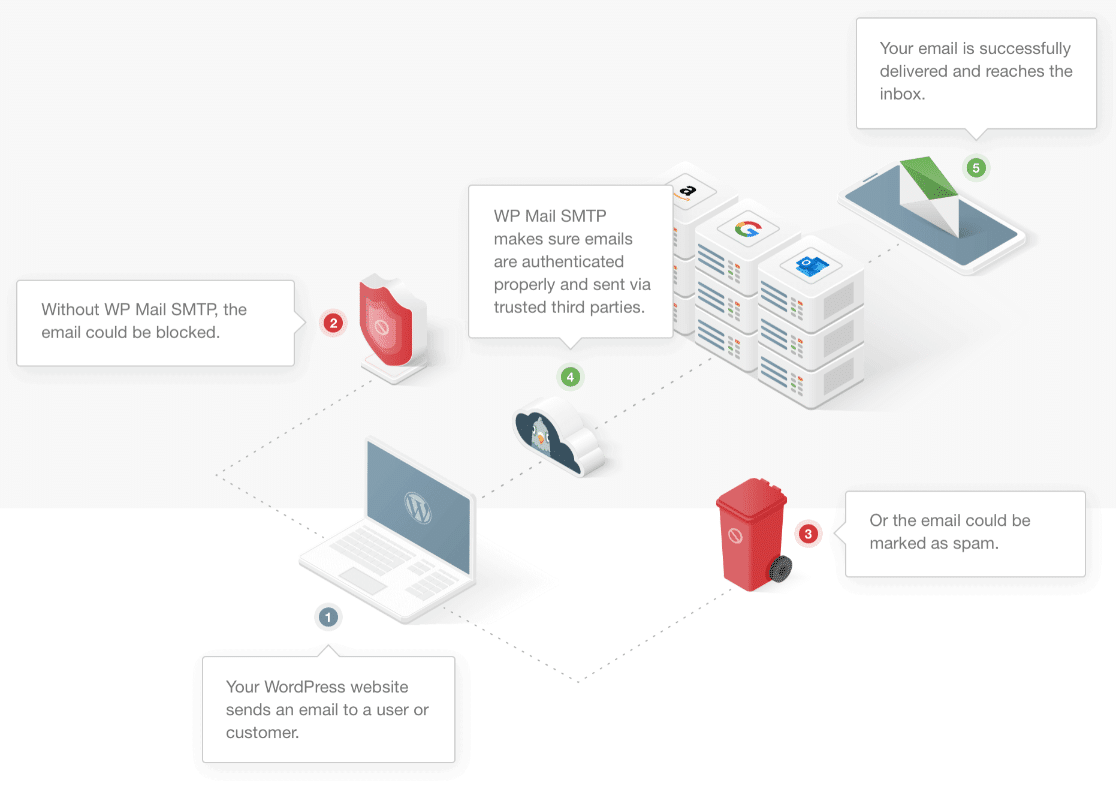
The plugin reconfigures the wp\_mail() function to use a proper SMTP server instead of the standard PHP mail function.
#### 3. Choosing the SMTP Service
WP Mail SMTP sends the email through the SMTP service you’ve configured in the plugin settings. This could be your hosting provider’s SMTP server, or a third-party service like SendLayer, Gmail, or [another email service provider](https://wpmailsmtp.com/choosing-the-right-smtp-provider-for-your-wordpress-site/).
#### 4. Authenticating the Email
The plugin authenticates the email using your SMTP service credentials. This step ensures that the email is sent securely and is less likely to be marked as spam.
Authentication involves logging into the SMTP server with the username and password you provided.
#### 5. Sending the Email
Once authenticated, the SMTP server processes the email and sends it out to the recipient’s email server.
The email is now on its way to the recipient, passing through various checkpoints to ensure it’s delivered successfully.
#### 6. Recipient’s Email Server Receives the Email
The recipient’s email server receives the email and places it in the inbox (or, in some cases, the spam folder if there are issues like poor sender reputation).
If everything goes well, the recipient will see the email in their inbox.
#### 7. Delivery Confirmation (Optional)
Depending on your SMTP service and settings, you might receive a delivery confirmation or log entry showing that the email was successfully sent.
And that’s it! WP Mail SMTP helps ensure that your emails are properly authenticated and delivered, reducing the chances of them ending up in spam.
### How Does SMTP Work?
WP Mail SMTP and other SMTP plugins do the job of getting the email from your site to the outgoing mail server (SMTP server). But what happens then?
As SMTP is a protocol (you can think of it like a language), it lets you send email from any type of hardware or software to any other device.
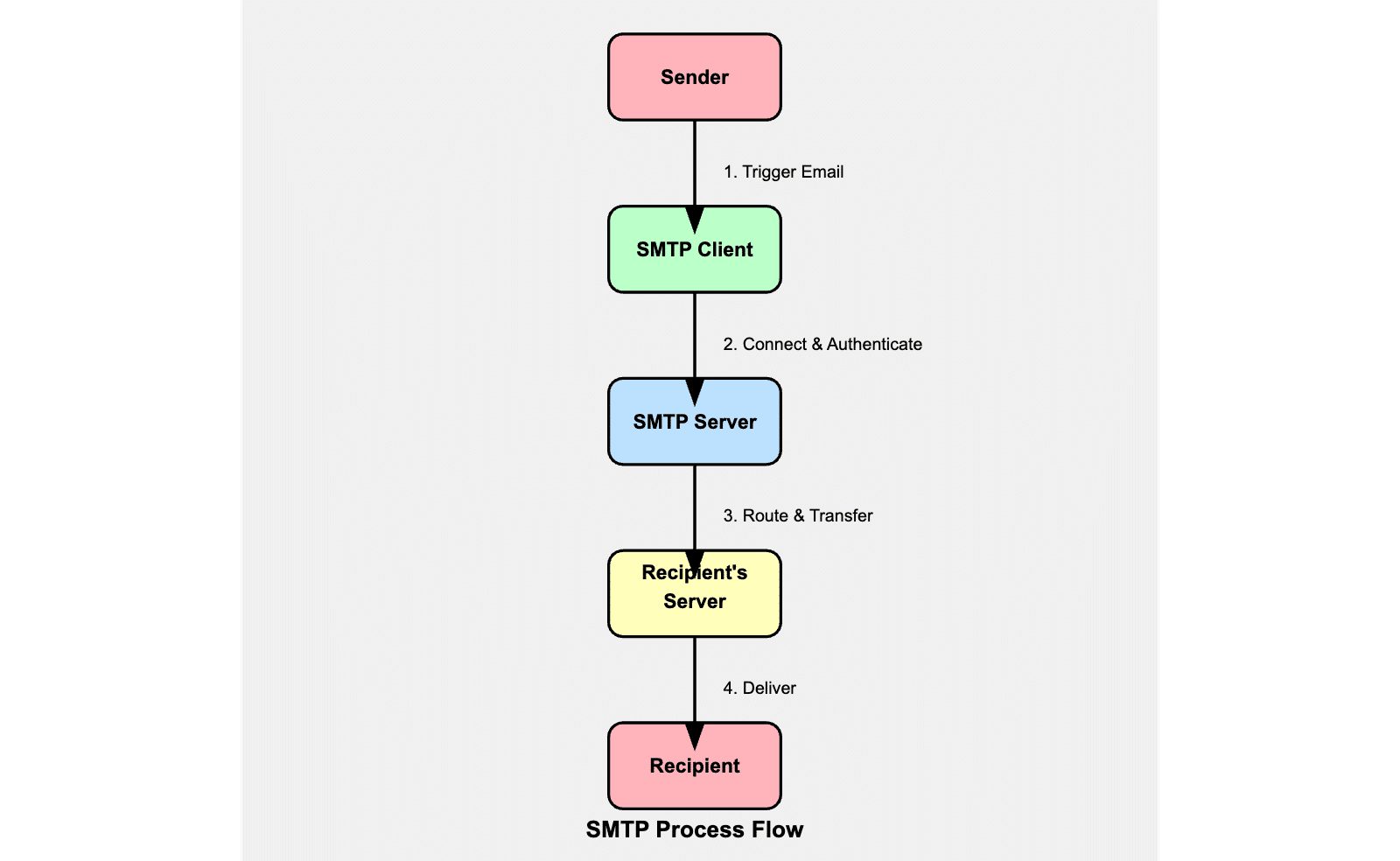
You can send email from an iPhone to a PC, a website to an app, or from a MacBook to your printer. Because all these devices “speak” and understand the SMTP protocol, they’ll know what to do with your email.
#### 1. Connecting to the SMTP Server
The email client (which could be an application, website, or software like WP Mail SMTP) connects to the SMTP server and introduces itself with something called a “handshake”, which is essentially saying, “Hello, I want to send an email.” The server responds with its own greeting, confirming it’s ready to proceed.
#### 2. Authentication
The client logs in to the SMTP server using a username and password to ensure the email is sent securely.
The server checks the credentials. If they are correct, the server responds with a success message, allowing the client to proceed. If not, the connection is terminated or the client is asked to reauthenticate.
#### 3. Sending the Email
The client tells the server who the email is from and who it’s going to. The server checks each recipient’s address to ensure it can deliver emails to those addresses.
The client then sends the full email content, including any attachments, to the server. Upon receiving the full message, the server acknowledges the end of the data transfer and confirms whether the email has been accepted for delivery.
#### 4. Routing the Email
The SMTP relay processes the email and forwards it to the recipient’s email server, finding the correct path by performing a DNS lookup to find the recipient’s mail server address (MX record). This works similarly to looking up a phone number in a directory.
The email is then forwarded to the recipient’s [SMTP server for delivery](https://wpmailsmtp.com/what-to-do-if-your-smtp-server-goes-down/). This step may involve passing through several intermediate servers (relays) before reaching the final destination.
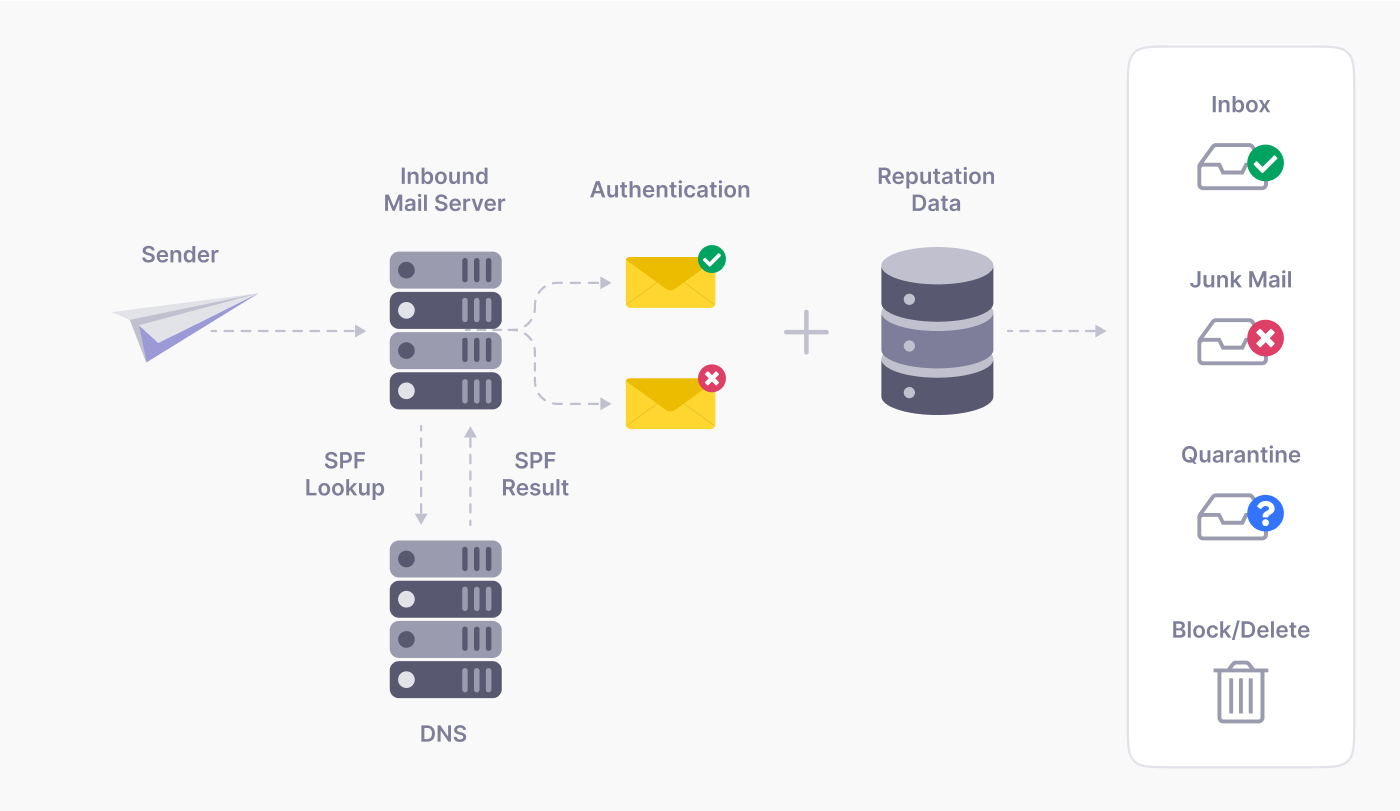
As emails pass through various servers, they might be checked by spam filters, which evaluate factors like sender reputation, content analysis, and authentication protocols like SPF, DMARC, and DKIM to determine if the email is legitimate.
#### 6. Delivery
The recipient’s SMTP server receives the email. Once the receiving mail server accepts the email, there are other protocols that work to retrieve the emails from the server and deliver them to your inbox.
POP3 downloads messages directly from the mail server to your device while IMAP also retrieves the message but leaves a copy on the server.
The SMTP server responds with a confirmation, closes the connection, and the email transaction is complete.
#### 7. Error Handling
If any issues occur during the process (e.g., invalid recipient address, server unavailability, etc.), the server returns SMTP error codes to the client. The client may attempt to resend the email or notify the sender of the failure.
Error CodeClassDescription2xxSuccessThe requested action has been successfully completed211SuccessSystem status or help reply214SuccessHelp message220SuccessService ready221SuccessService closing transmission channel250SuccessRequested mail action okay, completed251SuccessUser not local; will forward252SuccessCannot verify user, but will attempt delivery354SuccessStart mail input; end with .