### [How to Fix Email Delays in WordPress](https://wpmailsmtp.com/how-to-fix-email-delays-in-wordpress/)
**Published:** October 21, 2025
**Author:** Hamza Shahid
**Excerpt:** Are your WordPress emails showing up 20 minutes late? Or worse, arriving hours after someone submitted a form or completed checkout?
The problem starts with how WordPress sends emails. By default, it uses PHP's mail() function, which is slow and unreliable.
Most hosts also throttle how many emails you can send per hour. Hit that limit and your emails queue up, causing delays that stack throughout the day.
In this guide, I'll walk you through what's actually causing the delays on your site and how to fix them so your emails send instantly.
**Content:**
Are your WordPress emails showing up 20 minutes late? Or worse, arriving hours after someone submitted a form or completed checkout?
The problem starts with how WordPress sends emails. By default, it uses PHP’s mail() function, which is slow and unreliable.
Most hosts also throttle how many emails you can send per hour. Hit that limit and your emails queue up, causing delays that stack throughout the day.
In this guide, I’ll walk you through what’s actually causing the delays on your site and how to fix them so your emails send instantly.
#### Quick answer: how to fix WordPress email delays
Install WP Mail SMTP and connect it to a transactional mailer like SendLayer, Postmark, or Brevo to replace PHP mail. On low-traffic sites, set up a real system cron at 5-minute intervals so wp-cron actually runs. Add SPF, DKIM, and DMARC to your DNS to stop recipient servers from greylisting you. Plugin setup takes about 30 minutes. Delivery typically drops from minutes or hours to under 5 seconds.
[Fix Your Email Delays Now! 🙂](https://wpmailsmtp.com/pricing/)
### Why Email Delays Happen in WordPress
Most WordPress email delays trace back to four causes: PHP mail, hosting throttles, wp-cron not running on time, and greylisting on the recipient side. Here’s how each one creates a delay.
WordPress uses [PHP’s mail() function](https://wpmailsmtp.com/why-wp_mail-is-not-working/ "PHP's mail() function") to send emails, and that’s where most delay problems start. When you send an email through PHP mail(), WordPress hands it off to your server’s local mail transfer agent. That process is slow because it wasn’t designed for web applications that need instant delivery.
Your server then has to queue the email, process it, and attempt delivery through your hosting provider’s mail server. Each step adds time, and if the server is busy handling other tasks (which it almost always is on shared hosting), your email waits in line.
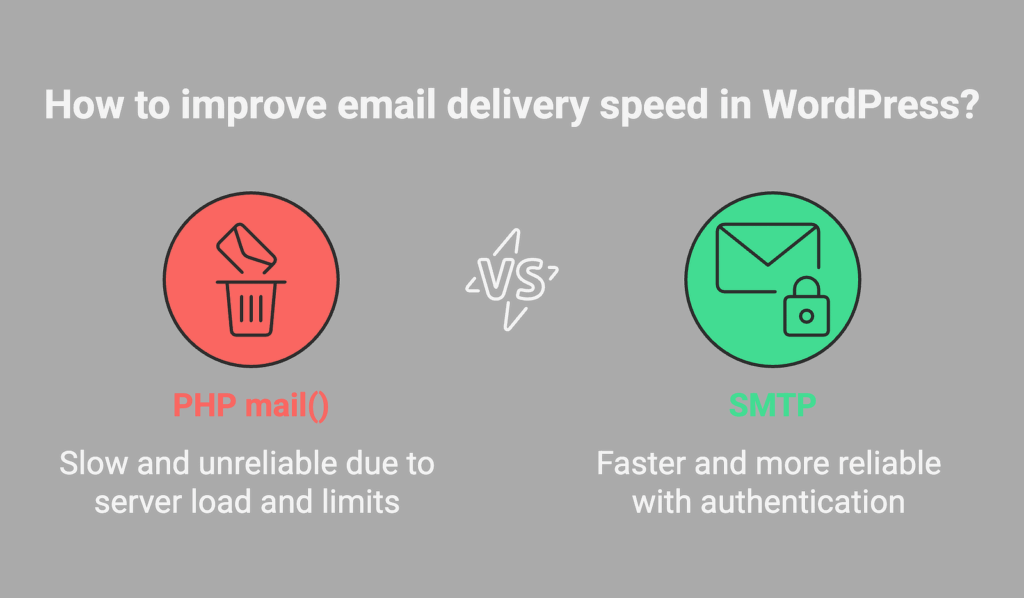Shared hosting makes this worse because providers put strict limits on how many emails you can send per hour. Most budget hosts cap you at 100 to 300 emails per hour. [Once you hit that limit](https://wpmailsmtp.com/email-sending-limits-for-wordpress/ "Once you hit that limit"), every additional email gets delayed until the next hour starts.
There’s also the issue of greylisting, which happens on the recipient’s side. When your email arrives at someone’s mail server without proper authentication, that server might temporarily reject it and tell your server to try again in 15 minutes. This is a spam prevention technique, but it causes legitimate emails to get delayed.
#### How to recognize greylisting
The clearest sign of greylisting is a consistent delay of about 15 minutes on the first email to a new recipient, with later emails to the same address arriving normally. The fix isn’t on your side. It’s about proving you’re a legitimate sender. Setting up SPF, DKIM, and DMARC records on your domain stops most servers from greylisting you. Our guide on [fixing WordPress email spoofing](https://wpmailsmtp.com/how-to-fix-wordpress-email-spoofing-issues/ "how to fix WordPress email spoofing issues") walks through the full setup.
[Fix Your Email Delays Now! 🙂](https://wpmailsmtp.com/pricing/)
## How to Fix Email Delays in WordPress
Let’s troubleshoot delivery delays, verify that schedulers are running on time, and switch from PHP mail to a dedicated mailer using WP Mail SMTP. Use the steps below in order, or jump to the one that matches your symptom.
Symptom you’re seeingMost likely causeWhere to startConsistent ~15 minute delay on first sends to new recipientsGreylisting (missing email authentication)Set up [SPF, DKIM, and DMARC](https://wpmailsmtp.com/how-to-fix-wordpress-email-spoofing-issues/)Newsletter, membership, or scheduled emails delayed by hourswp-cron not firing on low-traffic sitesStep 1WooCommerce order or renewal emails delayedAction Scheduler queue backed upStep 1 (Woo callout)Every WordPress email is slow, all the timeStill using PHP mailStep 2Delays only during traffic peaks or bulk sendsHosting provider throttleStep 4 + Step 5Intermittent or random delaysShared hosting load or single mailer overloadedStep 5 (backup mailer)Email log shows Sent, but arrival is still slowRecipient-side queue or greylistingStep 6- [Step 1: Check if WordPress cron is working](#step-1-check-if-wordpress-cron-is-working)
- [Pro Tip](#aioseo-pro-tip-19)
- [Step 2: Install and Set Up WP Mail SMTP](#step-2-install-and-set-up-wp-mail-smtp)
- [Step 3: Enable Email Logging and Alerts](#step-3-enable-email-logging-and-alerts)
- [Step 4: Configure Email Rate Limiting (Optional)](#step-4-configure-email-rate-limiting)
- [Note](#aioseo-note-62)
- [Step 5: Add a Backup Mailer and Smart Routing](#step-5-add-a-backup-mailer-and-smart-routing)
- [Note](#aioseo-note-76)
- [Step 6: Send a Test Email to Confirm Speed](#step-6-send-a-test-email-to-confirm-speed)
- [FAQs on How to Fix Email Delays in WordPress](#aioseo-faqs-on-how-to-fix-email-delays-in-wordpress-88)
- [Why are my WordPress emails delayed by hours?](#aioseo-why-are-my-wordpress-emails-delayed-by-hours-91)
- [How do I know if my emails are delayed or just not sending?](#aioseo-how-do-i-know-if-my-emails-are-delayed-or-just-not-sending-93)
- [Can email delays be caused by my hosting provider?](#aioseo-can-email-delays-be-caused-by-my-hosting-provider-95)
- [What’s the fastest way to send emails from WordPress?](#aioseo-whats-the-fastest-way-to-send-emails-from-wordpress-97)
- [Does WP Mail SMTP Pro prevent email delays?](#aioseo-does-wp-mail-smtp-pro-prevent-email-delays-99)
- [How long should it take for a WordPress email to arrive?](#aioseo-how-long-should-it-take-for-a-wordpress-email-to-arrive-101)
- [Can too many plugins cause email delays?](#aioseo-can-too-many-plugins-cause-email-delays-103)
- [What’s the difference between email delays and emails going to spam?](#aioseo-whats-the-difference-between-email-delays-and-emails-going-to-spam-105)
### Step 1: Check if WordPress cron is working
WordPress also depends on wp-cron to handle scheduled tasks, including some email sending from plugins like newsletter tools or membership sites.
The problem is wp-cron only runs when someone visits your site. Low traffic sites can have cron jobs that don’t fire for hours, which means any emails tied to those jobs just sit there waiting for a visitor to trigger the process.
## Pro Tip
On low-traffic sites, set a real cron (every 5 minutes): add define(‘DISABLE\_WP\_CRON’, true) to wp-config.php and schedule curl -s https://example.com/wp-cron.php?doing\_wp\_cron > /dev/null 2>&1 in your hosting panel.
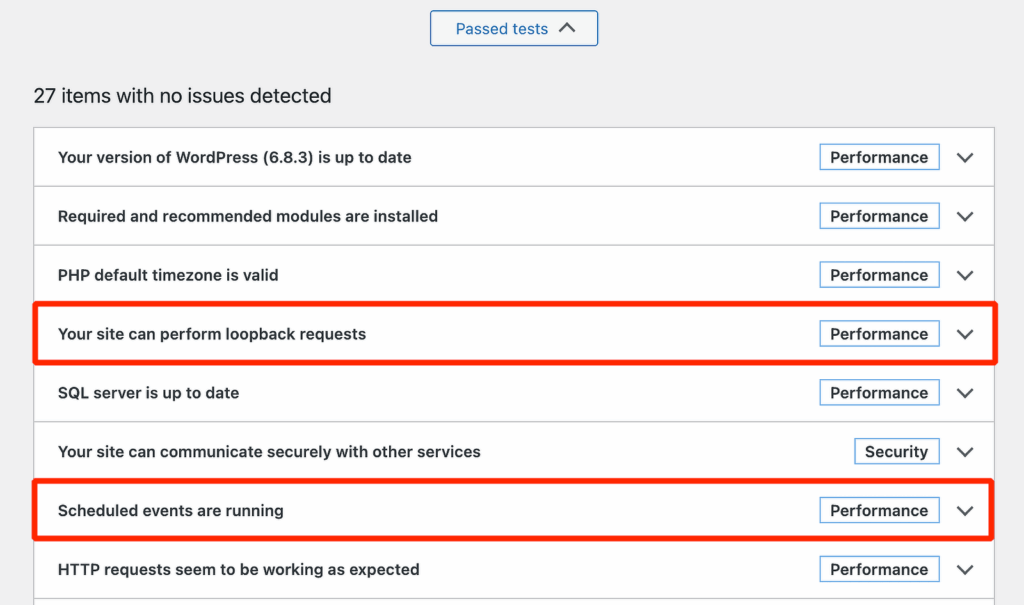
Let’s also run a quick health check. Go to **Tools » Site Health » Status** and look for Loopback request and Scheduled events. If either shows a problem, you’ll need to fix the issue.
If both pass the test, your email delays are likely down to PHP mail rather than wp-cron, and Step 2 is where to go next.
#### Running WooCommerce? Two things to check
First, WooCommerce 3.0 and later deliberately defers transactional emails by 5 to 10 seconds for checkout performance. Brief delays on order emails are by design, not a bug. Second, if Woo emails are delayed by minutes or hours, go to **WooCommerce » Status » Scheduled Actions** and look for Pending or Past-due entries. A growing queue there means Action Scheduler isn’t processing tasks fast enough, which usually traces back to wp-cron. The system cron fix in the Pro Tip above resolves both problems at once.
### Step 2: Install and Set Up WP Mail SMTP
Now we’ll swap WordPress off PHP mail and onto a dedicated mailer, so your emails send fast and consistently. This takes a few minutes and pays off right away.
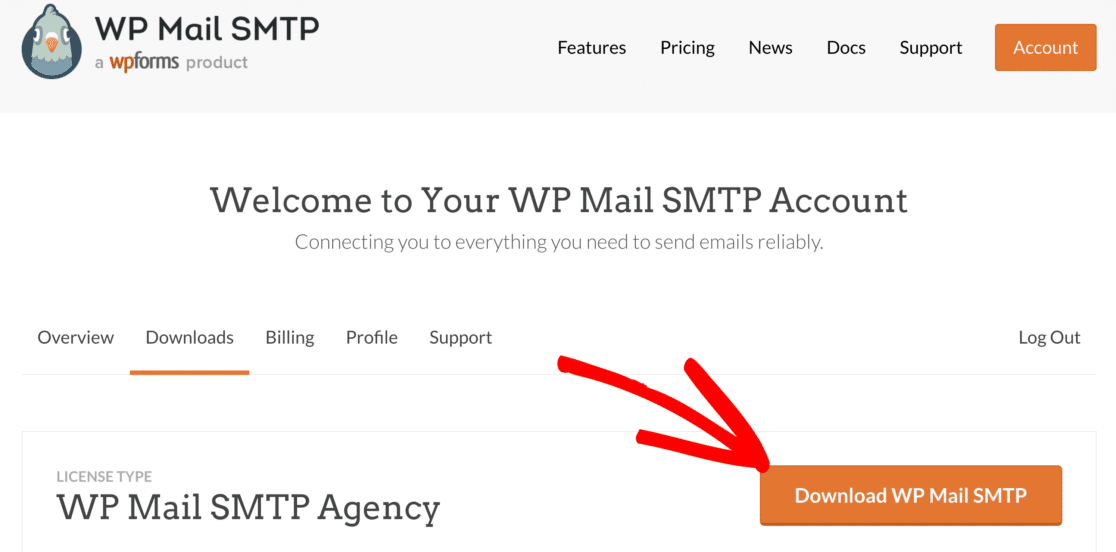
If you have [WP Mail SMTP Pro](https://wpmailsmtp.com/pricing/ "WP Mail SMTP Pro"), log in to your account. Switch to the **Downloads** tab to grab the latest version of the plugin file.
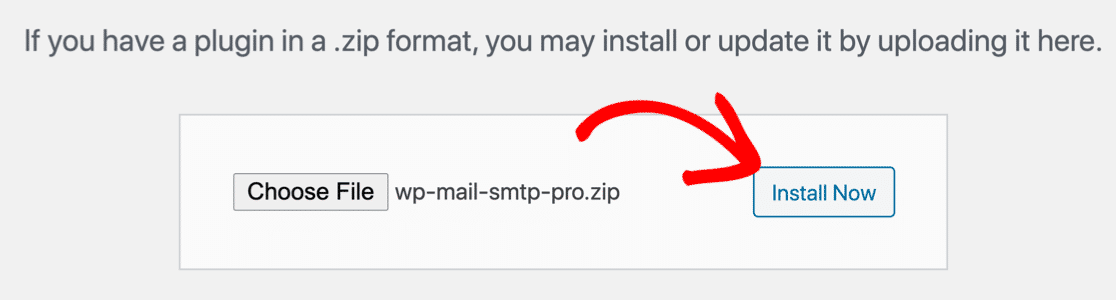
In your WordPress dashboard, go to **Plugins » Add New » Upload Plugin**, upload the zip, click **Install Now**. Once the plugin is installed, be sure to activate it.
As soon as you do this, the Setup Wizard of the plugin will launch in your browser. It’s important to complete the entire Setup Wizard to fix the issue.
#### Need a hand?
Our [Elite license](https://wpmailsmtp.com/pricing/) includes White Glove Setup for WP Mail SMTP.
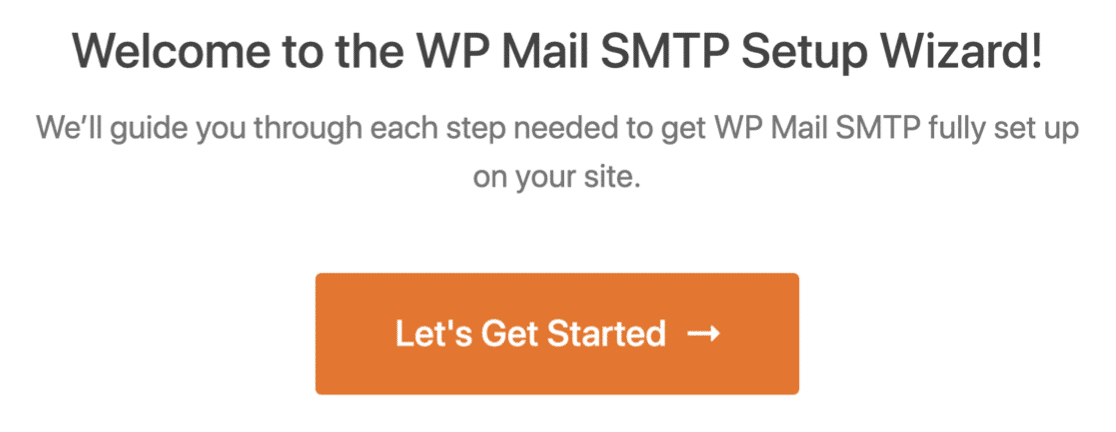
Remember that if you install the plugin and you don’t set it up, it won’t have any effect. In the wizard, click **Let’s Get Started** and choose your mailer.
I usually pick a transactional provider like SendLayer, SMTP.com, or Brevo for speed and reliability, since they handle queues and rate limits better than basic webmail.
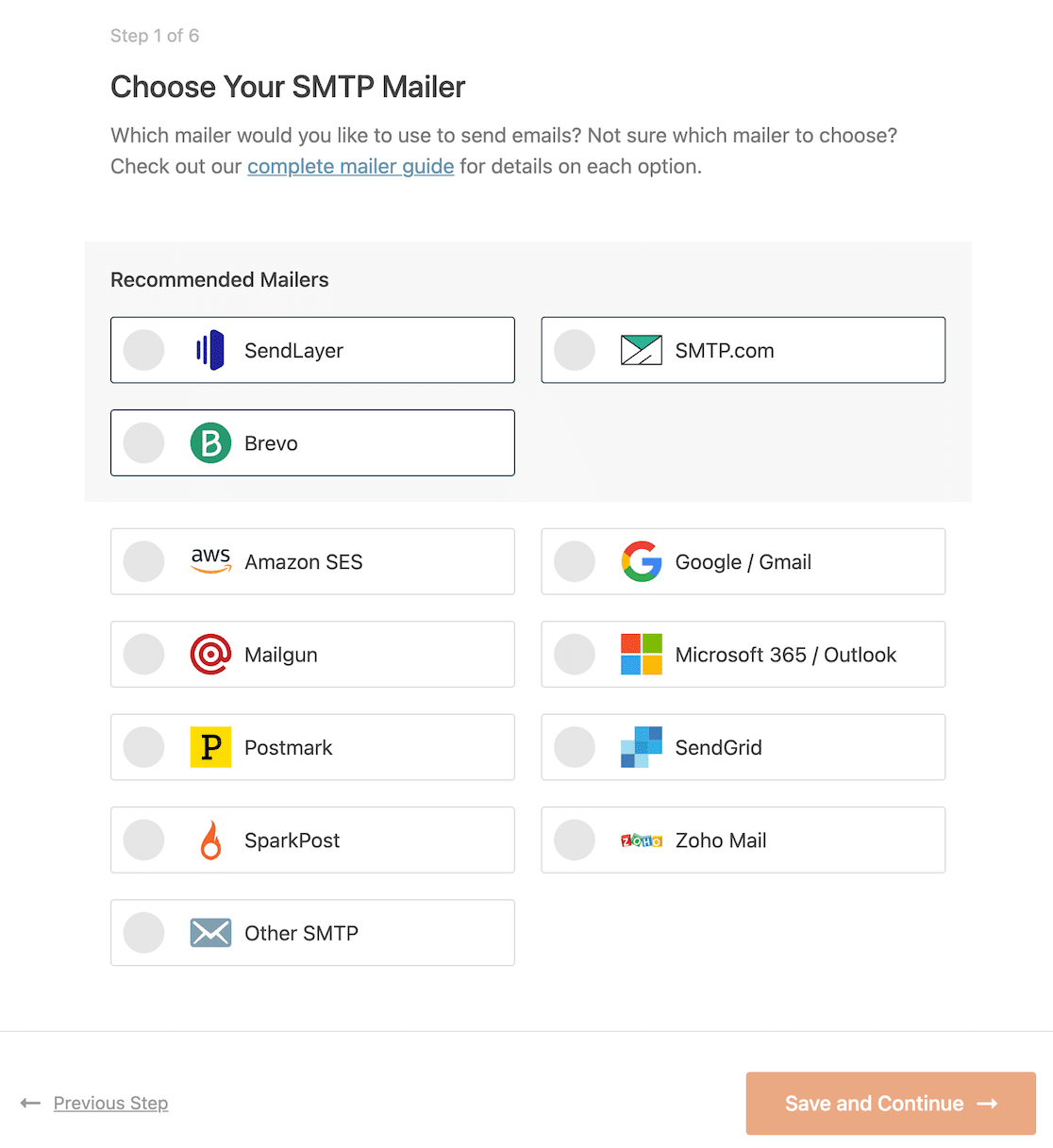Once you’ve chosen your email provider, click on the link below to open up the documentation for it. We’ve produced a complete guide for every mailer so you can easily get your WordPress site connected:
Mailers available in all versionsMailers in [WP Mail SMTP Pro](https://wpmailsmtp.com/pricing/)[SendLayer](https://wpmailsmtp.com/docs/how-to-set-up-the-sendlayer-mailer-in-wp-mail-smtp/)[Amazon SES](https://wpmailsmtp.com/docs/how-to-set-up-the-amazon-ses-mailer-in-wp-mail-smtp/)[SMTP.com](https://wpmailsmtp.com/docs/how-to-set-up-the-smtp-com-mailer-in-wp-mail-smtp/)[Microsoft 365 / Outlook.com](https://wpmailsmtp.com/docs/how-to-set-up-the-outlook-mailer-in-wp-mail-smtp/)[Brevo](https://wpmailsmtp.com/docs/how-to-set-up-the-sendinblue-mailer-in-wp-mail-smtp/)[Zoho Mail](https://wpmailsmtp.com/docs/how-to-set-up-the-zoho-mailer-in-wp-mail-smtp/)[Google Workspace / Gmail](https://wpmailsmtp.com/docs/how-to-set-up-the-gmail-mailer-in-wp-mail-smtp/) [Mailgun](https://wpmailsmtp.com/docs/how-to-set-up-the-mailgun-mailer-in-wp-mail-smtp/) [Postmark](https://wpmailsmtp.com/docs/how-to-set-up-the-postmark-mailer-in-wp-mail-smtp/) [SendGrid](https://wpmailsmtp.com/docs/how-to-set-up-the-sendgrid-mailer-in-wp-mail-smtp/) [SparkPost](https://wpmailsmtp.com/docs/how-to-set-up-the-sparkpost-mailer-in-wp-mail-smtp/) [Other SMTP](https://wpmailsmtp.com/docs/how-to-set-up-the-other-smtp-mailer-in-wp-mail-smtp/) Follow the on-screen steps to connect your account, then complete the fields the mailer asks for. Depending on your choice, you’ll paste an API key, sign in with OAuth, or approve sending from your domain.
### Step 3: Enable Email Logging and Alerts
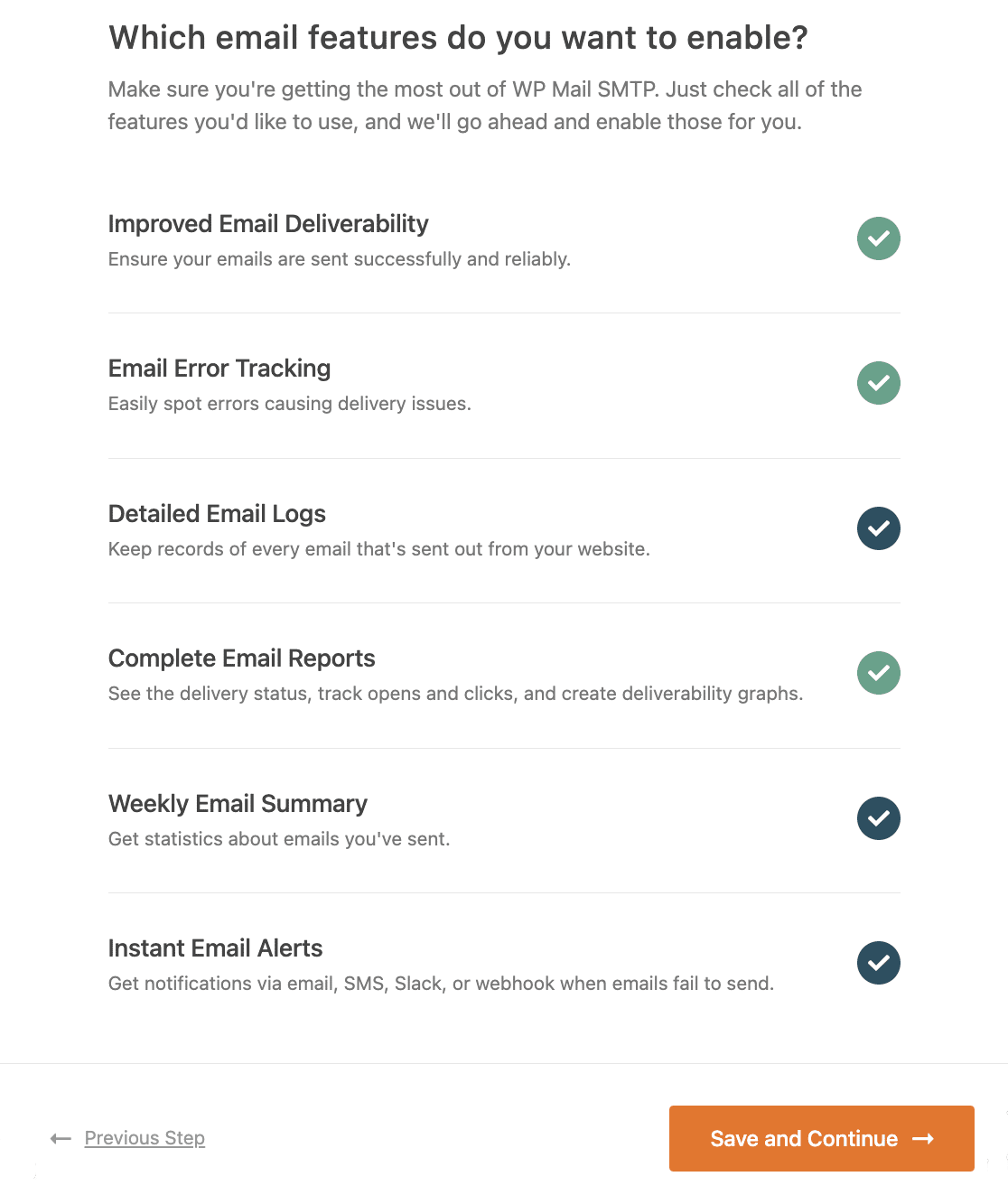
At the end of the Setup Wizard, WP Mail SMTP asks which features you want to enable. Your mailer is now active, so messages route through it, and the plugin will [flag common DNS/auth issues](https://wpmailsmtp.com/dmarc-spf-dkim/ "flag common DNS/auth issues") that often slow delivery.
To diagnose delay, I recommend turning on **Detailed Email Logs** and the **Weekly Email Summary** in the wizard. These make it easy to spot when emails pile up at certain times or get stuck before sending.
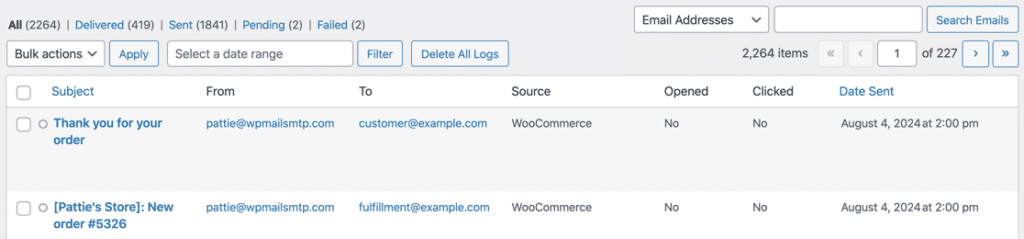
Once enabled, go to **WP Mail SMTP » Email Log** to see each email’s status, timestamps, and recipients.
If your mailer supports it, you’ll also see markers like **Sent** and **Delivered**, which help you tell if the delay is in WordPress, the mailer, or on the recipient’s side.
WP Mail SMTP Pro adds a dashboard widget that charts sent and failed emails so you can spot slow periods at a glance.
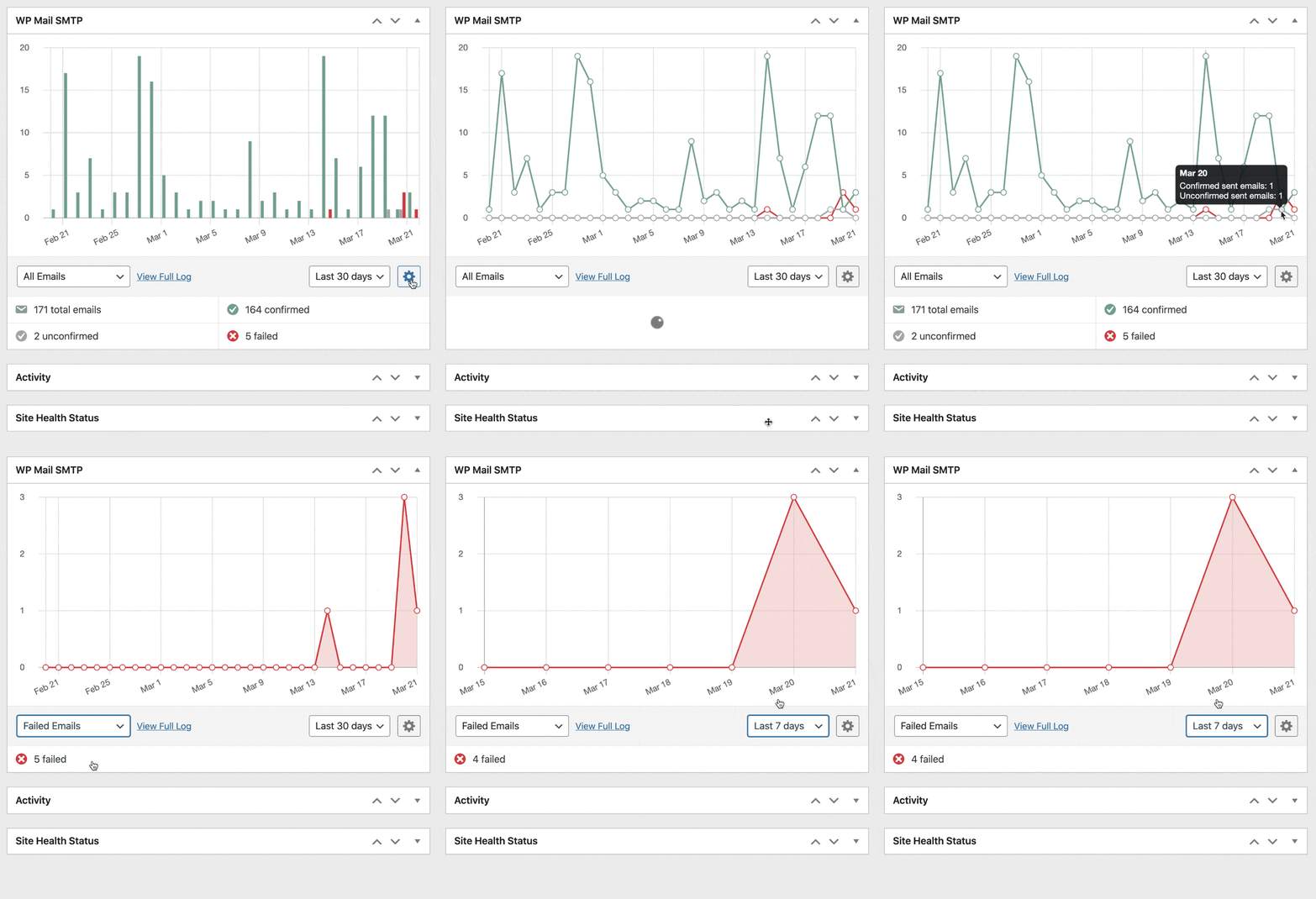You can search the log by subject or headers to quickly check whether a specific notification is lagging.
[If delays lead to failures](https://wpmailsmtp.com/how-to-get-alerts-when-wordpress-emails-fail/ "If delays lead to failures"), you can **Resend** failed emails individually or in bulk, or forward a copy to another address.
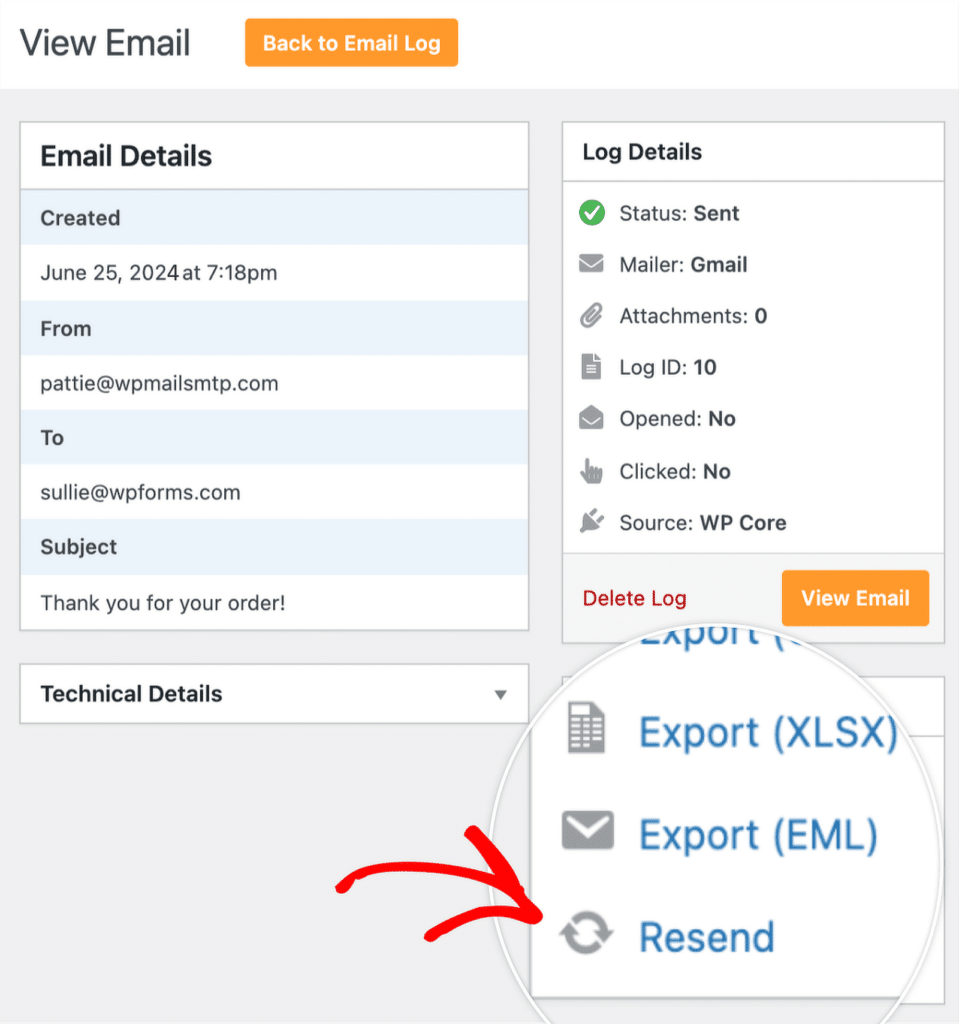You can tweak logging anytime under **WP Mail SMTP » Settings » Email Log**.
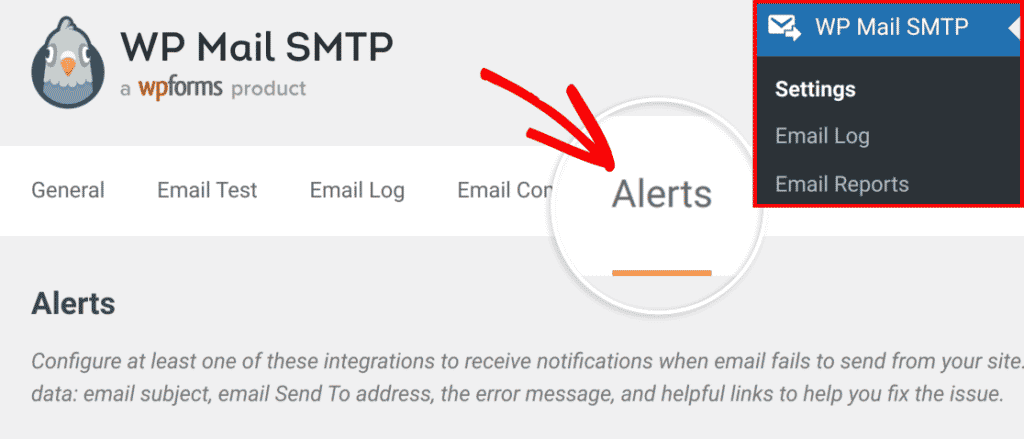
If you want alerts the moment something breaks, turn on [Email Alerts](https://wpmailsmtp.com/docs/setting-up-email-alerts/ "Email Alerts") so you’re notified when the site fails to send and you can act before delays stack up.
### Step 4: Configure Email Rate Limiting (Optional)
If you’re running a WordPress site that sends a lot of emails, rate limiting helps by smoothing your send pace so you do not hit provider throttles that push messages into long queues.
You will also get better perceived speed by sending in the background instead of during page loads. Go to **WP Mail SMTP » Settings » Misc** and toggle **Optimize Email Sending** to send emails asynchronously.
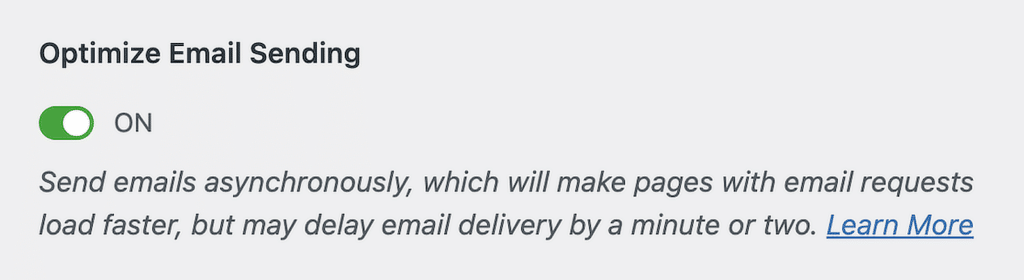This keeps checkouts, registrations, and form submits fast, and it lets WP Mail SMTP handle the send in the background.
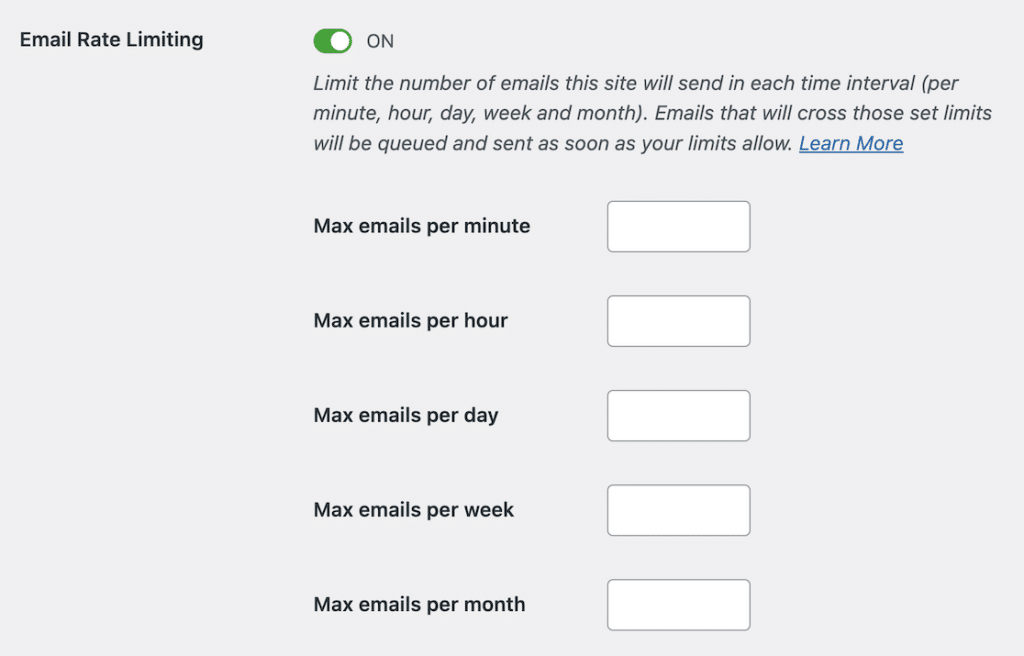
Next, toggle **Email Rate Limiting** and set caps that fit your mailer: per minute, hour, day, week, or month.
If a send would exceed a limit, WP Mail SMTP automatically schedules it for later so your provider does not throttle you and cause bigger delays.
## Note
On low‑traffic sites, both features can slow delivery if there is nothing to trigger background jobs. If that applies to you, set up a real system cron as in Step 1, then enable Optimize Email Sending and Email Rate Limiting so the queue moves on a reliable schedule.
### Step 5: Add a Backup Mailer and Smart Routing
High‑traffic sites hit provider limits fast, which creates queues and slows everything down. A backup mailer with smart routing spreads the load and gives you automatic failover.
First, add a secondary connection. Go to **WP Mail SMTP » Settings » Additional Connections** and configure your new mailer to set it up as a backup.
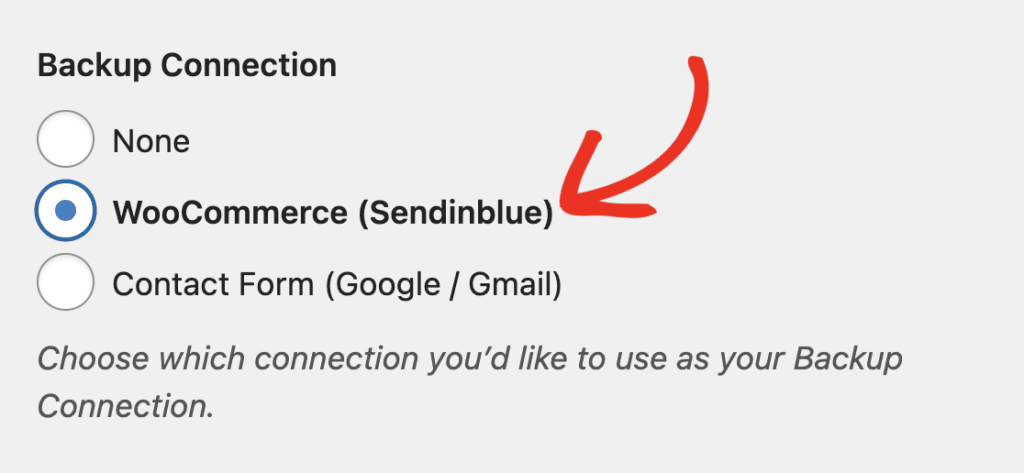
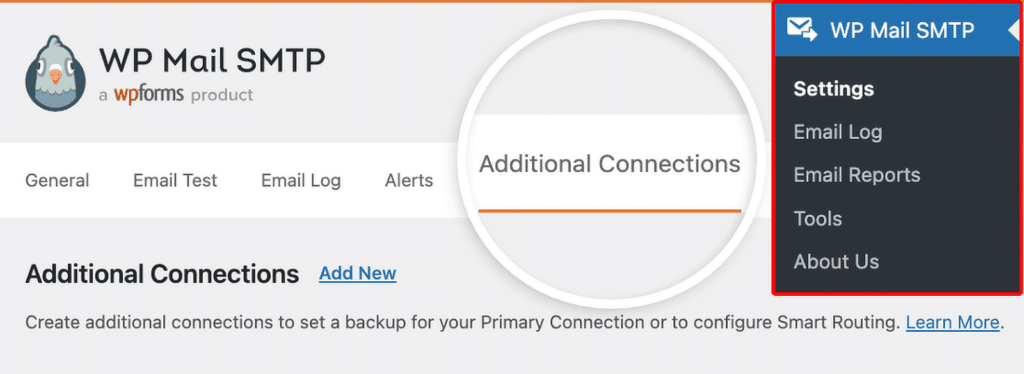Once you’ve added an additional connection, go to **WP Mail SMTP » Settings** to access the plugin’s settings page. On the **General** tab, scroll down to the **Backup Connection** section.
Here, you’ll be able to choose any additional connection you’ve previously configured. Go ahead and choose the one you’d like to use as a **Backup Connection**.
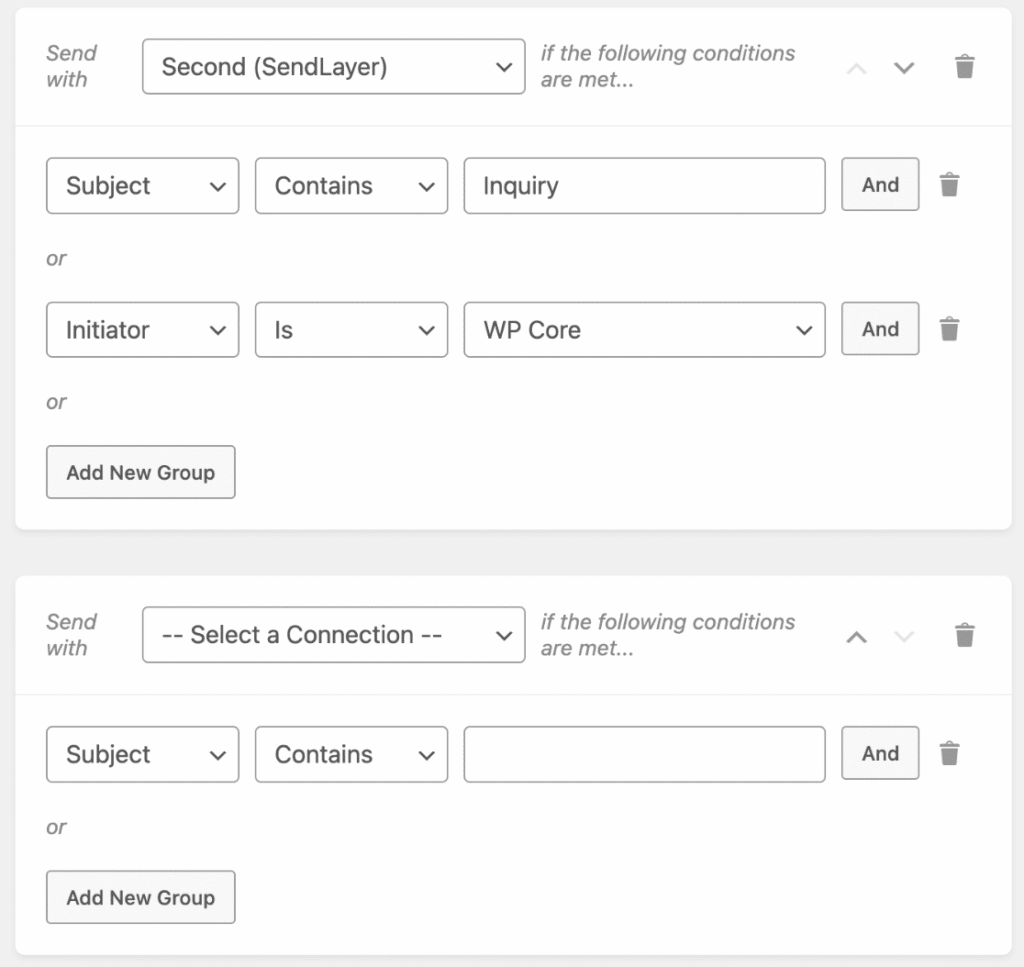
Next, set up your email traffic shaping with rules. Open **WP Mail SMTP » Settings**. Then click on the **Smart Routing** tab.
To use this feature, you’ll need to toggle on the **Enable Smart Routing** option.
Once done, create rules to route time‑sensitive emails to your fastest provider and bulk or marketing emails to a mailer built for volume.
## Note
If none of the conditions are met, your WordPress site will send emails using the Primary Connection.
### Step 6: Send a Test Email to Confirm Speed
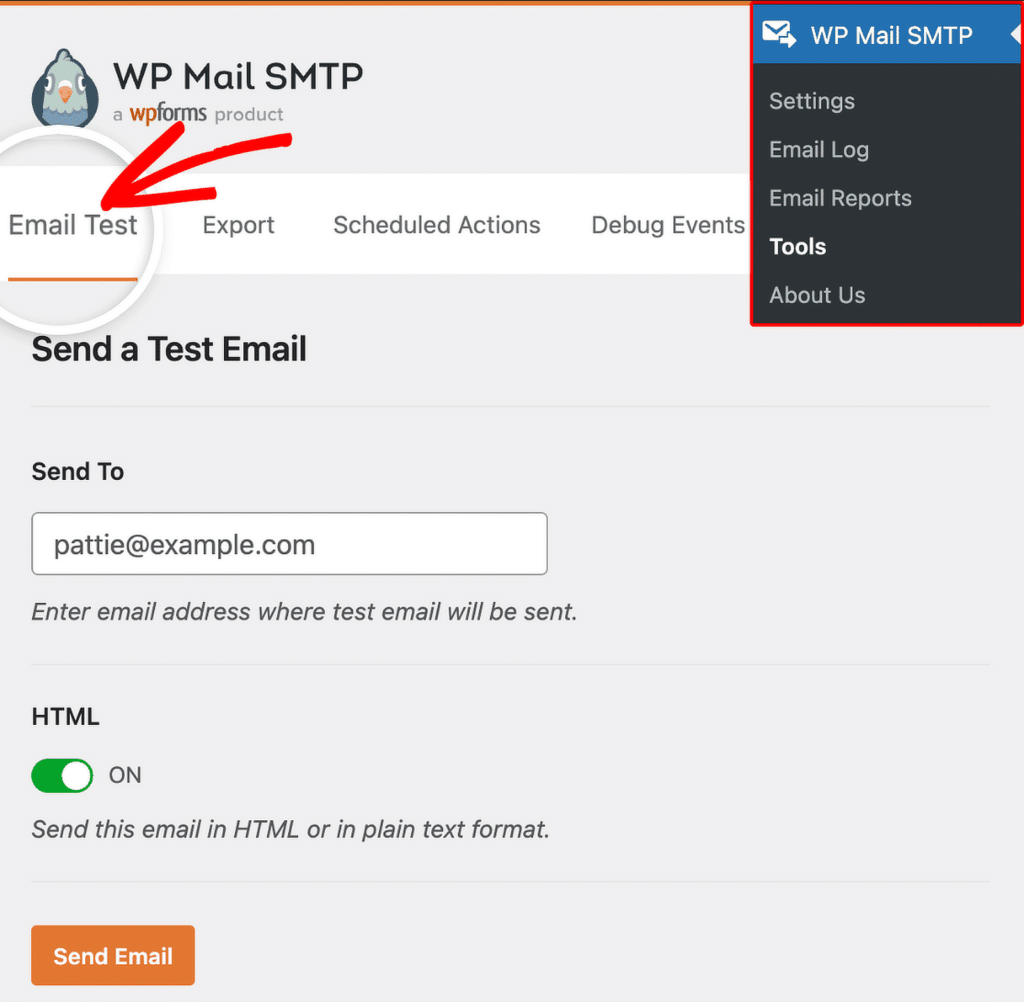
Now that your setup’s in place, let’s make sure emails send quickly, not just successfully. Go to **WP Mail SMTP » Tools » Email Test.**
Enter the inbox you want to test (Gmail, Outlook, or your work address is fine), leave **HTML** on, then click **Send Email**. Keep an eye on the time you click send and when it hits your inbox.
If it arrives within a few seconds, you’re in good shape. However, if it takes a minute or more, open **WP Mail SMTP » Email Log** to compare the **Sent** timestamp with when you received it. That comparison tells you whether the delay is on your side (between WordPress and your mailer) or on the recipient’s side (between the mailer and the inbox).
#### How long should sending actually take?
SetupExpected delivery timeTransactional API mailer (SendLayer, Postmark, SES)Under 5 secondsSMTP mailer with credentialsUnder 30 secondsDefault PHP mail30 seconds to several minutesGreylisted (first send to a new recipient)About 15 minutes, then fast after
Lastly, if you see an on-screen error instead of a success notice, follow the suggestions shown there, fix the issue, and send another test. If delays persist after that, reach out to our [support team](https://wpmailsmtp.com/account/support/ "support team") and include your Email Log details.
[Fix Your Email Delays Now! 🚀](https://wpmailsmtp.com/pricing/)
### FAQs on How to Fix Email Delays in WordPress
Learning about how to fix email delays on both low and high traffic sites is a popular topic of interest among our readers. Here are answers to some common queries about it.
#### Why are my WordPress emails delayed by hours?
Most delays come from PHP mail, provider throttling, greylisting, or wp-cron not running on time. To fix email delay in WordPress, connect a transactional mailer in WP Mail SMTP, set up a real system cron, and add [SPF, DKIM, and DMARC](https://wpmailsmtp.com/dmarc-spf-dkim/ "SPF, DKIM, and DMARC").
#### How do I know if my emails are delayed or just not sending?
Check **WP Mail SMTP » Email Log** for statuses and timestamps to see when the email left your site. You can also send a quick check from **WP Mail SMTP » Tools » Email Tes**t to confirm if delivery is successful and how long it takes.
#### Why are my WooCommerce order emails delayed?
WooCommerce 3.0 and later intentionally defers transactional emails by 5 to 10 seconds for checkout performance, so brief delays on order emails are by design. Longer delays usually point to Action Scheduler. Go to **WooCommerce » Status » Scheduled Actions** and check for Pending or Past-due entries. A growing queue there means wp-cron isn’t running often enough. Set up a real system cron at 5-minute intervals to clear the backlog.
#### What is email greylisting and how do I stop it?
Greylisting is when a receiving mail server temporarily rejects an email from an unfamiliar sender and tells your server to try again about 15 minutes later. It’s a spam-prevention technique. The telltale sign is a consistent 15-minute delay on first sends to new recipients, with later emails arriving normally. The fix is to set up SPF, DKIM, and DMARC records on your domain so receiving servers can verify you as a legitimate sender. Once authentication passes, most servers stop greylisting your mail.
#### Can email delays be caused by my hosting provider?
Yes, shared hosts often throttle or queue messages and busy servers slow down email processing. Use a dedicated mailer through WP Mail SMTP and enable features that spread load to reduce host-related delays.
#### What’s the fastest way to send emails from WordPress?
Use WP Mail SMTP with a transactional provider via API, then set your authenticated **From Email** in **WP Mail SMTP » Settings**. That’s the most reliable way to get messages out in seconds.
#### Does WP Mail SMTP Pro prevent email delays?
It helps a lot with features like Optimize Email Sending, Email Rate Limiting, Backup Connection, and Smart Routing. It also gives you Email Logs and alerts so you can spot and resolve slowdowns before they pile up.
#### How long should it take for a WordPress email to arrive?
With a transactional API mailer, expect delivery in under 5 seconds. A standard SMTP mailer typically lands within 30 seconds. The default WordPress PHP mail() function can take from 30 seconds to several minutes. If you’re consistently seeing about 15 minutes, the recipient’s server is probably greylisting you. Delays longer than that usually point to a wp-cron problem or a hosting throttle.
#### Can too many plugins cause email delays?
Yes, heavy or conflicting plugins can slow PHP and block scheduled tasks, which delays outgoing emails. Disable unneeded notifications in **WP Mail SMTP » Settings » Email Controls** and check plugin schedulers for backlogs.
#### What’s the difference between email delays and emails going to spam?
Delay is about when the email arrives, while spam is where it lands. Proper authentication and a good mailer improve both timing and inbox placement.
### Next, Why Your WordPress Emails Are Going to Spam (+ How to Fix It)
[So, why do emails go to spam? ](https://wpmailsmtp.com/wordpress-emails-going-to-spam/ "So, why do emails go to spam? ")The problem occurs after the server has generated and sent the email.
When that email gets passed from one server to another on its way to the recipient, it gets flagged as a spam email and either discarded or filed in the Junk Mail.
You can use WP Mail SMTP to fix this problem. WP Mail SMTP re-routes your emails through a real email server to apply the right authentication.
[Fix Your WordPress Emails Now](https://wpmailsmtp.com/pricing/)
Ready to fix your emails? [Get started today](https://wpmailsmtp.com/pricing) with the best WordPress SMTP plugin. If you don’t have the time to fix your emails, you can get full White Glove Setup assistance as an extra purchase, and there’s a 14-day money-back guarantee for all paid plans.
If this article helped you out, please follow us on [Facebook](https://facebook.com/wpmailsmtp) and [Twitter](https://twitter.com/wpmailsmtp) for more WordPress tips and tutorials.
**Categories:** WordPress Tutorials
**Tags:** email delay, email deliverability, WP Mail SMTP, WP Mail SMTP Pro
---