


AI Summary
Note: This guide applies to the Gmail mailer in WP Mail SMTP.
What This Error Means
The Gmail service has been disabled for the Google Workspace user account that WP Mail SMTP is authorized to send from. The account exists and can sign in, but Google Workspace is not allowing it to use Gmail. Personal Gmail accounts (@gmail.com) are not affected by this error, since they always have Gmail enabled.
Common Causes
- A Google Workspace administrator disabled Gmail for the user’s organizational unit
- New Google Workspace account where the administrator didn’t turn on Gmail during initial setup
- The Google Workspace plan does not include Gmail (e.g. some Google Workspace for Education or Essentials configurations that only include Drive and Meet)
- The administrator moved the user to an organizational unit that has Gmail turned off
How to Fix
Here is the complete step-by-step guide to resolving the error.
Note: This fix requires Google Workspace administrator access. If you are not the admin, forward these steps to your Workspace administrator.
Option A: Enable Gmail in Google Workspace Admin (Most Common)
In most cases, Gmail is turned off for the account at the Workspace level. Start by logging in to the Google Workspace Admin Console with an administrator account.
Then, in the left sidebar, go to Apps » Google Workspace » Gmail. At the top of the Gmail settings page, find the Service status section. It shows whether Gmail is ON or OFF.
If the status shows OFF for everyone, click it and select ON for everyone, then click Save.
If the status already shows ON for everyone but the error persists, the user may be in a specific organizational unit that has Gmail turned off. Click Service status to expand it, then in the left panel, select the organizational unit that contains the affected user. Change the status to ON for that unit and click Save.
If you’re unsure which organizational unit the user belongs to, go to Directory » Users in the Admin Console, find the user, and check their organizational unit assignment.
Finally, wait for the change to propagate. Changes can take up to 24 hours to apply across all Google services.
Option B: Upgrade or Change Your Google Workspace Plan
If your Google Workspace plan does not include Gmail (for example, Google Workspace Essentials or certain Education SKUs), the Gmail service status toggle will not be available.
In the Google Workspace Admin Console, go to Billing and check your current plan. Plans that include Gmail: Business Starter, Business Standard, Business Plus, Enterprise Standard, Enterprise Plus, Education Standard (with Gmail), and Education Plus (with Gmail).
If your plan does not include Gmail, you have two options. First, you can upgrade to a plan that includes Gmail through Billing » Subscriptions. Or, you can use a different mailer in WP Mail SMTP. Go to WP Mail SMTP » Settings, scroll to the Mailer section, and select a mailer that does not depend on Gmail (such as SendLayer, SMTP.com, or Brevo). See the complete guide to mailers for setup instructions.
Send a Test Email
After enabling Gmail, verify the fix by sending a test email.
To test the fix, go to WP Mail SMTP » Tools and click the Email Test tab. Enter a recipient email in the Send To field, leave the HTML toggle ON, and click Send Email.
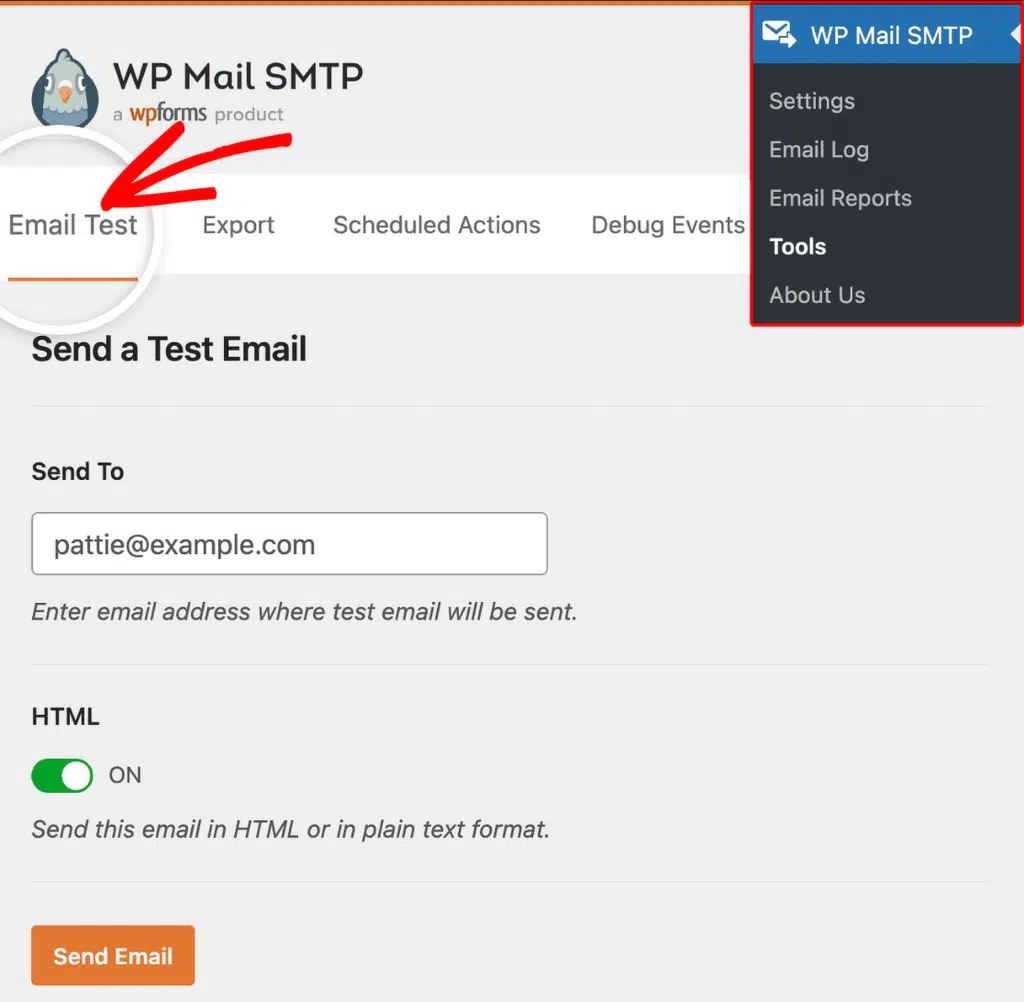
Once done, check for a success message and confirm the email arrived in your inbox.
Notes
- This error only occurs with Google Workspace accounts. Personal Gmail accounts (@gmail.com) always have Gmail enabled and cannot trigger this error.
- Requires Google Workspace administrator access. The mailbox owner can’t resolve this alone. If you do not have admin access, contact your organization’s Google Workspace administrator.
- Service status changes can take up to 24 hours to propagate. If the test email still fails immediately after enabling Gmail, wait and try again later.
- If you continue to see this error after confirming Gmail is enabled for the correct organizational unit, try removing and reconnecting the Google account in WP Mail SMTP. Go to WP Mail SMTP » Settings, scroll to the Google / Gmail section, click Remove Connection, then click Allow plugin to send emails using your Google account to re-authorize.
- For full Gmail mailer setup details, see the Gmail setup guide.
That’s It! You now know how to fix the ‘Mail Service Not Enabled’ error in Gmail and get your emails sending again through WP Mail SMTP.