


AI Summary
Note: This guide applies to the Gmail mailer in WP Mail SMTP.
What This Error Means
Google is not authorizing the OAuth client to complete the sign-in flow. The most common cause is creating the OAuth credential with the wrong application type (e.g. Desktop app instead of Web application), so Google rejects the authorization code grant that WP Mail SMTP uses. Google Workspace organizations can also trigger this error when the admin blocks third-party API access for the domain.
Common Causes
- OAuth client type is incorrect (a Desktop app or Service account credential instead of Web application)
- The Authorized redirect URI is missing or wrong on the OAuth client
- Google Workspace admin has restricted third-party API access and hasn’t approved the app
How to Fix
Here is the complete step-by-step guide to resolving the error.
Step 1: Verify the OAuth Client Type
Start by checking whether your OAuth credential has the correct application type.
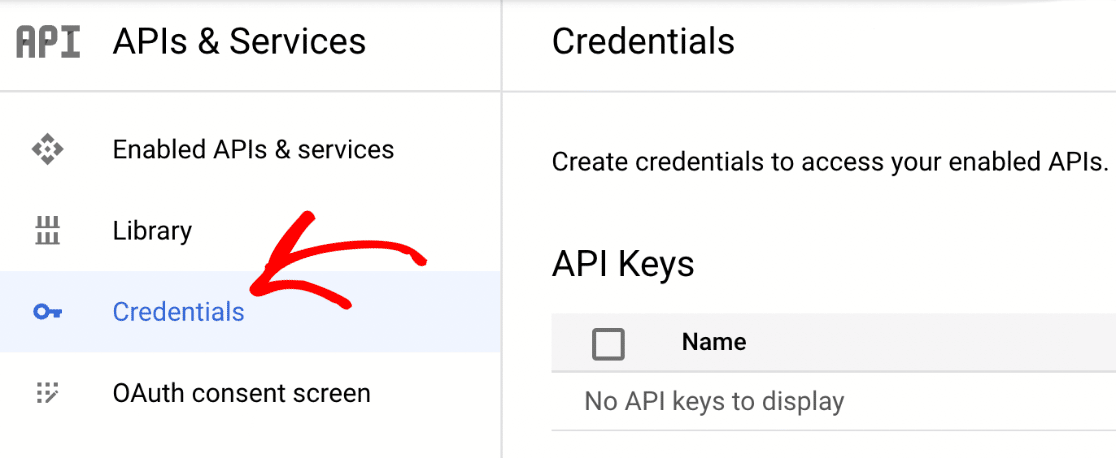
Open the Google Cloud Console and select the project used for WP Mail SMTP. Then, go to APIs & Services » Credentials.
Under OAuth 2.0 Client IDs, find your credential and check the Type column. If the type is Desktop app or anything other than Web application, create a new credential by following Step 2.
If it already says Web application, click the pencil icon and confirm the Authorized redirect URIs section contains exactly https://connect.wpmailsmtp.com/google/. If the URI is missing, click + ADD URI, paste the value above, and click Save. Then skip to Step 3.
Step 2: Create a New Web Application Credential
If your existing OAuth client has the wrong type, create a new one configured as a Web application.
On the APIs & Services » Credentials page, click Create credentials and select OAuth client ID.
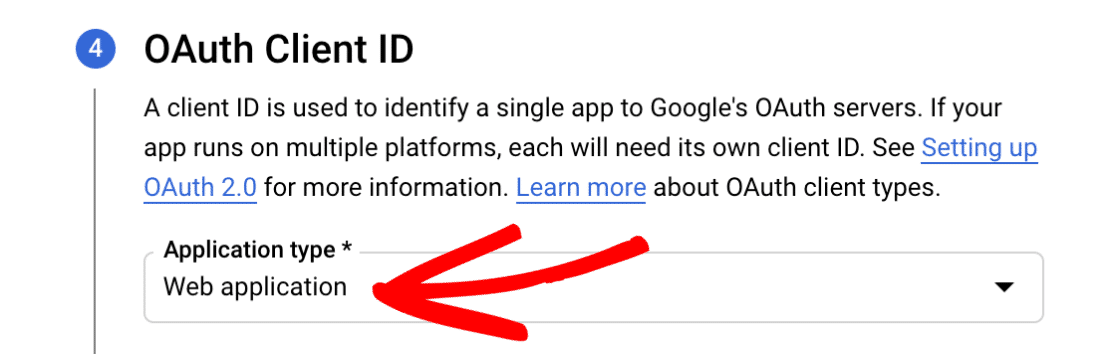
Then, set Application type to Web application.
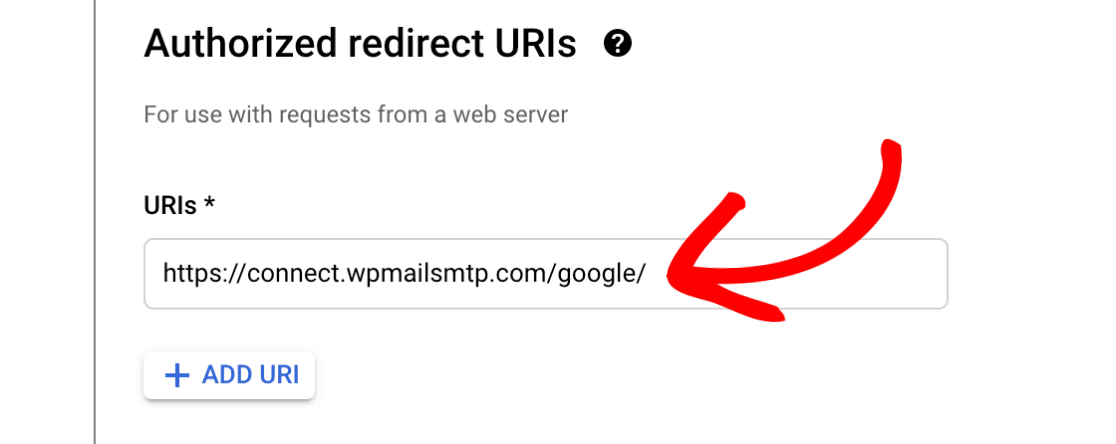
Next, under Authorized redirect URIs, click + ADD URI and enter https://connect.wpmailsmtp.com/google/.
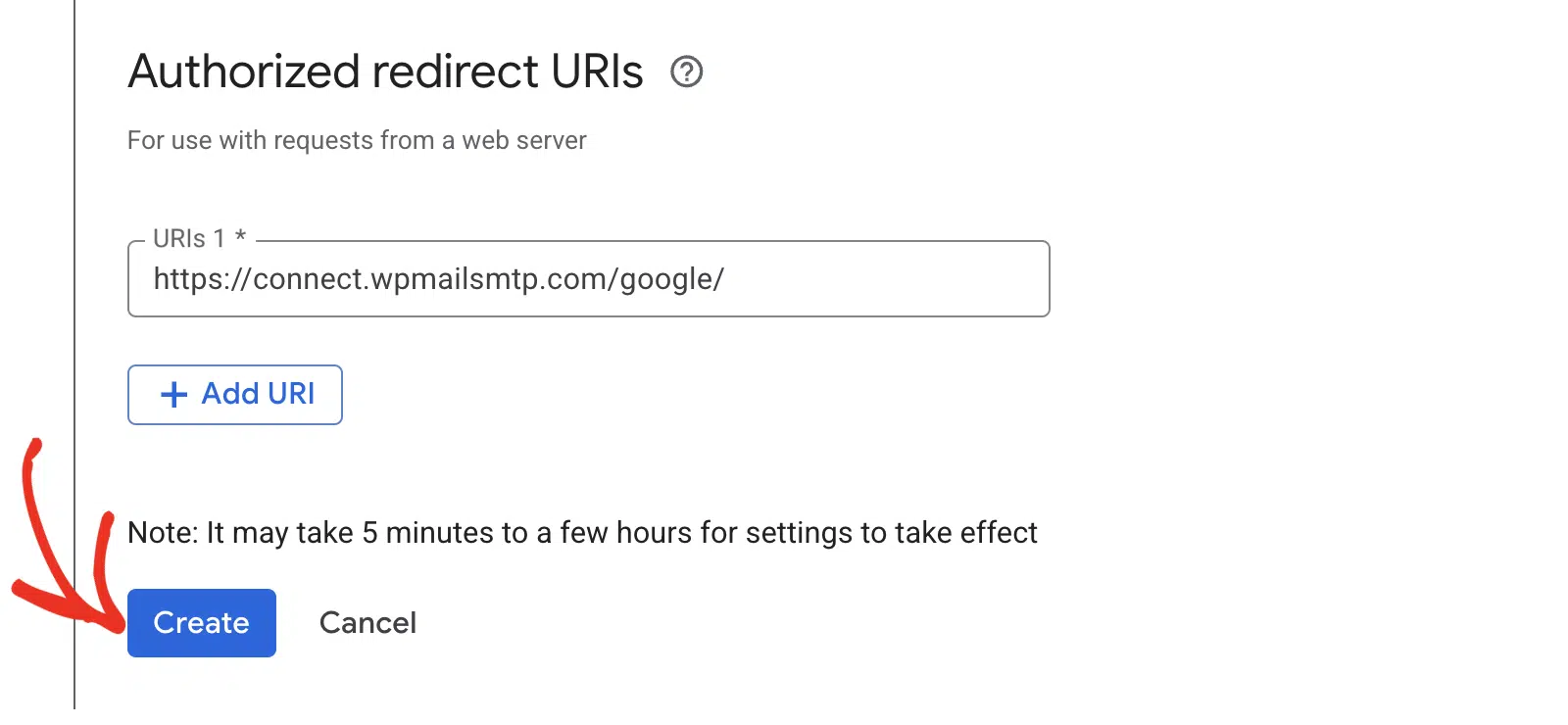
After that, click Create, then click DONE. Click the pencil icon next to the new credential to open it, and copy the Client ID.
Then, click + Add secret to generate a new Client Secret, and copy it.
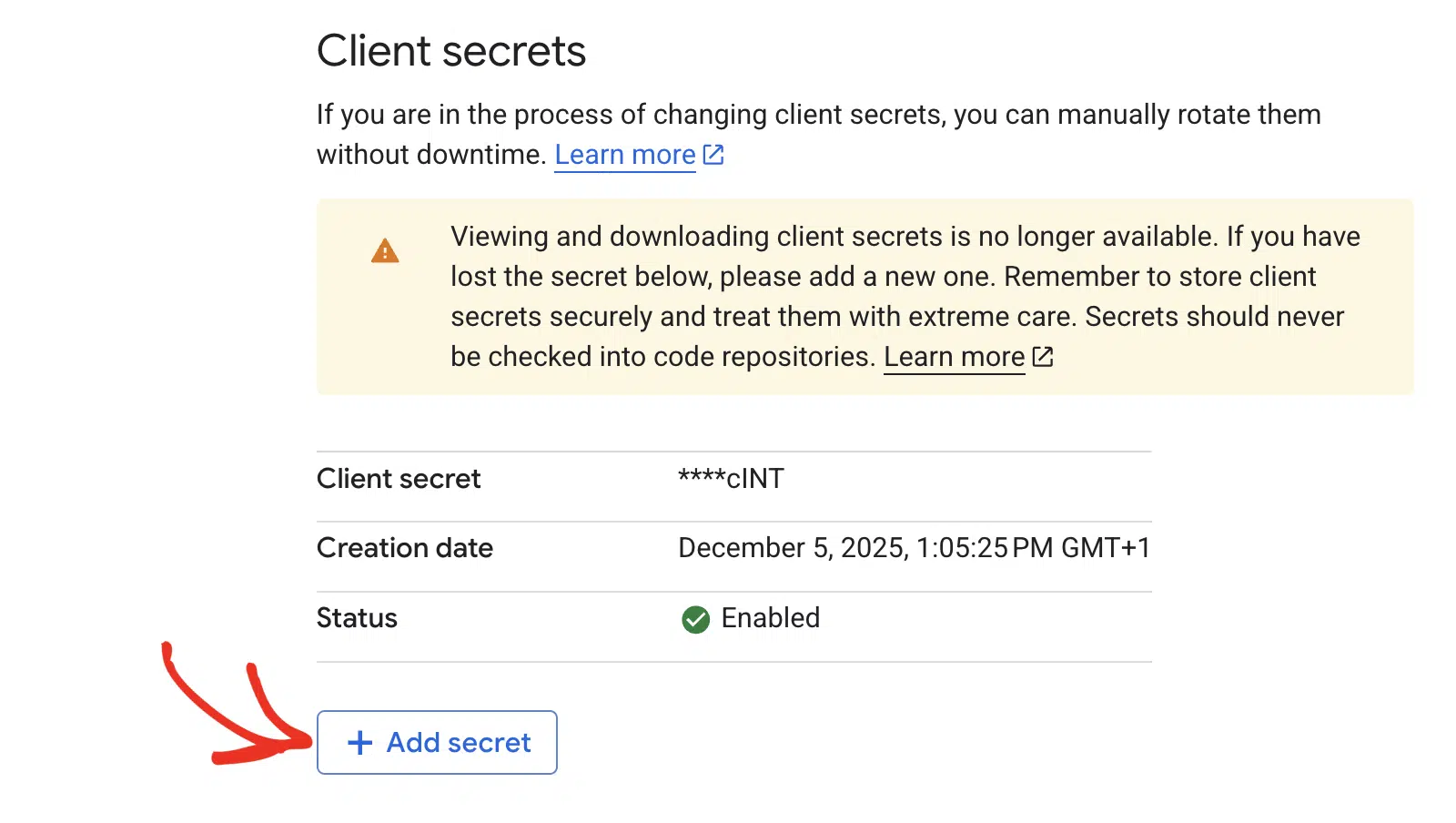
Note: Be careful not to copy any extra text or spaces with your Client ID or Client Secret. Google only shows the full Client Secret once.
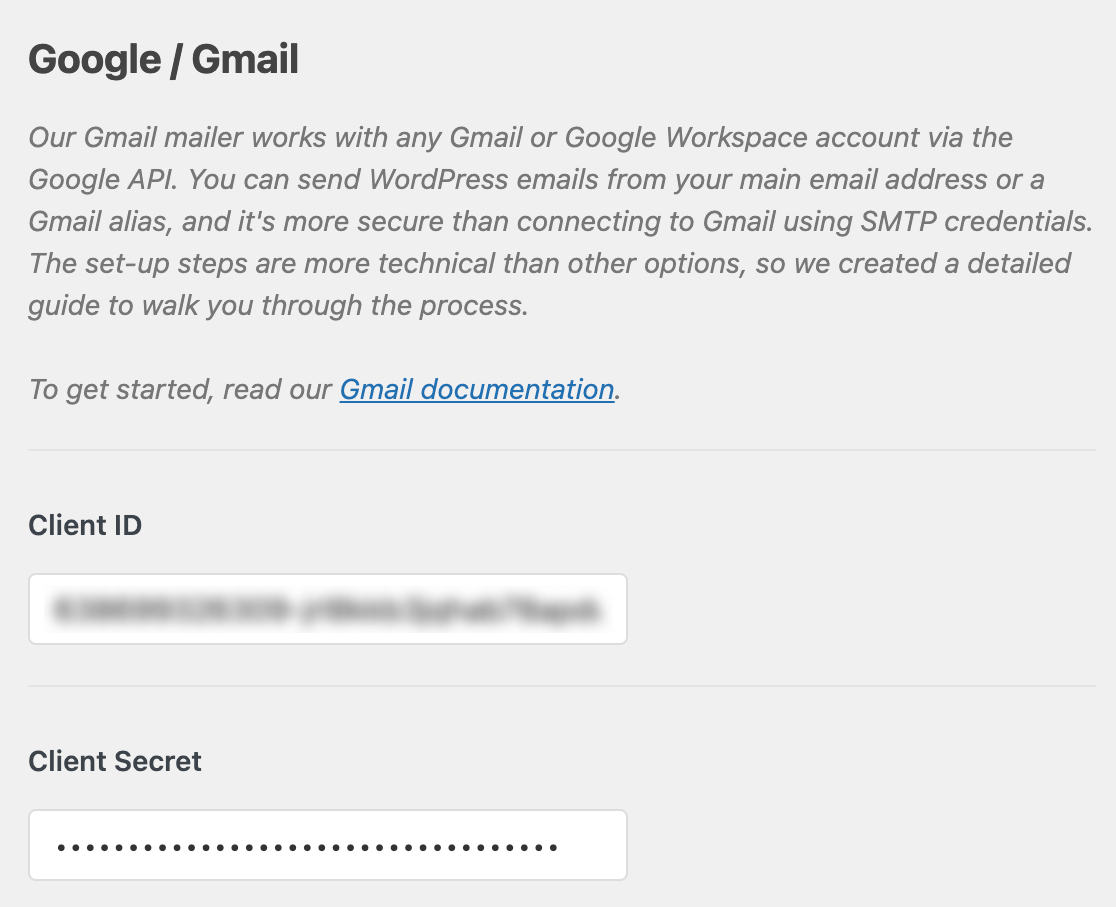
Finally, in WordPress, go to WP Mail SMTP » Settings » General and scroll to the Google / Gmail section. Paste the new Client ID and Client Secret into the corresponding fields, and click Save Settings.
Step 3: Check API Access Controls (Google Workspace)
If you’re on a Google Workspace domain, the organization admin may need to allow the app.
Start by signing in to the Google Workspace Admin Console. Then, go to Security » Access and data control » API controls.
Under App access control, look for the OAuth app associated with your project. If the app is Blocked or not listed, click Manage Third-Party App Access, search for the app by Client ID, and set it to Trusted (or at minimum Limited).
Finally, save the change and wait a few minutes for it to take effect.
Step 4: Re-Authorize and Test
Once the OAuth credential is set up correctly, reconnect WP Mail SMTP and send a test email.
In WordPress, go to WP Mail SMTP » Settings » General and scroll to the Google / Gmail section. Then, click Remove Connection.

Next, click Allow plugin to send emails using your Google account and complete the Google authorization flow.
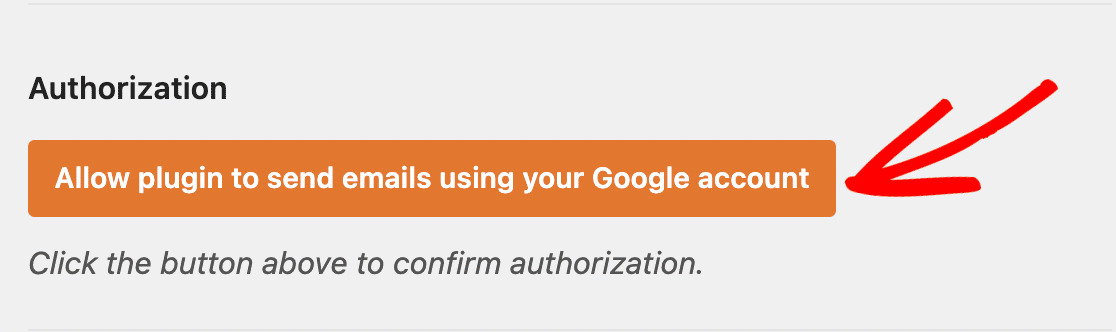
After authorization, click Save Settings.
To test the fix, go to WP Mail SMTP » Tools and click the Email Test tab. Enter a recipient address in the Send To field, leave HTML toggled ON, and click Send Email.
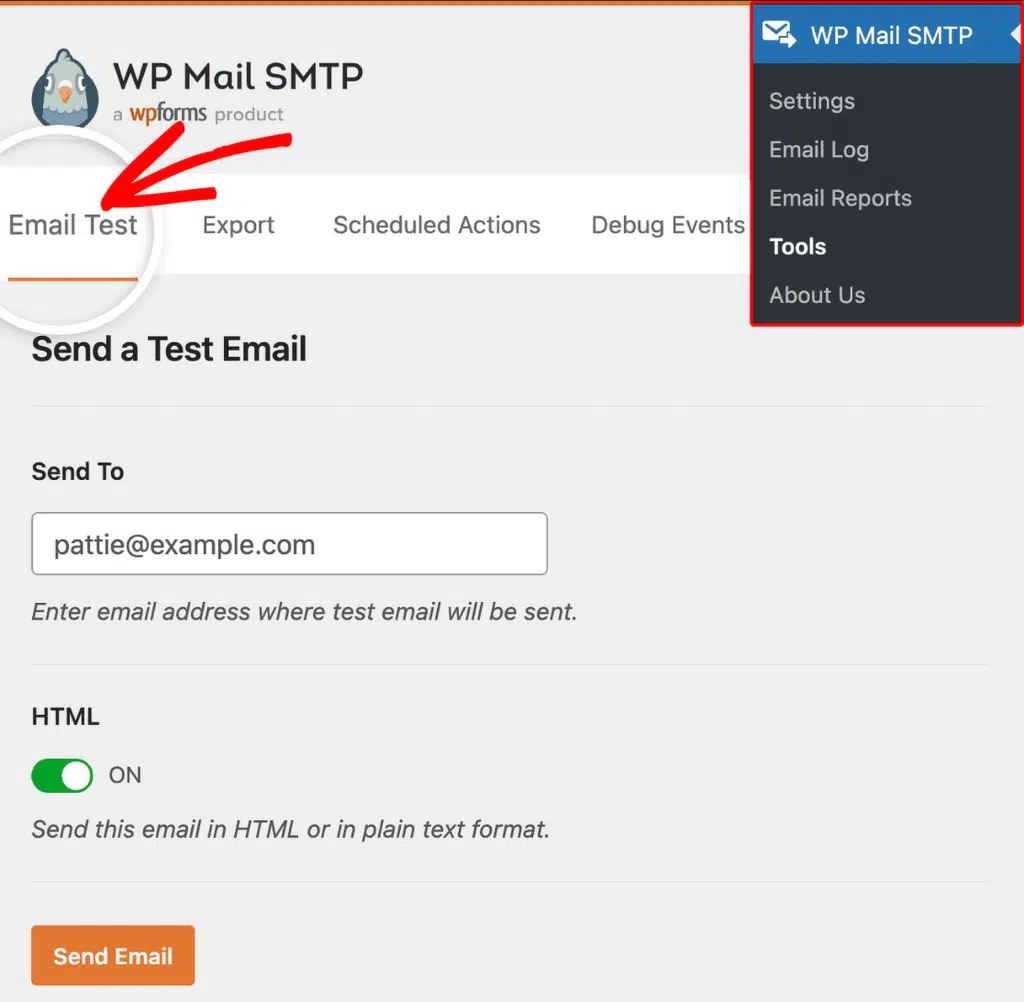
Finally, confirm the success message and check the recipient’s inbox.
Notes
- The redirect URI must match exactly, including
httpsvshttpand trailing slashes. - On Google Workspace, third-party app changes can take a few minutes to propagate. If the error persists after marking the app Trusted, wait and retry.
- If the OAuth consent screen is in “Testing” mode, publish the app to production in APIs & Services » OAuth consent screen » Audience to avoid recurring 7-day token expirations.
That’s It! You now know how to fix the ‘unauthorized_client’ error in Gmail and get your emails sending again through WP Mail SMTP.