


AI Summary
Note: This guide applies to the SMTP.com mailer in WP Mail SMTP.
What This Error Means
The Sender Name value in WP Mail SMTP doesn’t match any sender configured in the SMTP.com account. SMTP.com uses sender names (also called channels) to associate emails with specific sending settings and IP pools. If the name doesn’t match exactly, SMTP.com rejects the request with a “channel not found” error.
Common Causes
- The Sender Name field in WP Mail SMTP contains a typo or extra whitespace
- You renamed or deleted the sender in the SMTP.com dashboard
- Wrong case (sender names in SMTP.com are case-sensitive)
- The From Email domain in WP Mail SMTP doesn’t match the domain associated with the sender in SMTP.com
- The Sender Name field still holds a default or placeholder value instead of the one from SMTP.com
How to Fix
Here is the complete step-by-step guide to resolving the error.
Step 1: Copy the Sender Name from SMTP.com
The Sender Name in WP Mail SMTP must match the value SMTP.com stores for that sender exactly, including spelling and capitalization.
Start by logging in to your SMTP.com dashboard. Then, go to the Senders page in the main navigation.
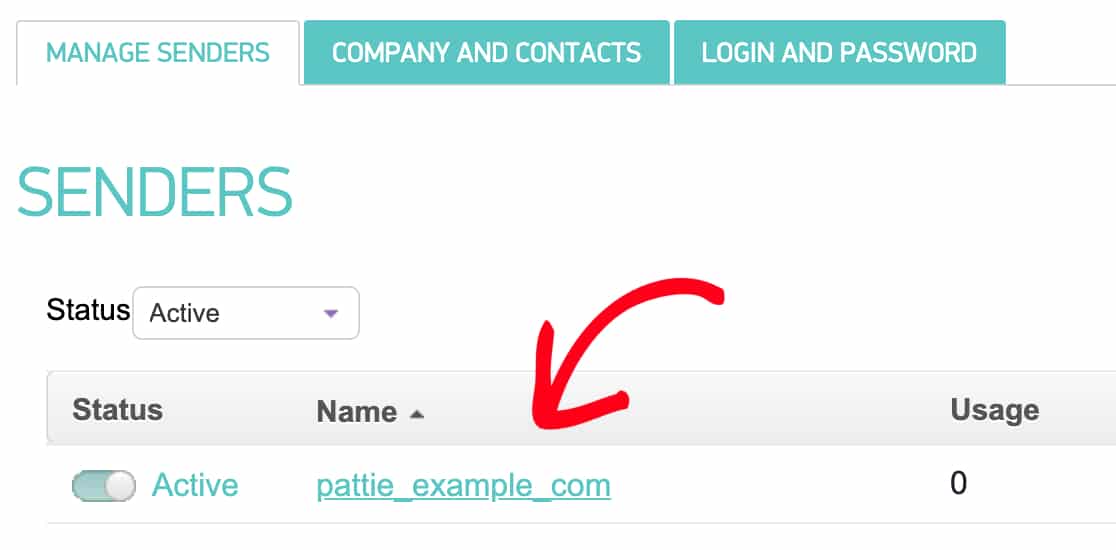
In the senders table, find the Name column. This is the value WP Mail SMTP needs. Copy the exact value from the Name column. Spelling and capitalization must match exactly.
Note: Sender names are case-sensitive. “MyChannel” and “mychannel” are treated as different names. Always copy and paste rather than typing manually.
If no senders exist in the table, create one in SMTP.com under Senders before continuing. Make sure the sender’s domain matches the From Email domain you plan to use in WP Mail SMTP.
Step 2: Paste the Sender Name in WP Mail SMTP
With the correct value copied from SMTP.com, update the field in WP Mail SMTP.
Start by going to WP Mail SMTP » Settings and clicking the General tab.
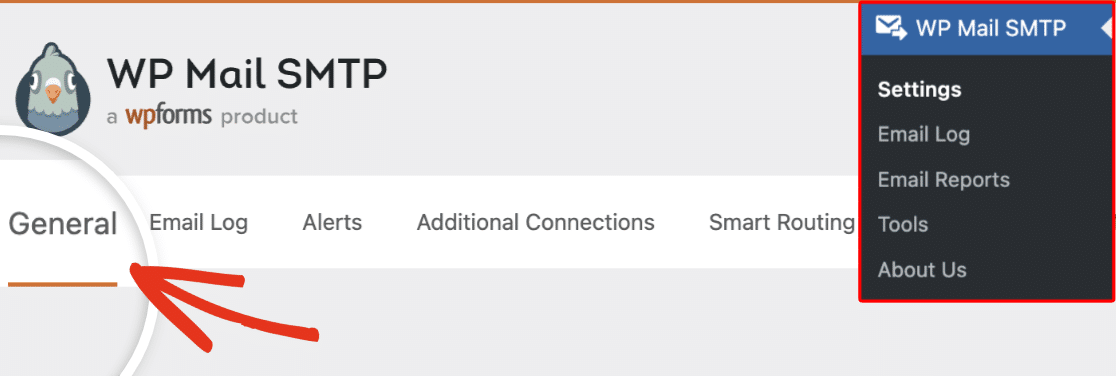
Then, scroll to the Primary Connection section and confirm SMTP.com is selected as the mailer.

Next, find the Sender Name field. Or click the Get Sender Name link next to the field to open the SMTP.com Senders page directly.

Clear the Sender Name field and paste the value you copied from the Name column in SMTP.com.
While here, confirm the From Email field uses an address on the same domain that is associated with your sender in SMTP.com. For example, if your sender is configured for example.com, the From Email should be something like [email protected].
Finally, click Save Settings.
Step 3: Send a Test Email
Confirm the fix by sending a test email.
To test the fix, go to WP Mail SMTP » Tools and click the Email Test tab. Enter a recipient email in the Send To field, leave the HTML toggle ON, and click Send Email.
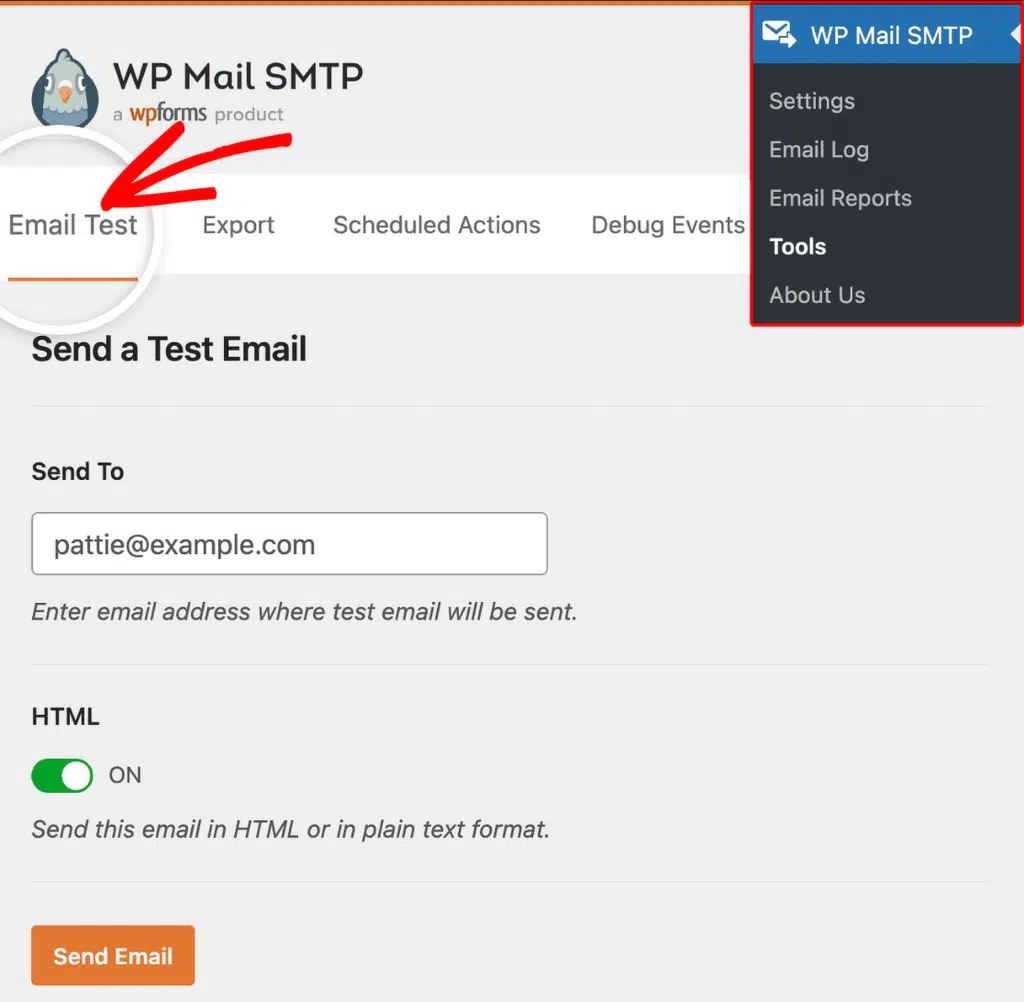
Once done, look for the success message and confirm the email arrived in your inbox.
Notes
- The Name column on the SMTP.com Senders page is the value that goes into the Sender Name field in WP Mail SMTP. These are the same thing: SMTP.com calls it “Name” and WP Mail SMTP calls it “Sender Name.”
- Sender names are case-sensitive. “MyChannel” and “mychannel” are treated as different names. Always copy and paste rather than typing manually.
- If the error persists after updating the Sender Name, verify the sender still exists in SMTP.com with the same name you copied.
That’s It! You now know how to fix the ‘Channel Not Found’ error in SMTP.com and get your emails sending again through WP Mail SMTP.