


AI Summary
Note: This guide applies to the Elastic Email mailer in WP Mail SMTP.
What This Error Means
The Elastic Email API key in WP Mail SMTP has passed its expiration date and is no longer valid. Elastic Email lets you create API keys with an optional expiry date.
Common Causes
- API key was created with an expiration date that has now passed
How to Fix
Here is the complete step-by-step guide to resolving the error.
Step 1: Remove the Expiration Date From the Existing Key
The fastest fix is to edit the expired key and remove its expiry.
For this, log in to your Elastic Email account and click Settings in the sidebar.
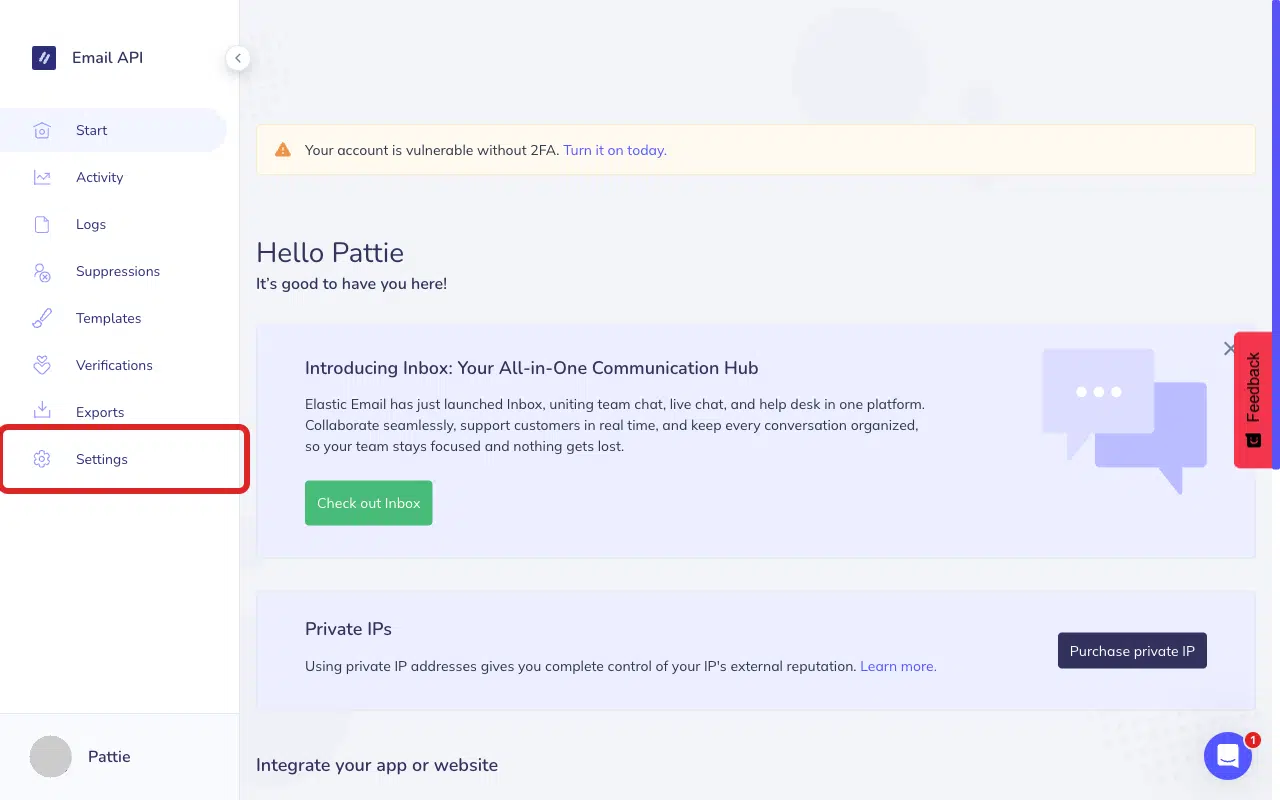
Then click Manage API keys to access your API key settings.
Once there, click the three-dot menu icon (⋯) next to your API key.

Next, click Edit.

Uncheck the Expiration date checkbox. When checked, it shows a date picker, and your expired key will show a date in the past here.

Confirm the checkbox is unchecked and the date picker is gone.

Finally, click Save to update your settings.

To verify the fix, go to WP Mail SMTP » Tools, click the Email Test tab, and click Send Email.
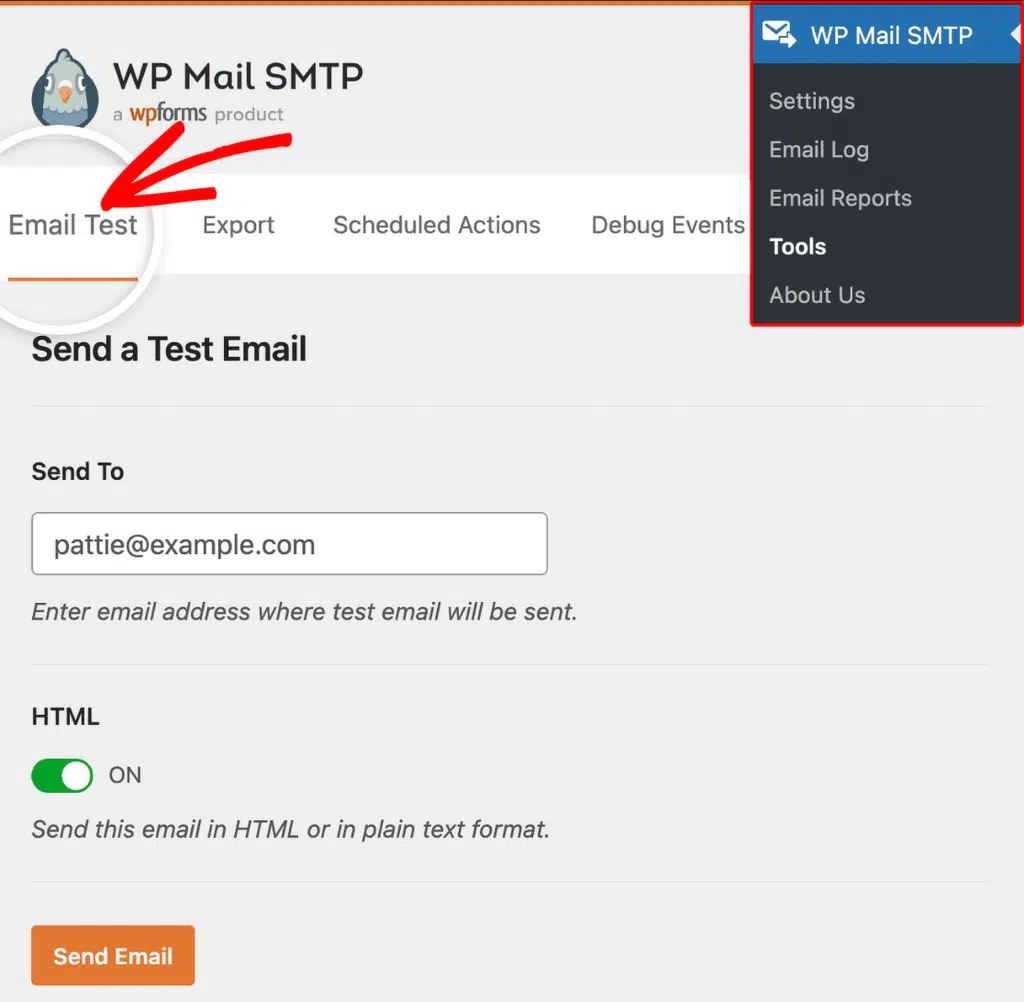
If the error is gone, you’re done. If it persists, try creating a new API key (see below).
Alternative: Create a New API Key
If the expired key can’t be reactivated, create a new one without an expiry.
To do so, return to your Elastic Email account dashboard and click Settings in the sidebar.
Next, click Create additional API key.

In the API key creation page, enter a descriptive name (for example, “WP Mail SMTP”).

Leave the Expiration date checkbox unchecked, so the key never expires.

Then select the Plugin permission level.

Finally, click Create to generate your API key.

Copy the API key immediately. Elastic Email only shows the full key once. After closing this dialog, you can’t retrieve it.

In WP Mail SMTP » Settings, scroll to the Elastic Email section and clear the old API Key field.

After that, paste the new key and click Save Settings.

To test it out, go to WP Mail SMTP » Tools, click the Email Test tab, and click Send Email.
Notes
- Leaving the Expiration date unchecked means the key never expires. For high-security environments, set a long-term expiry (e.g. 1 year) and set a calendar reminder to rotate it.
- Always use the Copy button to grab a new key. You can’t view it again after closing the dialog.
That’s It! You now know how to fix the ‘API Key Expired’ error in Elastic Email and get your emails sending again through WP Mail SMTP.