


AI Summary
Note: This guide applies to the MailerSend mailer in WP Mail SMTP.
What this Error Means
The API token in WP Mail SMTP is missing, invalid, or has been deleted from the MailerSend account. The request can’t be authenticated.
Common Causes
- API token deleted or regenerated in MailerSend without updating WP Mail SMTP
- Typo or truncation when copying the token
- API token field left empty in WP Mail SMTP
- Token has expired (MailerSend tokens have a configurable expiration date)
- Token belongs to a different MailerSend account than the one with the verified sending domain
Resolving the ‘Unauthenticated’ error
Here is the complete step-by-step guide to resolving the error.
Step 1: Generate a New API Token in MailerSend
Log in to your MailerSend account area. In the left sidebar, expand Developer tools and click API tokens.

Click Create new token. Enter a name for the token (e.g. “WP Mail SMTP”). Leave the Domain set to All (or restrict it to a specific domain if needed). Optionally set an Expiration date. If you don’t set one, the token expires in 24 hours.

Under Permissions, leave Sending access selected (this is the default). Click Generate token.

Copy the token immediately. It is only shown once and cannot be retrieved later.

Step 2: Paste the New Token in WP Mail SMTP
Log in to the WordPress admin area. Then go to WP Mail SMTP » Settings and click the General tab.
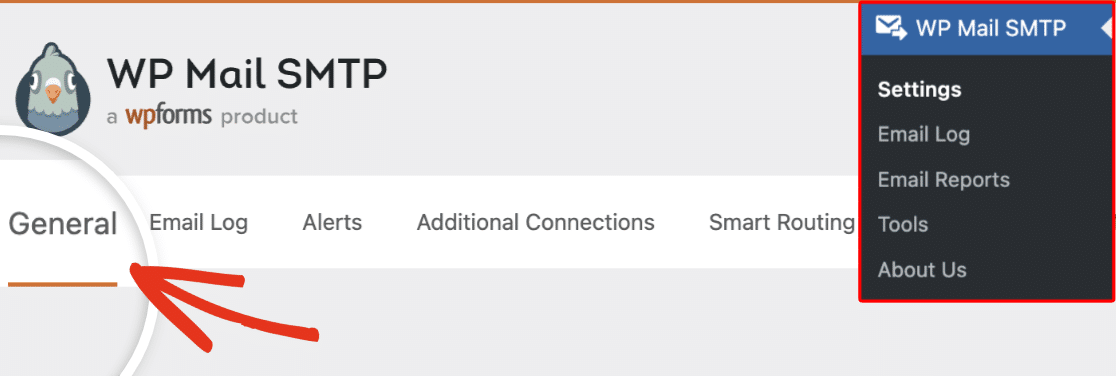
Scroll to the Primary Connection section and select MailerSend as the Mailer.

Clear the API Key field and paste the token you copied.

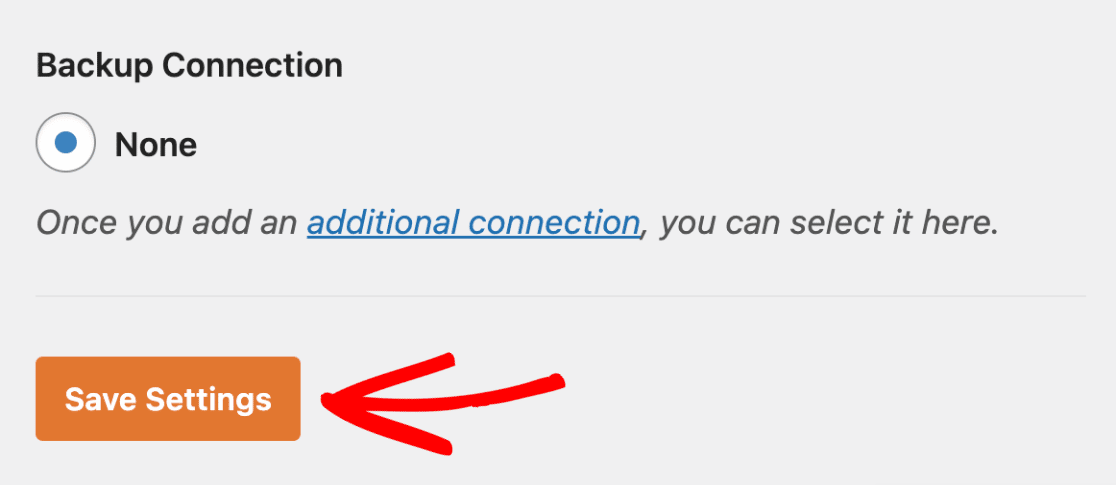
Finally, scroll down and click Save Settings.
Step 3: Send a Test Email
To send a test email, go to WP Mail SMTP » Tools. Click the Email Test tab.
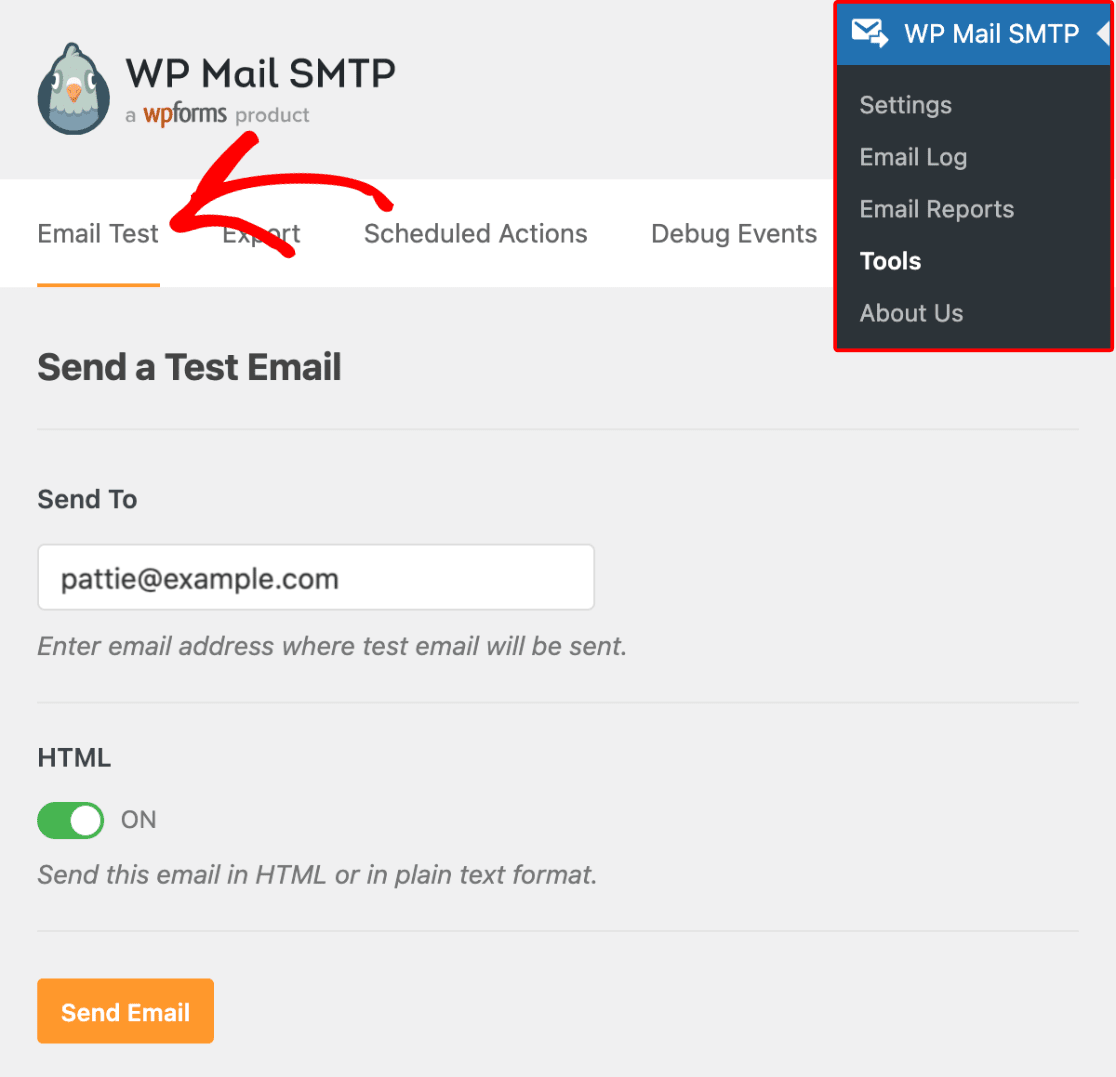
Enter a recipient email in the Send To field. Leave the HTML toggle ON.
Once done, click Send Email.
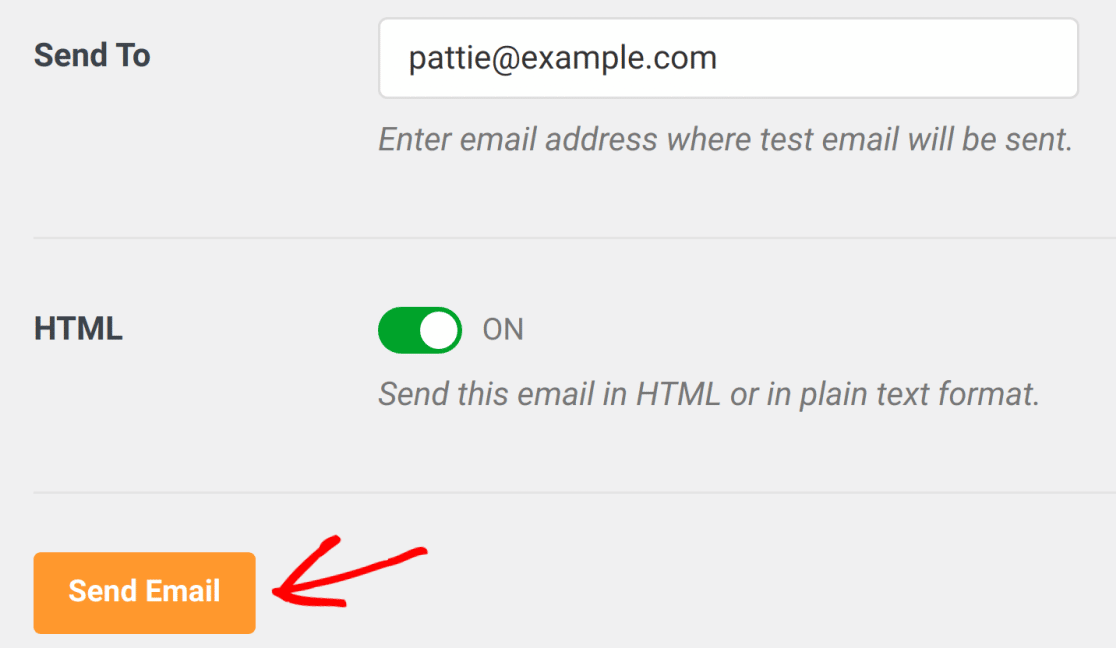
Look for the success message, then check your inbox to confirm the email arrived.
Notes
- MailerSend API tokens are shown in full only once at creation. If you lose it, you must generate a new one.
- Token expiration is set at creation time (minimum 24 hours). If your token expired, generate a new one following Step 1 above.
- If the error persists after replacing the token, confirm you are logged into the same MailerSend account that owns the verified sending domain configured in WP Mail SMTP.
That’s It! You now know how to fix the ‘Unauthenticated’ error in MailerSend and get your emails sending again through WP Mail SMTP.