


AI Summary
Note: This guide applies to the Elastic Email mailer in WP Mail SMTP.
What This Error Means
The domain used in the From Email address hasn’t been validated in Elastic Email. Elastic Email requires domain validation before it will send email from any address at that domain.
Common Causes
- The From Email in WP Mail SMTP uses a domain that doesn’t match any validated domain in Elastic Email
- Domain was never added to Elastic Email
- You added DNS records but never completed verification
- Required DNS records are missing or entered incorrectly at the DNS provider
How to Fix
Here is the complete step-by-step guide to resolving the error.
Step 1: Check the From Email Domain
The From Email domain in WP Mail SMTP must match a domain that’s validated in Elastic Email. If it doesn’t match, changing it is the fastest fix.
Start by going to WP Mail SMTP » Settings and clicking the General tab.
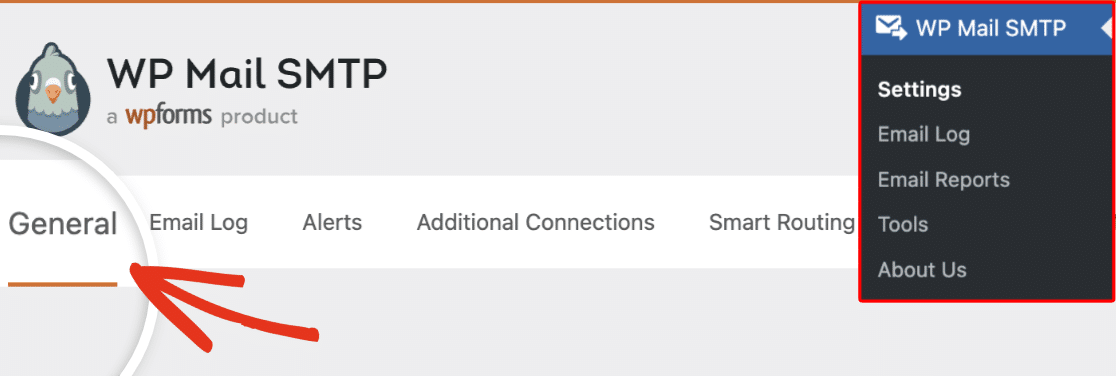
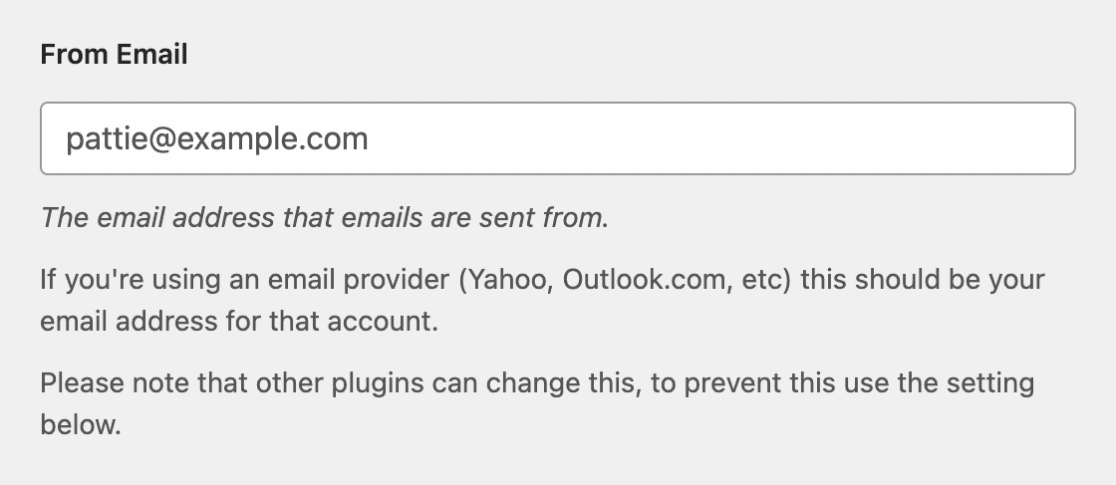
Look at the From Email field and note the domain (the part after the @ sign).
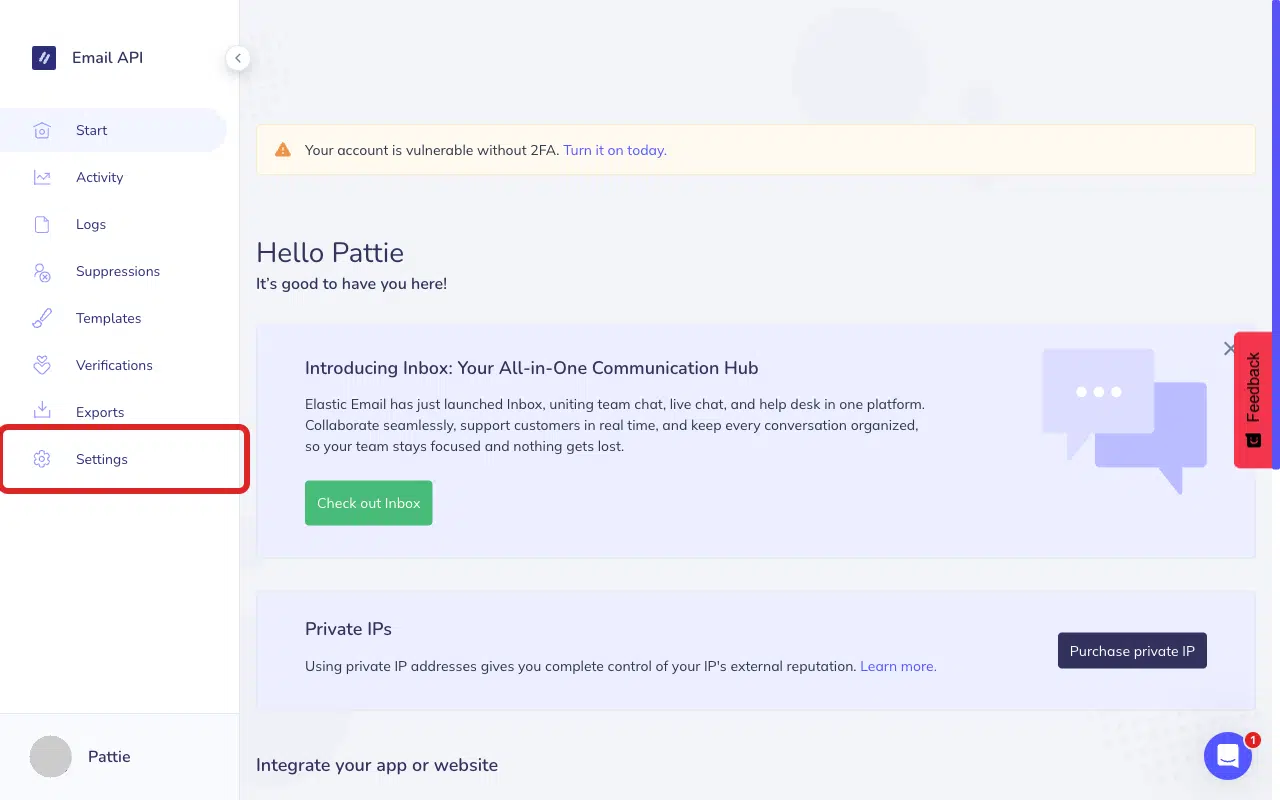
Next, log in to your Elastic Email account, then click Settings in the sidebar.
In the Settings page, scroll down to the Domains section and click Manage domains.

Check whether the domain from your From Email appears in the list with a Verified status.

If the domain is Verified but doesn’t match your From Email, return to WP Mail SMTP » Settings, change the From Email to an address at the verified domain, and click Save Settings.
To test the fix, log in to your WordPress admin area and go to WP Mail SMTP » Tools, click the Email Test tab, and click Send Email.
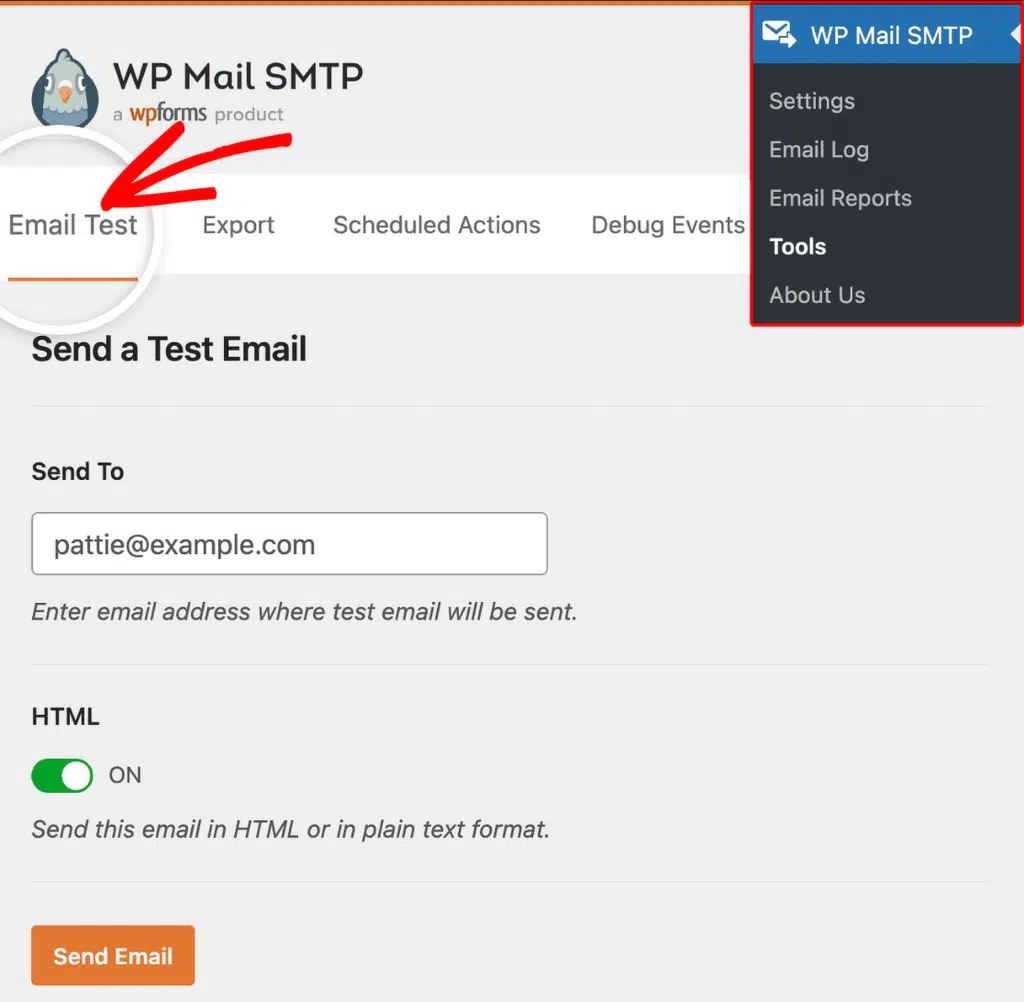
If the error is gone, then you’re done. However, if the domain shows Not verified, continue to Step 2. If the domain is not listed, skip to Step 3.
Step 2: Verify an Existing Domain
If your domain is already in Elastic Email but shows Not verified, you need to add or re-verify the DNS records. Here’s how to resolve it:
Return to your Elastic Email account, click Settings in the sidebar, then scroll to the Domains section and click Manage domains.
Next, click your domain name in the list to open the verification page.

Elastic Email shows the DNS records you need to add. The SPF record is required. The DKIM, CNAME, and DMARC records are recommended for better deliverability.
Open a new tab and log into your DNS provider (Cloudflare, GoDaddy, Namecheap, etc.). Add the SPF record by creating a TXT record with the exact Name and Value shown in Elastic Email. If you already have an SPF record, select I found the record described above and Elastic Email will show how to merge them.
Then, add the recommended DKIM and CNAME records the same way, matching the Type, Name, and Value fields exactly.
After adding the records, return to the Elastic Email verification page and click Verify record.

Note: If verification fails, DNS changes may still be propagating. Wait 15-30 minutes and try again. Full propagation can take up to 48 hours.
Once verified, return to your WordPress admin area and send a test email.
If the error is gone, you’re done. If your domain was not listed at all in Step 1, continue to Step 3.
Step 3: Add a New Domain
If your sending domain hasn’t been added to Elastic Email yet, you need to add and verify it.
Return to your Elastic Email account, click Settings, then scroll to the Domains section and click Manage domains. Next, click Start Verification.

Under I own a domain, click Verify domain.

Enter the domain that matches your From Email address in WP Mail SMTP. For example, if your From Email is [email protected], enter yourdomain.com. Once done, click Continue.

Elastic Email shows the DNS records you need to add. Follow the same DNS steps as Step 2: add the SPF record (required) and the recommended DKIM and CNAME records at your DNS provider, then click Verify record in Elastic Email.
Once verified, return to your WordPress admin area and send a test email.
Notes
- Add both the SPF record (required) and the DKIM and CNAME records (recommended) for the best deliverability.
- If records appear correct but verification fails, check for extra spaces, trailing dots your DNS provider may add automatically, or auto-appended domain names in CNAME values.
That’s It! You now know how to fix the ‘Sender Domain Not Validated’ error in Elastic Email and get your emails sending again through WP Mail SMTP.