


AI Summary
Note: This guide applies to the SendGrid mailer in WP Mail SMTP.
What This Error Means
The API key is valid, but the account or key can’t send. This can happen because of IP Access Management settings, account-level restrictions, subuser permissions, or an exhausted free trial.
Common Causes
- IP Access Management is enabled on the account, and the server’s IP is missing from the allowlist
- The SendGrid account is under a sending restriction (new account under review, policy violation, or suspended)
- You created the API key under a subuser that doesn’t have sending permissions
- The free trial expired (SendGrid’s free trial allows 100 emails per day for 60 days)
How to Fix
Here is the complete step-by-step guide to resolving the error. Work through the fixes in order until the test email succeeds.
Fix 1: Add Your Server IP to IP Access Management
If IP Access Management is enabled, SendGrid blocks API requests from any IP not on the allowlist. This is an account-wide setting, not per-API-key.
Start by finding your server’s outbound IP address. Log in to your hosting control panel (cPanel, Plesk, etc.) and locate the server’s outbound IP address in the server information section. If you can’t find it there, ask your hosting provider for the outbound IP address your server uses.
Then, log in to your SendGrid account and go to Settings » IP Access Management. Click Add IP Addresses, enter your server’s outbound IP address, then click Save.
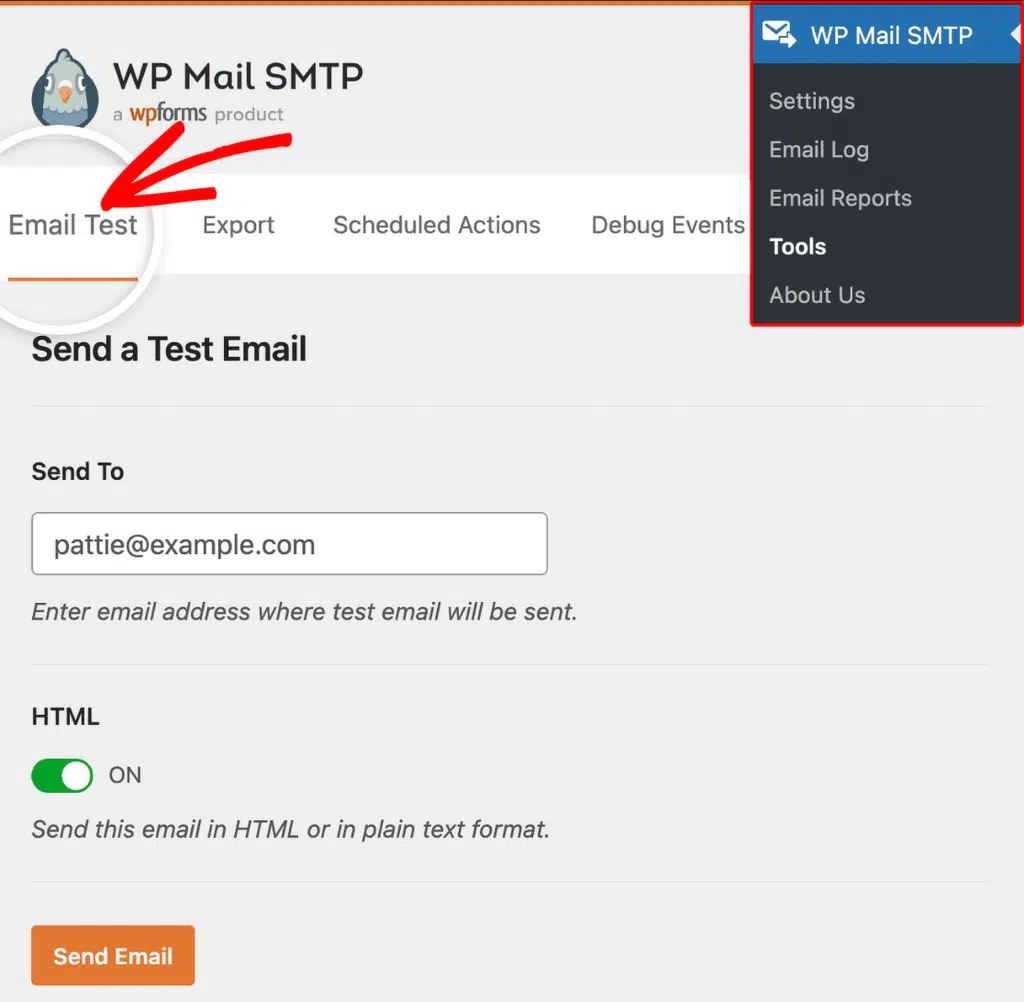
Finally, test the fix by going to WP Mail SMTP » Tools, clicking the Email Test tab, entering a recipient address in the Send To field, and clicking Send Email.
Fix 2: Resolve Account Restrictions
New SendGrid accounts sometimes go through a brief manual review period before SendGrid enables sending. SendGrid can also restrict accounts for policy violations.
Start by logging in to your SendGrid account and checking the dashboard home page for any alert banners or notification messages about your account status.
Then, if SendGrid restricts the account, it typically sends an email with instructions. Check the inbox of the email address associated with your SendGrid account, and follow the instructions in that email (usually replying with information about your sending use case).
Finally, after SendGrid lifts the restriction, return to your WordPress admin area and send a test email from WP Mail SMTP » Tools » Email Test.
If the error is gone, you’re done. If it persists, continue to Fix 3.
Fix 3: Check Subuser Permissions
If you created the API key under a subuser account, the subuser must be active with sending enabled.
Start by logging in to your SendGrid account and going to Settings » Subuser Management. Find the subuser associated with the API key.
Then, confirm the subuser is active (not suspended or paused) and has sending enabled. If the subuser is restricted, either enable sending for it or create a new API key under the parent account instead.
Finally, return to your WordPress admin area and send a test email from WP Mail SMTP » Tools » Email Test.
If the error is gone, you’re done. If it persists, continue to Fix 4.
Fix 4: Upgrade or Switch if Free Trial Is Exhausted
SendGrid’s free trial allows 100 emails per day for 60 days. After the trial expires, SendGrid blocks sending until you upgrade.
You have two options: upgrade your SendGrid plan, or switch to a different mailer in WP Mail SMTP.
Option A: Upgrade Your SendGrid Plan
Start by logging in to your SendGrid account and going to Settings » Account Details » Your Products (or check for an upgrade prompt on the dashboard). Select a paid plan (the Essentials plan starts at $19.95 per month for 50,000 emails as of 2025), and complete the upgrade process.
Finally, return to your WordPress admin area and send a test email from WP Mail SMTP » Tools » Email Test.
Option B: Switch to a Different Mailer
If you don’t want to pay for SendGrid, switch to another supported mailer in WP Mail SMTP. See the complete guide to WP Mail SMTP mailers for alternatives.
Notes
- IP Access Management is off by default. If you didn’t enable it, this is likely not the cause.
- If none of the above apply, contact SendGrid support. They can see account-level restrictions that don’t appear in the dashboard UI.
That’s It! You now know how to fix the ‘Authenticated User Not Authorized to Send’ error in SendGrid and get your emails sending again through WP Mail SMTP.