


AI Summary
Note: This guide applies to the Other SMTP mailer in WP Mail SMTP.
What This Error Means
WP Mail SMTP connected to the SMTP server successfully but the server rejected the username or password. The credentials stored in WP Mail SMTP do not match what the mail server expects.
Common Causes
- Wrong password (changed at the provider without updating WP Mail SMTP).
- 2-factor authentication enabled. Gmail, Yahoo, Zoho, and iCloud require an App Password. Using the regular account password won’t work.
- Username format mismatch (some servers want
[email protected], others justuser). - Account locked after too many failed attempts.
- Microsoft disabled basic SMTP auth at the tenant level by default since October 2022.
How to Fix
Here is the complete step-by-step guide to resolving the error.
Step 1: Re-enter Your Existing Password
A mistyped or stale password is the most common cause. Re-entering it rules out copy-paste errors and invisible whitespace.
Start by going to WP Mail SMTP » Settings and scrolling to the Other SMTP section. Then, clear the SMTP Password field and re-enter your updated password. If the SMTP server requires an app-specific password, then make sure to generate it and use the value here.

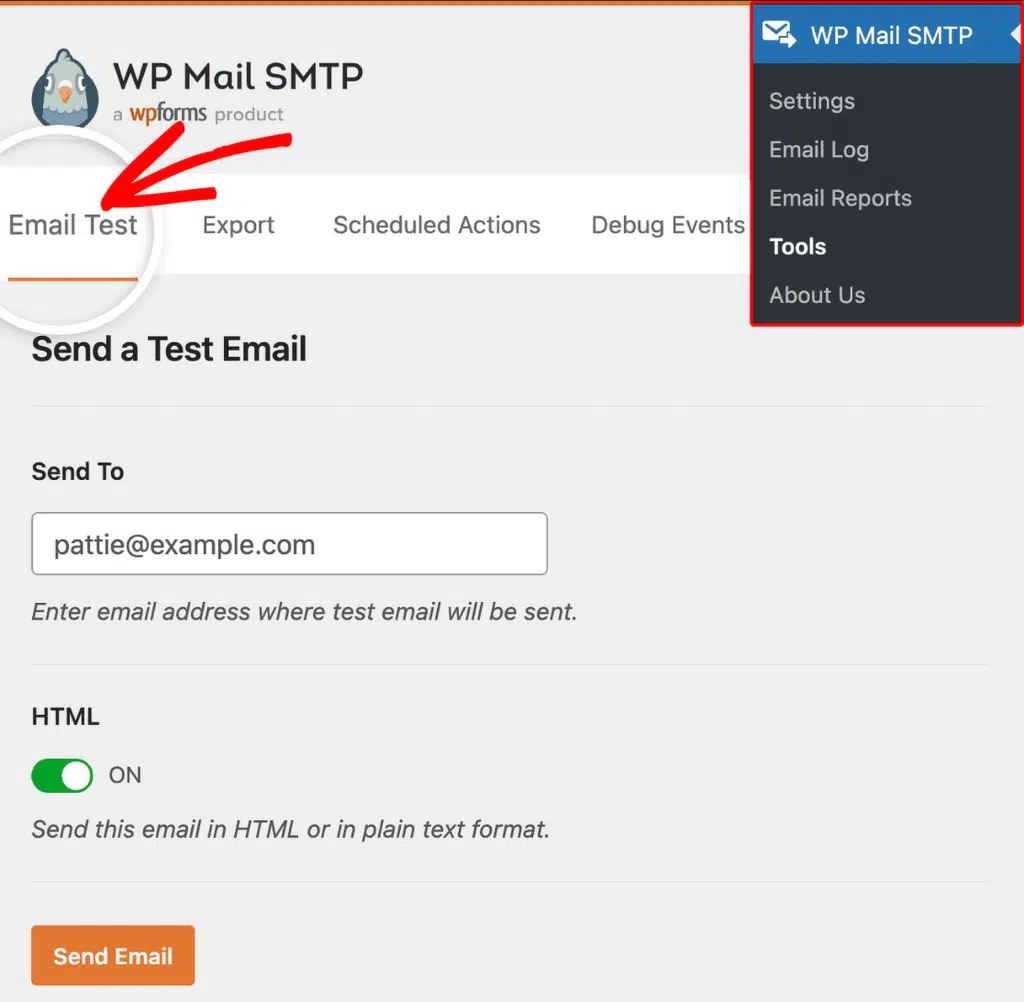
Once done, be sure to save your changes. To test the fix, go to WP Mail SMTP » Tools, click the Email Test tab, and click Send Email.
If the error is gone, you’re done. If it persists, continue to Step 2.
Step 2: Gmail or Google Workspace: Generate an App Password
Gmail requires an App Password when connecting to an external application. Your regular Google password won’t work.
To generate an app password, log in to your Google account. Then, go to Security and confirm 2-Step Verification is turned on (Google requires this before App Passwords become available). Next, search “App passwords” in the Security settings, enter an app name (for example, “WP Mail SMTP”), and click Create.

After that, copy the 16-character password shown on screen.

Note: Save the App Password before closing the dialog. Google won’t show it again, and you’ll need to generate a new one if you lose it.
Next, return to your WordPress admin area and go to WP Mail SMTP » Settings. Scroll to the Other SMTP section and confirm the settings: SMTP Host smtp.gmail.com, Encryption TLS, Port 587, Authentication On. Then, enter your full Gmail address as the SMTP Username and paste the App Password into the SMTP Password field.
Finally, save your changes and send a test email from WP Mail SMTP » Tools.
Step 3: Office 365 or Microsoft 365: Switch to the Outlook Mailer
If you’re using Microsoft’s SMTP, you should know that Microsoft disabled SMTP AUTH for new tenants by default since October 2022. Unless a Microsoft 365 admin has explicitly re-enabled SMTP AUTH for your mailbox, the server rejects credentials regardless of whether they are correct.
The best way forward is to switch to the dedicated Microsoft Outlook mailer in WP Mail SMTP. To do so, go to WP Mail SMTP » Settings. Then, in the Mailer section, select Microsoft 365 / Outlook instead of Other SMTP.
Next, follow the on-screen OAuth setup to connect your Microsoft account. No password is stored in WordPress. You can use the One-Click Setup option and skip the entire setup process.
Alternatively, you can use the manual approach, which requires setting up a custom application in your Azure dashboard. For the complete step-by-step tutorial, be sure to check the Outlook mailer guide.
Step 4: Zoho Mail: Generate an App-Specific Password
Zoho requires an App-Specific Password when two-factor authentication is enabled.
To generate your app password, log in to Zoho Mail. Then, go to Settings » Security » App-Specific Passwords and generate a new app password for WP Mail SMTP.

After that, return to WP Mail SMTP » Settings and scroll to the Other SMTP section. Confirm the settings:
- SMTP Host:
smtp.zoho.com(orsmtppro.zoho.comfor custom domains,smtp.zoho.eufor EU accounts) - Encryption: TLS
- Port: 587
- Authentication: On
Then, enter your Zoho email as the SMTP Username, paste the App-Specific Password into the SMTP Password field, and click Save Settings.
Finally, send a test email. If the error is gone, you’re done. If it persists, continue to Step 5.
Step 5: cPanel or Webmail (Hosting Provider): Reset the Email Password
If you use your hosting provider’s email, then the password might have changed or expired.
To generate a new password, log in to cPanel. Then, go to Email Accounts, find the email account, and click Manage.

Reset the password or confirm the current one.
Next, return to WP Mail SMTP » Settings and scroll to the Other SMTP section. Confirm the SMTP Host is correct (usually mail.yourdomain.com or the server hostname from your host). Then, enter the full email address as the SMTP Username, enter the new password in the SMTP Password field, and click Save Settings.
Notes
- If Office 365 is blocking SMTP auth, switching to the dedicated Microsoft 365 / Outlook mailer in WP Mail SMTP is the correct long-term fix. Don’t try to re-enable SMTP auth at the tenant level.
- After 5 or more failed login attempts, many servers impose a temporary lockout (5–30 minutes). If you are sure the credentials are correct, wait before retrying.
- Yahoo and iCloud also require App Passwords when 2FA is enabled. Follow the same pattern as Gmail: generate the App Password in the provider’s security settings and paste it into the SMTP Password field.
That’s It! You now know how to fix the ‘Could Not Authenticate’ error and get your emails sending again through WP Mail SMTP.