


AI Summary
Note: This guide applies to the Other SMTP mailer in WP Mail SMTP.
What This Error Means
Your WordPress site tried to reach the SMTP mail server but the server refused the connection or it timed out. The site never got far enough to log in or send a message. This usually means the server address is wrong, the port is blocked, or a firewall is in the way.
Common Causes
- Wrong SMTP host address or port number
- Your hosting provider blocks outbound email ports (very common on shared hosting)
- A server firewall blocks outbound connections
- The mail server is temporarily down
How to Fix
Here is the complete step-by-step guide to resolving the error.
Step 1: Verify Your SMTP Host and Port
An incorrect server address or port is the most common cause. Confirm the exact values with your email provider.
Start by going to WP Mail SMTP » Settings and scrolling down to the Other SMTP section.
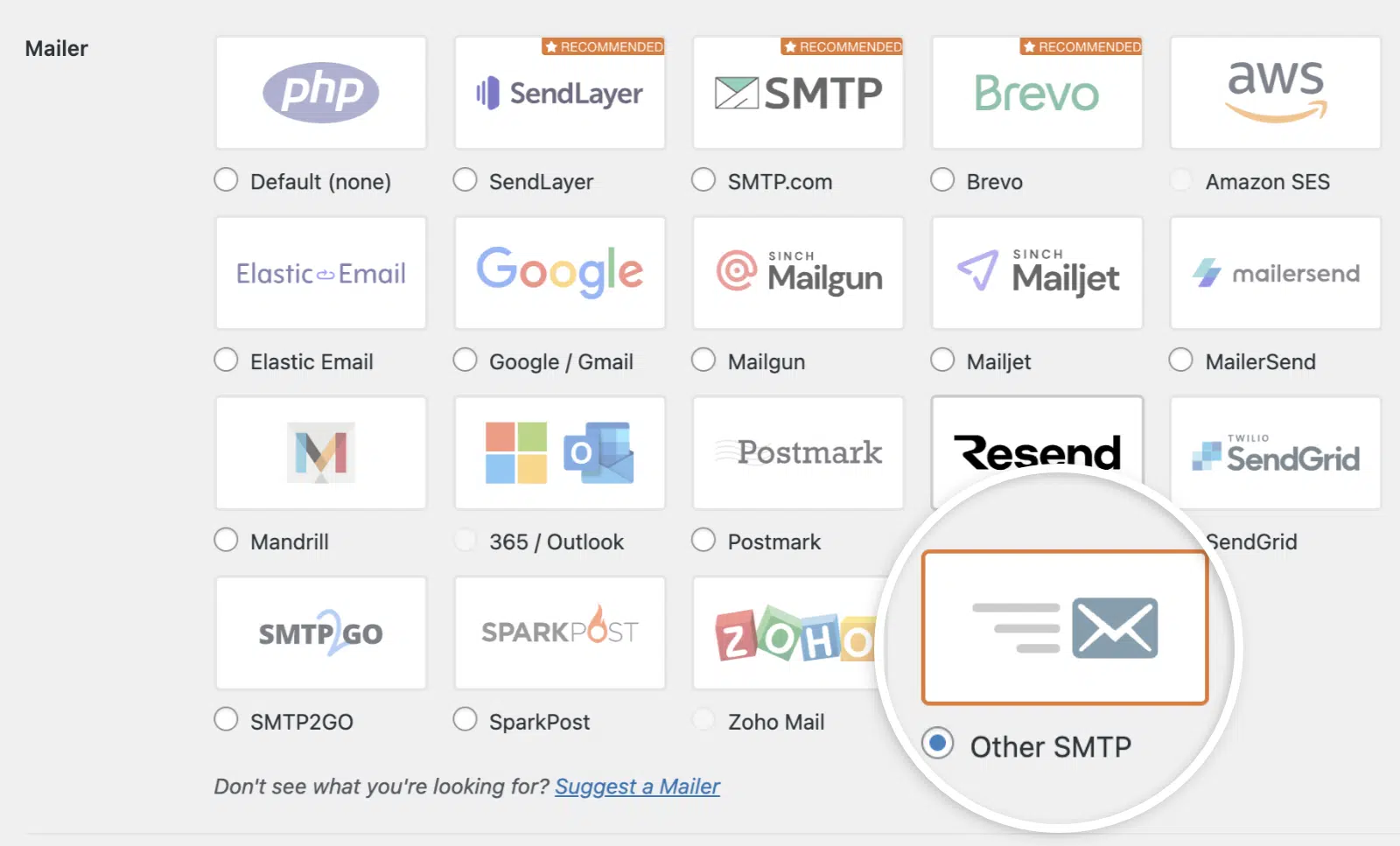
Then, check the SMTP Host field. It should match your provider exactly (for example, smtp.gmail.com for Gmail or smtp.office365.com for Outlook).
Next, set Encryption to TLS and SMTP Port to 587. This is the most widely supported combination. If your provider requires SSL instead, set Encryption to SSL and SMTP Port to 465.
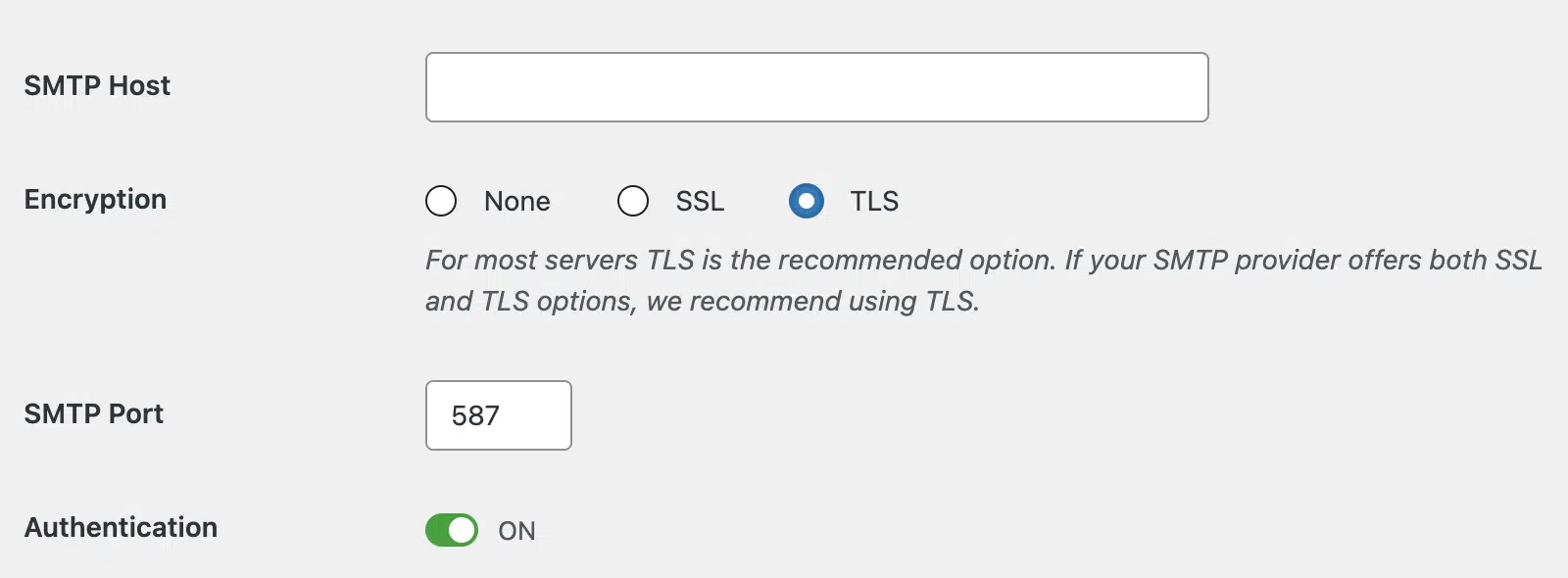
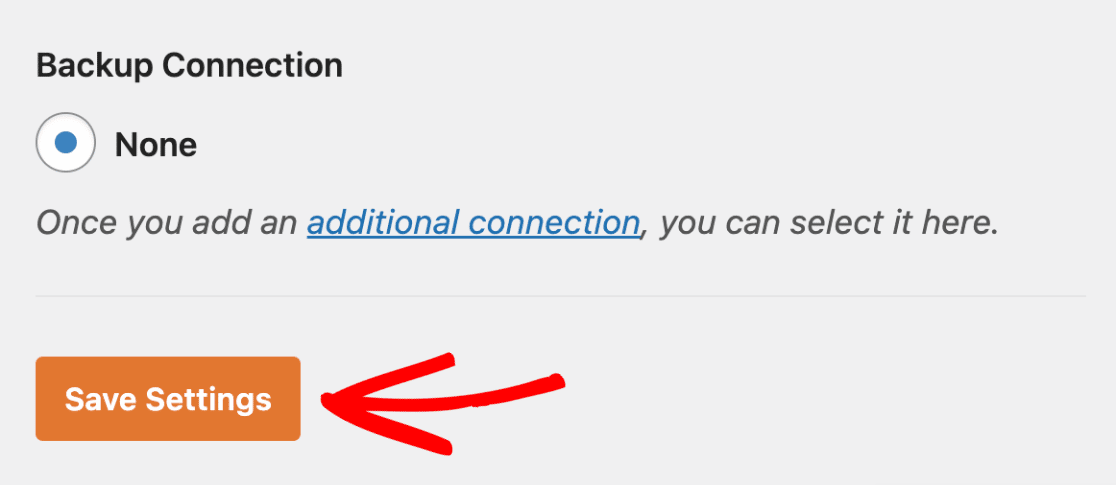
Finally, click Save Settings.
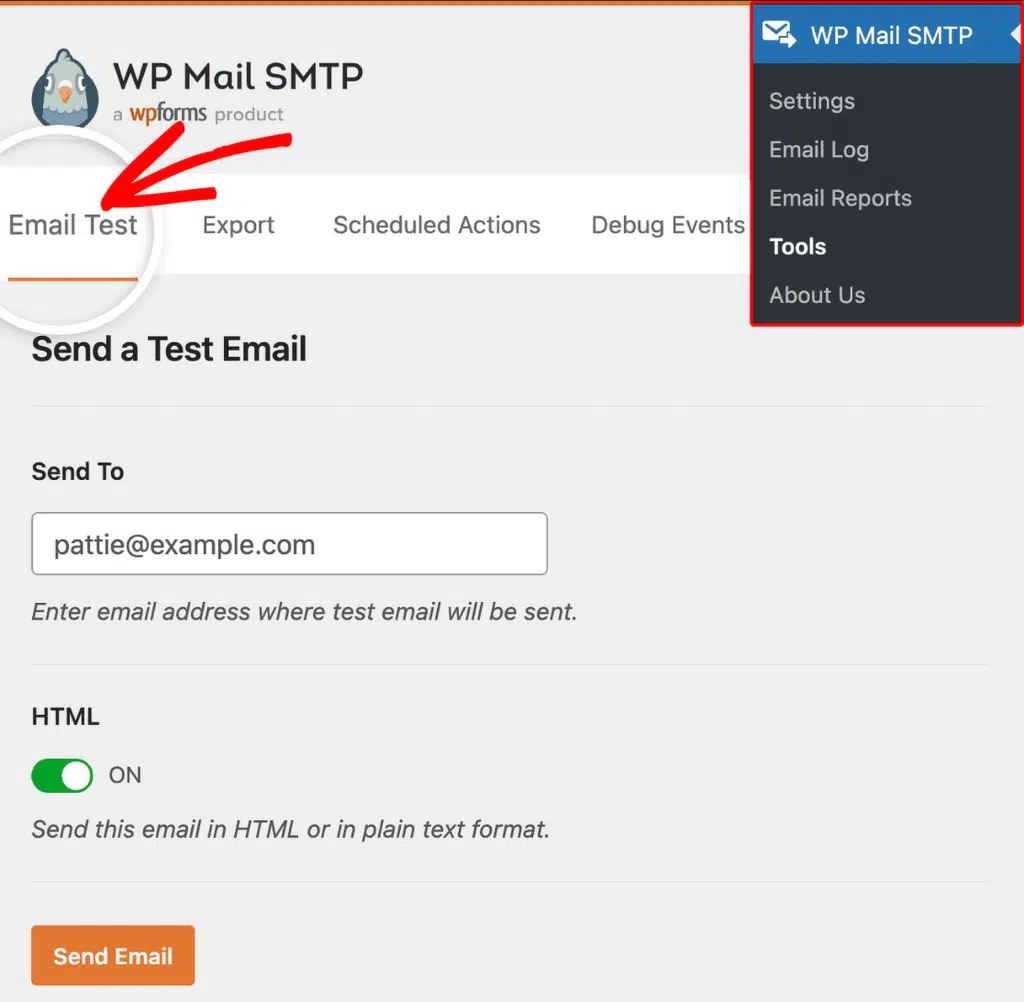
To test the fix, go to WP Mail SMTP » Tools, click the Email Test tab, and click Send Email.
If the error is gone, you’re done. If it persists, continue to Step 2.
Step 2: Ask Your Hosting Provider About Blocked Ports
Many shared and managed hosting providers block outbound SMTP ports to prevent spam. Confirm which ports are open.
Start by opening a support ticket or live chat with your hosting provider. Ask: “Are outbound connections on ports 587 and 465 open for my account?” If they can open a port for you, update the SMTP Port field in WP Mail SMTP » Settings to match the open port. Then, click Save Settings.
Finally, return to WP Mail SMTP » Tools and send a test email. If the error is gone, you’re done. If it persists, continue to Step 3.
Step 3: Switch to an API-Based Mailer
If your host blocks all SMTP ports (WP Engine, Kinsta, Flywheel, and many other managed hosts do this by design), switch to a mailer that sends over HTTPS instead. API mailers bypass port restrictions entirely.
Start by going to WP Mail SMTP » Settings. Then, in the Mailer section, select an API-based mailer such as SendLayer, Brevo (Sendinblue), SendGrid, or Mailgun.
Next, follow the on-screen instructions to connect your account. Each API mailer will request an API key that you generate on the provider’s dashboard.
Finally, click Save Settings and send a test email from WP Mail SMTP » Tools.
Notes
- Hosting providers block port
25on nearly all modern servers. Do not use it. - WP Engine, Kinsta, and Flywheel block all outbound SMTP by design. An API-based mailer is the recommended solution on these hosts.
- If the error appears only sometimes, the mail server may be experiencing intermittent downtime. Check your provider’s status page.
That’s It! You now know how to fix the ‘Could Not Connect to SMTP Host’ error and get your emails sending again through WP Mail SMTP.