


AI Summary
Note: This guide applies to the Brevo mailer in WP Mail SMTP.
What this Error Means
Brevo has suspended the account’s transactional sending after detecting suspicious or malicious activity. The API returns an error indicating the account is blocked and cannot send emails until the issue is resolved with Brevo support.
Common Causes
- Contact forms without CAPTCHA protection were attacked by bots, generating high volumes of spam submissions sent through Brevo (most common)
- High complaint rates or a large number of emails bouncing back as undeliverable (emails sent to addresses that don’t exist) triggered an automated suspension
- Brevo detected unusual sending patterns inconsistent with normal account activity
Resolving the ‘Account Blocked: Malicious Behavior’ Error
Here is the complete step-by-step guide to resolving the error.
Step 1: Fix the Root Cause
Brevo won’t reactivate the account unless the issue that caused the suspension is resolved. Fix it before contacting support.
Add CAPTCHA protection (reCAPTCHA, hCaptcha, or Cloudflare Turnstile) to every public-facing form on your site — contact forms, registration forms, comment forms, login forms. This is the most common cause: bots submit forms, each submission triggers an email through Brevo, and Brevo sees a spike of spam or bounces.
If your forms plugin supports it, enable anti-spam honeypot fields as an additional layer.
Review your email list or form recipients — if any emails are being sent to invalid addresses, remove them. High bounce rates (emails to addresses that don’t exist) are a primary trigger for Brevo’s automated suspension.
Step 2: Contact Brevo Support to Request Reactivation
Log into your Brevo account (app.brevo.com). Click the help icon in the top-right header bar.

In the help panel that appears, click Support and Tickets.

On the support portal page that opens, click Contact your support team (or email [email protected]).

In the ticket, explain:
- What caused the issue (e.g. “bots were submitting our contact forms, triggering emails to invalid addresses”).
- What you did to fix it (e.g. “added reCAPTCHA to all forms, removed invalid addresses from our list”).
Brevo will review your transactional email history and decide whether to reactivate the account.
Step 3: Send a Test Email
Once Brevo confirms the account is reactivated:
Go to WP Mail SMTP » Tools. Click the Email Test tab.
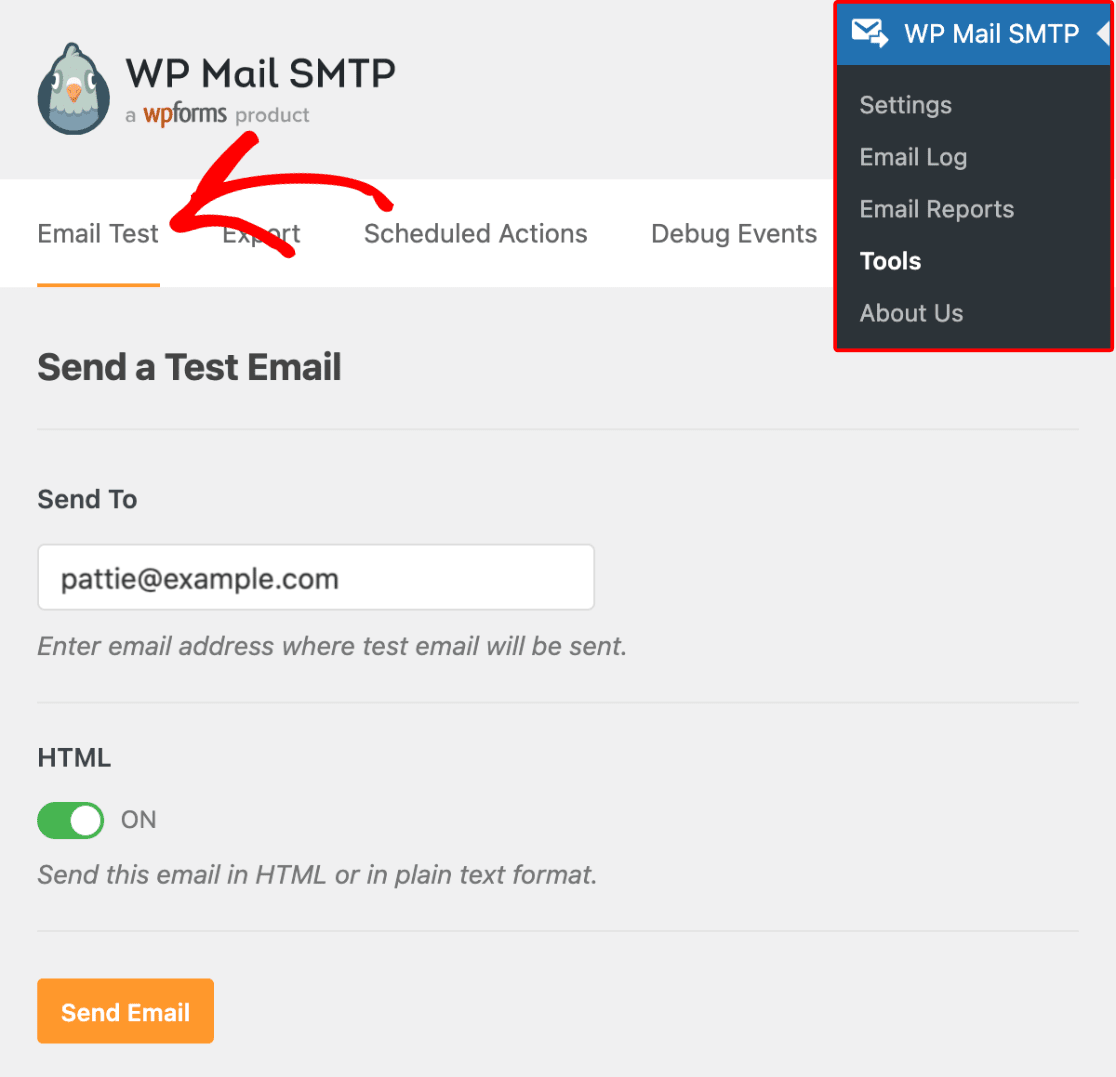
Enter a recipient email in the Send To field. Leave the HTML toggle ON.
Once done, click Send Email.
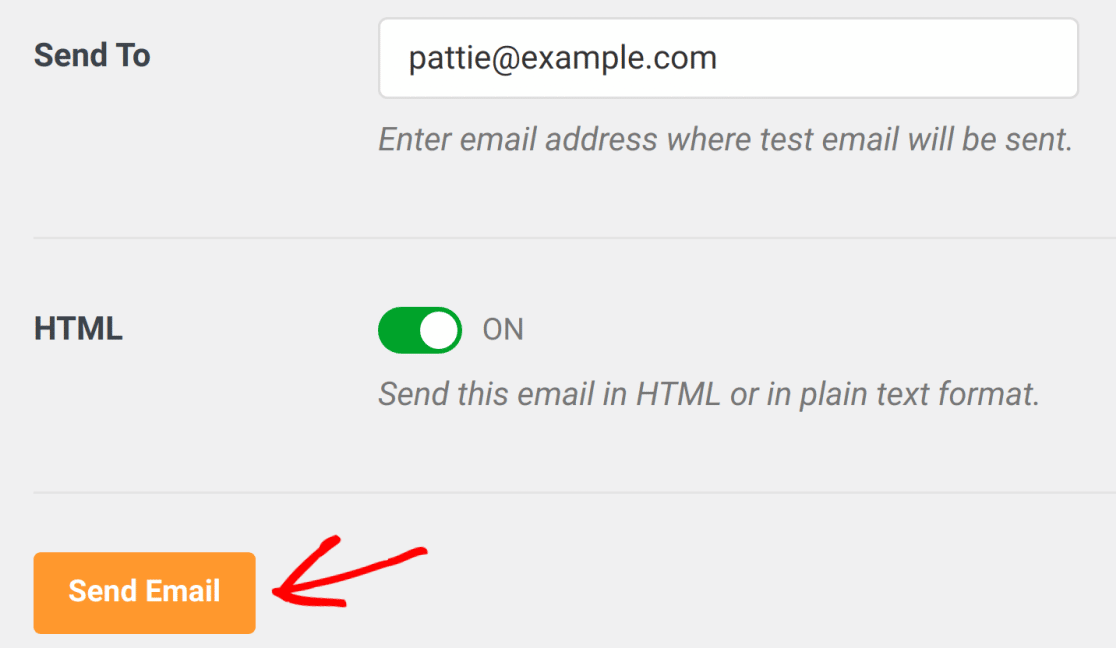
Look for the success message, then check your inbox to confirm the email arrived.

Notes
- Brevo will not reactivate a suspended account a second time. If the account is suspended again after reactivation, the ban is permanent.
- Adding CAPTCHA to all public forms is the single most effective way to prevent this from happening again.
- If you use WPForms, CAPTCHA and anti-spam settings are under each form’s Settings » Spam Protection and Security panel.
That’s It! You now know how to fix the ‘Account Blocked: Malicious Behavior’ error in Brevo and get your emails sending again through WP Mail SMTP.