


AI Summary
Note: This guide applies to the Amazon SES mailer in WP Mail SMTP.
What This Error Means
AWS rejected the request because the Access Key ID or Secret Access Key in WP Mail SMTP is wrong, or the IAM user doesn’t have permission to use SES.
Common Causes
- The Closest Region in WP Mail SMTP doesn’t match the AWS region where SES is configured
- Access Key ID or Secret Access Key entered incorrectly (common, since the Secret Access Key is long and easy to truncate when copying)
- IAM user doesn’t have the
AmazonSESFullAccesspermission policy - Access keys were deactivated or deleted in AWS IAM
- Using keys from a different AWS account than the one where SES was set up
How to Fix
Here is the complete step-by-step guide to resolving the error.
Step 1: Check the Closest Region
A wrong region causes this error even with correct credentials.
Start by navigating to WP Mail SMTP » Settings and scroll to the Amazon SES section.
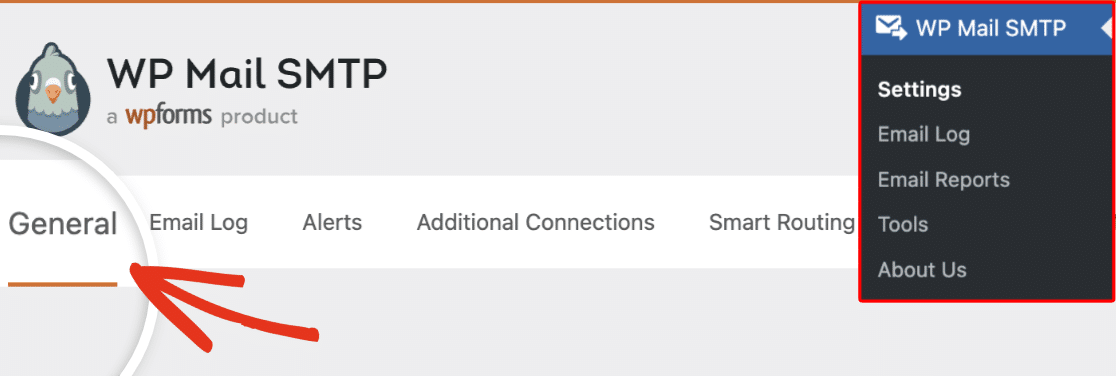
After that, look at the Closest Region dropdown.
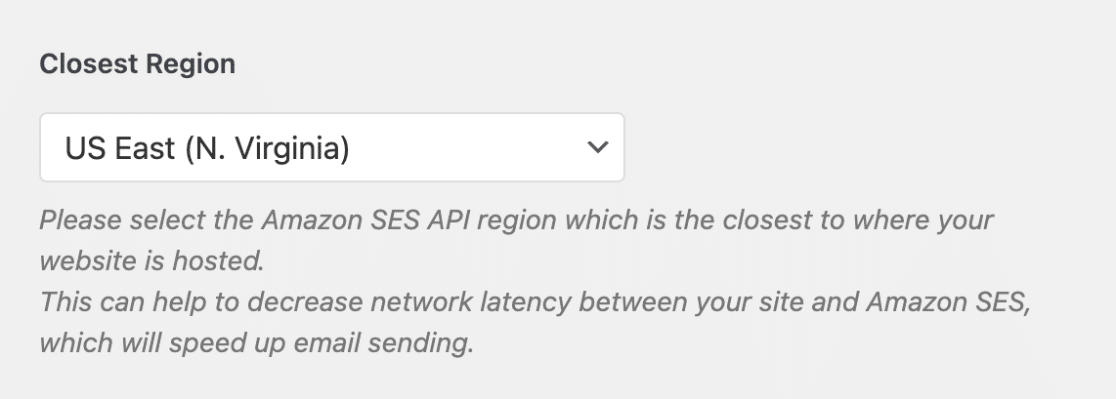
This must match the region where your SES account and identities are set up (for example, US East (N. Virginia), EU (Ireland)).
If you’re not sure which region your SES is in, go to the AWS Console, open Amazon SES, and check the region shown in the top-right corner of the page.
If the regions don’t match, select the correct one in WP Mail SMTP.
Click Save Settings.
Go to WP Mail SMTP » Tools, click the Email Test tab, and click Send Email.
If the error is gone, you’re done. If it persists, continue to Step 2.
Step 2: Check the IAM User’s Permissions
If the region is correct, the IAM user may be missing the required permission.
Log in to the AWS Console (console.aws.amazon.com). Check the account name in the top-right corner to confirm you’re in the right account.
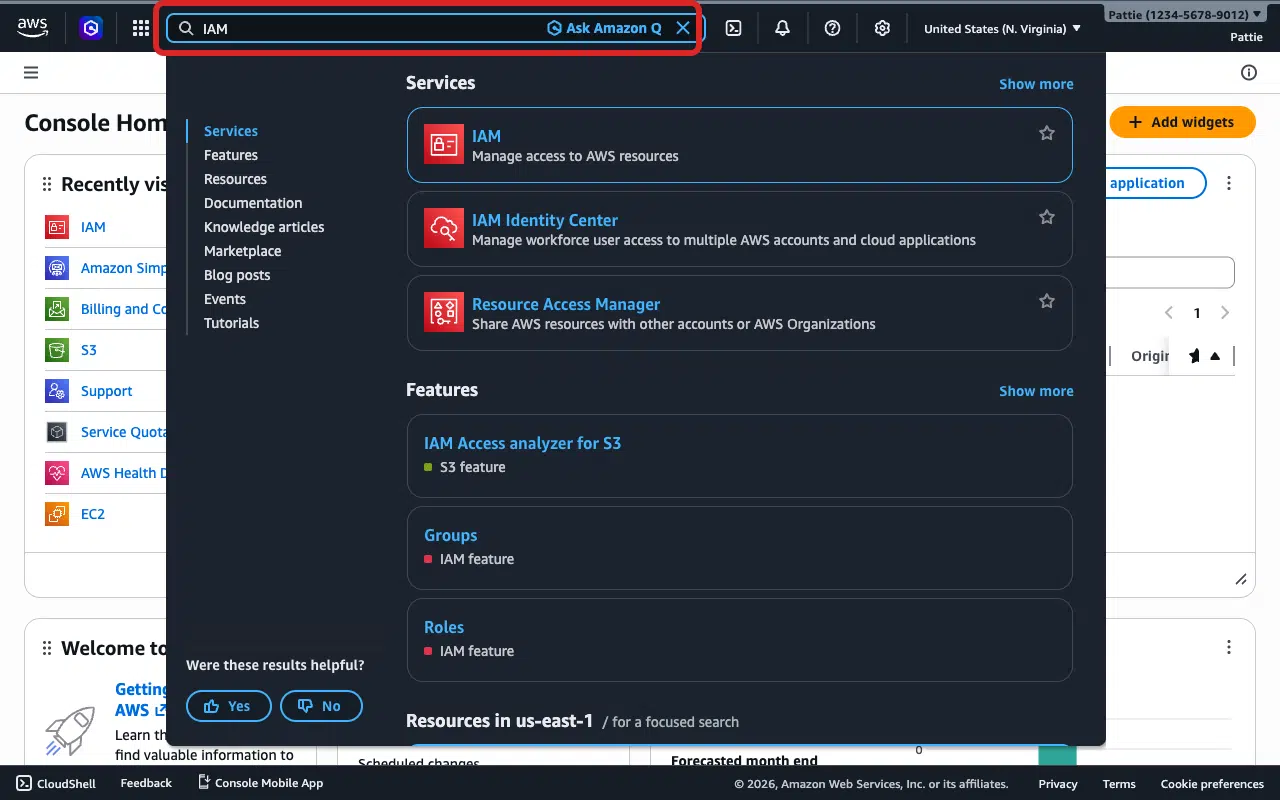
Once you’re logged in, search for IAM in the top search bar.
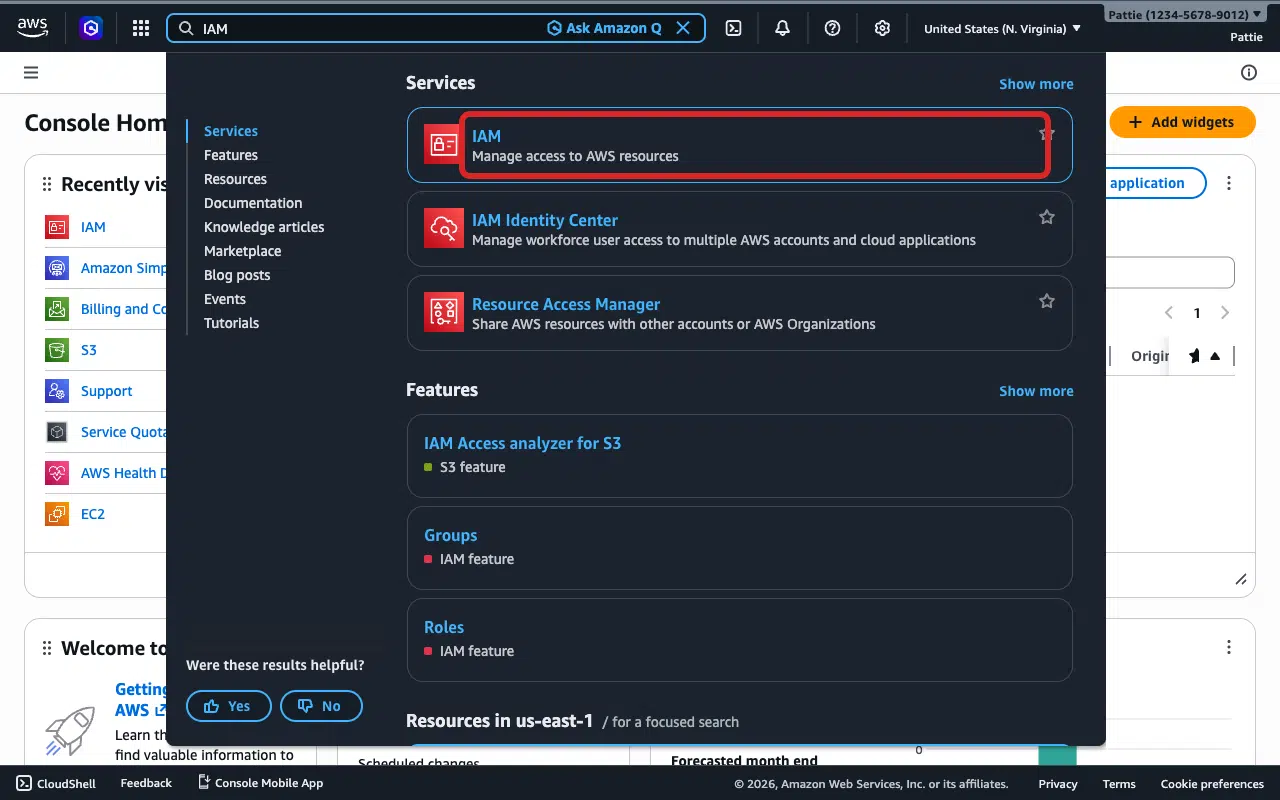
After that, select IAM in the search results.
In the IAM dashboard, click Users from the left sidebar.
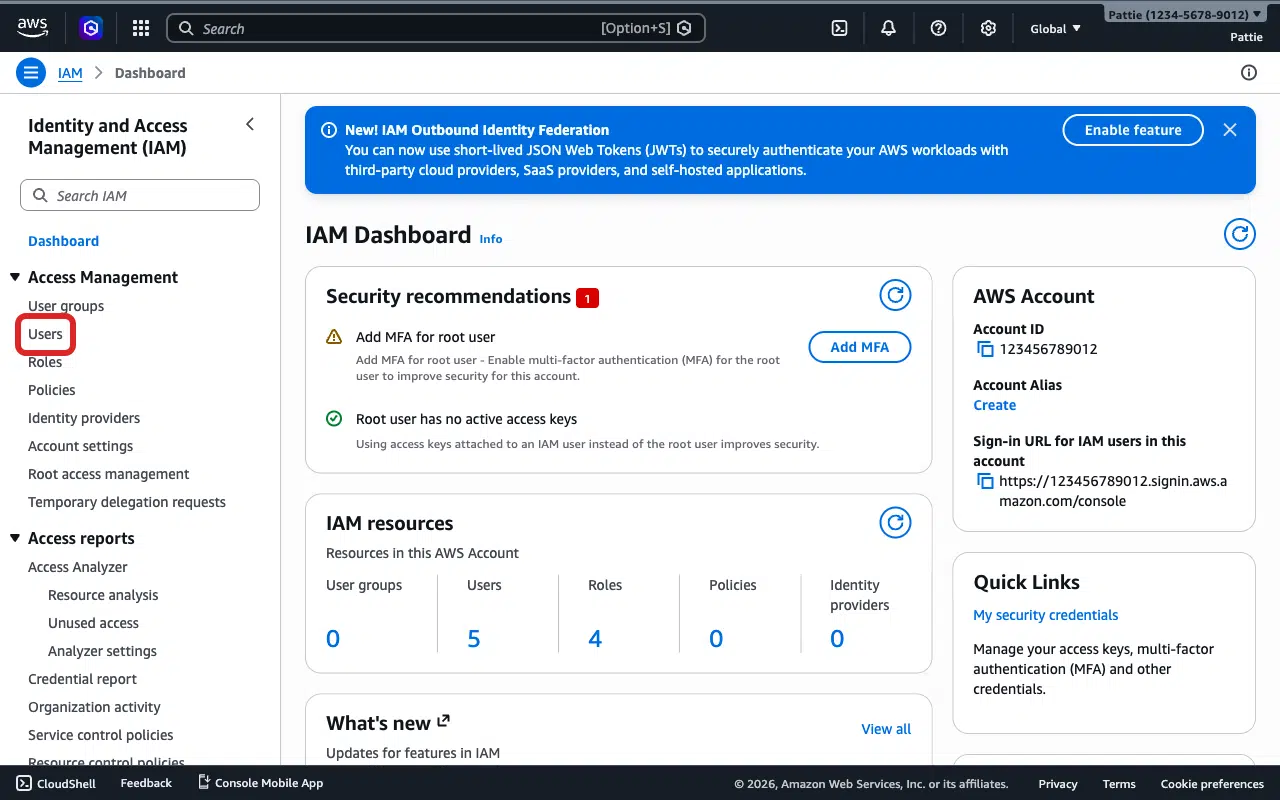
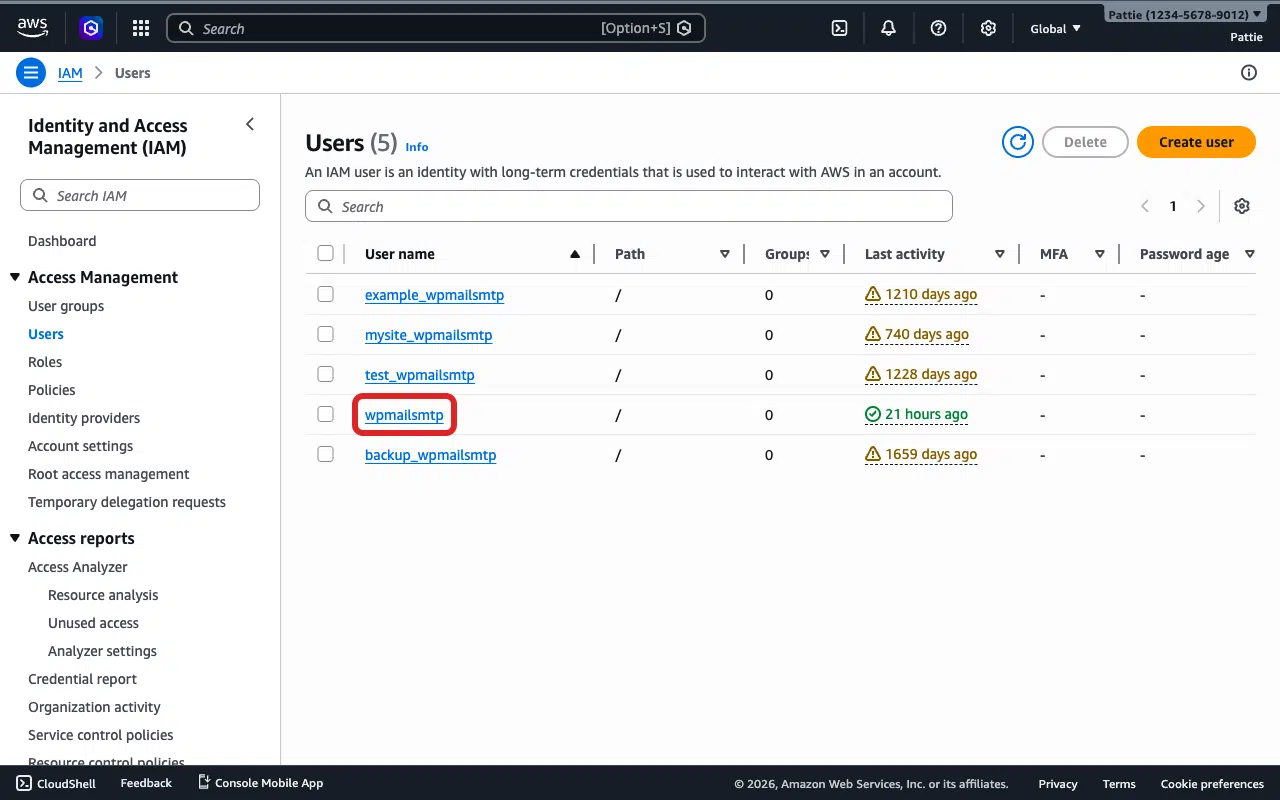
Click the name of the user you created for WP Mail SMTP (it may be named something like yourdomain_wpmailsmtp). If you don’t see a user, skip to Step 4.
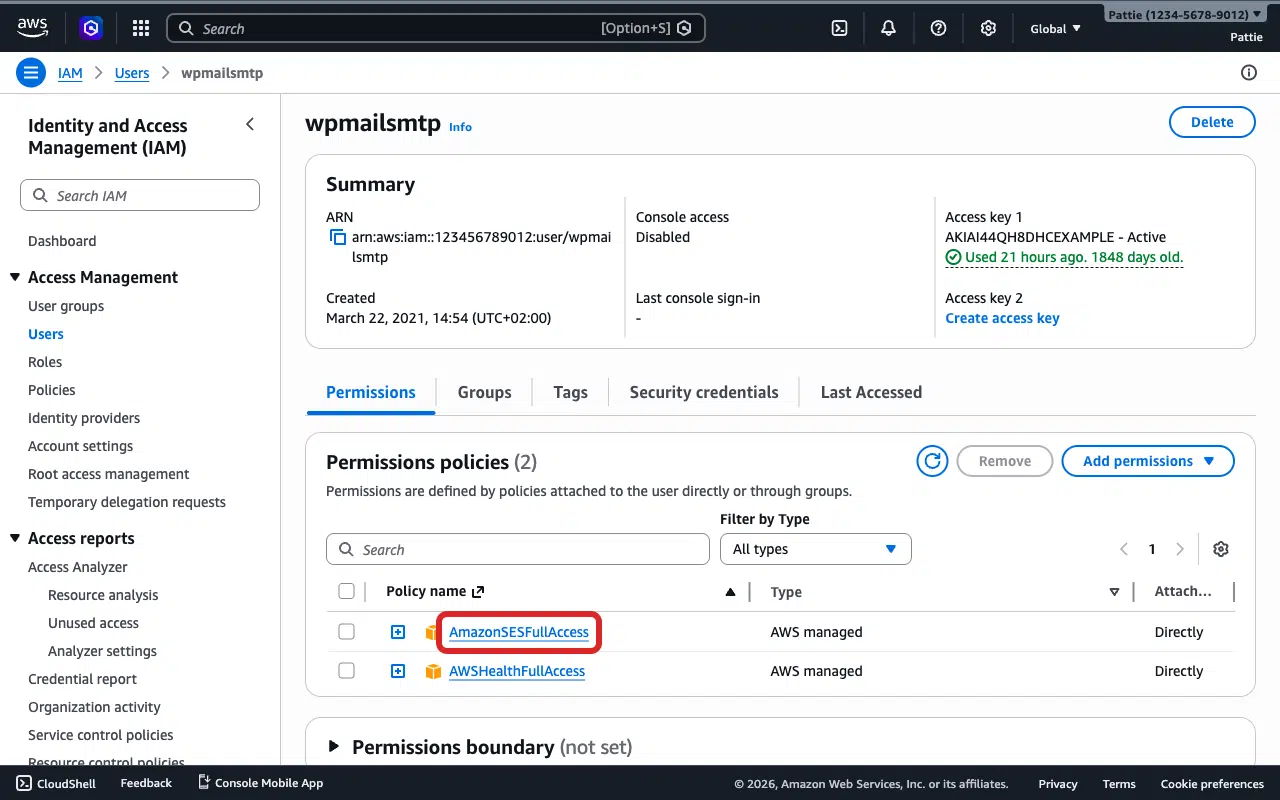
Click the Permissions tab. Look for AmazonSESFullAccess in the policies list. If it’s there, the permissions are fine. Continue to Step 3.
If it’s not there, click the Add permissions dropdown button.
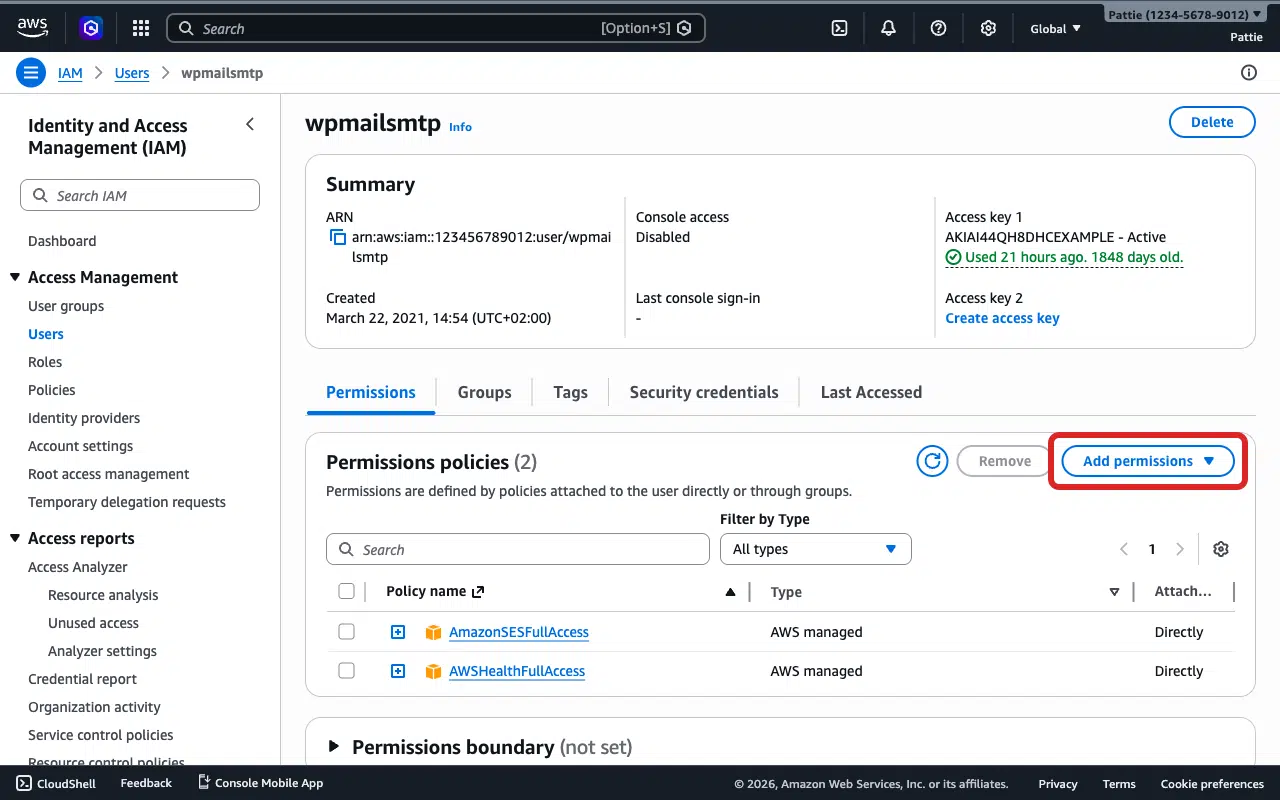
Click Add permissions in the dropdown menu.
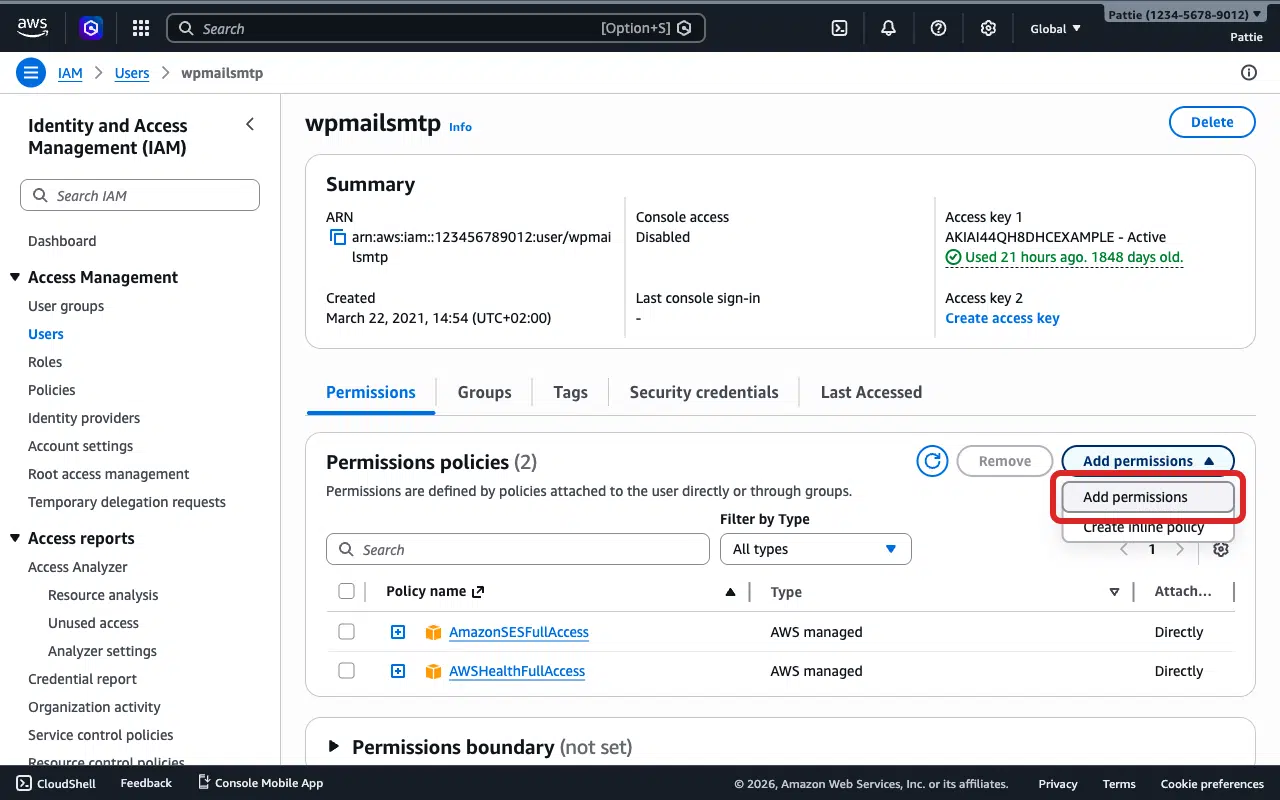
Select Attach policies directly.
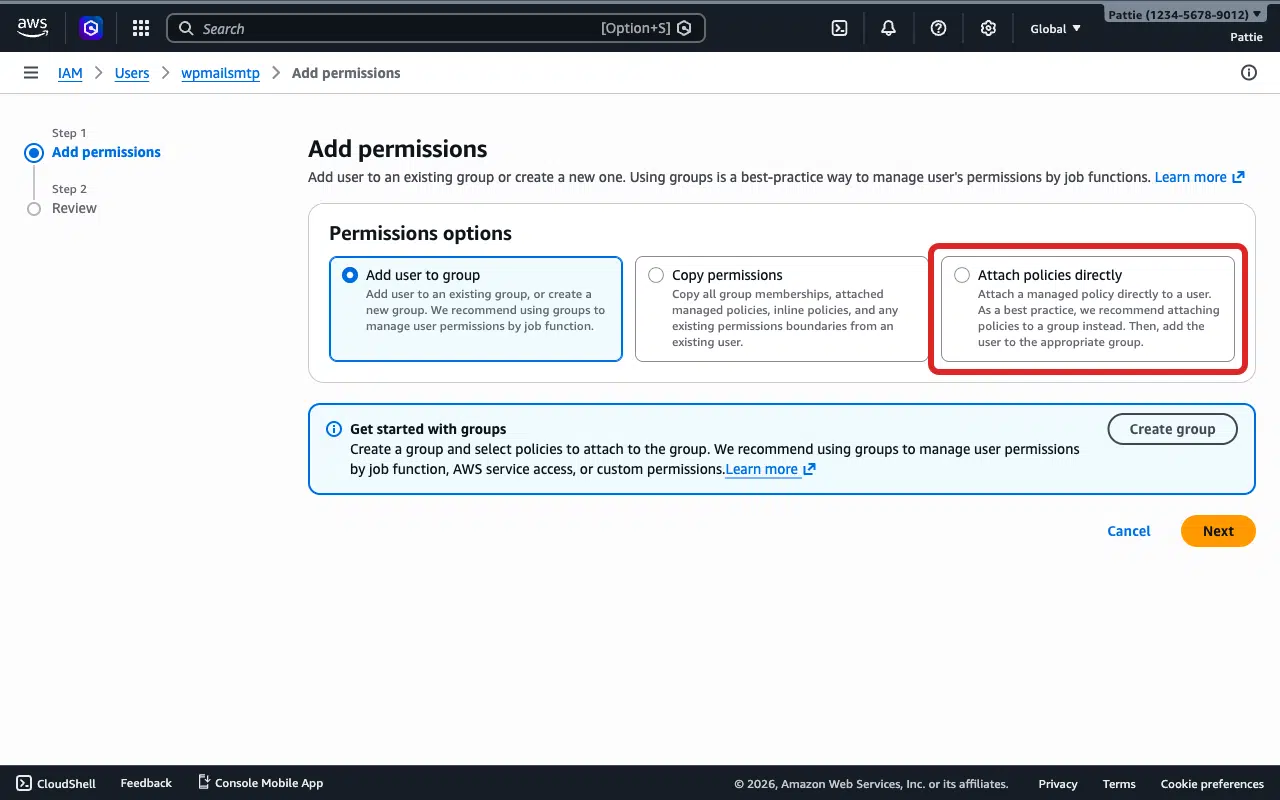
Then type AmazonSESFullAccess in the search bar and select the checkbox next to it.
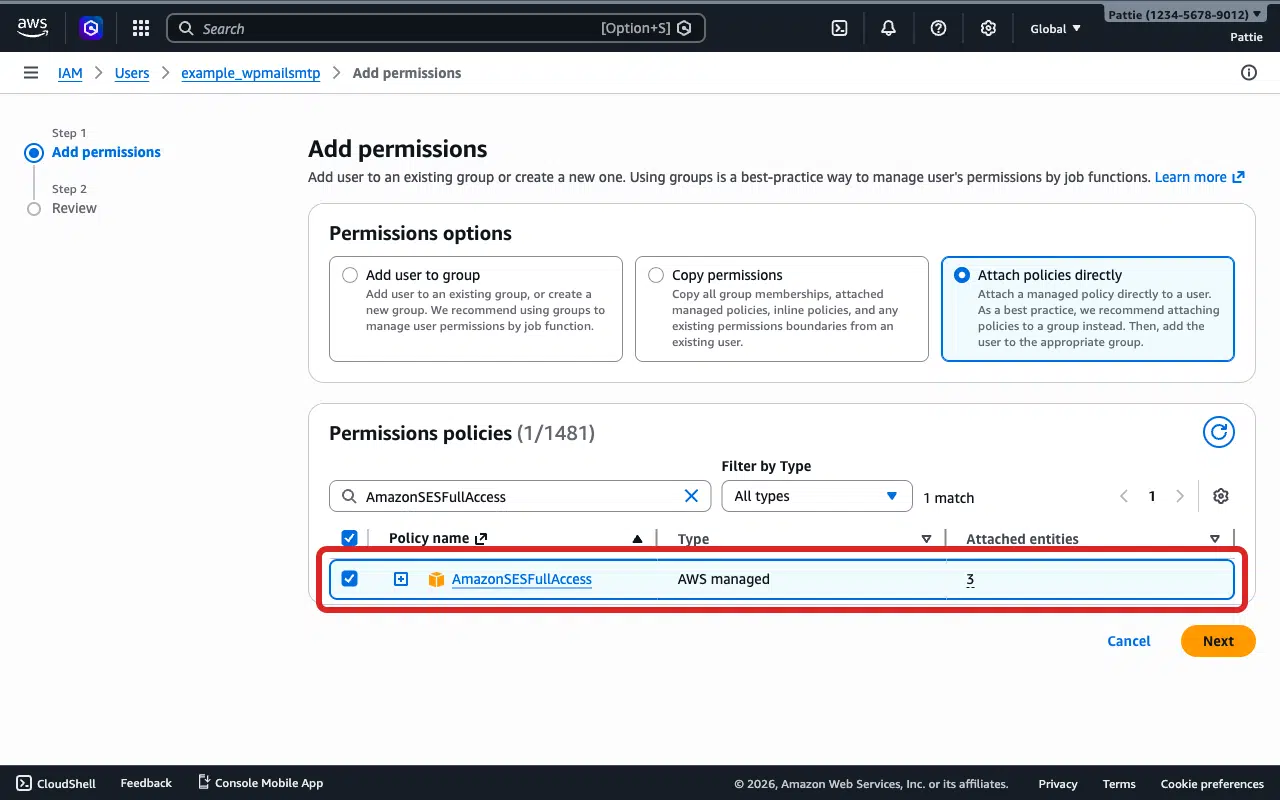
After that, click Next to continue.
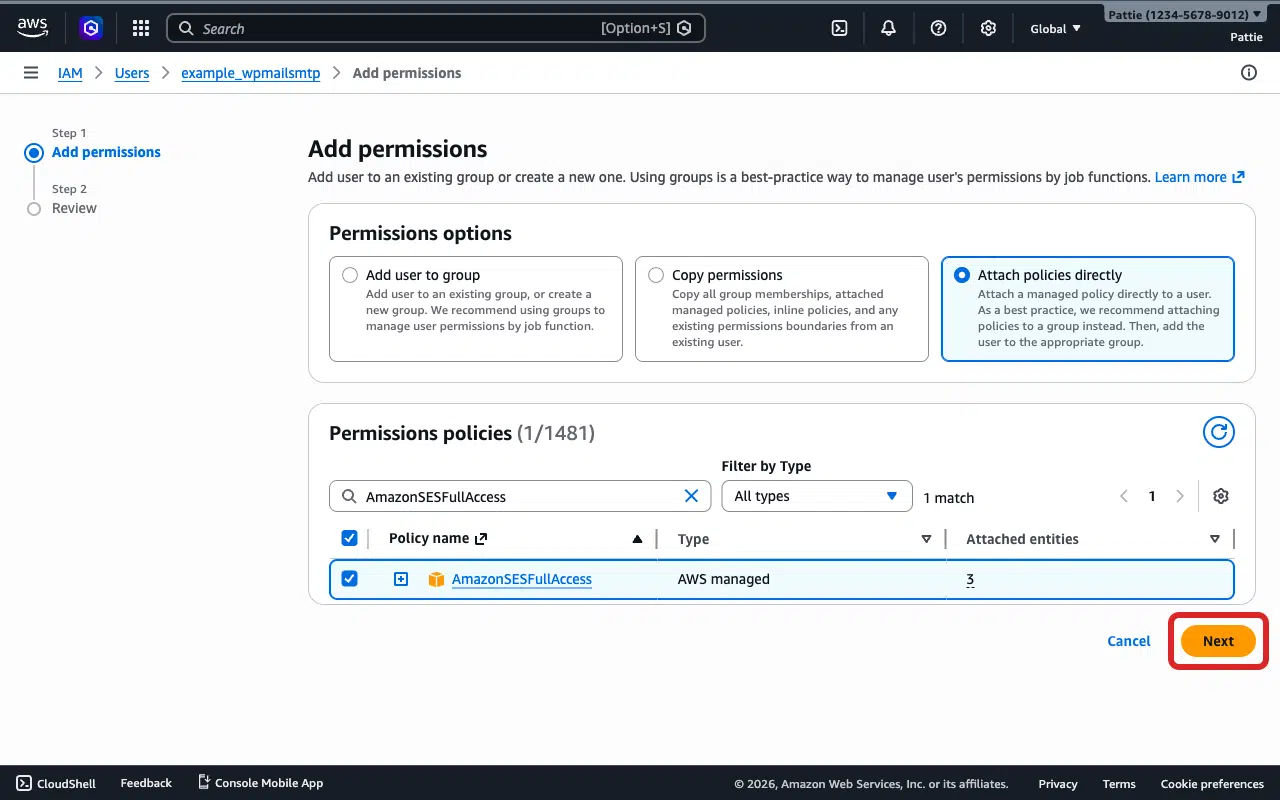
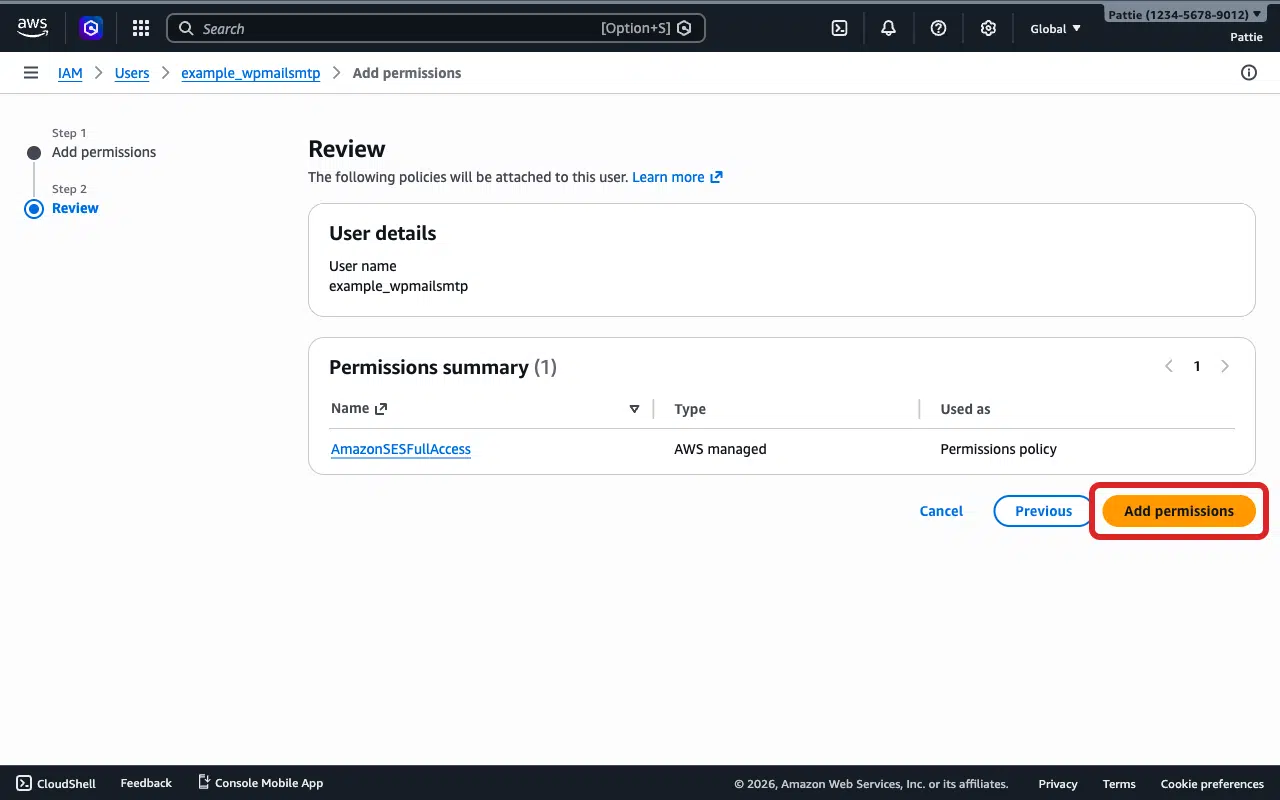
Click Add permissions to save your changes.
To test it out, send a test email. For this, go to WP Mail SMTP » Tools, click the Email Test tab, and click Send Email.
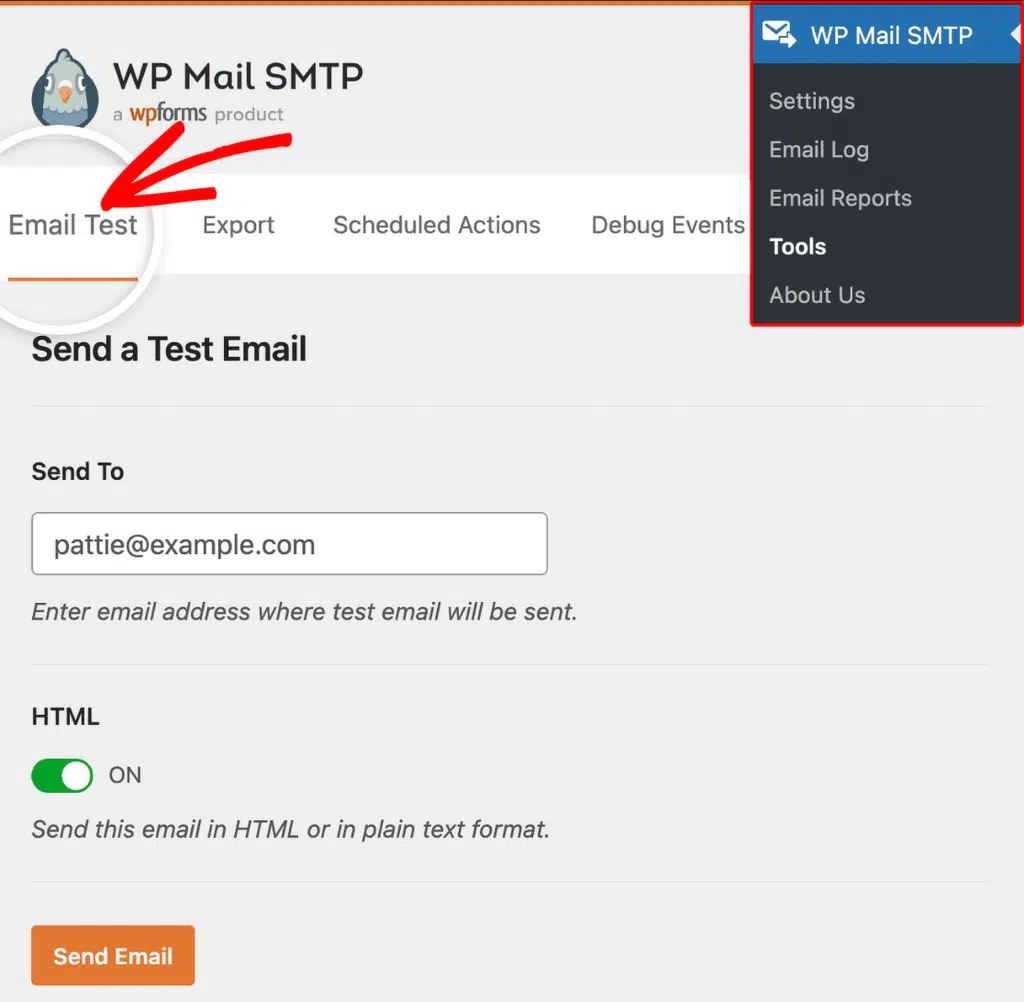
If the error is gone, then you’re done. However, if it persists, continue to Step 3.
Step 3: Create a New Access Key
AWS does not let you view the Secret Access Key after it’s created, so you can’t re-copy an existing one. The fix is to create a new key pair.
In the AWS Console, go to IAM » Users and click your user’s name. Click the Security credentials tab.
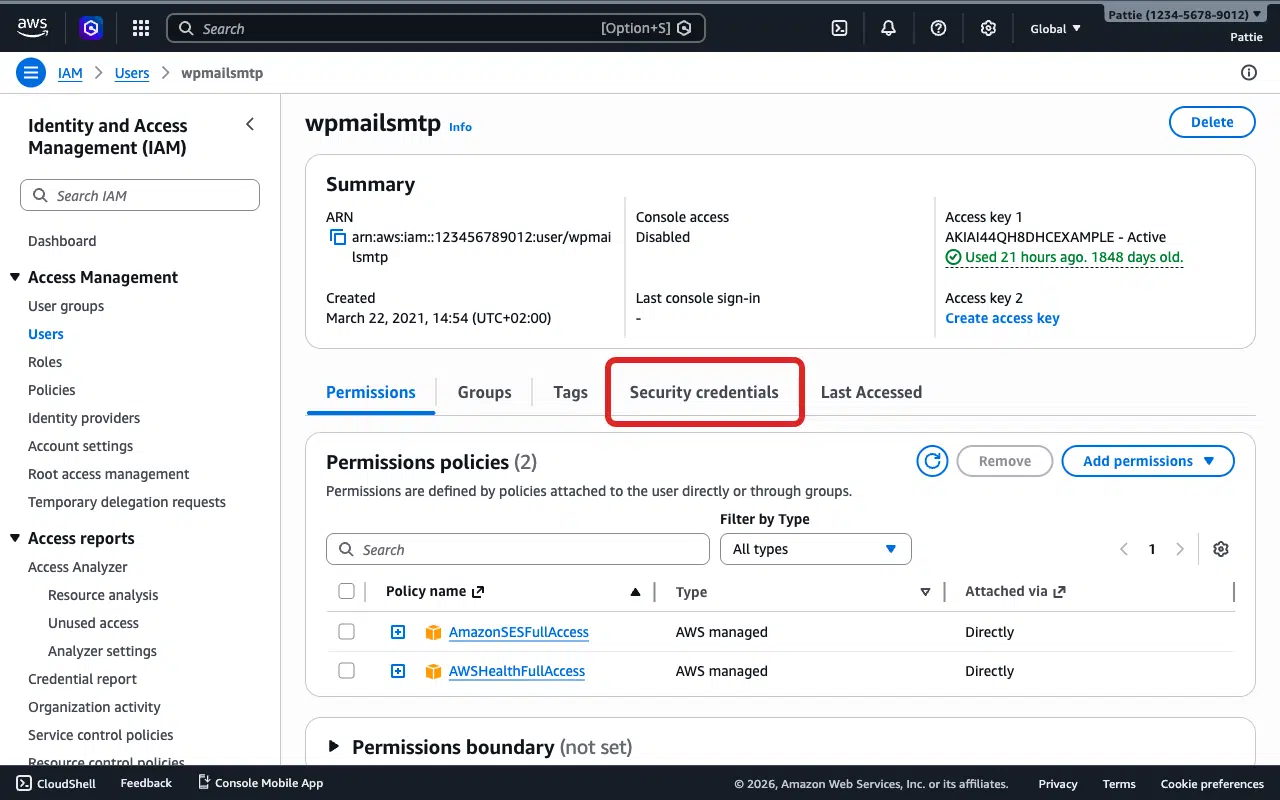
Scroll down to the Access keys section.
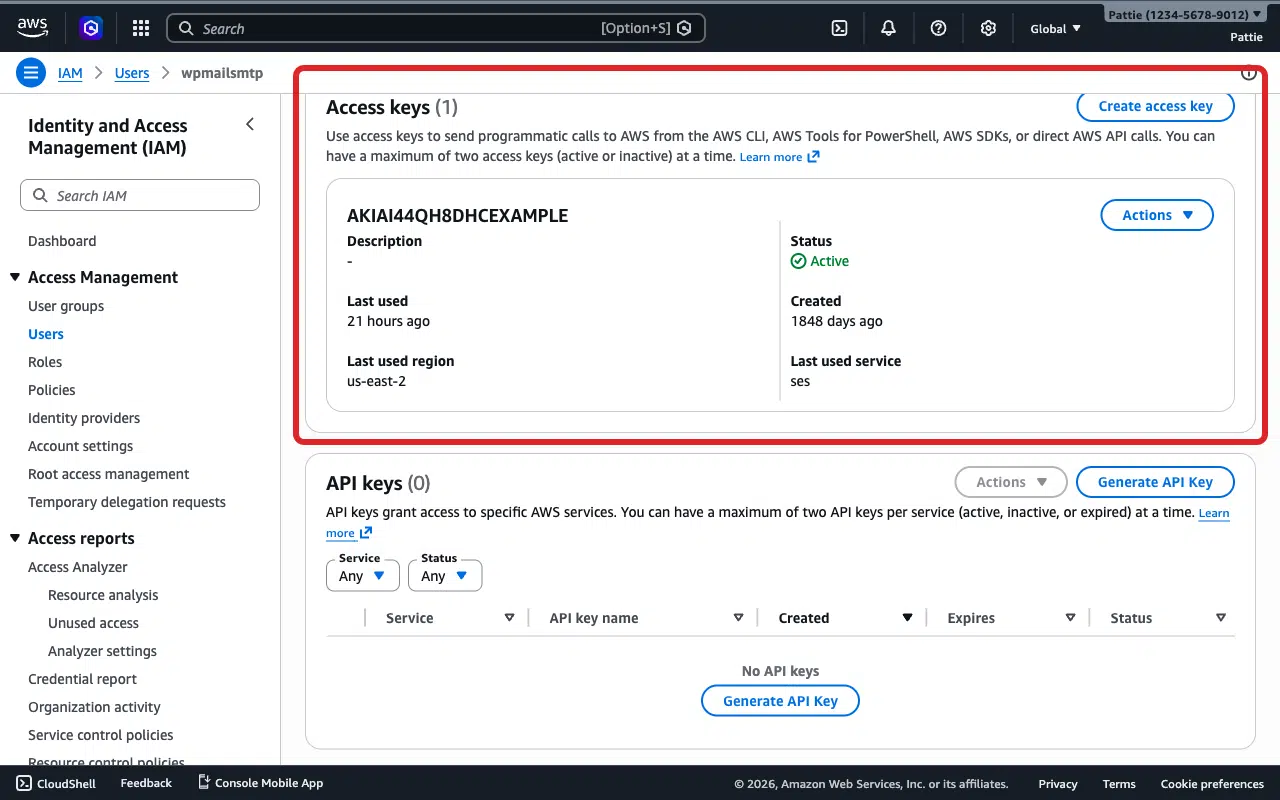
If you see an existing key with Status Inactive, click Actions » Activate to re-enable it. If the key is Active but the error persists, continue below to create a new one.
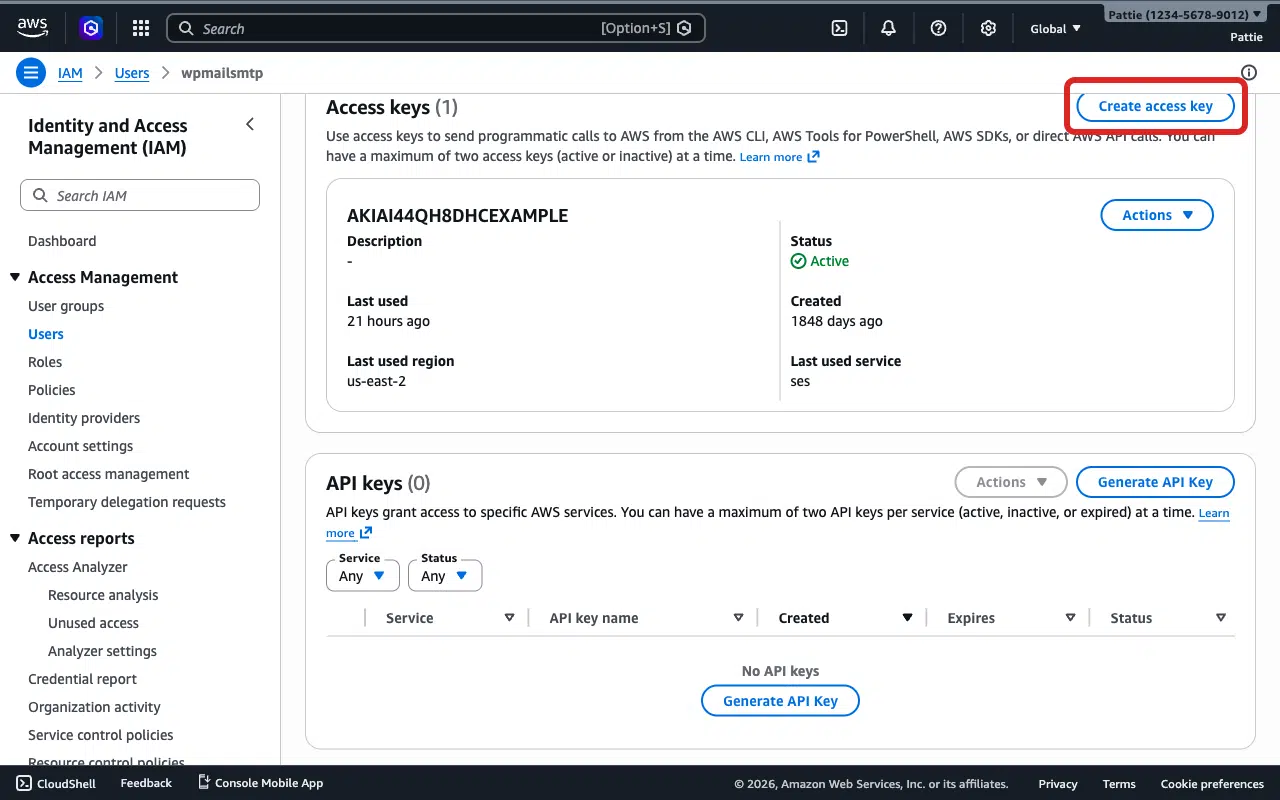
Click the Create access key button.
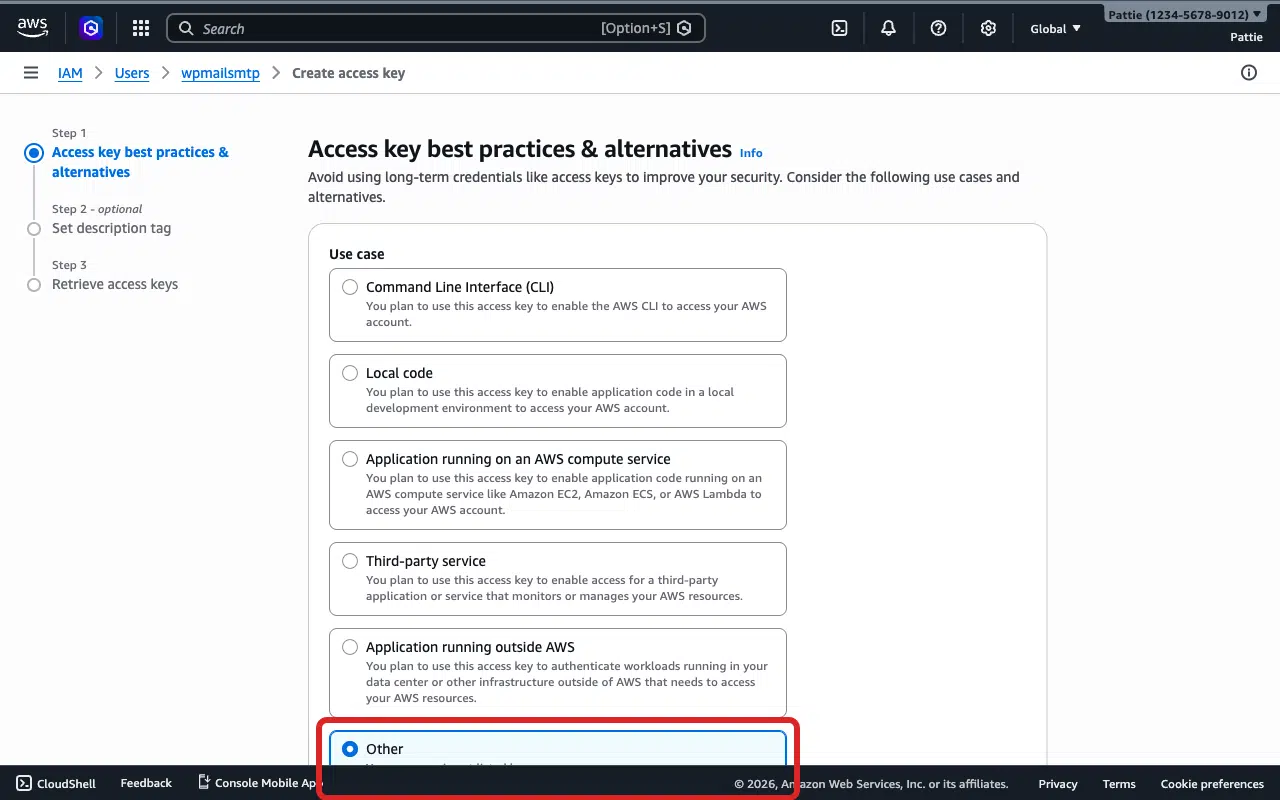
Select Other as the use case.
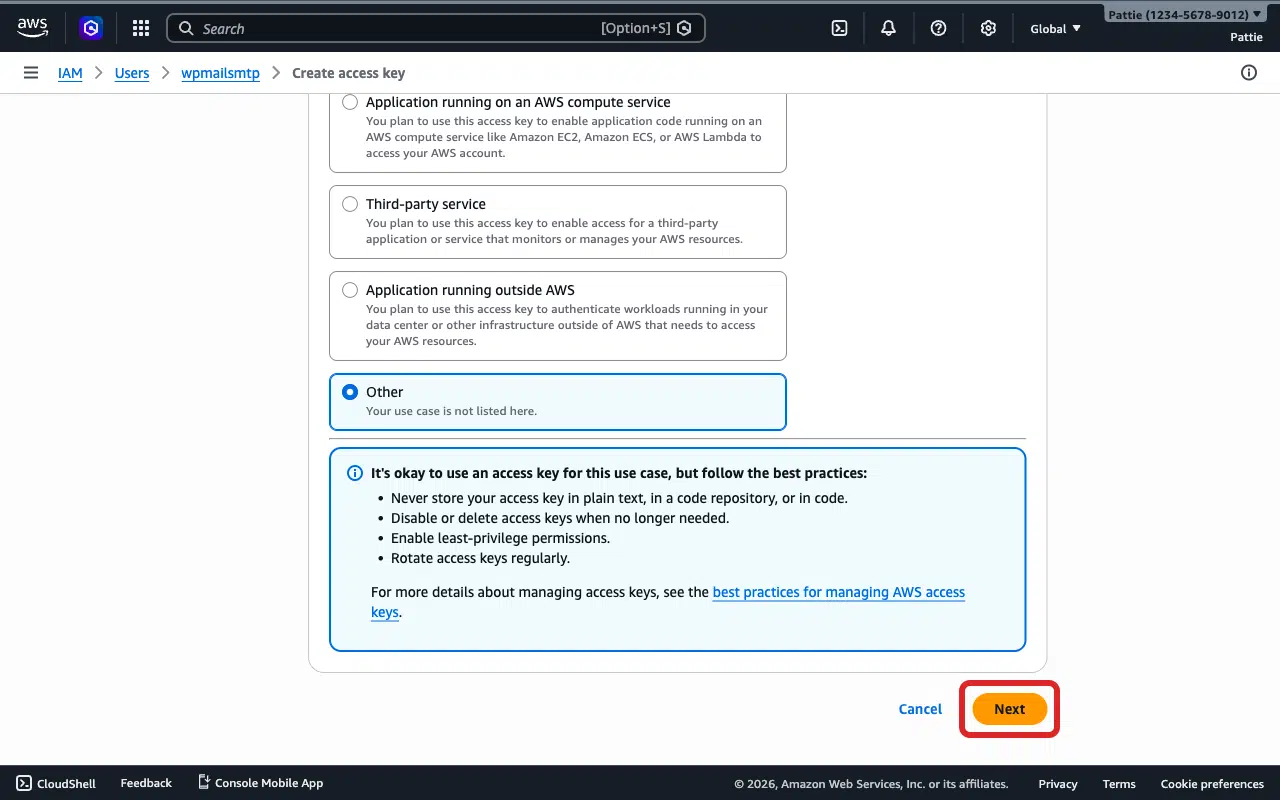
Click Next.
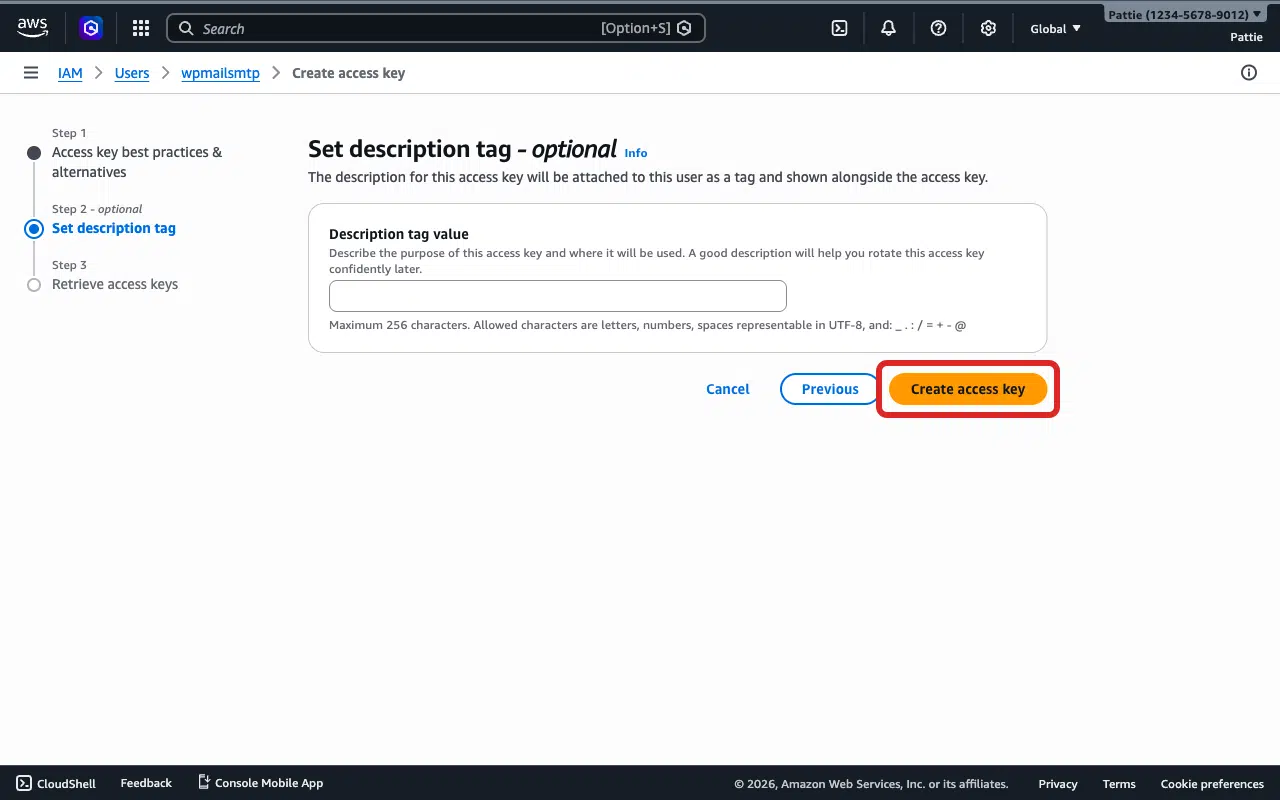
Click Create access key.
Copy both the Access Key ID and the Secret Access Key. The Secret Access Key is only shown once, so save it somewhere secure before closing this page.
Go to WP Mail SMTP » Settings and scroll to the Amazon SES section.
Paste the new Access Key ID and Secret Access Key into their fields.
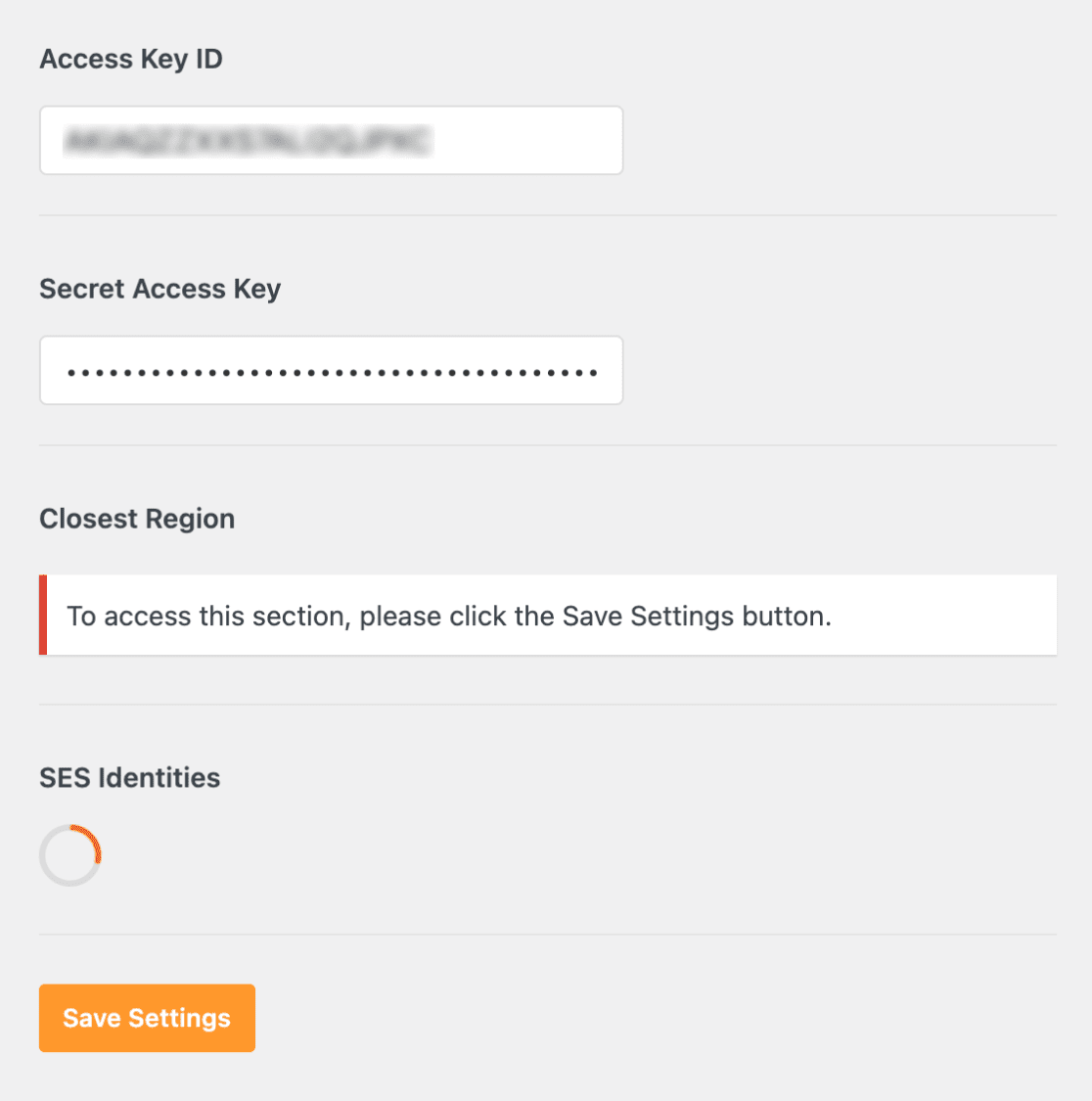
Verify the Closest Region matches your SES region.
Click Save Settings.
Go to WP Mail SMTP » Tools, click the Email Test tab, and click Send Email.
Step 4: If You Don’t Have an IAM User Yet
If you don’t see a user for WP Mail SMTP in the IAM Users list, create one:
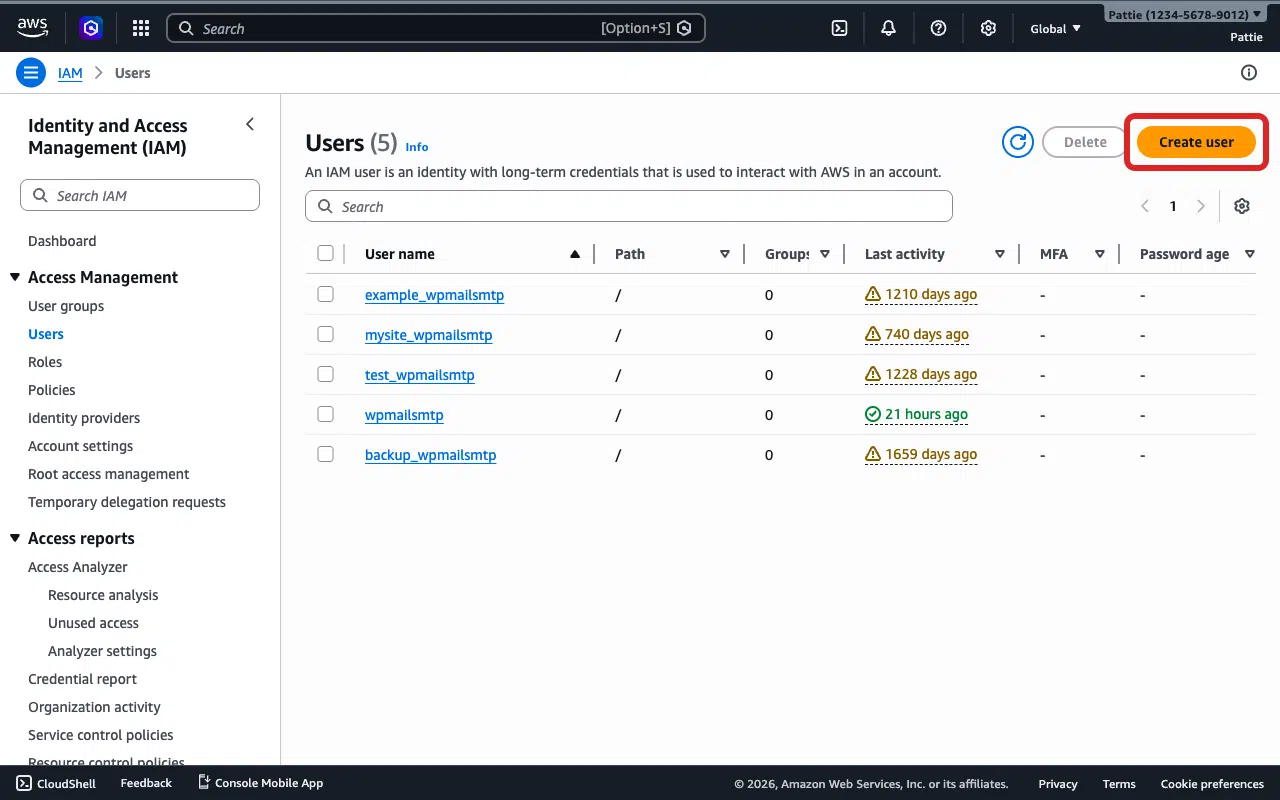
In the AWS Console, go to IAM » Users.
Click the Create user button.
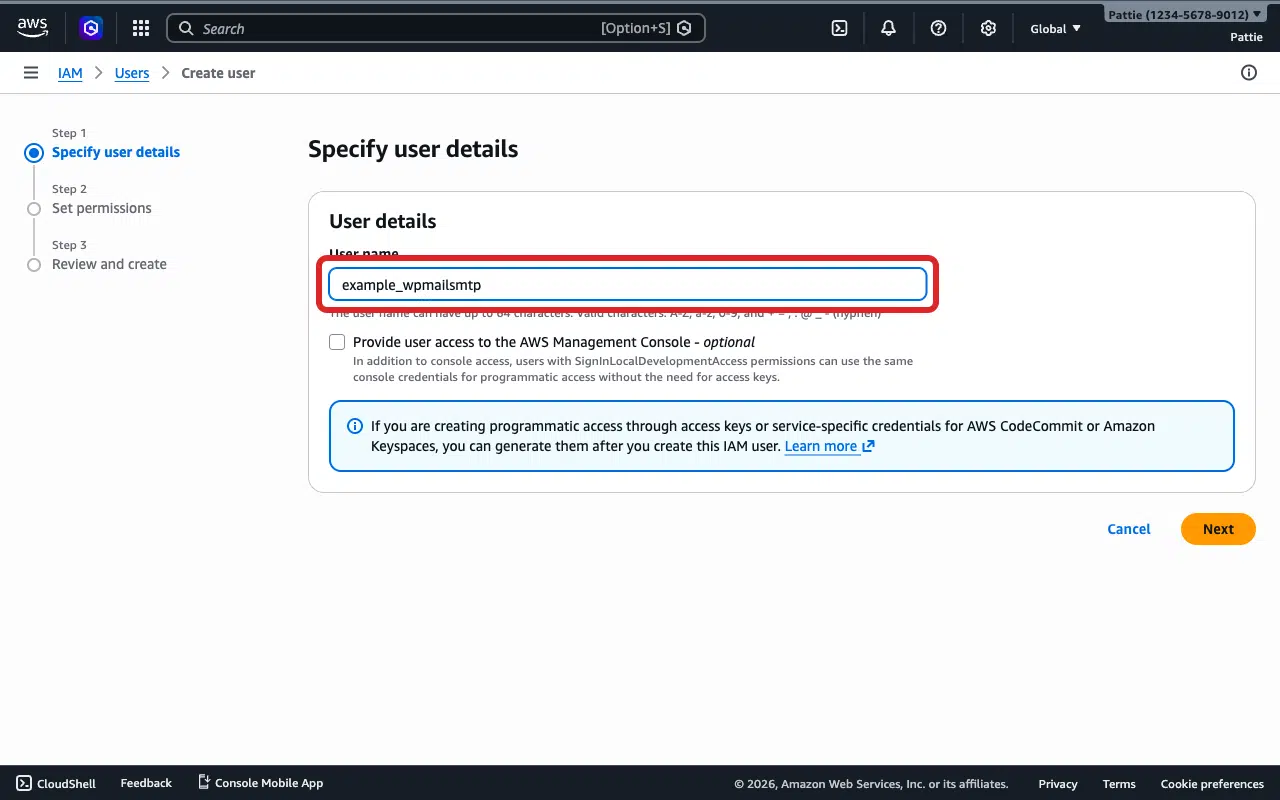
Enter a user name (recommended: yourdomain_wpmailsmtp, e.g. example_wpmailsmtp).
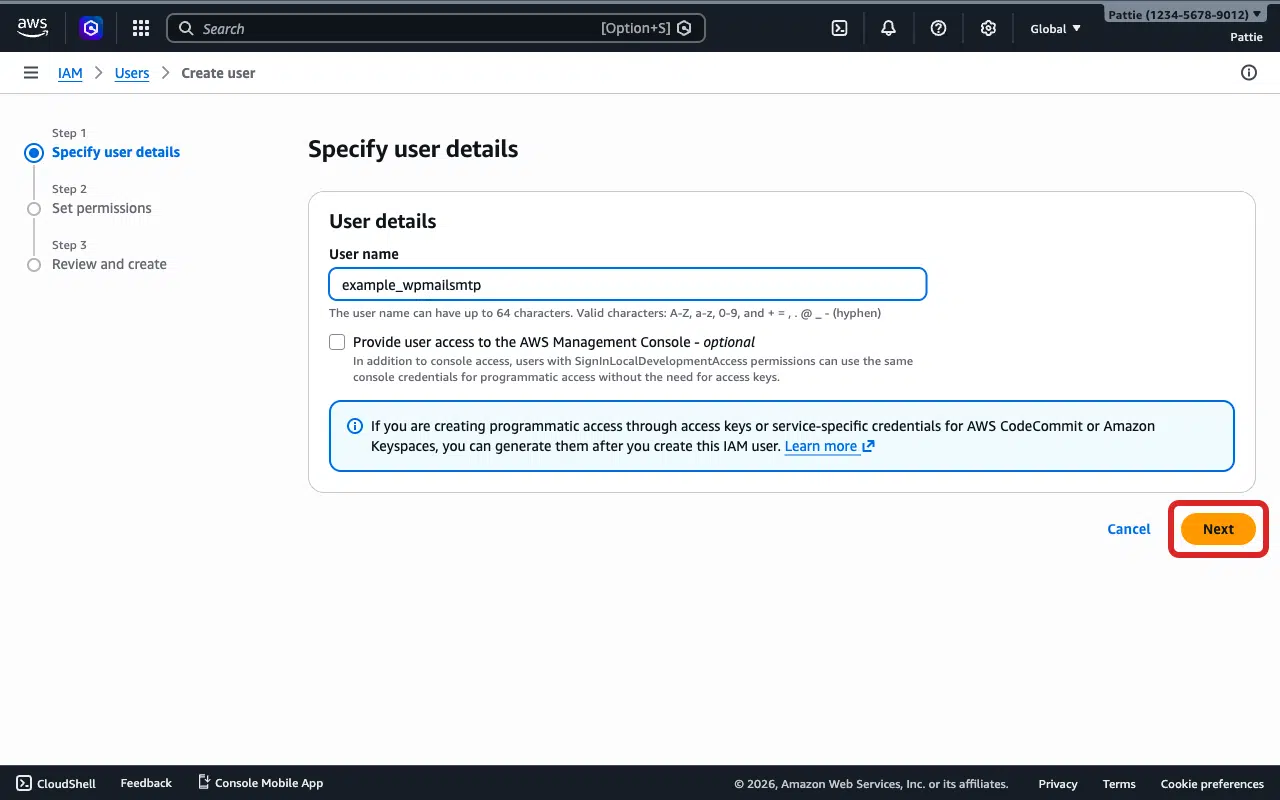
Click Next.
Select Attach policies directly.
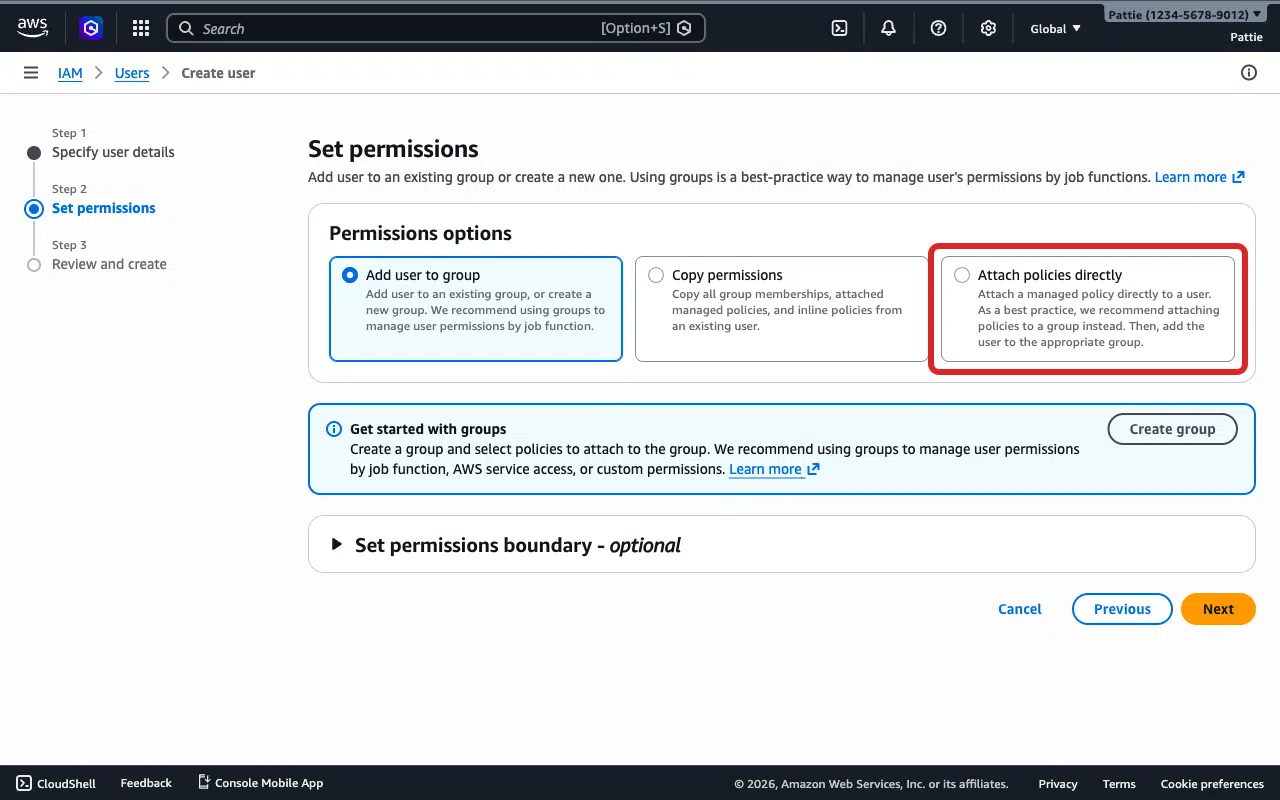
Type AmazonSESFullAccess in the search bar and select the checkbox next to it.
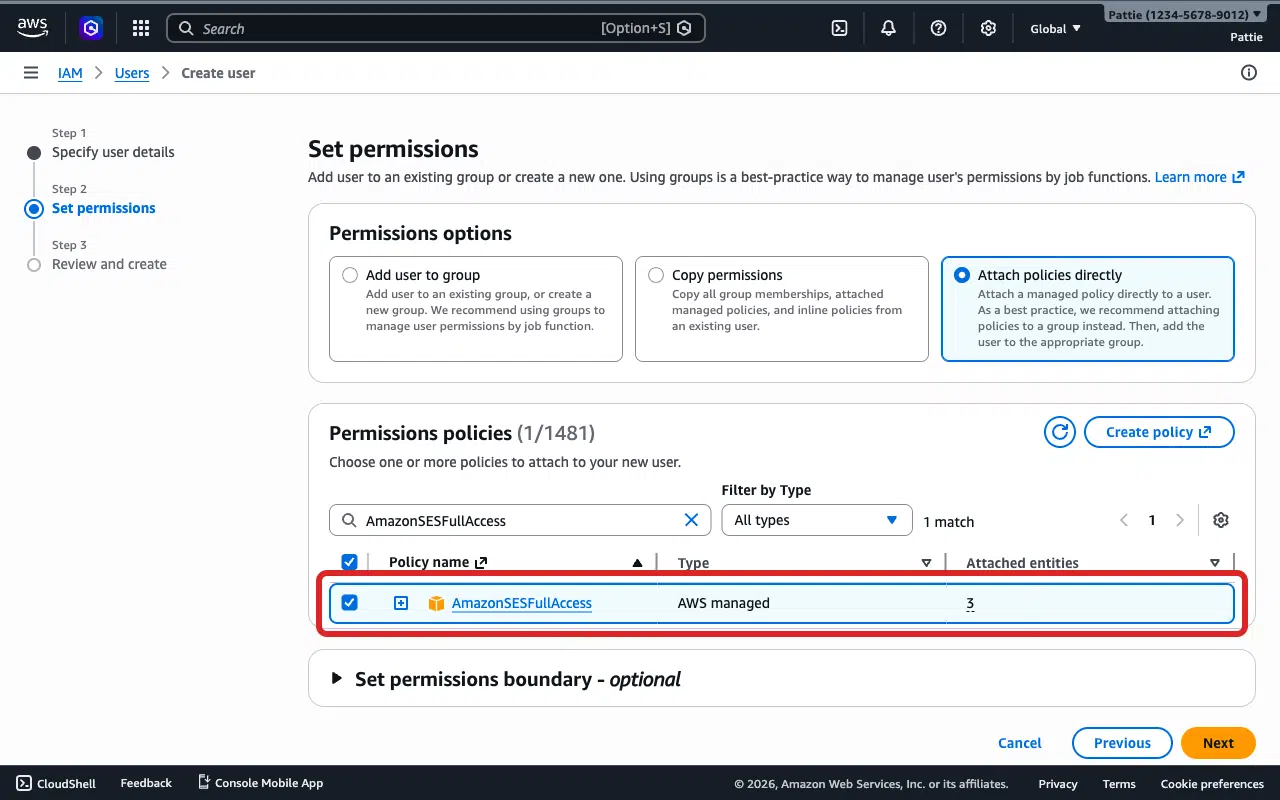
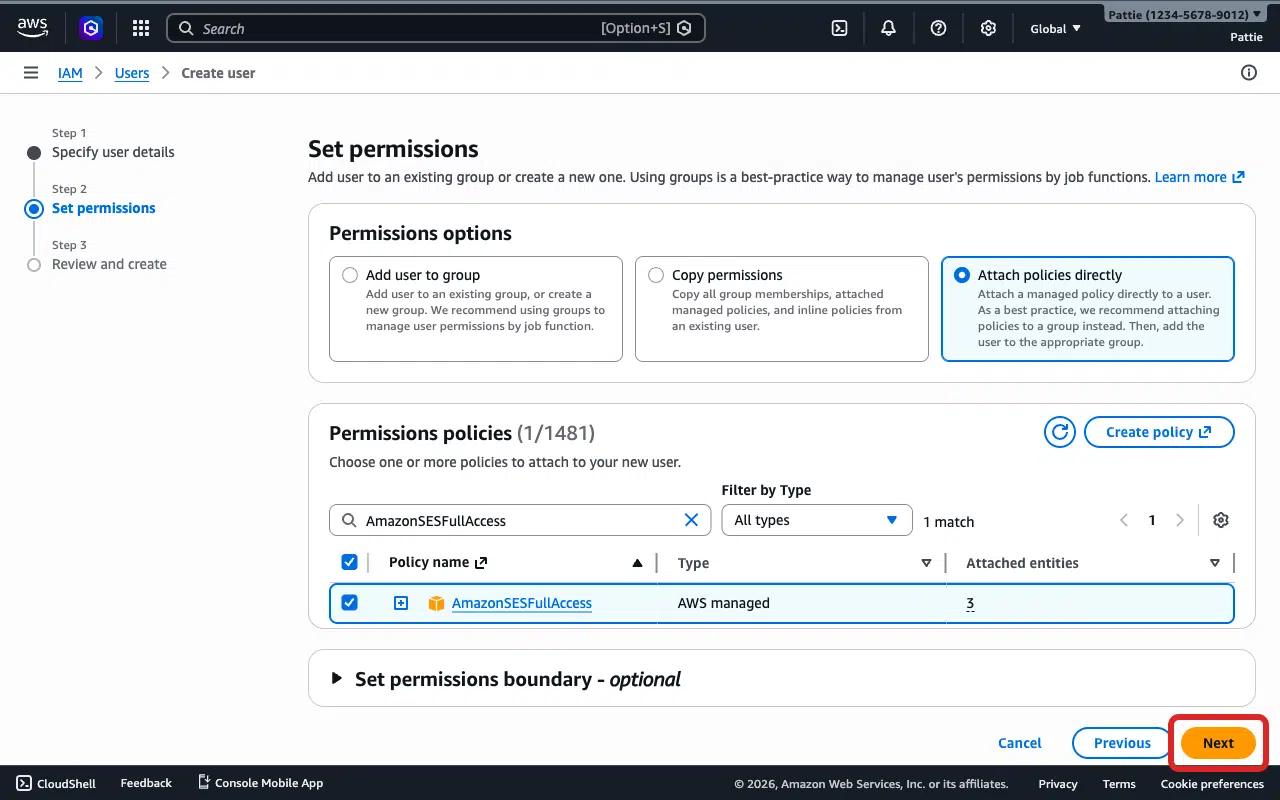
Click Next.
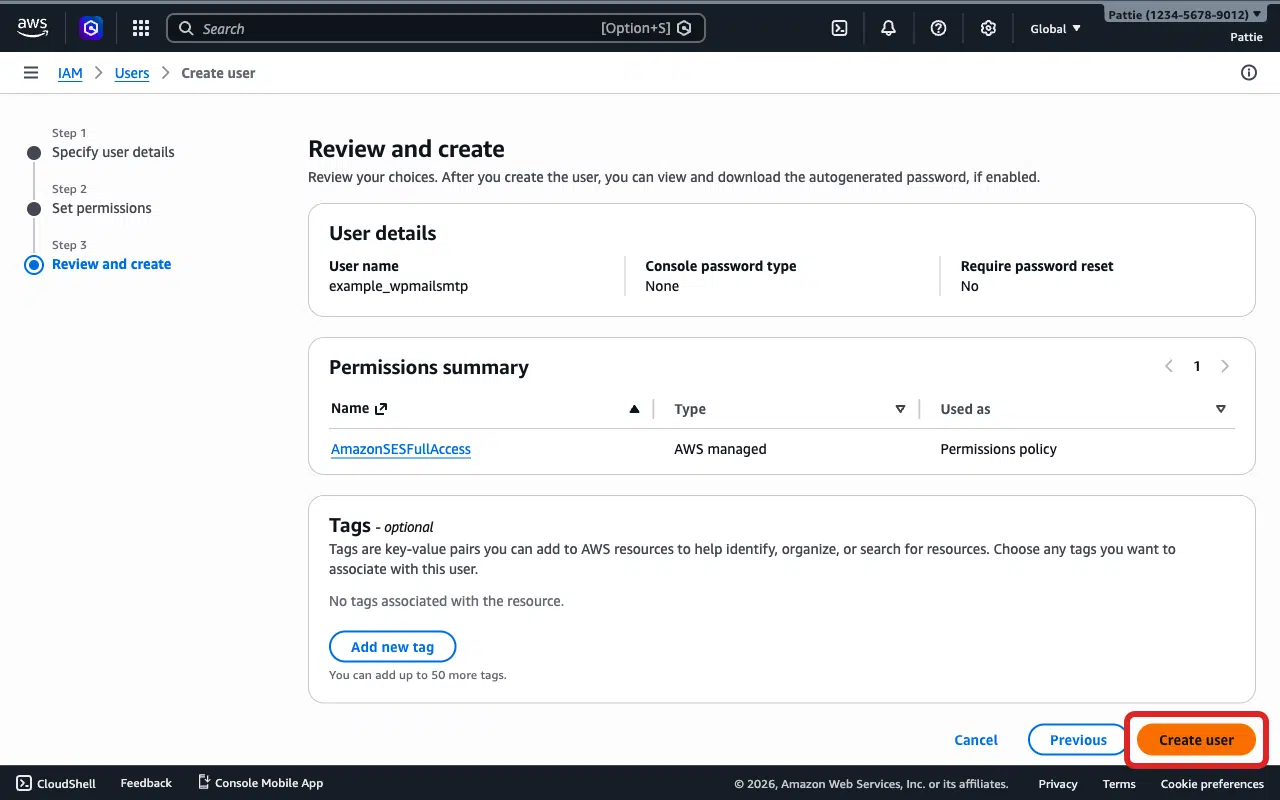
Review the details, then click Create user.
Now follow Step 3 above to create an Access Key for this new user.
Notes
- AWS only shows the Secret Access Key once when you create it. If you’ve lost it, create a new key (Step 3).
- Some AWS regions are not enabled by default (Africa/Cape Town, Asia Pacific/Hong Kong, Asia Pacific/Jakarta, Europe/Milan, Middle East/Bahrain). If your SES is in one of these regions, you must manually enable the region in your AWS account settings first.
That’s It! You now know how to fix the ‘Invalid Signature or Credentials’ error in Amazon SES and get your emails sending again through WP Mail SMTP.