


AI Summary
Note: This guide applies to the Mailgun mailer in WP Mail SMTP.
What This Error Means
Mailgun can’t find the sending domain. The domain name in WP Mail SMTP doesn’t match any domain in the Mailgun account, or it exists in a different region.
Common Causes
- You entered the domain name incorrectly in WP Mail SMTP (e.g.
yourdomain.cominstead ofmg.yourdomain.com) - Domain is in the EU region but WP Mail SMTP region is set to US (or vice versa)
- You deleted the domain from Mailgun
- You used a Mailgun sandbox domain but deleted it or didn’t copy it exactly
How to Fix
Here is the complete step-by-step guide to resolving the error.
Step 1: Verify the Domain Name and Region
Start by logging in to Mailgun. Then, in the left sidebar, click Sending and select Domains.

Next, note the exact domain name shown in the domains table (e.g., mg.yourdomain.com).

After that, note the region (US or EU) shown in the top navigation bar.

Step 2: Update WP Mail SMTP to Match
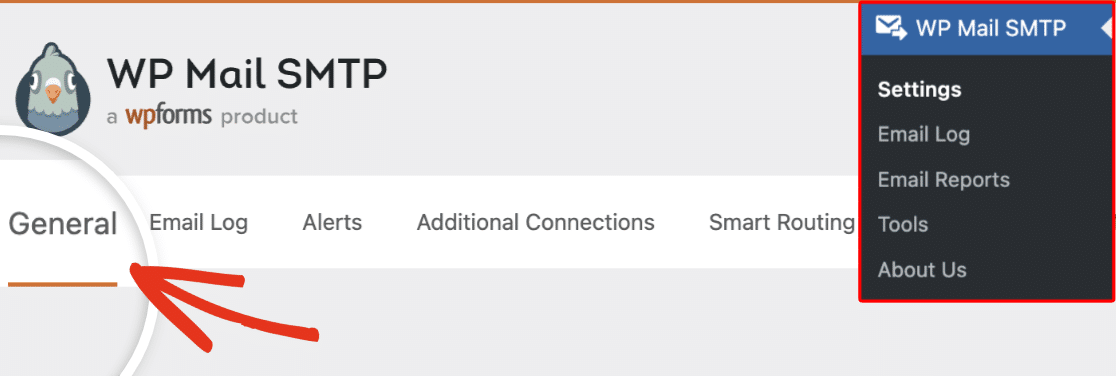
Start by going to WP Mail SMTP » Settings and scrolling to the Mailgun section.
Then, set Domain Name to the exact domain name from Step 1.

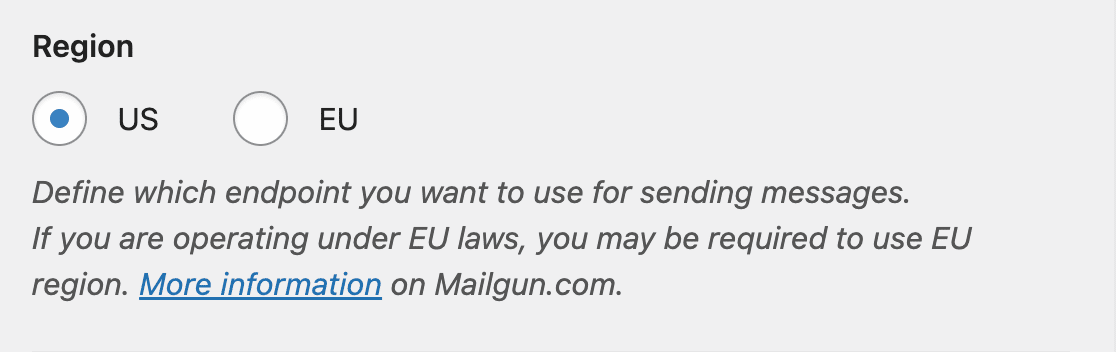
Next, set Region to match the domain’s region (US or EU).
Finally, click Save Settings.
Step 3: Send a Test Email
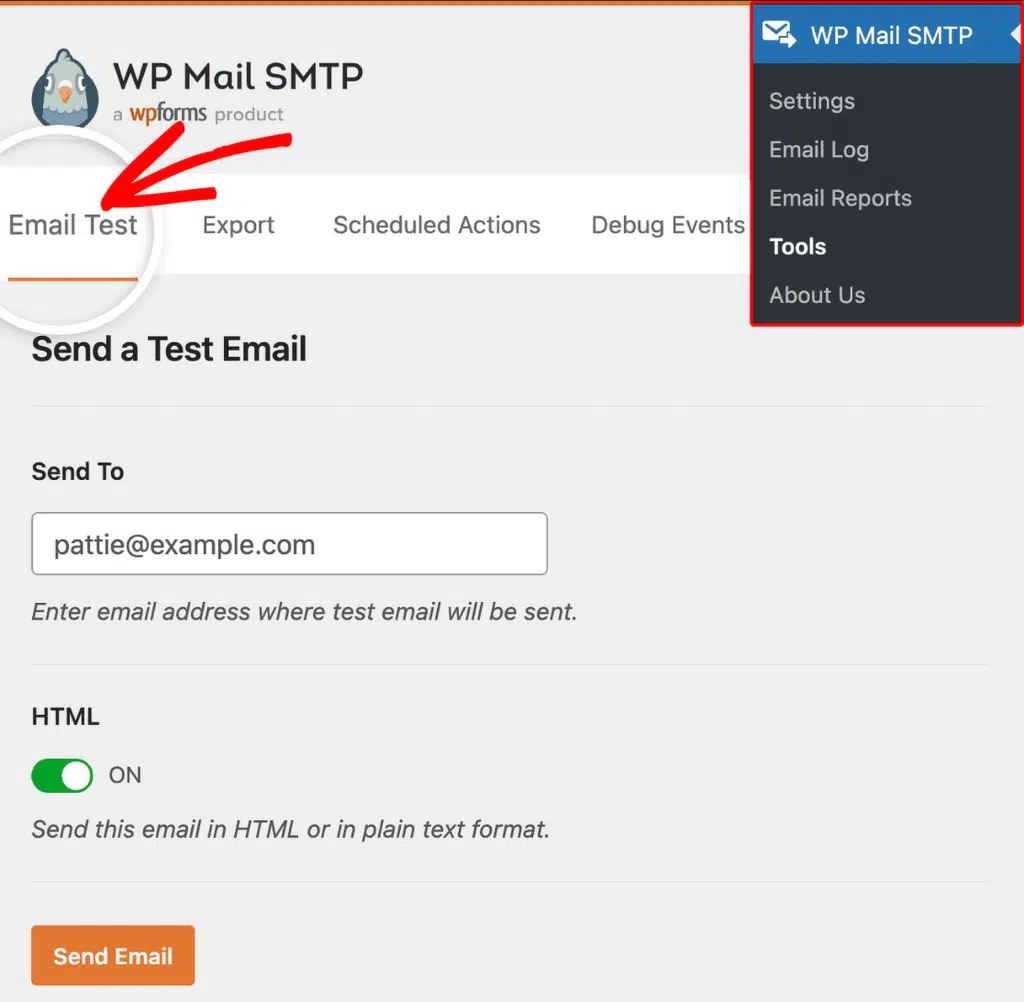
To test the fix, go to WP Mail SMTP » Tools, click the Email Test tab, enter a recipient email in the Send To field, leave the HTML toggle ON, and click Send Email.
Finally, look for the success message and check your inbox to confirm the email arrived.
Notes
- Mailgun typically uses a subdomain for sending (e.g.
mg.yourdomain.comormail.yourdomain.com), not the root domain. The subdomain must match exactly what’s in Mailgun. - If using Mailgun’s sandbox domain for testing, copy it exactly from the Mailgun dashboard including the
.mailgun.orgsuffix.
That’s It! You now know how to fix the ‘404 Not Found’ error in Mailgun and get your emails sending again through WP Mail SMTP.