


AI Summary
Would you like to check on your site’s email delivery just by chatting with an AI assistant? With WP Mail SMTP, you can connect tools like Claude, ChatGPT, and Cursor to your site and ask them to review your email logs, sending stats, and debug events in natural language, with no exports and no code to write.
In this tutorial, we’ll show you how to use WP Mail SMTP with AI assistants, from installing the connector plugin to running your first prompts.
Requirements: Your site must be running WordPress 6.9 or later, and WP Mail SMTP 4.9 or later, to use the AI MCP feature.
Before getting started, make sure WP Mail SMTP is installed and activated on your WordPress site and that you’ve verified your license.
What AI Assistants Can Do With WP Mail SMTP
The AI MCP feature connects WP Mail SMTP to the WordPress Abilities API, the standard that lets AI tools securely read data from your site. A connected assistant has read-only access, so it can review your email activity and answer questions, but it never changes your settings or sends emails on its own.
Note: The email log and sending-stats abilities read data from WP Mail SMTP’s Email Log and Reports, which are part of WP Mail SMTP Pro.
Here’s what a connected assistant can do:
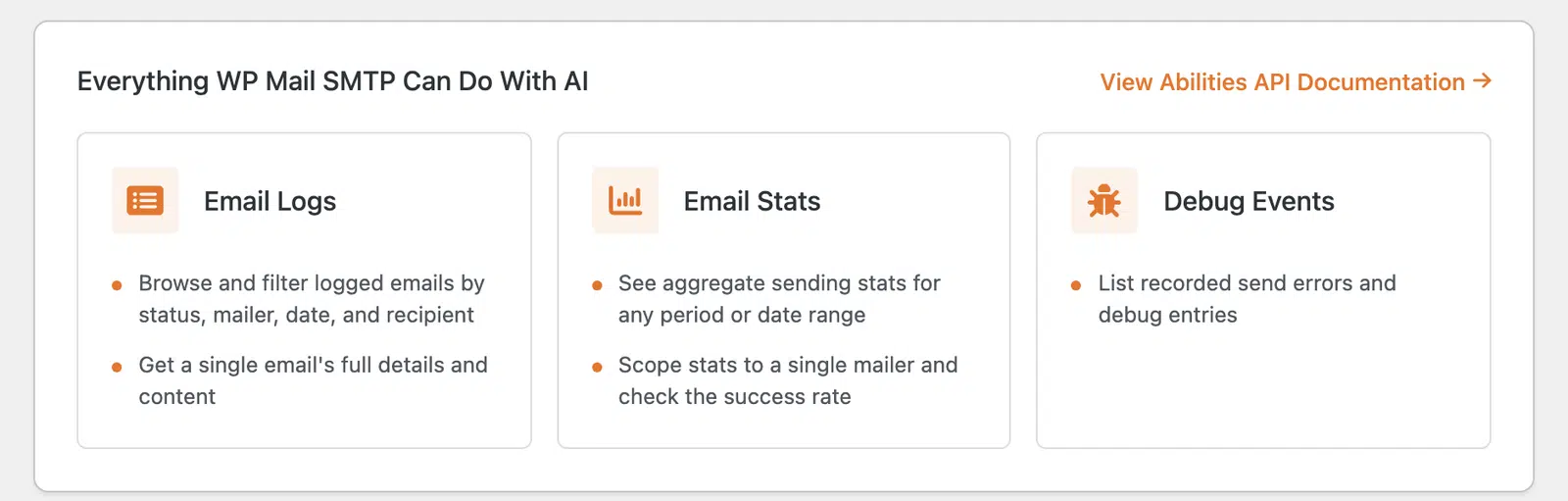
Email Logs
The assistant browses and filters your logged emails by status, mailer, date, and recipient, and pulls a single email’s full details and content when you need a closer look.
Email Stats
The assistant reports aggregate sending stats for any period or date range, scopes those stats to a single mailer, and checks your success rate.
Debug Events
The assistant lists recorded send errors and debug entries so you can spot what’s failing without digging through the logs yourself.
Accessing the AI MCP Page
To get started, log in to your WordPress admin dashboard and go to WP Mail SMTP » Tools. Then click on the AI MCP tab.
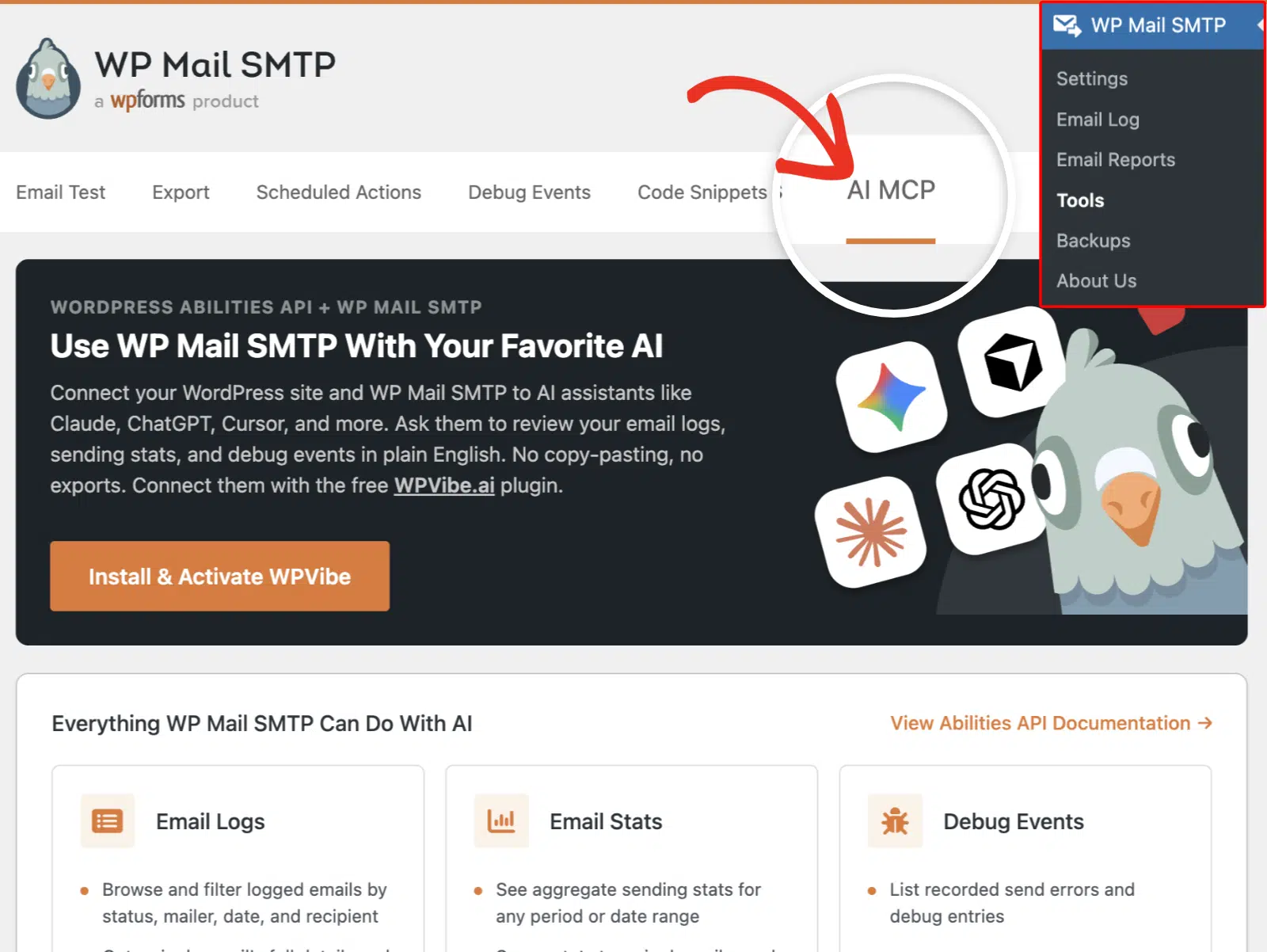
This page summarizes everything WP Mail SMTP can do with AI and gives you a View Abilities API Documentation link if you want the full technical reference.
Installing the WPVibe Plugin
AI assistants connect to your site through WPVibe, a free connector plugin that handles the secure connection.
On the AI MCP page, click the Install & Activate WPVibe button.
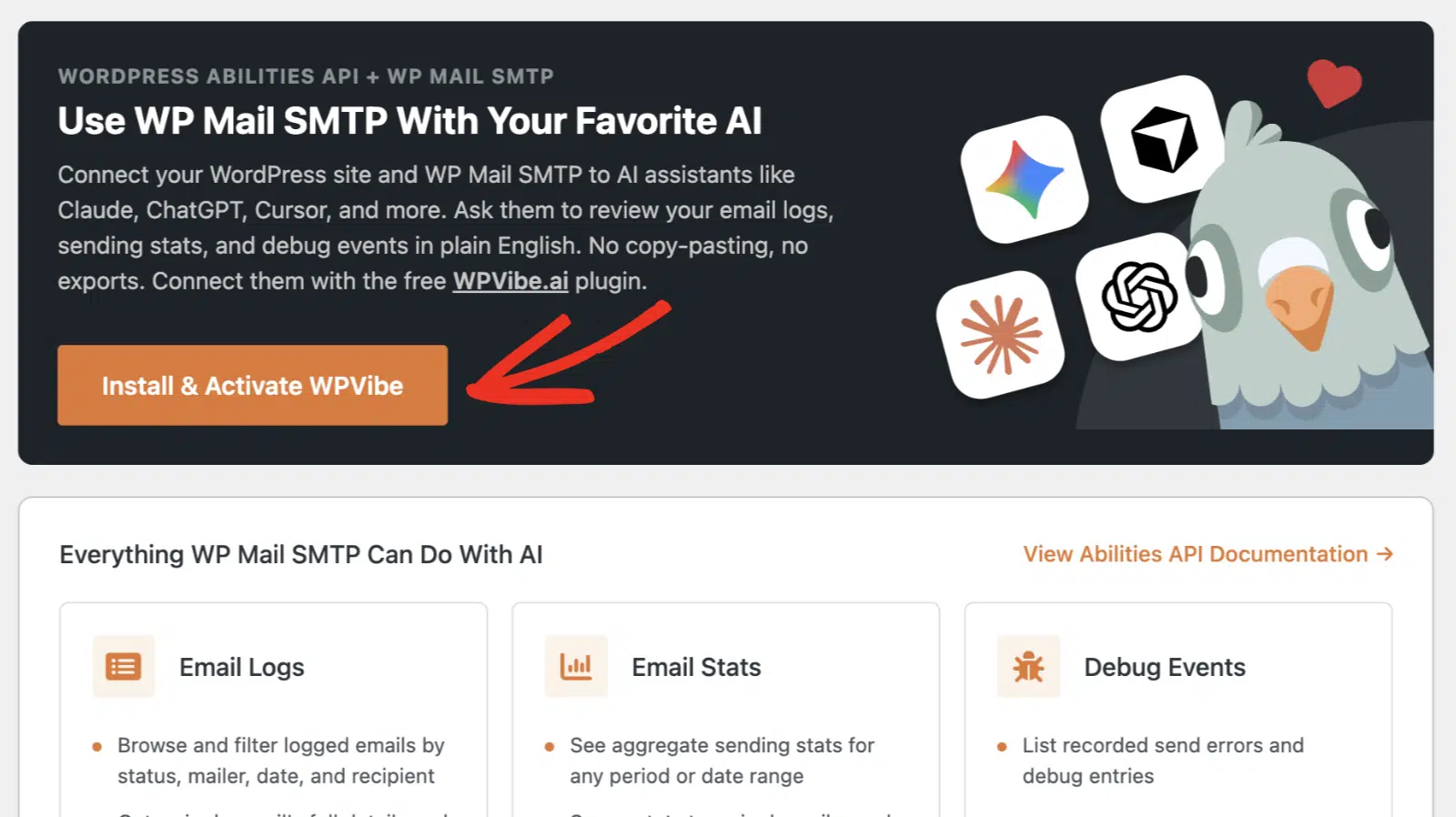
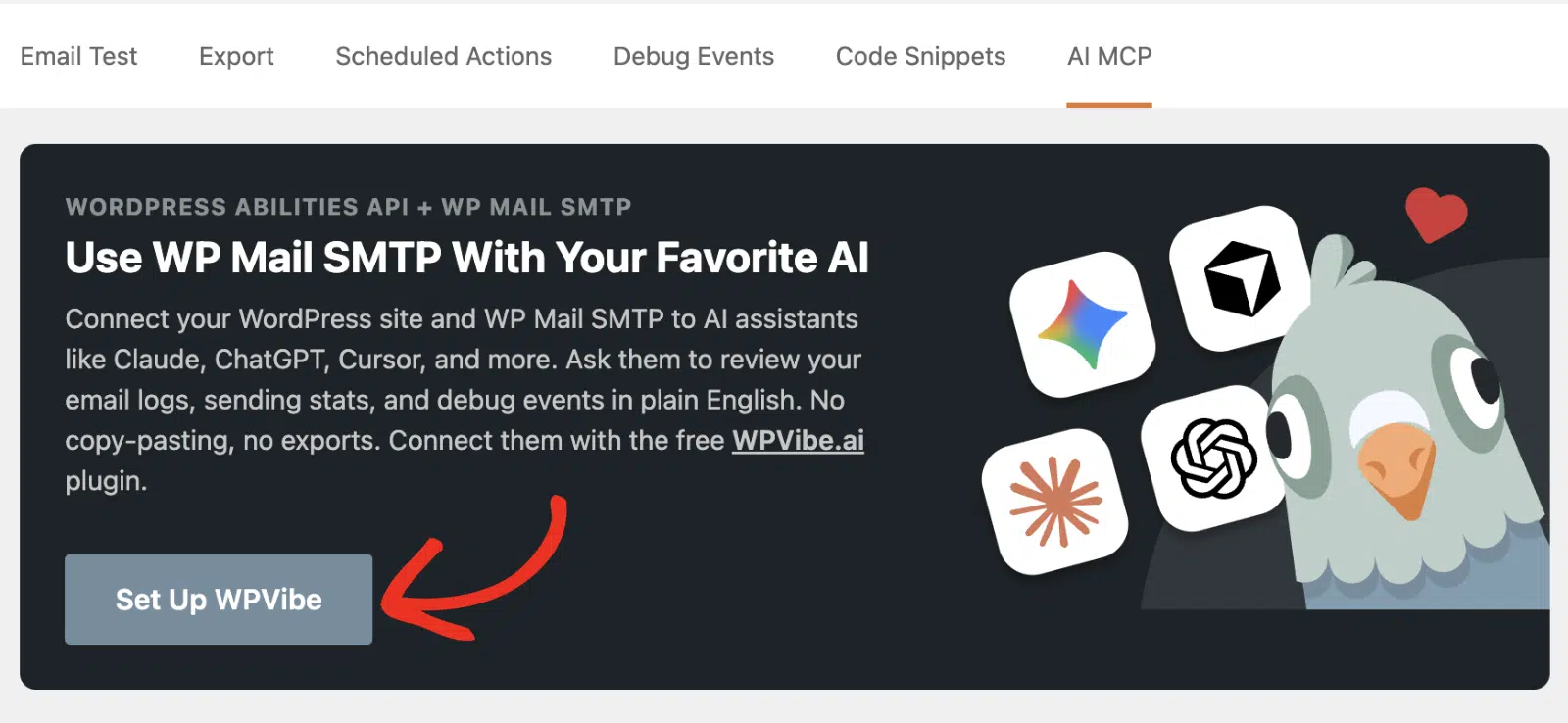
Once it finishes, the button changes to Set Up WPVibe, and a new Vibe AI item appears in your admin menu.
Connecting Your AI Assistant
To connect your assistant, click Set Up WPVibe on the AI MCP page, or open Vibe AI from your admin menu. This opens the WPVibe checklist, which shows your connection status and the steps to connect.
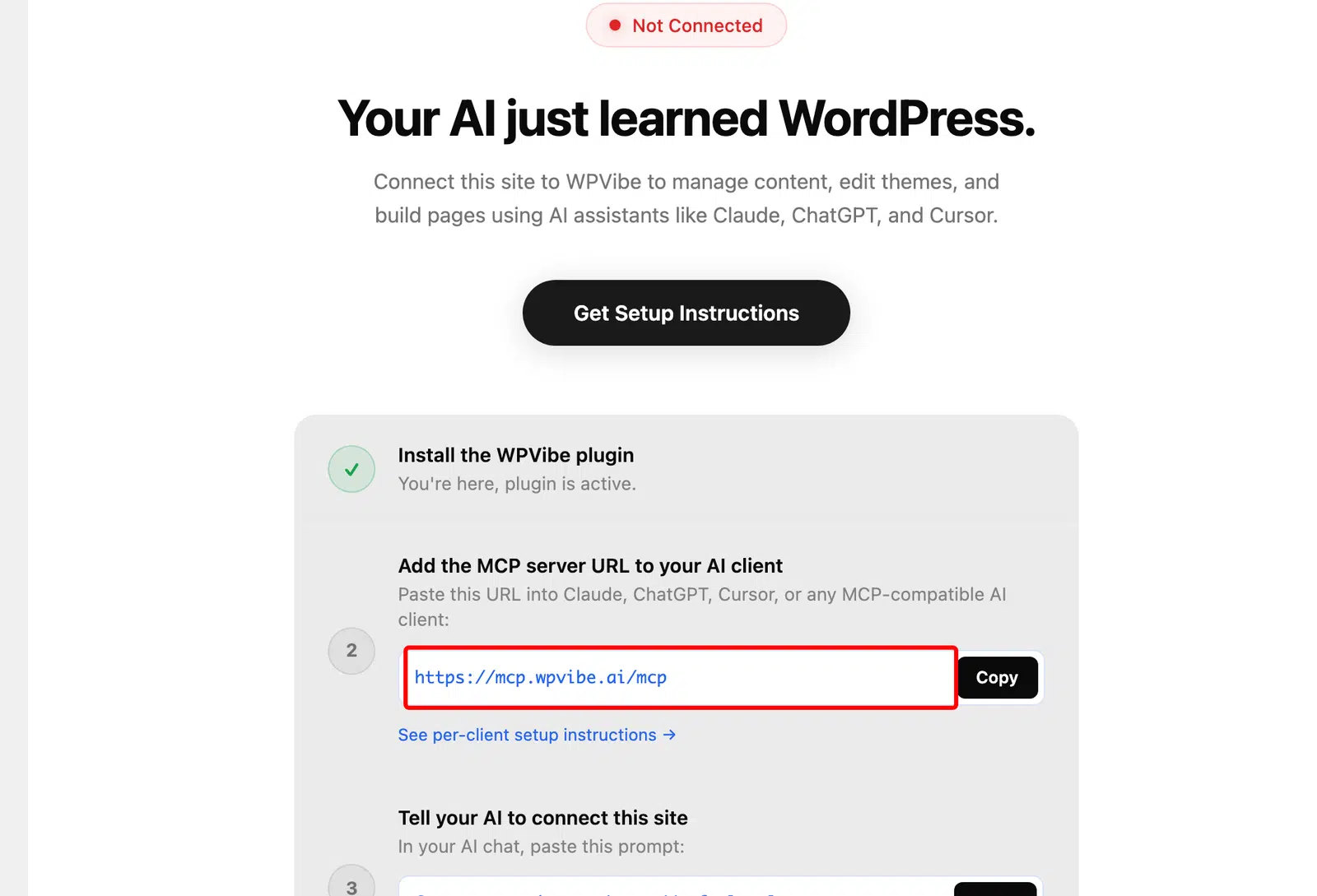
Copy the server URL shown in the checklist (https://mcp.wpvibe.ai/mcp), then add it to your AI tool of choice. The exact steps depend on which assistant you use, so we’ve collected the official setup guide for each one:
- Claude: In Claude on the web, go to Customize » Connectors, click the plus (+) icon, and choose Add custom connector. Give the connector a name like WPVibe, paste the server URL, and click Add. Then click Connect next to the new connector. Connectors added this way are also available in Claude Desktop. For full details, see Anthropic’s custom connectors guide.
- ChatGPT: Connectors with full MCP support are available on ChatGPT Business, Enterprise, and Edu plans, where a workspace admin enables developer mode and adds the connector. See OpenAI’s developer mode and MCP guide for the current steps and plan availability.
- Cursor: Open Cursor’s settings, go to the MCP section, and add a new server using the URL above. See Cursor’s MCP documentation for full details.
WPVibe Connection
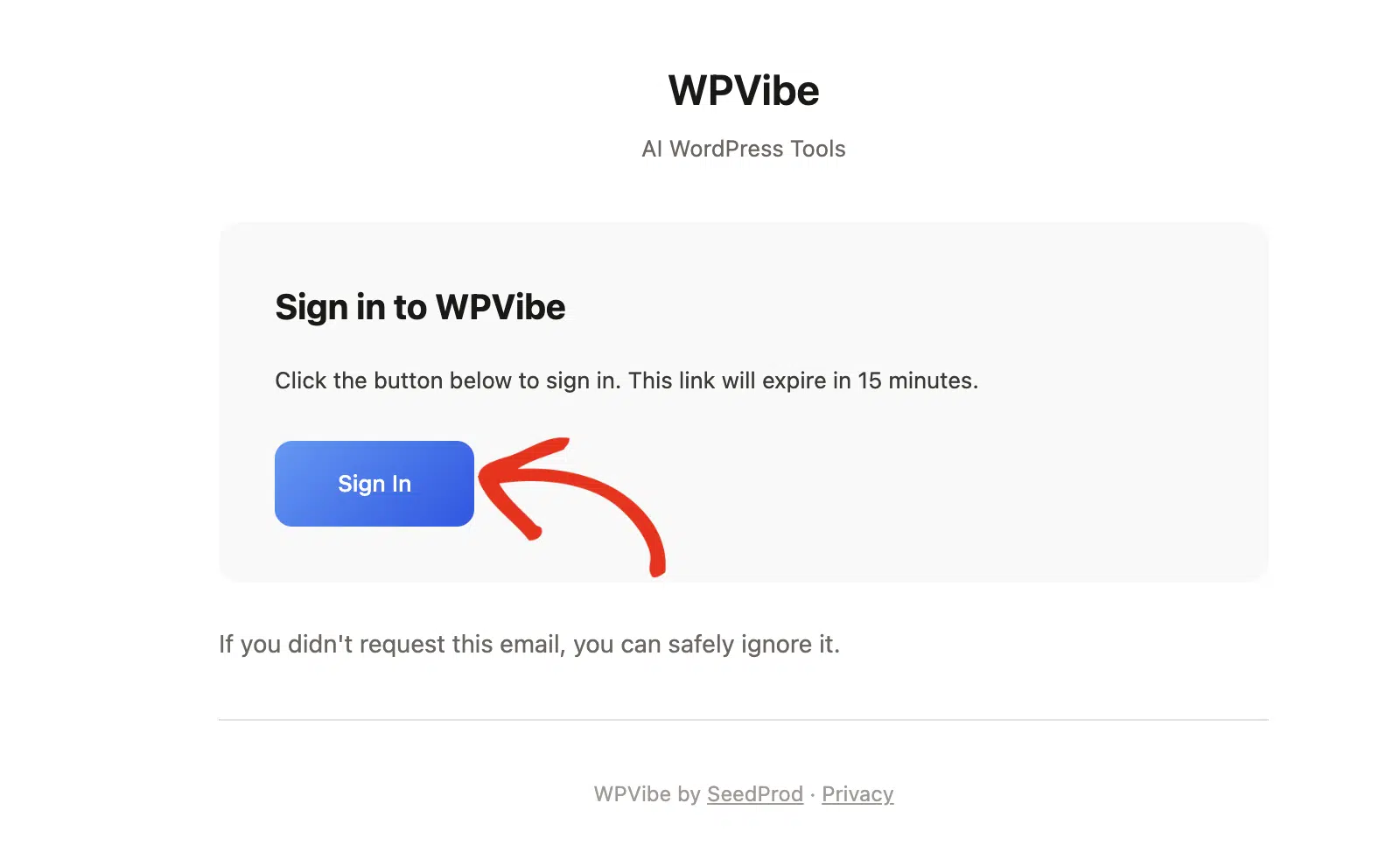
When you add the connector, WPVibe asks you to sign in with your email address. Check your inbox for a message from WPVibe and click the Sign In button inside it. The link expires after 15 minutes, so it’s best to do this right away. You won’t need to create a password, and you won’t need to share any site credentials with your AI assistant.
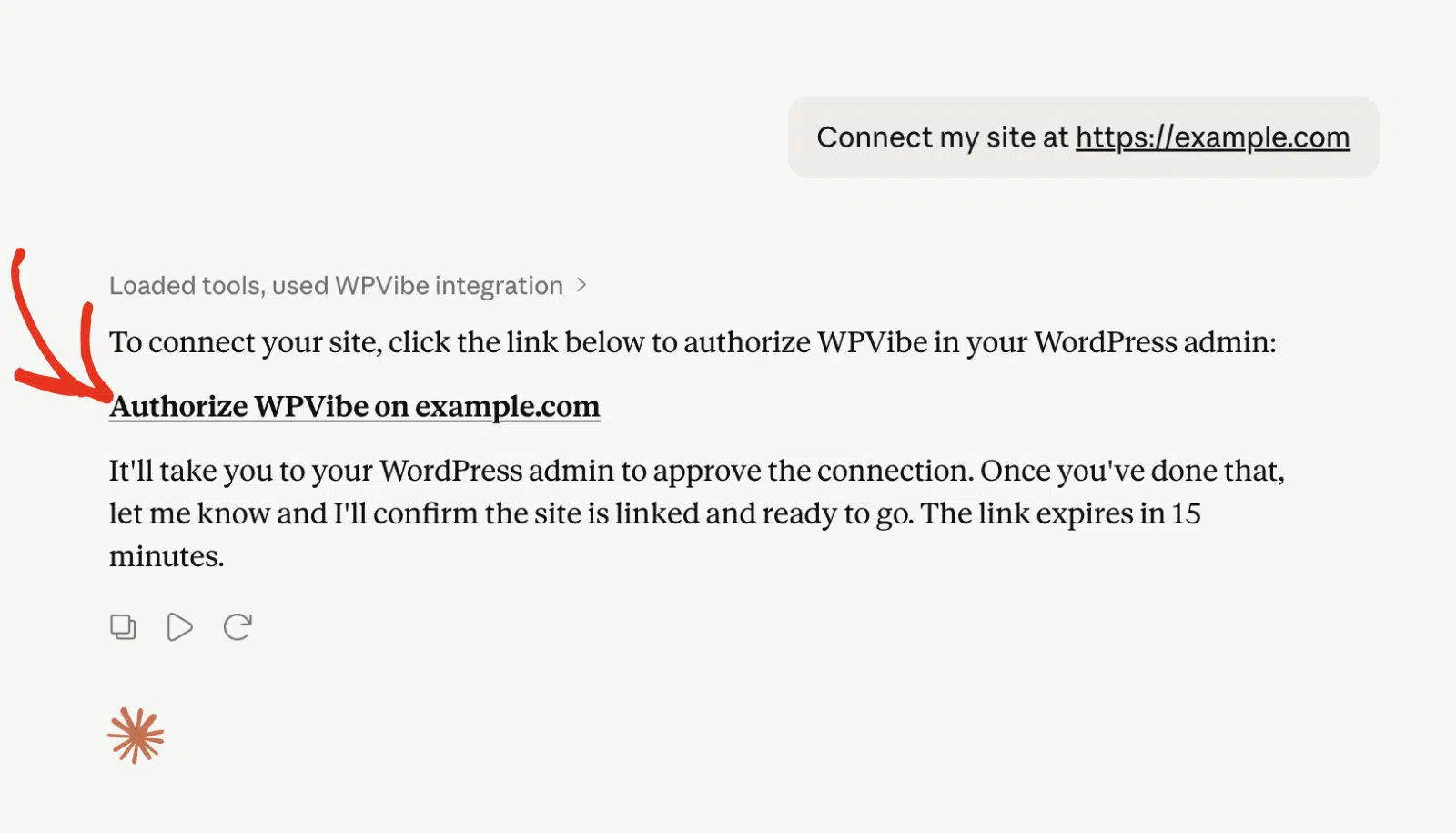
Next, tell your AI to connect. In your AI chat, paste a prompt like “Connect my site at https://example.com” using your own site address.
Your AI-assistant returns a one-click authorization link. This link redirects you to the WordPress admin area, where you’ll need to authorize the connection.
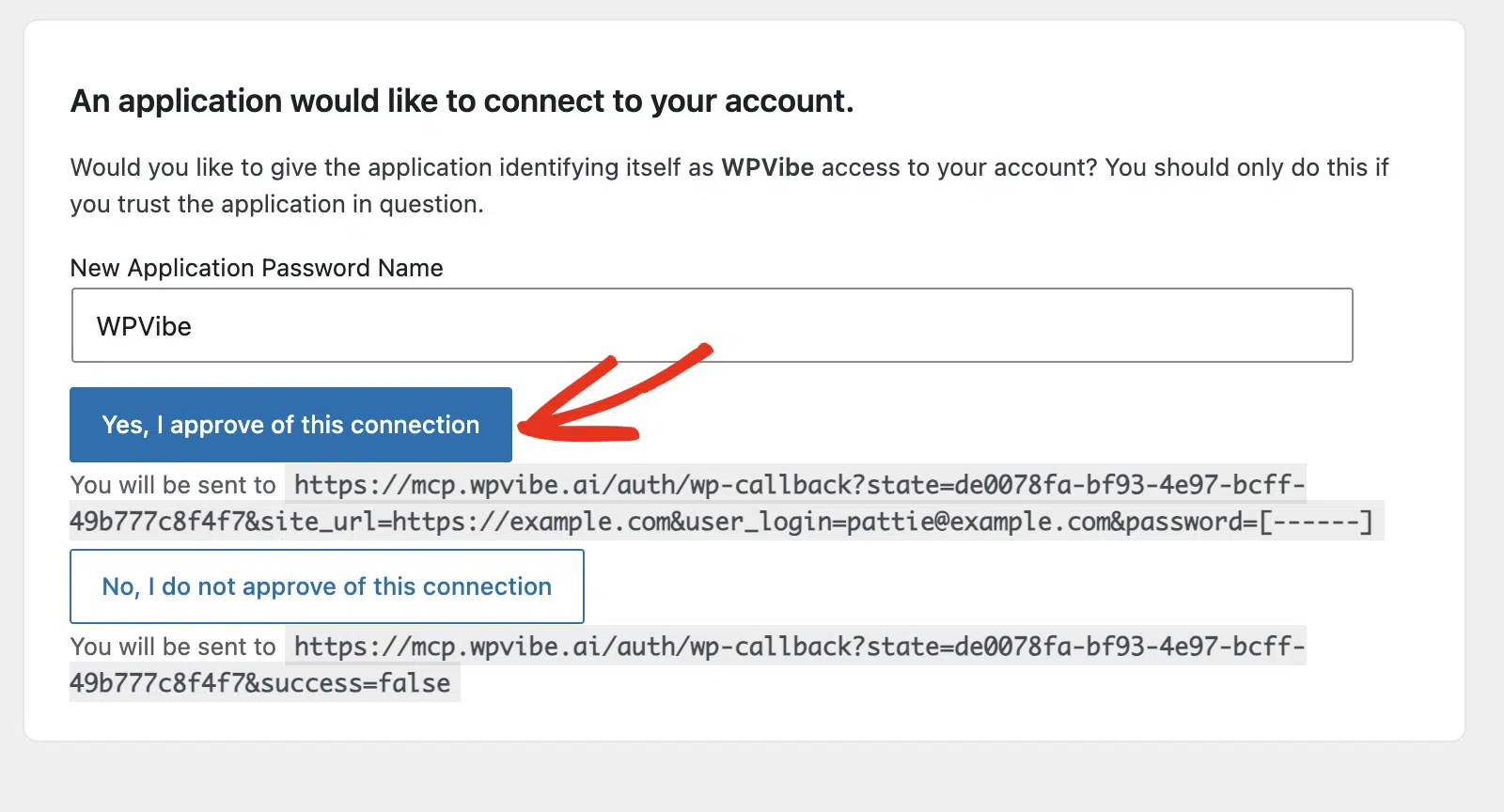
Go ahead and click Yes, I approve this connection to approve it, and your site is connected.
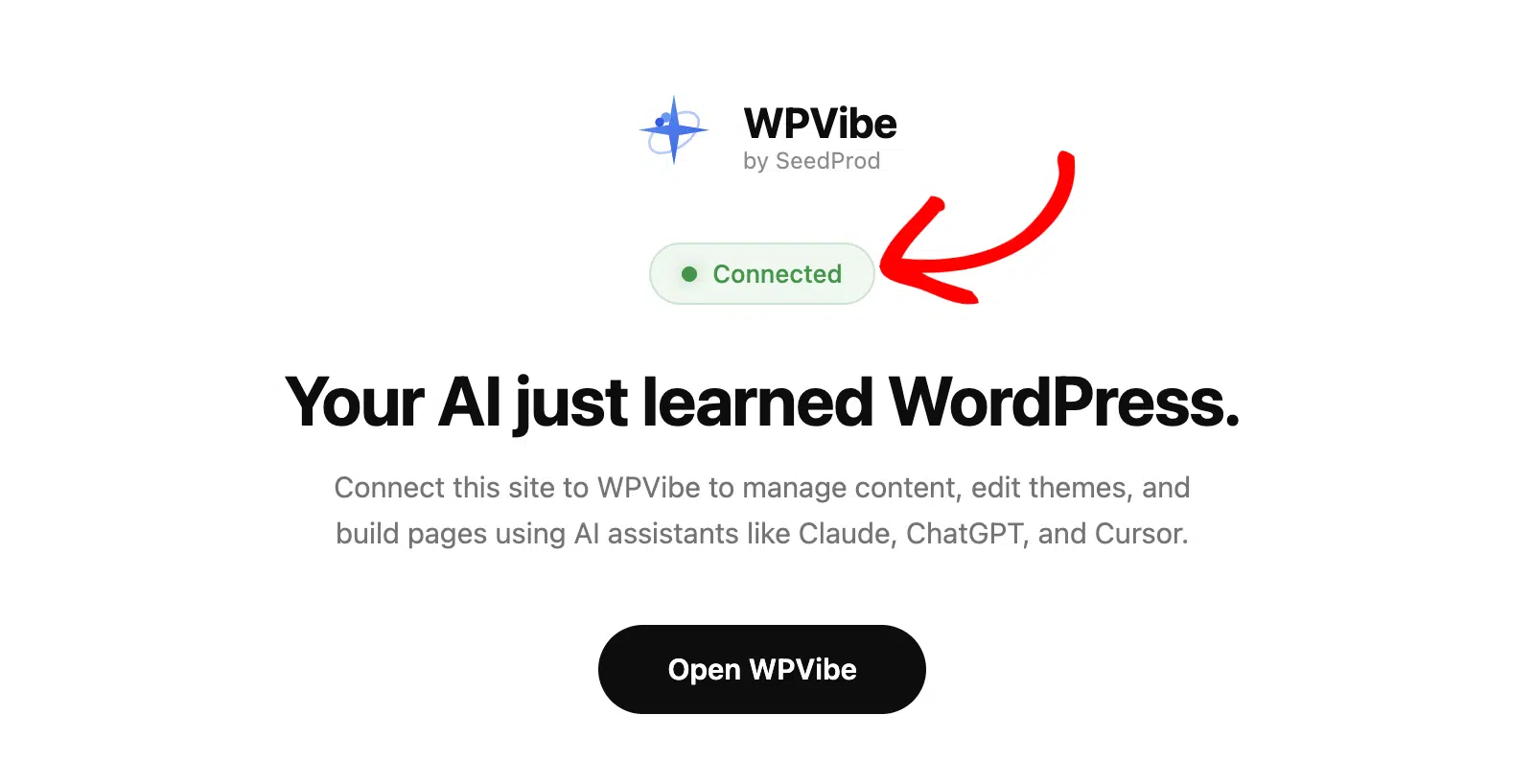
Once done, you should see the Connected label on the WPVibe plugin settings page.
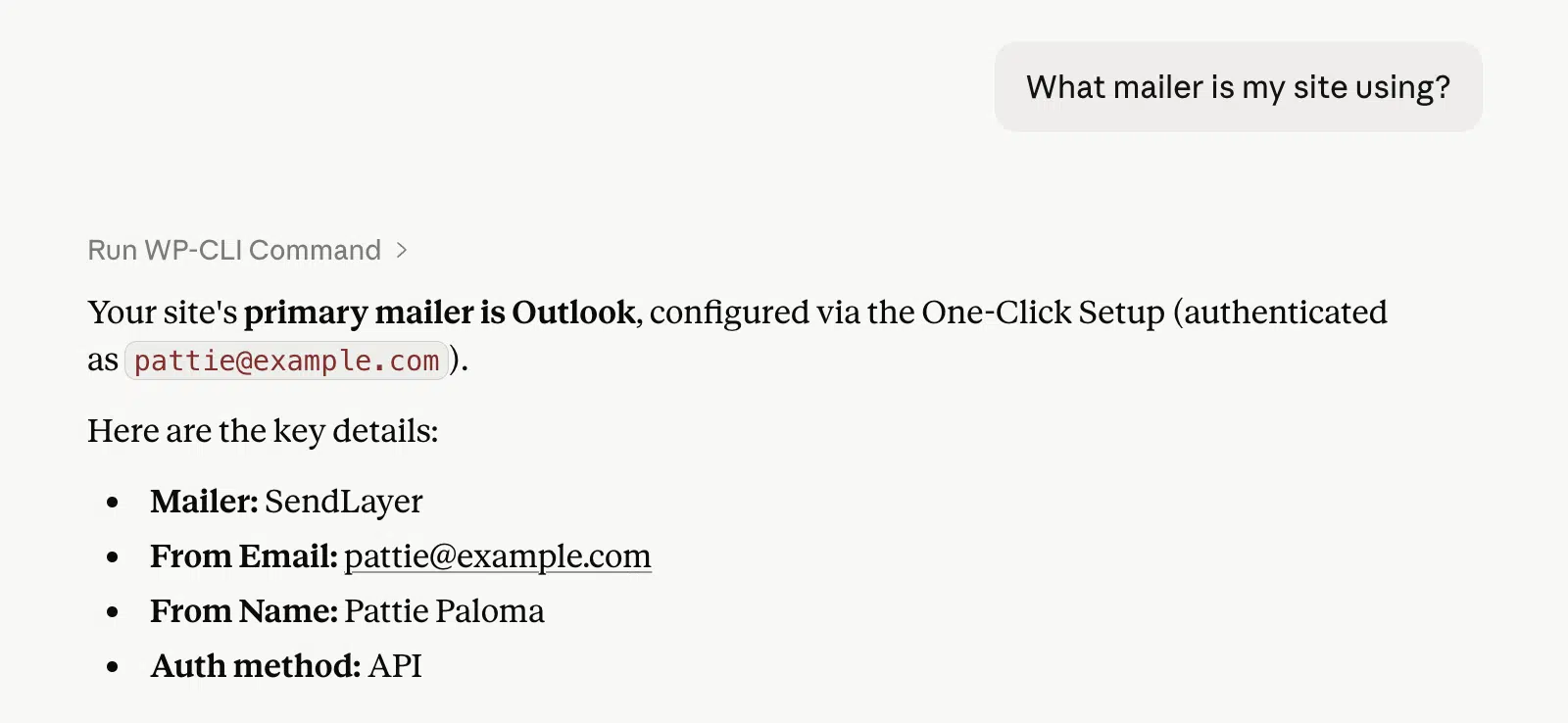
To confirm the connection works, ask your assistant a question like “What mailer is my site using?” or “Show me my recent email logs.” If it responds with your site’s details, the connection is ready.
Trying Your First Prompts
With the connection in place, put the assistant to work. Because access is read-only, every prompt is a safe question about your email activity.
Here are a few prompts to try:
- “Show me the emails my site sent today.”
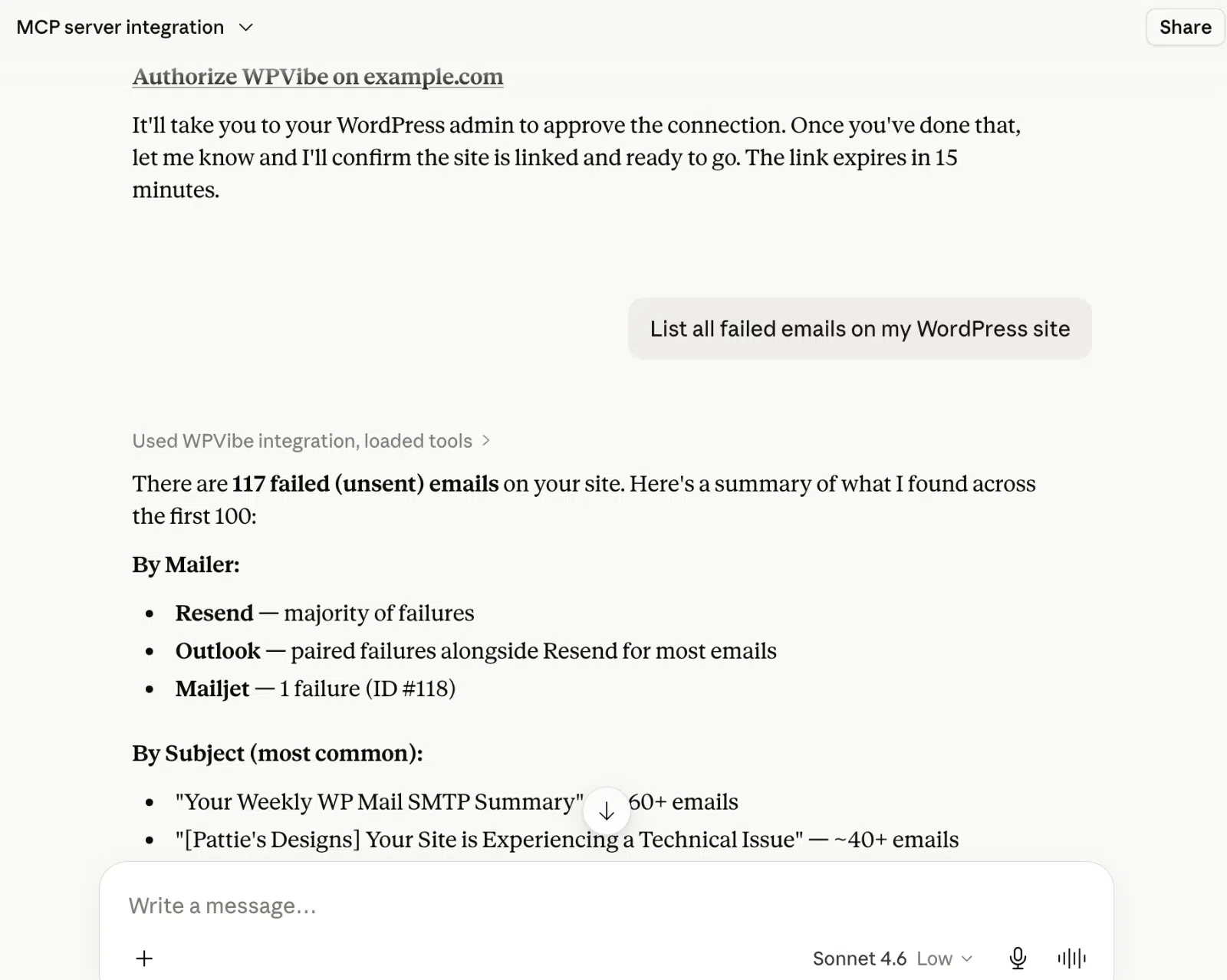
- “Which emails failed to send this week?”
- “What’s my email success rate over the last 30 days?”
- “Break down my sending stats by mailer.”
- “Are there any recent send errors in my debug events?”
Frequently Asked Questions
Below are answers to some of the top questions about using WP Mail SMTP with AI assistants.
Can the AI change my settings or send emails?
No. The WP Mail SMTP abilities are read-only. A connected assistant reviews your email logs, sending stats, and debug events, but it can’t change your settings or send email on your behalf.
Why don’t I see the AI MCP tab?
The AI MCP tab requires WordPress 6.9 or later and WP Mail SMTP 4.9 or later. Update both to the latest versions, then check WP Mail SMTP » Tools again.
Can I use this on a local or staging site?
The connection relies on your assistant reaching your site through WPVibe, so a publicly reachable site works best. Local and some staging environments may not connect.
Which AI assistants are supported?
Any assistant that supports custom MCP servers can connect, including Claude, ChatGPT, Gemini, and Cursor.
Does this require WP Mail SMTP Pro?
The email log and sending stats are read from WP Mail SMTP’s Email Log and Reports, which are part of WP Mail SMTP Pro.
That’s It! You now know how to connect WP Mail SMTP to your favorite AI assistant and put it to work reviewing your email logs and surfacing debug events.
Next, learn how to view email logs in WP Mail SMTP to see the data your assistant draws on.