


AI Summary
Note: This guide applies to the SendLayer mailer in WP Mail SMTP.
What This Error Means
The SendLayer account hasn’t completed the phone verification step required after signup. API sending is blocked until the account is verified.
Common Causes
- Phone verification (SMS code) not completed after creating the SendLayer account
- Verification code expired before you entered it
How to Fix
Here is the complete step-by-step guide to resolving the error.
Step 1: Complete Phone Verification in SendLayer
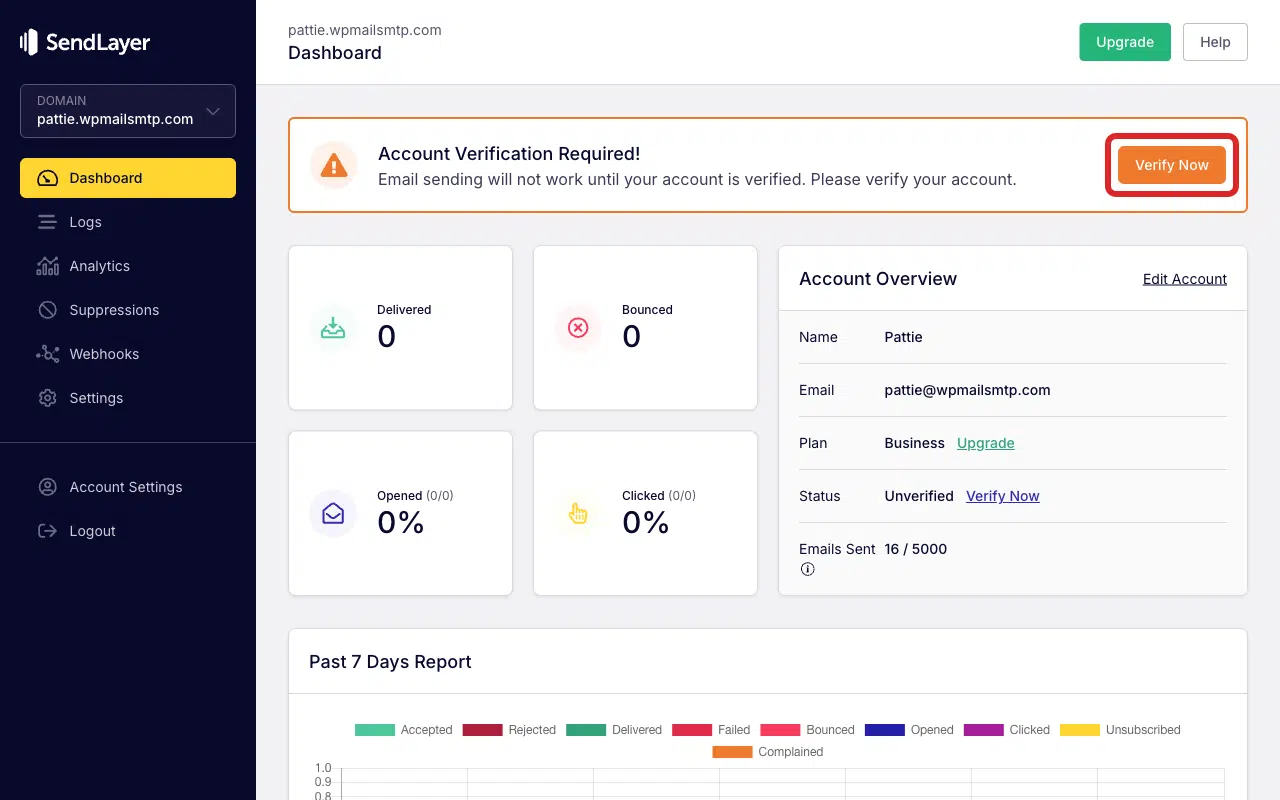
Start by logging in to your SendLayer account. Once you’re logged in, click Verify Now in the verification banner at the top of the Dashboard.
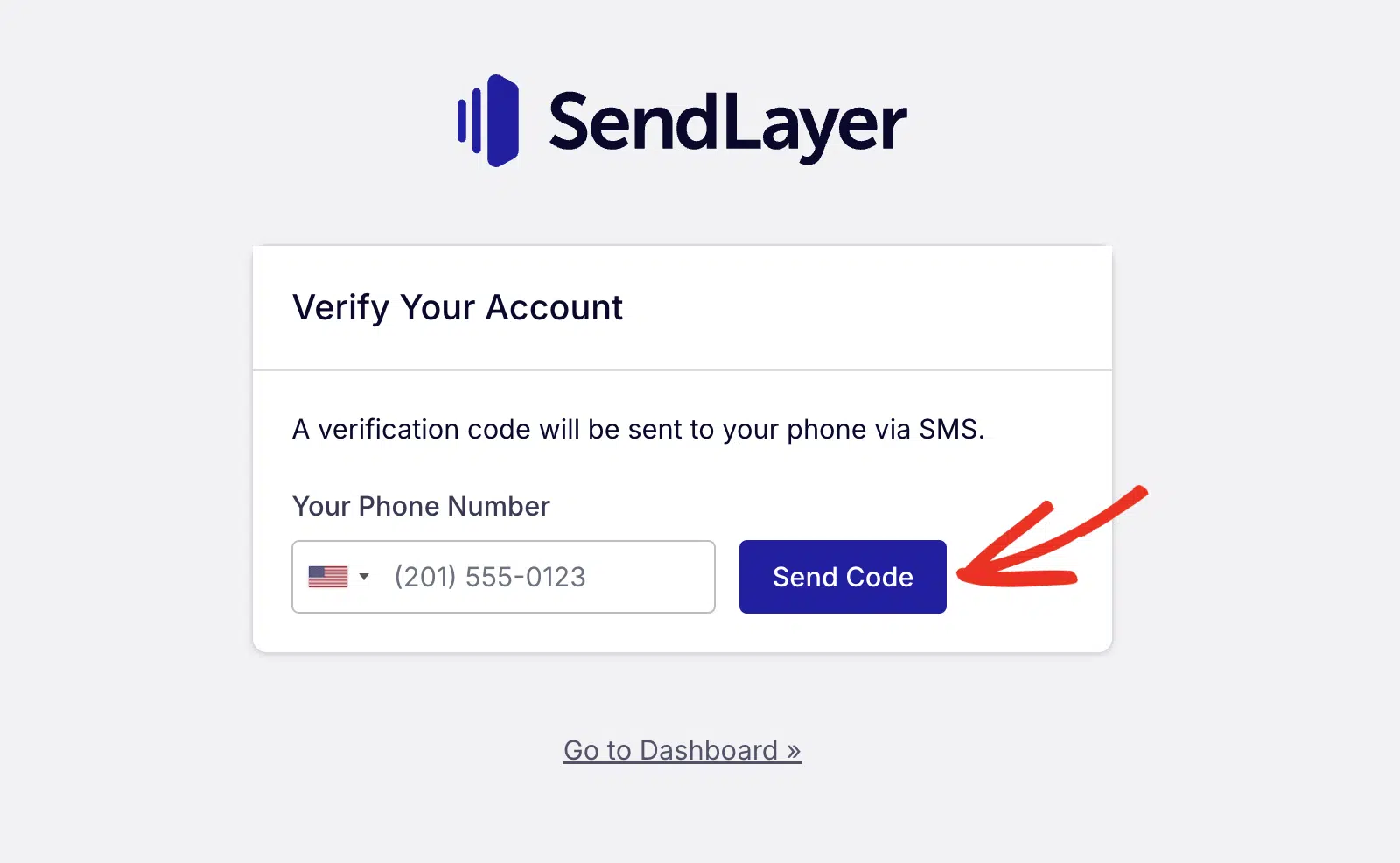
Then, enter your phone number in the Your Phone Number field and click Send Code.
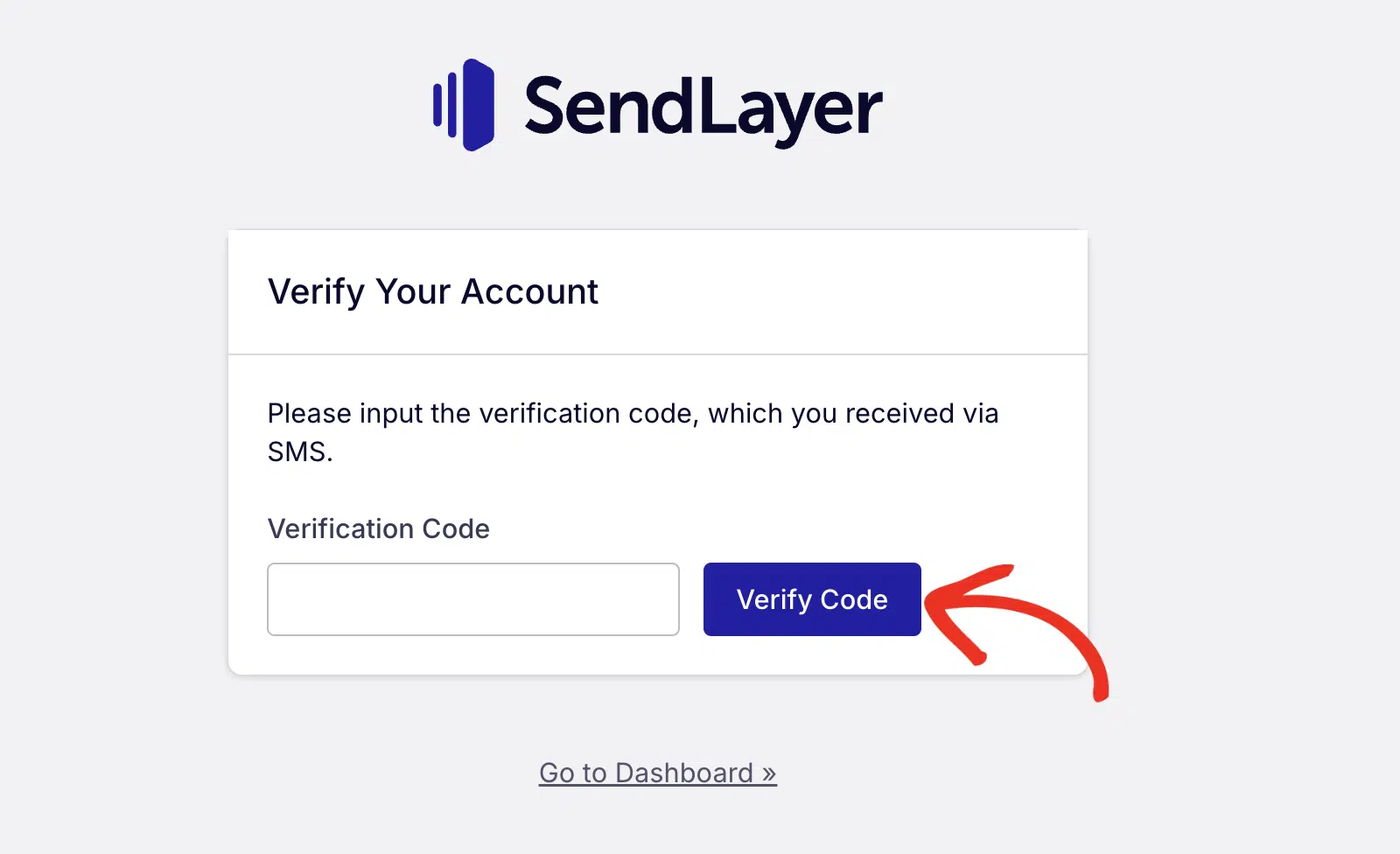
You should receive a verification code in the phone number you specified. Go ahead and enter the SMS code you receive in the Verification Code field. Then click Verify Code to continue.
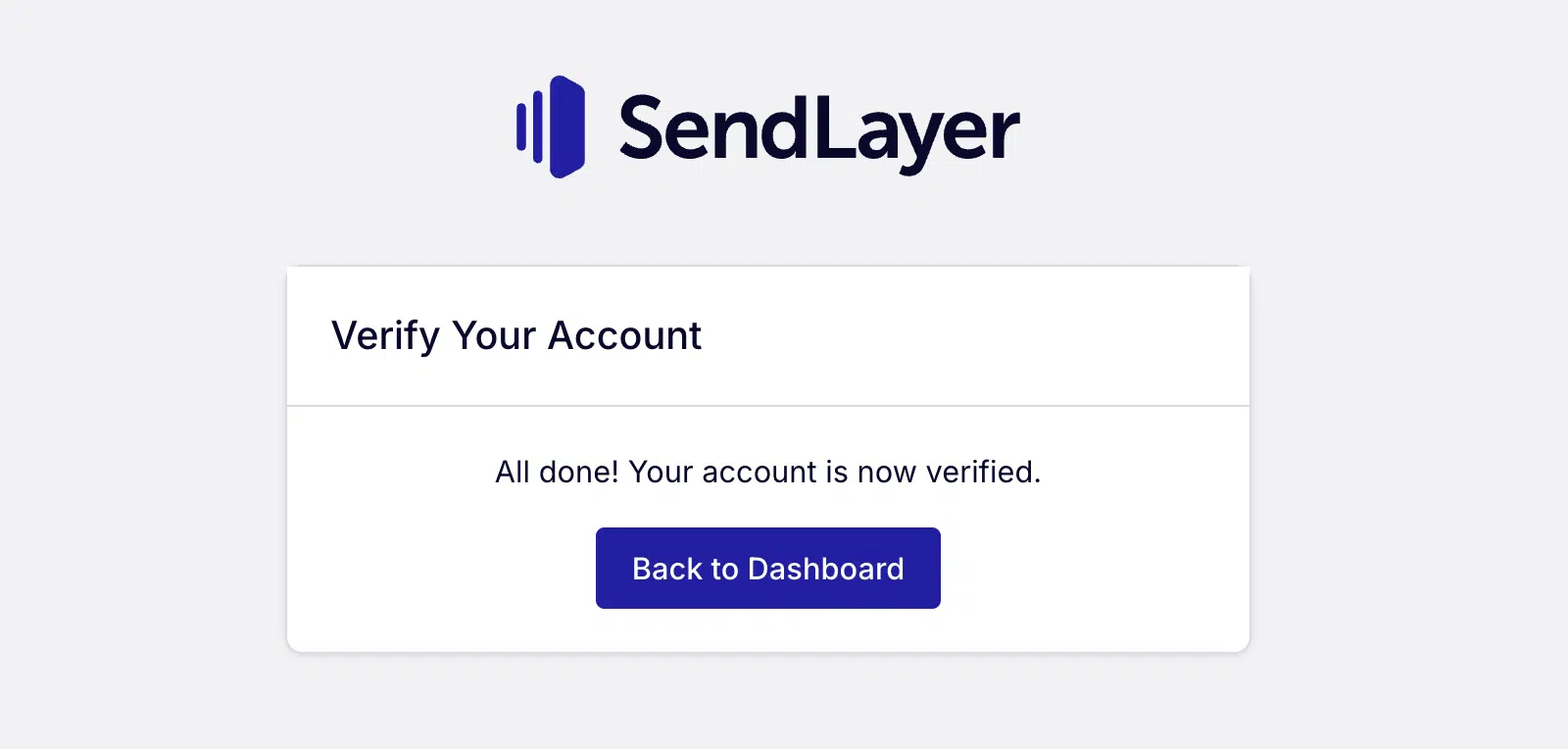
Finally, look for the message “All done! Your account is now verified.”
Step 2: Send a Test Email
To test the fix, log in to your WordPress admin area and go to WP Mail SMTP » Tools, click the Email Test tab, enter a recipient email in the Send To field, leave the HTML toggle ON, and click Send Email.
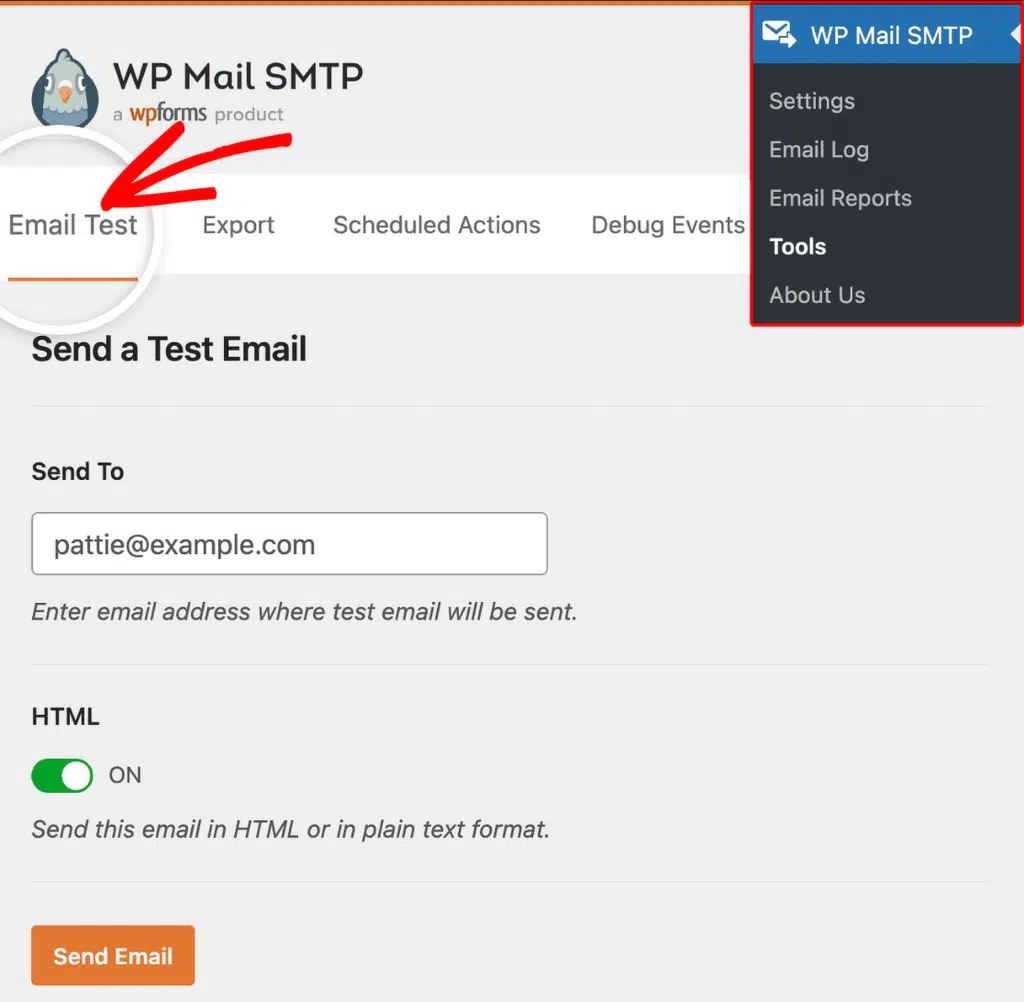
Once done, look for the success message and confirm the email arrived in your inbox.
Notes
- If your account is verified but sending is still blocked, check the SendLayer dashboard for any other pending steps (e.g. adding and verifying a sending domain).
- If you don’t receive the SMS code, contact SendLayer support. They can manually verify the account.
That’s It! You now know how to fix the ‘Account Not Verified’ error in SendLayer and get your emails sending again through WP Mail SMTP.