


AI Summary
Note: This guide applies to the Other SMTP mailer in WP Mail SMTP.
What This Error Means
The connection attempt to the SMTP server started, but never received a response. It hung until the timeout was reached. Error code 110 is a Linux socket timeout.
Common Causes
- Your hosting provider blocks port 25 (the most common cause)
- A firewall silently drops packets instead of refusing the connection
- An incorrect SMTP host address points to a non-responsive server
- The SMTP host’s server-side firewall blocks your server’s IP
How to Fix
Here is the complete step-by-step guide to resolving the error.
Set the Encryption Type
Most hosting providers block port 25 and require a secure connection instead. Start by setting the correct encryption.
In your WordPress admin area, go to WP Mail SMTP » Settings and scroll down to the Other SMTP section. Then, set Encryption to TLS.
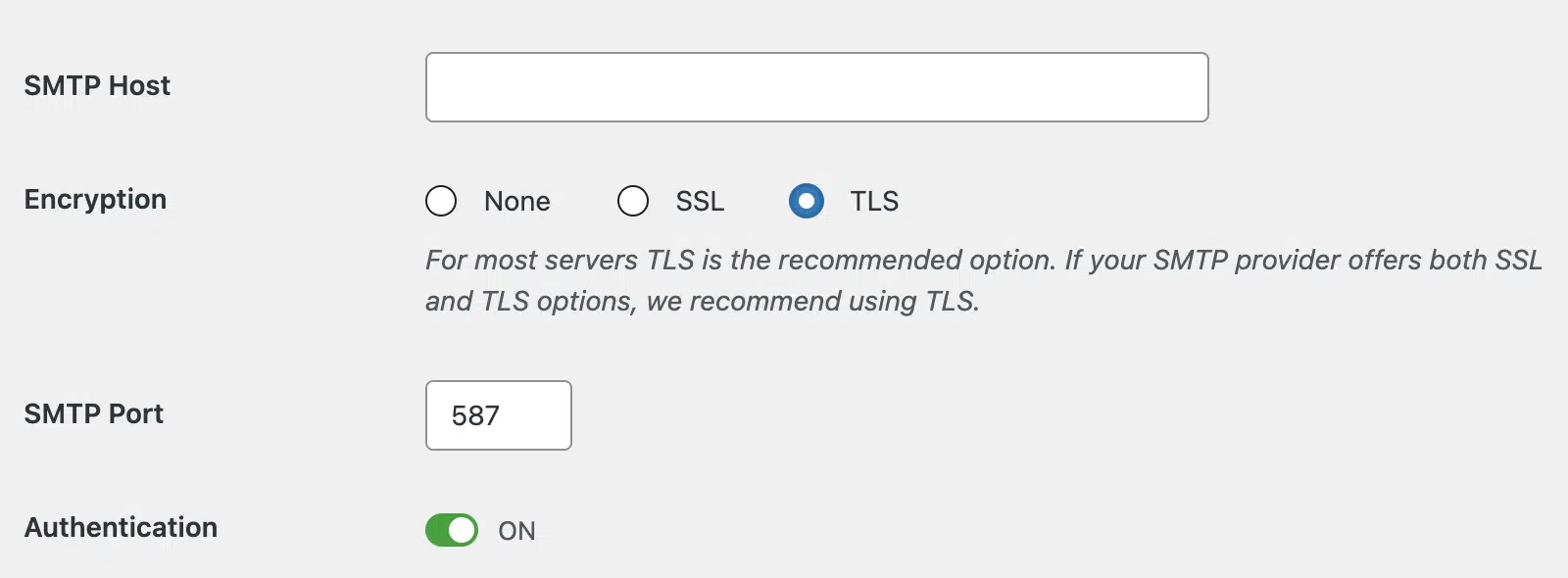
The port number should automatically change to 587. However, be sure to set the SMTP Port field to 587 if not already done and save your settings.
Send a Test Email
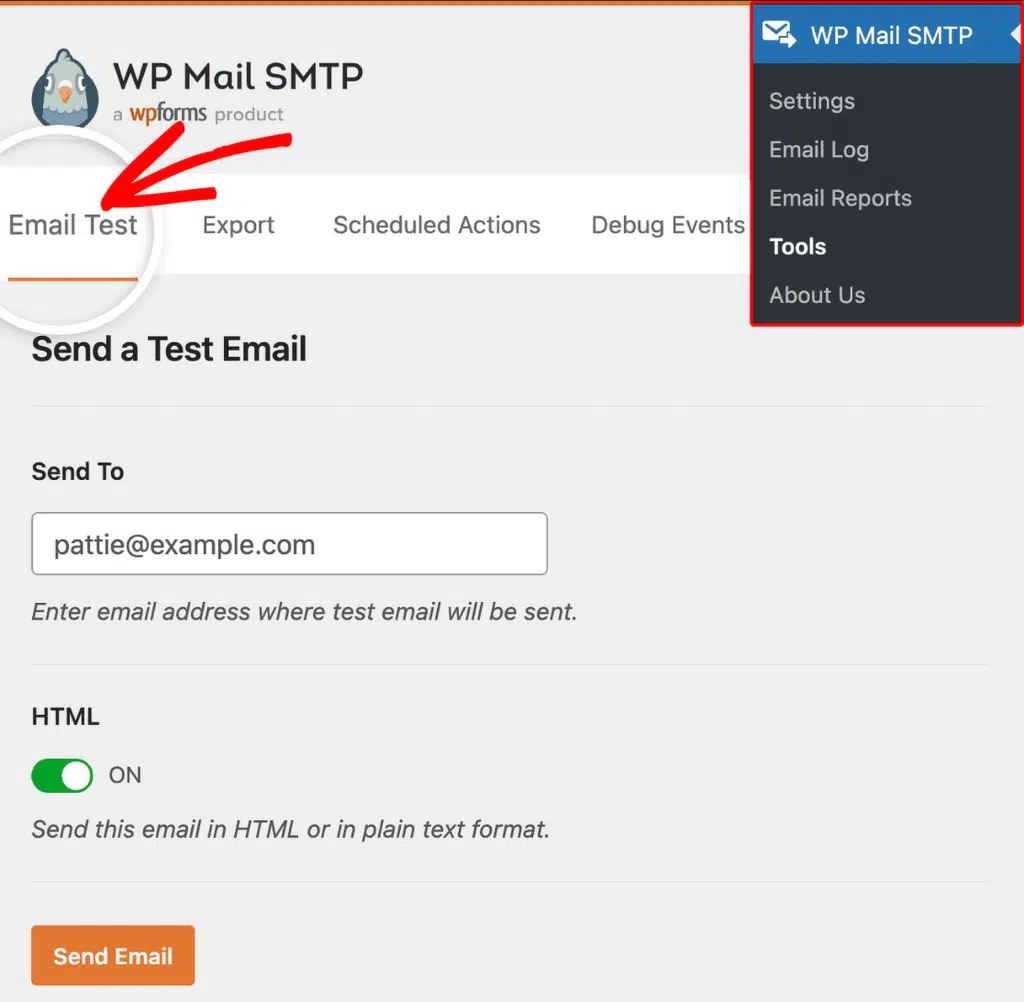
After updating the encryption and port number, make sure to test your emails to ensure the fix works. To send a test email, go to WP Mail SMTP » Tools, click the Email Test tab, and click Send Email.
Try SSL on Port 465
Some hosts only allow SSL connections on port 465. If using port 587 doesn’t resolve the issue on your site, then you might want to try a different port number.
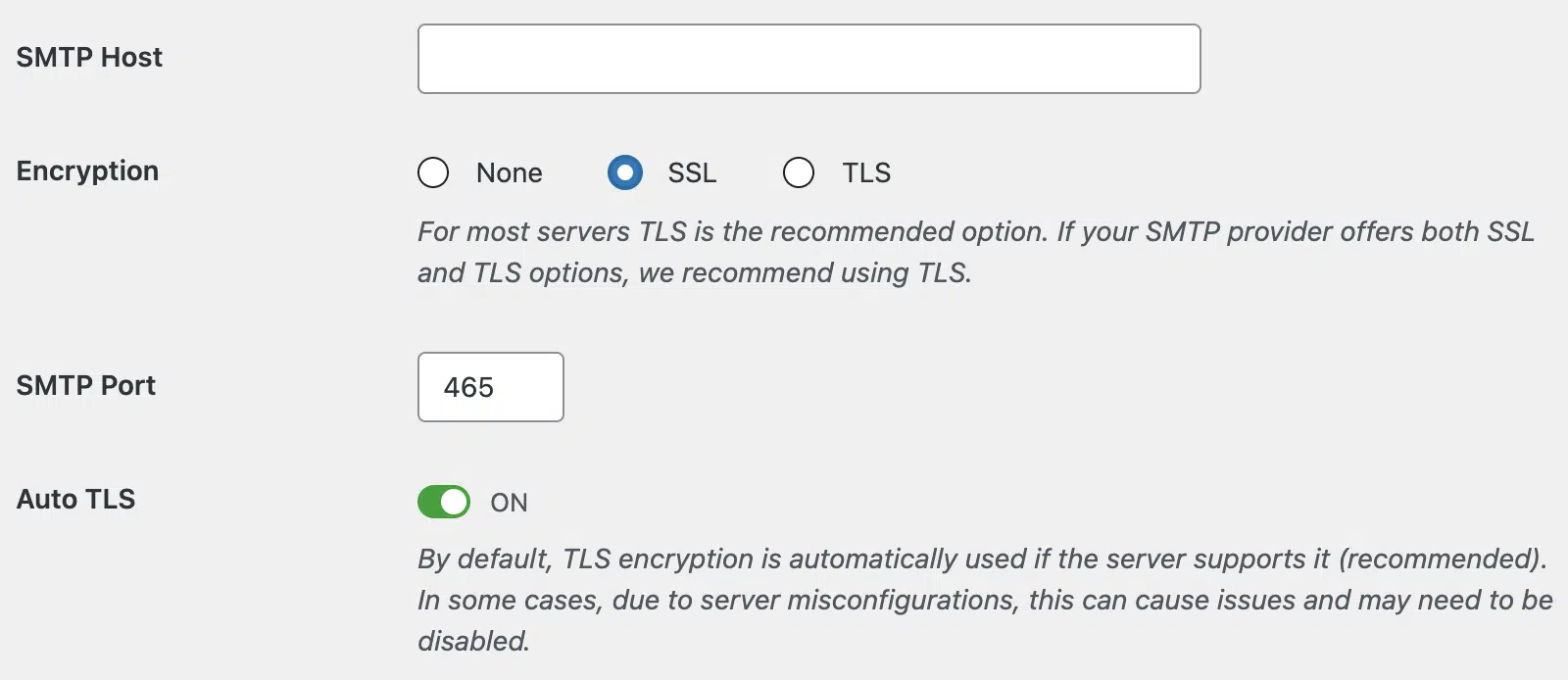
To do so, go to WP Mail SMTP » Settings. Then, set Encryption to SSL and the SMTP Port field to 465. Be sure to save your changes afterward.
Finally, return to WP Mail SMTP » Tools, click the Email Test tab, and send a test email.
Verify the SMTP Host Address
If changing the encryption method and port number doesn’t resolve the issue on your site, then it might be a misspelled SMTP host address. A typo in the host address can point to a non-responsive server, which also causes a timeout.
Start by going to WP Mail SMTP » Settings and checking the SMTP Host field. Confirm it matches the value from your email provider (for example, smtp.gmail.com for Gmail, smtp.office365.com for Outlook, or smtp.sendlayer.net for SendLayer).
Then, fix any typos and click Save Settings. Finally, return to WP Mail SMTP » Tools and send a test email.
Contact Your Hosting Provider
If none of the above steps resolve the timeout, the issue is likely a firewall or network restriction on your hosting server.
Start by contacting your hosting provider and asking which outbound SMTP ports (587, 465) are open. If your host confirms that outbound SMTP ports are blocked and they can’t open them, switch to a different email provider that doesn’t require open SMTP ports, such as SendLayer, SendGrid, or Mailgun. These mailers connect over HTTPS, which hosting providers don’t block.
If the SMTP host’s own firewall blocks your server’s IP, ask your hosting provider for your server’s outbound IP address, then add it to the allow list in your email provider’s firewall settings.
Notes
- Timeout (110) vs. Refused (111): timeout means the firewall silently drops packets; refused means the port is actively closed. The fix is the same: try a different port.
- If you are on shared hosting, SMTP ports are almost always blocked. Switching to SendLayer, SendGrid, or Mailgun is the most reliable long-term fix.
That’s It! You now know how to fix the ‘Connection Timed Out (Code 110)’ error and get your emails sending again through WP Mail SMTP.