


AI Summary
If you’ve ever set up an email service on your WordPress site, you’ve probably run into the question of which SMTP port to use. And if you Googled it, you probably got more confused than when you started.
Port 587? Port 465? What about port 25? Some guides say 465 is deprecated. Others say it’s been brought back. The conflicting advice is enough to make your head spin.
In this post, I’ll clear up the confusion and explain exactly which port you should use for your setup, and why it actually matters for your email deliverability.
SMTP Port 587 vs 465
What Is an SMTP Port?
Before we get into the 587 vs 465 debate, let’s quickly cover the basics.
SMTP stands for Simple Mail Transfer Protocol. It’s the standard method for sending emails across the internet. When your WordPress site needs to send an email (like a form notification or a password reset), it uses SMTP to deliver that message.
An SMTP port is the specific numbered “channel” that your email client or website uses to connect to the mail server. Think of it like a door number on a building. The building is the server, and the port number tells your email exactly which door to knock on.
Different ports serve different purposes, and they handle security in different ways. That’s where the confusion comes in.
If you want to understand more about the protocol itself, check out our full guide on what SMTP is and how it works.
Understanding Port 587
Port 587 is the most widely used port for submitting outgoing email. It was designated as the official email submission port back in 1998 (in RFC 2476, later updated by RFC 6409), specifically to separate regular email sending from server-to-server relay traffic.
Here’s what makes port 587 the go-to choice for most setups:
It uses STARTTLS encryption. When your email client connects on port 587, the connection starts as plain text and then “upgrades” to an encrypted connection through a process called STARTTLS. This negotiation step gives both the client and the server a chance to agree on encryption before any email data is sent.
It requires authentication. Port 587 expects the sender to log in with a username and password before it’ll accept any emails. This is a big deal for security because it prevents unauthorized people from sending emails through your server.
It’s supported everywhere. Every major email provider supports port 587, including Gmail, Outlook, Yahoo, Zoho, and pretty much every transactional email service you can think of. When you’re setting up a new email connection and you’re not sure what to use, port 587 is almost always a safe bet.
Understanding Port 465
Port 465 has had a bit of a complicated life.
It was originally registered with IANA (the Internet Assigned Numbers Authority) back in 1997 for “SMTPS,” which was SMTP over SSL. The idea was simple: create a port where the entire connection is encrypted from the very first packet. No negotiation, no upgrading. Just pure encrypted communication from the start. This is called implicit TLS.
But here’s where it gets messy. In 1998, the IETF (Internet Engineering Task Force) decided that STARTTLS on port 587 was the better approach and revoked port 465’s official registration. For years, it was technically deprecated.
The problem? Tons of email software and providers kept using it anyway. It worked, it was simple to configure, and people were used to it.
Fast forward to 2018, and the IETF acknowledged this reality in RFC 8314 by re-registering port 465 for “submissions” (email submission with implicit TLS). So port 465 is officially back, and it’s no longer considered outdated.
To sum up: Port 465 establishes an encrypted connection immediately. There’s no unencrypted phase at all. If the server and client can’t agree on encryption, the connection simply fails rather than falling back to plain text.
Port 587 vs 465: What’s the Difference?
Both ports are designed for submitting outgoing email, and both support encryption. But they handle security differently, and that’s the key distinction.
Here’s a quick comparison:
| Port 587 | Port 465 | |
|---|---|---|
| Encryption method | STARTTLS (explicit TLS) | Implicit TLS |
| How encryption starts | Connection begins unencrypted, then upgrades to TLS | Connection is encrypted from the first packet |
| Authentication | Required | Required |
| RFC standard | RFC 6409 | RFC 8314 |
| Provider support | Universal | Very wide, but not quite as universal |
| Compatibility | Works with virtually all email clients | Some older or legacy systems may not support it |
| Fallback behavior | Can technically fall back to unencrypted (though this shouldn’t happen with a properly configured server) | No fallback. No encryption = no connection |
The practical difference comes down to how encryption is handled at the start of the connection.
With port 587, your email client says “hello” to the server in plain text, then asks to upgrade to an encrypted connection via STARTTLS. If both sides support it (and they should), the connection becomes encrypted before any sensitive data is sent.
With port 465, the encryption is already in place before anyone says “hello.” The TLS handshake happens first, and the SMTP conversation only starts once the secure tunnel is established.
You might be thinking that port 465 sounds more secure because there’s never an unencrypted moment. In practice, though, the security difference is minimal as long as both the client and server are properly configured to require TLS. The IETF itself has said there’s no significant difference in security properties between the two when configuration is done correctly.
That said, port 465 does eliminate one specific vulnerability: the STARTTLS downgrade attack. This is where a man-in-the-middle attacker strips the STARTTLS command from the conversation, forcing the connection to stay unencrypted. With implicit TLS on port 465, this type of attack isn’t possible because there’s no STARTTLS step to tamper with.
Which Port Should You Use?
For most WordPress site owners, port 587 is the right choice.
Here’s why:
1. Your email provider probably recommends it. Gmail, Outlook, Yahoo, SendLayer, Brevo, Mailgun, SMTP.com, and most other email services default to port 587 with STARTTLS. When you follow their setup documentation, port 587 is almost always what they tell you to use.
2. It has the widest compatibility. Port 587 works with virtually every email client, server, and hosting environment. If you’re on shared hosting or you’ve had issues with email connections in the past, port 587 is the least likely to cause problems.
3. WP Mail SMTP defaults to it. When you configure the “Other SMTP” mailer in WP Mail SMTP, port 587 with TLS encryption is the standard recommendation. It’s what we’ve seen work reliably across thousands of WordPress sites.
When should you use port 465 instead?
There are a few situations where port 465 makes more sense:
- Your email provider specifically requires it. Some services, particularly older ones like Yahoo Business Mail or HostGator, use port 465 with SSL by default. If that’s what your provider recommends, go with it.
- Port 587 is blocked. Some web hosts or corporate firewalls block port 587. If you’re getting connection errors on 587 and you’ve confirmed it’s a port issue (not a credentials issue), try switching to 465.
- You want implicit TLS for compliance reasons. If you’re in an industry with strict security requirements and you need to guarantee that no part of the SMTP connection is ever unencrypted, port 465 with implicit TLS gives you that assurance.
The bottom line: Don’t overthink it. If your email provider says to use 587, use 587. If they say 465, use 465. In both cases, your emails are encrypted and secure. The port number itself doesn’t affect your email deliverability. What matters is that you’re properly authenticated and your domain has the right SPF, DKIM, and DMARC records set up.
How to Configure the SMTP Port in WP Mail SMTP
If you’re using the “Other SMTP” mailer in WP Mail SMTP, you can set your port manually. Here’s how:
- Go to WP Mail SMTP » Settings in your WordPress dashboard.
- Under the Primary Connection section, select Other SMTP as your mailer.
- Enter the SMTP Host provided by your email service (for example,
smtp.gmail.comfor Gmail). - Choose your Encryption method: select TLS if you’re using port 587, or SSL if you’re using port 465.
- Enter the SMTP Port. This will usually auto-fill based on your encryption choice (587 for TLS, 465 for SSL), but you can change it if needed.
- Turn on Authentication and enter your Username and Password.
- Click Save Settings.
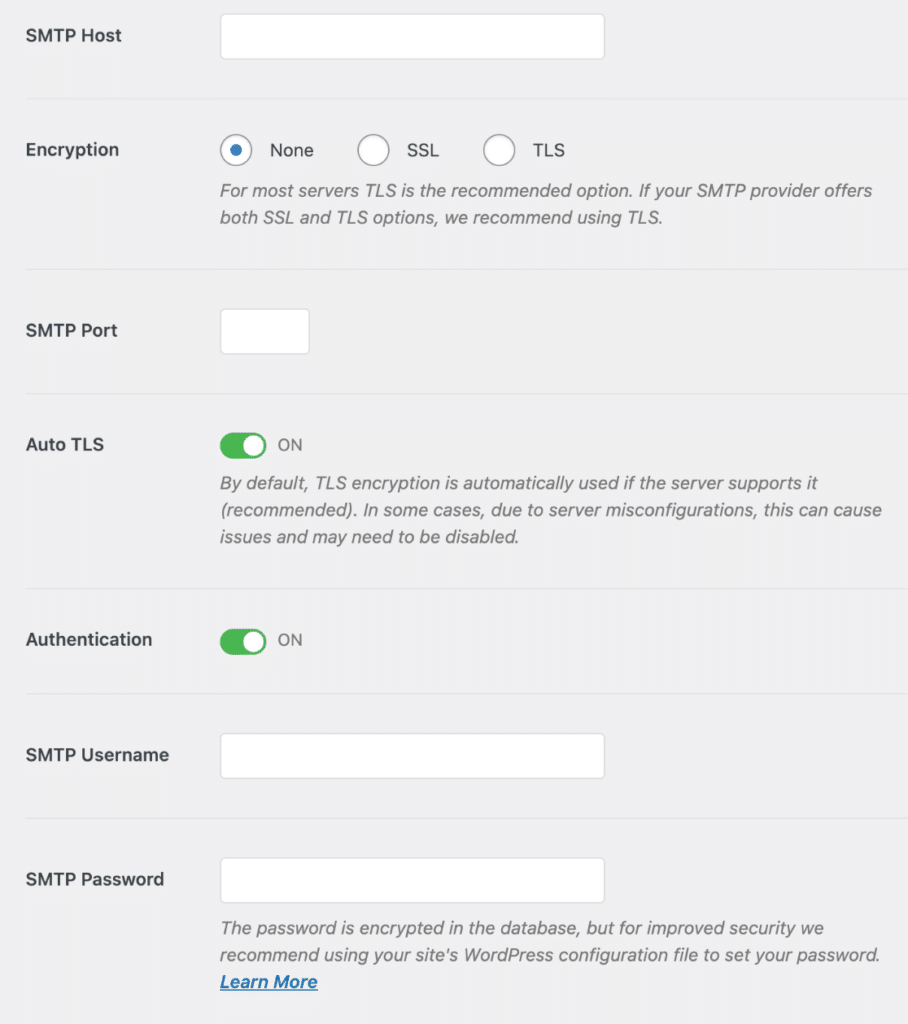
After saving, head to WP Mail SMTP » Tools and send a test email to confirm everything is working.
Tip: If you’re not sure which settings to use, check out our guide to setting up the Other SMTP mailer, which includes the recommended SMTP host, port, and encryption settings for all the major email providers.
Pro Tip: Don’t want to deal with SMTP ports at all? If you use one of WP Mail SMTP’s built-in mailer integrations like SendLayer, Gmail, or Brevo, they connect using an API over HTTPS instead. That means no SMTP ports to configure and no port-blocking issues to worry about. It’s the easiest way to set up reliable email on your WordPress site.
What About Port 25 and Port 2525?
You might have come across these other port numbers in your research. Here’s a quick rundown:
Port 25 is the original SMTP port, dating all the way back to 1982. It’s still used for server-to-server email relay (when one mail server passes an email along to another). But you should never use port 25 for sending email from your WordPress site or email client. Most ISPs and hosting providers block it to prevent spam, and it doesn’t require authentication by default.
Port 2525 is an unofficial alternative that some email providers offer as a workaround when ports 587 and 465 are blocked. It’s not recognized by the IETF or IANA as a standard SMTP port, but it works the same way as port 587 (STARTTLS encryption, authentication required). If you’ve tried both 587 and 465 and can’t connect, port 2525 is worth a shot.
For a more detailed breakdown of all four ports, read our complete guide to common SMTP ports.
Frequently Asked Questions
Does the SMTP port I use affect email deliverability?
No. The port you use has no impact on whether your emails land in the inbox or the spam folder. Deliverability depends on factors like email authentication (SPF, DKIM, DMARC), your sender reputation, and the content of your emails. The port simply determines how your email gets from your site to the mail server.
Is port 465 deprecated?
Not anymore. Port 465 was technically deprecated for several years, but RFC 8314 (published in 2018) re-established it as an official port for email submission with implicit TLS. It’s fully valid to use.
Can I use port 587 with SSL instead of TLS?
No. Port 587 is designed to work with STARTTLS (which upgrades to TLS). If you want to use SSL/implicit TLS encryption, you should use port 465 instead. Don’t mix up the encryption methods and port numbers, as this is one of the most common causes of SMTP connection errors.
My hosting provider blocks SMTP ports. What should I do?
Some hosting providers block outgoing connections on ports 25, 465, and 587 to prevent spam. If this is happening to you, there are two options. First, you can contact your hosting provider and ask them to unblock the port you need. Second, you can use a mailer in WP Mail SMTP that connects via API instead of SMTP, like SendLayer, Brevo, or Mailgun. API-based mailers use HTTPS (port 443), which is never blocked. Read our full guide on why your web host blocked SMTP for step-by-step instructions.
What’s the best port for Gmail SMTP?
Gmail uses smtp.gmail.com on port 587 with TLS encryption. If you’re using WP Mail SMTP Pro, we recommend using the one-click Gmail setup instead, which handles all the configuration for you and doesn’t require you to worry about ports at all.
Next, Check Your Email Authentication
Now that you’ve got the right SMTP port configured, make sure your emails are properly authenticated. Without the right DNS records in place, your emails could still end up in spam, even if your SMTP connection is working perfectly.
Read our guide to SPF, DKIM, and DMARC to learn how to set up email authentication for your domain and improve your deliverability.
Ready to fix your emails? Get started today with the best WordPress SMTP plugin. If you don’t have the time to fix your emails, you can get full White Glove Setup assistance as an extra purchase, and there’s a 14-day money-back guarantee for all paid plans.
If this article helped you out, please follow us on Facebook and Twitter for more WordPress tips and tutorials.
