


AI Summary
If you send email to Gmail users, the Promotions tab is one of the most overlooked deliverability problems you’ll deal with. It’s not as dramatic as a bounce or a spam flag, but the effect is the same: recipients don’t see your emails.
This is especially common for WordPress site owners, where WooCommerce order confirmations, contact form notifications, and password reset emails get filtered into Promotions more often than most people realize. Gmail’s classifier reacts to patterns in your email (lots of HTML, links, and images) more than to your intent, so even legitimate transactional messages get treated like marketing.
In this guide, I’ll walk you through why your emails land in the Promotions tab, what exactly you can do about it, and how to test your results so you’re not guessing. If you’d rather not handle the technical bits yourself, the right SMTP setup takes care of most of this for you, but I’ll cover both sides.
- What Is the Gmail Promotions Tab?
- Why Gmail Puts Your Emails in the Promotions Tab
- Does It Actually Matter If Emails Land in Promotions?
- How to Avoid the Gmail Promotions Tab
- Pro tip: Test Your Templates
- How to Test Where Your Emails Are Landing
- For Gmail Users: How to Disable the Promotions Tab
- Frequently Asked Questions
- Next, Find Out Why Your Emails Are Going to Spam
What Is the Gmail Promotions Tab?
The Gmail Promotions tab is one of the category tabs Gmail uses to sort your inbox. By default, Gmail splits incoming mail into up to five tabs:
- Primary: personal emails and anything Gmail thinks you’ll want to read
- Promotions: marketing emails, deals, offers, and newsletters
- Social: notifications from social networks
- Updates: confirmations, receipts, statements, and bills
- Forums: emails from mailing lists and discussion groups
Google introduced these tabs back in 2013 to help users cut down on inbox clutter. The Promotions tab was designed as a holding pen for marketing email, so users could check it when they wanted to shop and ignore it the rest of the time.

The problem is that Gmail’s algorithm decides which tab your emails belong in, and it’s not always right. WordPress sites often send transactional emails (order confirmations, password resets, contact form notifications) that get misclassified as marketing because of how they look or who’s sending them.
Why Gmail Puts Your Emails in the Promotions Tab
Gmail doesn’t publish the exact rules its classifier uses, but enough research and testing has been done to know the signals it cares about. Your emails get sorted into Promotions when several of these line up:
Content signals
- Lots of HTML, CSS styling, images, and call-to-action buttons
- Multiple links, especially to product pages or coupon landing pages
- Words like “deal,” “free,” “save,” “discount,” “limited time,” and “% off”
- All-caps subject lines, excessive punctuation, or emoji
- A high image-to-text ratio
Sender signals
- A “From” name that looks like a brand or store rather than a person
- Sending from a marketing platform with a shared reputation
- Including unsubscribe headers (which legitimate marketers should use, but the algorithm treats it as a marketing flag)
- Sending high volume on a consistent marketing schedule
Engagement signals
- Recipients rarely open or reply to your emails
- Recipients mark your emails as spam or delete without opening
- New senders who haven’t built any history with the recipient
For WordPress site owners, the trickiest signals are the content ones. A WooCommerce order confirmation looks promotional to Gmail even when it isn’t, because it has logos, product images, prices, and links to your store. The same goes for newsletter plugins, membership notifications, and any email that uses a designed HTML template.

Does It Actually Matter If Emails Land in Promotions?
Yes, but the answer depends on what you’re sending.
For marketing emails: Promotions isn’t a death sentence. Some users check that tab when they’re in a buying mood, and Gmail even shows promotional images and deals in a grid view that can drive clicks. But open rates are typically 30–50% lower than the Primary inbox. If you’re spending time and money on email marketing, you want to be in Primary.
For transactional emails: This is where the Promotions tab causes real damage. Order confirmations, account verification emails, password resets, support tickets, and form submissions all need to be seen quickly. When they land in Promotions, customers think the email never arrived, they file support requests, and they sometimes go elsewhere. This is the scenario most WordPress site owners need to fix.
The rest of this guide focuses on getting your emails, especially your transactional ones, into the Primary inbox.
How to Avoid the Gmail Promotions Tab
Here are 11 practical methods to keep your WordPress emails out of the Promotions tab. Most of these will help on their own. Combine several and you’ll see a noticeable difference.
1. Switch to an SMTP Plugin With Proper Authentication
This is the first thing I’d fix on any WordPress site. By default, WordPress uses the PHP mail() function to send email, which lacks the authentication that Gmail expects from a legitimate sender. Without proper authentication, your emails are flagged as suspicious from the moment they hit Google’s servers.
Installing WP Mail SMTP routes your WordPress emails through a real SMTP provider with proper authentication headers. The plugin supports mailers like SendLayer, Brevo, SMTP.com, Gmail / Google Workspace, Mailgun, Postmark, SendGrid, Amazon SES, Microsoft 365, and standard SMTP.
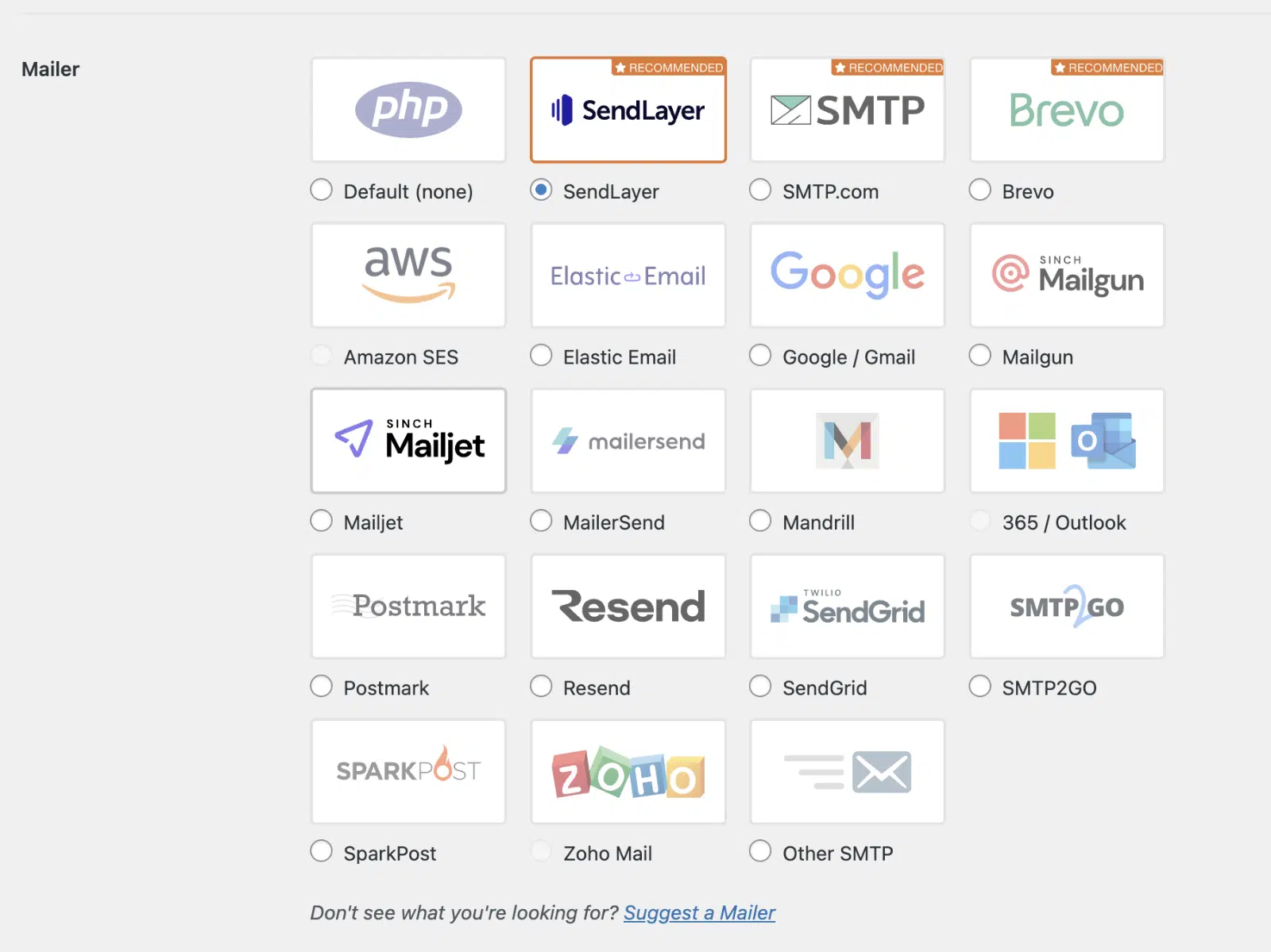
Just switching from PHP mail to a proper SMTP setup is often enough to move borderline emails out of Promotions and into Primary, because authentication is one of the strongest trust signals Gmail looks at.
2. Set Up SPF, DKIM, and DMARC
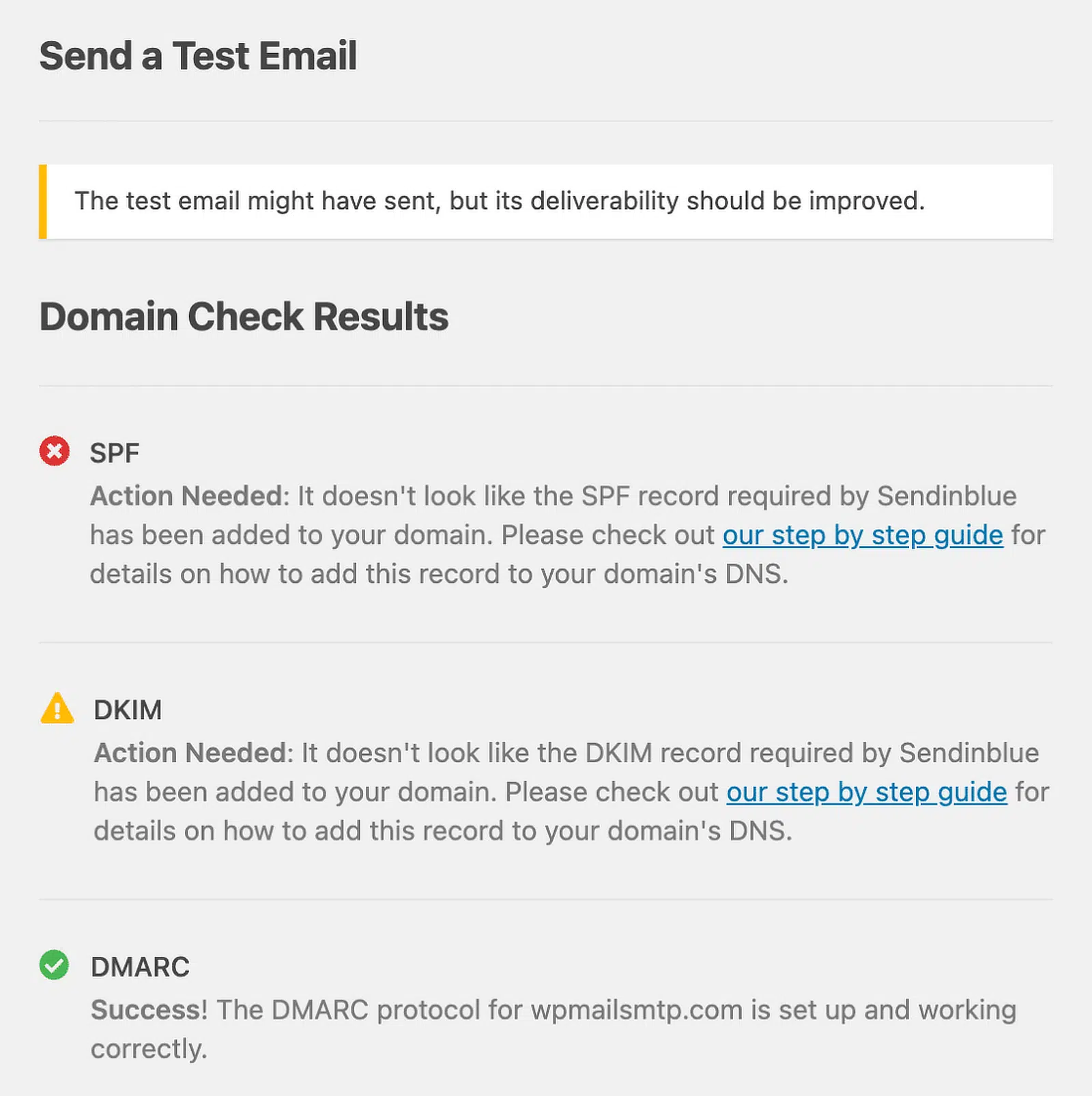
These three records tell Gmail that your emails are coming from you and haven’t been tampered with along the way. They’re a baseline requirement now. Gmail requires authentication for bulk senders, and the algorithm treats unauthenticated mail with suspicion even at lower volumes.
- SPF (Sender Policy Framework) lists the servers allowed to send mail from your domain
- DKIM (DomainKeys Identified Mail) adds a cryptographic signature proving the message wasn’t altered
- DMARC tells receiving mail servers what to do when SPF or DKIM checks fail
Most SMTP providers will give you the exact DNS records to add to your domain. If you’re not sure whether yours are set up correctly, WP Mail SMTP also has a built-in Email Test tool that verifies SPF, DKIM, and DMARC in seconds.
3. Use a Recognizable “From” Name and Address
Gmail learns who you are based on how you sign your emails. A few rules that help:
- Use a real person’s name when possible (e.g., “Sarah from Acme” instead of “Acme Marketing”)
- Send from an address on your own domain (
[email protected], not[email protected]) - Keep the “From” name and address consistent across all your sites’ emails
If your transactional emails come from [email protected] but your newsletter comes from [email protected], Gmail treats them as separate senders and has to build trust from scratch for each one. Pick a consistent sender identity per email type and stick with it.
In WP Mail SMTP, you can lock down your From Name and From Email in the plugin settings so plugins like WooCommerce or your contact form can’t override them.

4. Cut Promotional Language From Subject Lines
Gmail’s classifier scans your subject line for marketing language before it even reads the body. A few things to avoid:
- All caps (“URGENT,” “ACT NOW”)
- Multiple exclamation marks
- Symbols like
$$$,★,→ - Words like “free,” “discount,” “save,” “sale,” “deal,” “limited time,” “% off,” “winner,” “congratulations”
- Currency amounts in the subject
This doesn’t mean your subject lines have to be boring. It means they should read like something a person would write, not something a marketing template would generate. “Your order #4729 is on the way” beats “🎉 GREAT NEWS! Your order is here! 🎉” every time.
| ❌ Avoid | ✅ Use instead |
|---|---|
| 🎉 FREE SHIPPING TODAY ONLY! 🎉 | Your order #4729 has shipped |
| Save 50%, don’t miss out! | Your monthly statement is ready |
| 💰 You won a $100 gift card! | Welcome to Acme, Sarah |
| ACT NOW: Limited time offer | Confirm your email address |
| ⚡⚡⚡ MEGA SALE STARTS NOW ⚡⚡⚡ | Sarah, here’s the guide you requested |
| Click here for your exclusive deal!!! | Reset your password (link expires in 1 hour) |
| FREE GIFT inside (open now) | Receipt for your purchase from Acme Co. |
| You’re invited! $$$ Hurry! | Your subscription renews on Dec 15 |
| Limited time: Get 70% OFF everything | Quick question about your recent order |
| 🔥 HOT DEAL just for YOU 🔥 | New comment on your blog post |
5. Improve Your HTML-to-Text Ratio
Marketing emails tend to be HTML-heavy: lots of tables, inline styles, button code, and images. Transactional emails that mimic this design get pattern-matched as marketing.
A good rule of thumb is to aim for roughly 60% text and 40% HTML in your email body. Practical ways to get there:
- Strip unnecessary styling from your email templates
- Drop columns and table layouts in favor of simpler one-column designs
- Always include a plain-text version of your email (most SMTP providers add this for you, but check)
- If you’re using WooCommerce, consider switching to text-based templates for order confirmations
You don’t need to go fully plain-text. You just need to look less like a flyer.
6. Limit Images and Optimize the Ones You Use
A single hero image at the top of an email is fine. A wall of product photos, banner graphics, and social icons is what triggers the Promotions filter.
When you do use images:
- Add descriptive
alttext (this also helps accessibility) - Compress them, because large images slow load times and look more like marketing
- Avoid using an image as your entire email body (a classic spam pattern)
- Keep your total email size under 100 KB when possible
For transactional emails, ask yourself whether the image is functional or decorative. If it’s decorative, you can usually cut it.
7. Reduce the Number of Links
Marketing emails tend to be link-heavy: header links, footer links, social icons, unsubscribe links, product links, tracking links. Each one adds to the “this looks like marketing” signal.
For order confirmations, password resets, and other transactional emails, try to get down to one or two essential links. If you can use a plain URL instead of a tracked redirect, even better. Gmail is suspicious of redirect chains.
8. Personalize Your Emails
Personalized emails read like one-to-one communication, which is what the Primary inbox is for. Generic broadcasts read like marketing.
The simplest version of personalization is using the recipient’s first name in the subject line and greeting. Beyond that:
- Reference something specific to the recipient (their order number, their account, what they signed up for)
- Send from a person, not a department
- Skip the corporate marketing tone, and write the way you’d write to a friend or customer
Most WordPress plugins (WPForms, WooCommerce, MemberPress) let you use merge tags to insert recipient-specific data into your emails. Use them.
9. Maintain a Clean, Engaged List
If you’re sending newsletters or any kind of bulk email, your sender reputation depends on how recipients interact with your mail. A high spam complaint rate or a flood of bounces will push you toward Promotions or worse.
- Remove subscribers who haven’t opened anything in 6+ months
- Use double opt-in so only real, interested people get added
- Run your list through an email verification service before any big send
- Honor unsubscribes right away
For WordPress site owners with WooCommerce, consider segmenting your customer list separately from your newsletter list. A buyer who’s never asked for marketing email is a likely spam complaint waiting to happen.
10. Ask Subscribers to Move Your Emails to Primary
This is the single fastest way to fix the Promotions tab for a specific recipient: ask them to drag your email out of the Promotions tab and into Primary. When they do, Gmail will usually ask if they want all future emails from you to go to Primary too. After enough of those signals, Gmail’s classifier learns.
You can include a short line at the top of your welcome email or first transactional email:
“If this email landed in your Promotions tab, please drag it to your Primary inbox so you don’t miss future order updates.”

Even better, ask new subscribers to add your “From” address to their contacts. Emails from saved contacts almost always go to Primary.
11. Send From a Dedicated Subdomain
If you send a lot of different kinds of email (transactional, marketing, and notifications), sending all of them from your root domain mixes your reputation. A bad marketing campaign can drag down your password reset deliverability.
The fix is to send from a subdomain dedicated to email, like mail.yoursite.com or notifications.yoursite.com. This:
- Isolates your email reputation from your main website
- Lets you set up authentication for the subdomain specifically
- Makes it easier to separate transactional and marketing sending
Most SMTP providers (SendLayer, Mailgun, Postmark, Amazon SES) make this straightforward to set up. See our article on what is an email subdomain and why should you use one? for more.
How to Test Where Your Emails Are Landing
You don’t have to guess whether your changes are working. There are a few quick ways to see where your WordPress emails are landing.
Send to your own test accounts. Create a Gmail account specifically for testing and send your most important WordPress emails to it (order confirmation, password reset, contact form notification). Check whether they land in Primary, Promotions, or Spam. Do this from a fresh email session, since Gmail’s classifier behaves differently for senders you already interact with.
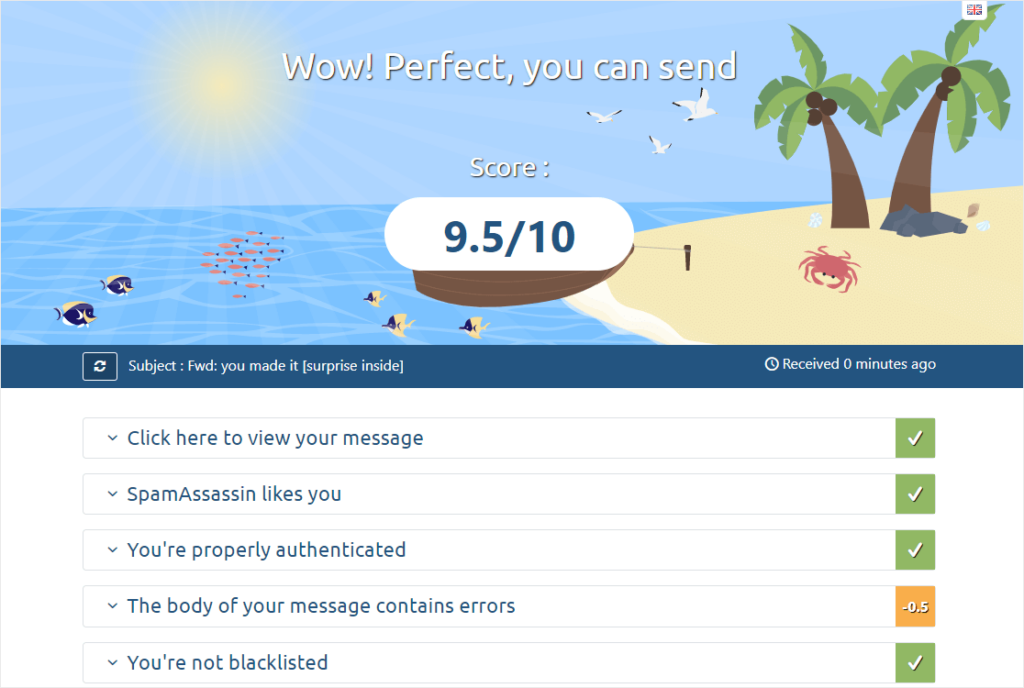
Use Mail Tester. Mail-tester.com gives you a temporary email address. Send any email to it and you’ll get a deliverability score out of 10, plus a breakdown of authentication, content, and reputation issues that might be hurting you.
Run a Glock Apps or MailReach test. These paid tools (with free trials) send your test email to a network of inbox addresses across Gmail, Outlook, Yahoo, and others, and show you where it landed in each: Primary, Promotions, or Spam. This is the most accurate way to see your real Promotions tab rate.
Check Google Postmaster Tools. If you’re sending enough volume, Google Postmaster Tools shows you your domain reputation directly from Google’s perspective, plus authentication results and spam rates. It won’t tell you about the Promotions tab specifically, but a poor domain reputation almost always means more Promotions placement.
Check your WP Mail SMTP email logs. The plugin’s email log shows you every email that left your site and whether it was accepted by the receiving server. If something fails, you’ll see it here instead of finding out from a frustrated customer.

For Gmail Users: How to Disable the Promotions Tab
If you landed here because you’re tired of dealing with the Promotions tab on your own Gmail account, here’s how to turn it off.
On desktop:
- Open Gmail and click the gear icon in the top right
- Click See all settings
- Click the Inbox tab
- Under Categories, uncheck Promotions (and any other tabs you don’t want)
- Scroll down and click Save Changes
Everything that would have gone to Promotions will now land in your Primary inbox.
On the Gmail mobile app:
- Tap the menu icon (three lines, top left)
- Tap Settings
- Tap the email account you want to change
- Tap Inbox categories
- Toggle off the categories you don’t want
To move a single email out of Promotions on desktop: Drag the email from the Promotions tab to the Primary tab. When Gmail asks if you want to do this for all future emails from this sender, click Yes.
To move a single email on mobile: Long-press the email, tap the three-dot menu, choose Move to, and select Primary.
If your Promotions tab disappeared on its own, Gmail occasionally adjusts the default tab layout, especially after app updates. Use the same settings above to turn it back on.
Frequently Asked Questions
Why are my WooCommerce or contact form emails going to the Promotions tab?
WordPress transactional emails often look promotional to Gmail because they include logos, product images, prices, and multiple links, which are the same patterns marketing emails use. Combined with default WordPress sending (which lacks authentication), this is enough to push them to Promotions. Setting up an SMTP plugin with proper SPF/DKIM/DMARC and simplifying your email templates usually fixes it.
Does the Gmail Promotions tab affect open rates?
Yes. Studies of marketing emails consistently show that Primary inbox placement results in significantly higher open rates than Promotions placement, typically 30–50% higher. For transactional emails, the difference matters more because customers expect them in Primary and often miss them when they land in Promotions.
Is the Promotions tab the same as the spam folder?
No. Emails in the Promotions tab were delivered successfully and Gmail considers them legitimate. They’re just categorized as marketing. Emails in the Spam folder were flagged as potentially harmful, fraudulent, or unwanted. Spam is a deliverability problem; Promotions is a placement problem.
Why did my Gmail Promotions tab disappear?
Gmail occasionally updates its default inbox view and may turn category tabs off. To turn the Promotions tab back on, go to Settings → See all settings → Inbox and check the Promotions box under Categories.
How do I delete all emails in the Gmail Promotions tab?
Open the Promotions tab, click the checkbox at the top to select all visible emails, then click “Select all conversations in Promotions” in the banner that appears. Click the trash icon to delete them. Deleted emails stay in Trash for 30 days before being permanently removed.
Will Google ever remove the Promotions tab?
There’s no announcement from Google about removing the Promotions tab, and Gmail has added more features to it over the years (like promotional grids and deal annotations). Plan your email strategy on the assumption that the Promotions tab is here to stay.
Can WP Mail SMTP guarantee my emails reach the Primary inbox?
No SMTP plugin or service can guarantee Primary inbox placement, because the final decision belongs to Gmail’s algorithm and the recipient’s own behavior. What WP Mail SMTP does is fix the technical foundation (authentication, deliverability, error reporting, and reliable sending) that gives your emails the best possible chance of reaching Primary.
What’s the difference between transactional and promotional emails?
Transactional emails are triggered by a specific user action: signing up, placing an order, resetting a password, submitting a form. Promotional emails are sent in bulk to subscriber lists for marketing purposes. Gmail tries to distinguish between them, but it doesn’t always get it right, which is why transactional emails sometimes land in the Promotions tab.
Fix Your WordPress Emails for Good
Most WordPress email problems come back to the same thing: WordPress sites send a lot of email by default, and the default setup doesn’t give those emails what Gmail needs to trust them.
If you’re dealing with emails landing in the Promotions tab, in spam, or not being delivered at all, the fastest fix is to install WP Mail SMTP and connect it to a proper email service. From there, the technical pieces (authentication, logging, error reporting) are handled for you, and you can focus on the content and personalization side.
Next, Find Out Why Your Emails Are Going to Spam
Next, you might want to read our guide on why your WordPress emails are going to spam for a deeper look at deliverability, or our beginner’s guide to email deliverability if you want the full strategy.
Ready to fix your emails? Get started today with the best WordPress SMTP plugin. If you don’t have the time to fix your emails, you can get full White Glove Setup assistance as an extra purchase, and there’s a 14-day money-back guarantee for all paid plans.
If this article helped you out, please follow us on Facebook and Twitter for more WordPress tips and tutorials.
