


AI Summary
A DMARC record is a TXT record in your domain’s DNS that tells email servers what to do with messages that fail authentication checks. Without one, your domain is more vulnerable to spoofing, and providers like Gmail and Microsoft are more likely to filter or reject your emails.
This article explains what a DMARC record is, what each tag does, and how to add one to your DNS. It also covers what’s changed in 2025 and 2026, including Gmail’s tighter enforcement and the bulk sender requirements that now apply across all major inbox providers.
To navigate this post faster, you can use the quick links below to jump to a specific section:
What is a DMARC record?
A DMARC record is a TXT record stored in your domain’s DNS. It contains instructions for how an email server should handle a message that fails authentication checks like SPF and DKIM. Using DMARC, you can tell receiving servers to reject suspicious emails, send them to spam, or take no action while you monitor the results.
Setting up DMARC matters because it helps email providers tell legitimate emails apart from fakes. This protects your domain from phishing, spoofing, and CEO fraud, and it’s increasingly required for inbox placement.
Email providers including Gmail, Yahoo, and Microsoft now check for DMARC as part of their bulk sender requirements. Since November 2025, Gmail has issued permanent rejections for unauthenticated mail rather than temporary deferrals, and Microsoft has applied similar enforcement since May 2025. If you don’t have a DMARC record set up, Gmail could block your emails. Read our full guide to Gmail’s bulk sender requirements if you want the detail.
If you process payments through your site, DMARC is also a compliance requirement. PCI DSS v4.0, which is now active, requires DMARC for any organization handling credit card data.
What does a DMARC record look like?
A DMARC record is a single TXT record made up of tag-value pairs separated by semicolons. The version (v=DMARC1) and policy (p=) are required. Everything else is optional but recommended.
Here’s a typical DMARC record:
v=DMARC1; p=reject; rua=mailto:[email protected]
This record has three tags: v, p, and rua, with the values DMARC1, reject, and mailto:[email protected].
- The v tag specifies the version of DMARC.
- The p tag is the policy, or the action a receiving server should take if an email fails DMARC.
- The rua tag is the email address where DMARC reports will be sent. This could be your hosting company’s email address, your registrar’s email address, or your own.
Here’s what each of the 3 possible DMARC policies do:
- None: No action is taken for messages failing DMARC, but reports are still sent to the email address you specify so you can monitor what’s happening with your emails. You may get a ‘DMARC policy not enabled’ notice if the policy is set to none.
- Quarantine: Messages failing DMARC checks are sent to the recipient’s junk mail folder.
- Reject: Messages failing authentication are rejected outright, never reaching the recipient.
Most senders start with p=none for monitoring, then progress to p=quarantine and eventually p=reject as they confirm their authentication is set up correctly. For bulk senders in 2026, staying on p=none long-term is treated as a weak trust signal, and Microsoft in particular expects active progression toward p=quarantine or p=reject.
For DMARC to actually pass, your emails also need to satisfy DMARC alignment. This means the domain in your From header must match either the domain validated by SPF or the domain validated by DKIM. Without alignment, DMARC will fail even if SPF and DKIM both pass on their own. Alignment is especially important for bulk senders, since it’s a required part of Gmail’s bulk sender rules.
There are several other optional tags you can use, like pct, sp, and fo. Here’s a full reference:
| Tag | Required | What it does |
|---|---|---|
| v | Yes | DMARC version. Must be set to DMARC1. |
| p | Yes | Policy for messages that fail DMARC: none, quarantine, or reject. |
| rua | Recommended | Email address for receiving aggregate reports. Format: mailto:[email protected]. |
| sp | No | Policy for subdomains. Defaults to the value of p if not set. |
| pct | No | Percentage of failing messages the policy applies to (1 to 100). Defaults to 100. |
| adkim | No | DKIM alignment mode: r (relaxed, default) or s (strict). |
| aspf | No | SPF alignment mode: r (relaxed, default) or s (strict). |
| ruf | No | Email address for receiving forensic reports. Rarely used in practice. |
| fo | No | Failure reporting options. Only relevant if you’ve also set ruf=. |
You can set up a working DMARC record with just three essential tags: v, p, and rua.
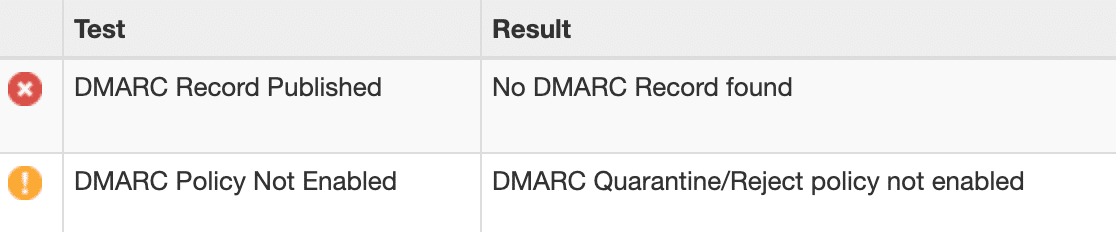
If you’re using WP Mail SMTP to handle your WordPress emails, it’ll tell you if DMARC isn’t set up correctly on your domain. You might also see an error like ‘No DMARC Record Found’.
The steps below will help you resolve the issue and build a DMARC record that passes.
How to create a DMARC record
Setting up DMARC takes three steps: check whether you already have a record, add a DMARC TXT record to your DNS, and verify that it’s propagated. Here’s how to do each one, using a generic record that will work with any host.
How do I check my current DMARC setup?
To check whether your domain already has a DMARC record, run it through a free DMARC checker like MXToolbox. If a record exists, the tool displays its full content. If not, you’ll see a failure message.
Type your domain name into the field and click DMARC Lookup.

If you don’t have DMARC set up, the DMARC analyzer will show a failure message.
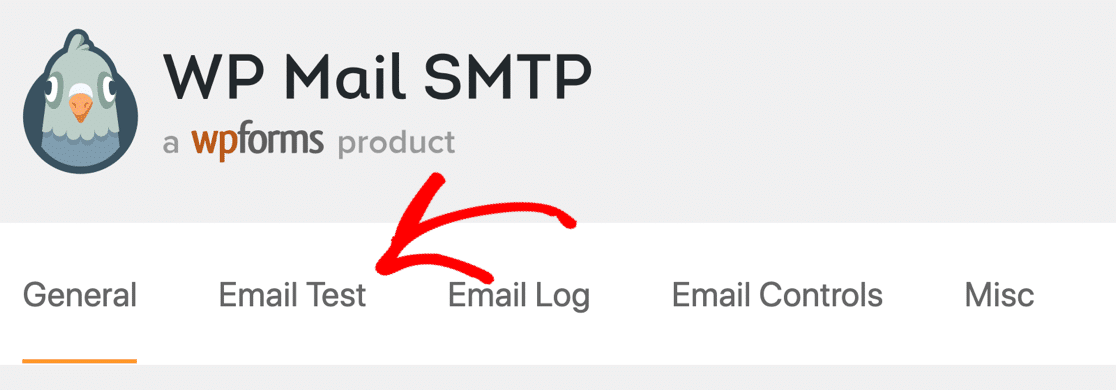
If you’re using WP Mail SMTP, you can also check if DMARC is working by sending a test email. In the WordPress dashboard, click WP Mail SMTP, then Settings, and then the Email Test tab.
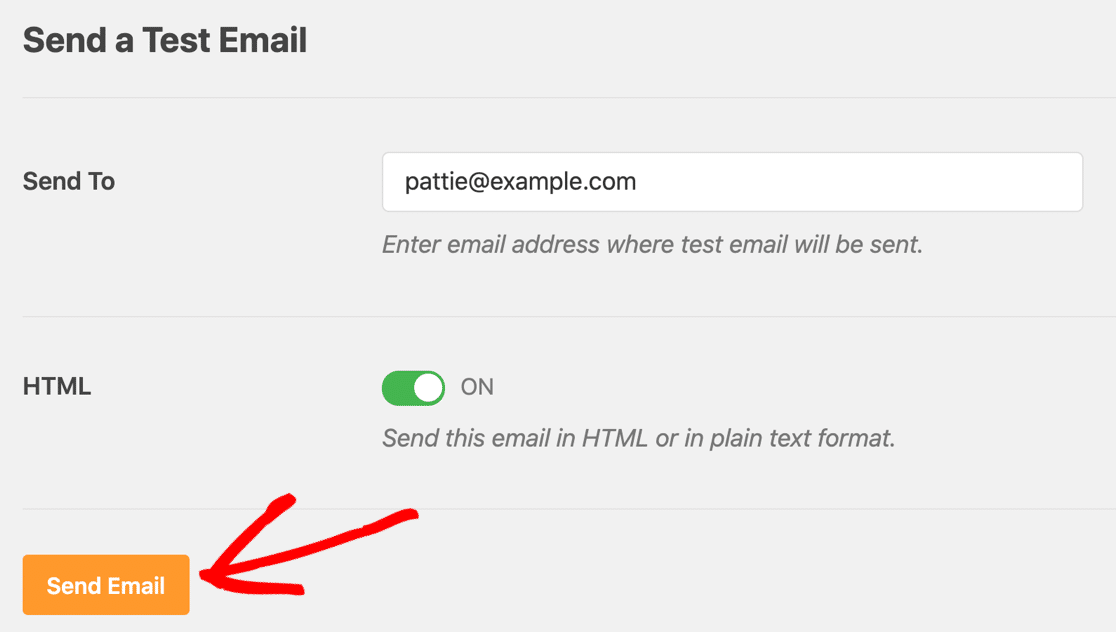
Send a test email using the form on the Email Test page.
After sending the email, scroll down and check to see if there’s a warning message.

Scroll down a little further. Do you see a warning that says It doesn’t look like DMARC is set up for your domain?

This means one of three things:
- You don’t have a DMARC record in your DNS zone.
- Your DMARC record has been added but hasn’t propagated yet.
- The DMARC record isn’t formatted correctly.
Let’s log in and add that DMARC record next.
How do I edit my domain’s DNS records?
DNS records are managed wherever your domain is hosted, which is usually one of three places: your web hosting control panel, your domain registrar, or your CDN provider. To add a DMARC record, you (or the domain owner) need to log in to whichever provider handles your DNS zone.
If you’re not sure where it is, you can try:
- Your web hosting control panel: If you bought your domain and hosting as a package, your DNS is probably handled by your web hosting company. Log into your hosting control panel and look for a menu called DNS or DNS Zone.
- Your DNS registrar: If you bought your domain by itself, the DNS is probably managed by the company you bought it from.
- Your CDN provider: If you’re using a CDN like Cloudflare, your DNS records will be hosted within the CDN settings.
In this example, we’ll show you how to create a DMARC record manually in Cloudflare.
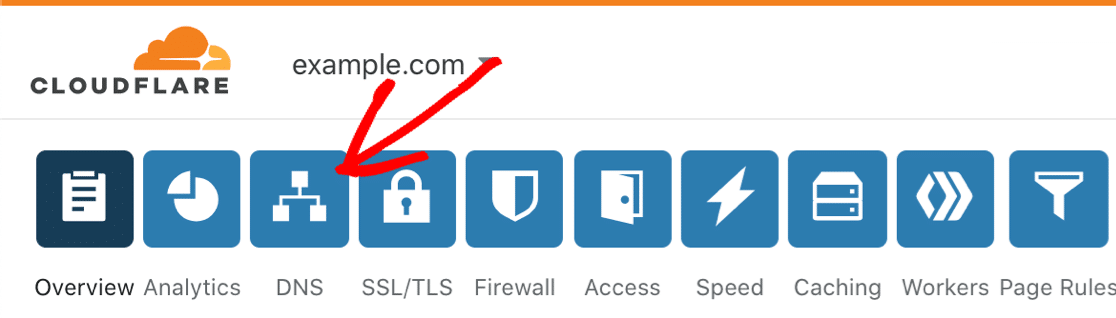
The DMARC configuration steps are similar for other domain registrars or hosts, including:
- GoDaddy
- SiteGround
- Bluehost
When you open up your DNS, double-check that you don’t already have a DMARC record set up. You can only have one DMARC record per domain. Our example record will cover all of the subdomains under your domain and all of the email addresses you send mail from.
Assuming you don’t already have one, let’s add a DMARC TXT record.
How do I add a DMARC TXT record?
A DMARC record is added as a TXT record in your DNS. There are two ways to add one: paste a generic record manually, or use a DNS provider’s built-in DMARC generator. Both produce the same result.
Option 1: Copy and paste a DMARC record (any host)
It’s easy to add a DMARC record manually using our example. There’s no need to use a DMARC generator.
On your registrar’s DNS record screen, click Add record to create a DMARC record. We’ll use Cloudflare in this example.
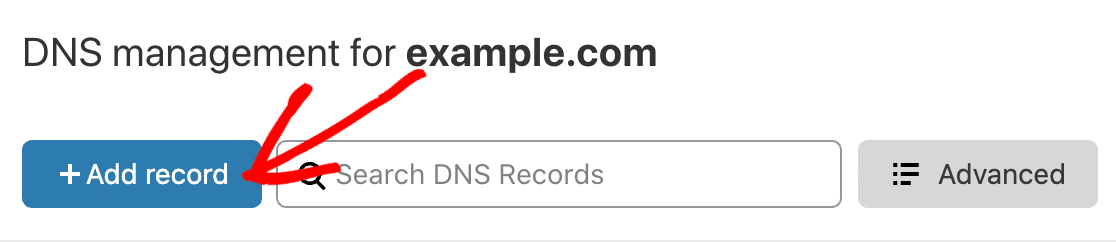
A DMARC record is a TXT record starting with _dmarc. So in the Type dropdown, select TXT.

In the Name field, type _dmarc. with the period (dot) at the end. Some hosts don’t need the period, so they’ll remove it or show an error. In that case, you can safely use _dmarc without the period.
In the large field in the DNS record, paste in this DMARC record example:
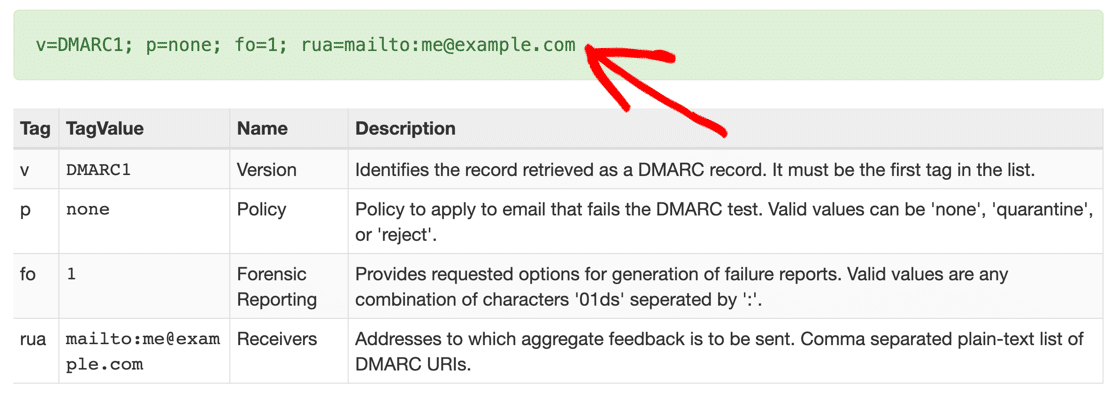
v=DMARC1; p=none; rua=mailto:[email protected]
Here’s what each part of the rule does:
- We’re using
p=nonebecause it’s the safest starting point. You’ll still receive aggregate reports if there’s an issue with your authentication, but it won’t affect delivery of your own emails. Once you’ve reviewed those reports and confirmed your SPF and DKIM are set up correctly, you can move top=quarantineand eventuallyp=reject. - Change the
rua=mailto:address to a working email address you control. If your mailer service provides a reporting address in its documentation, use that. Otherwise, use an address on your own domain.
Some providers may ask for an alignment rule. It’s OK to leave that out, since the default relaxed alignment works for most senders.
So after pasting in the rule, here’s our finished DMARC record:
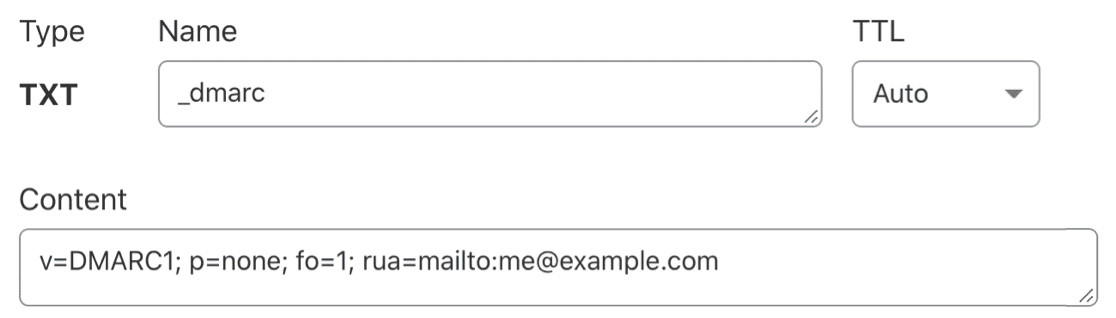
The TTL (Time to Live) setting is like an expiration date for your DNS. We recommend leaving it on Auto, which is typically 4 hours. The setting isn’t crucial, so you can safely select 24 hours or 14400 if that’s the only option you have.
Save your new DMARC rule to add the record to your DNS.
If you already had a DMARC rule in your DNS, check the formatting carefully. Pay attention to the Name field. If you use @ or your domain name in the Name field, it won’t work.
Option 2: Generate a DMARC record (Cloudflare only)
If you prefer, you can generate a DMARC record from inside your Cloudflare account. Cloudflare has DNS record generators for SPF, DKIM, and DMARC, and the generator produces the same result as adding the record manually.
To start, click on DNS on the left-hand side of your Cloudflare dashboard.
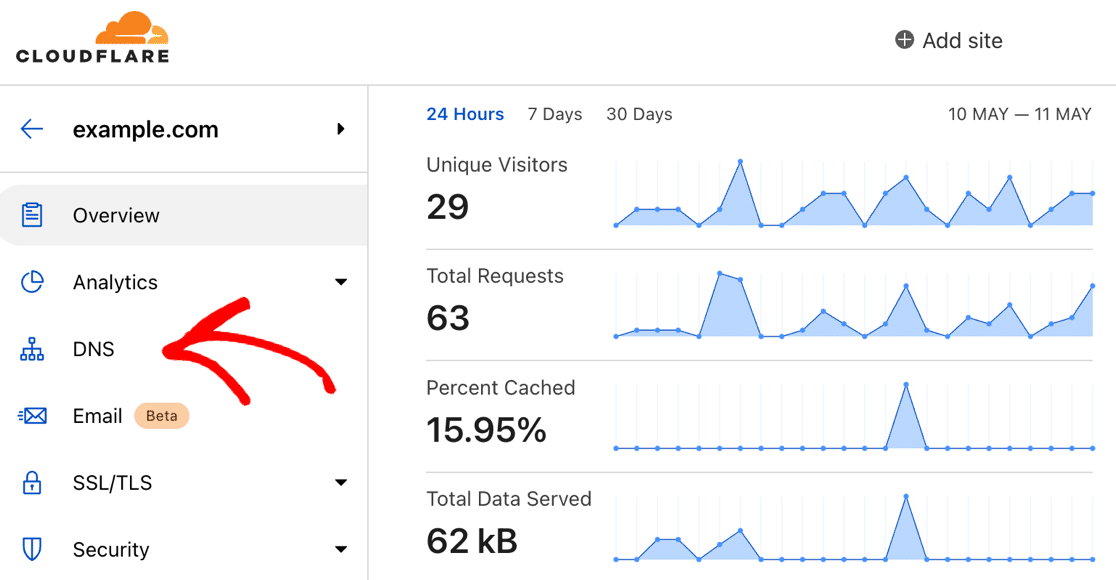
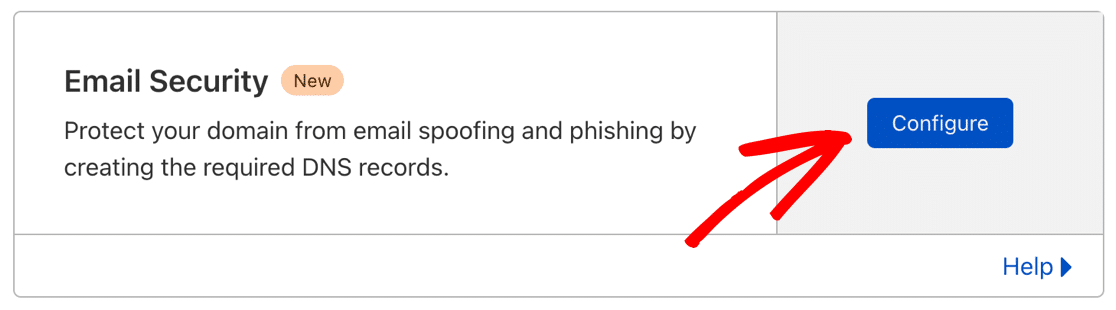
On the DNS page, scroll down until you see Email Security. Click the blue Configure button to continue.
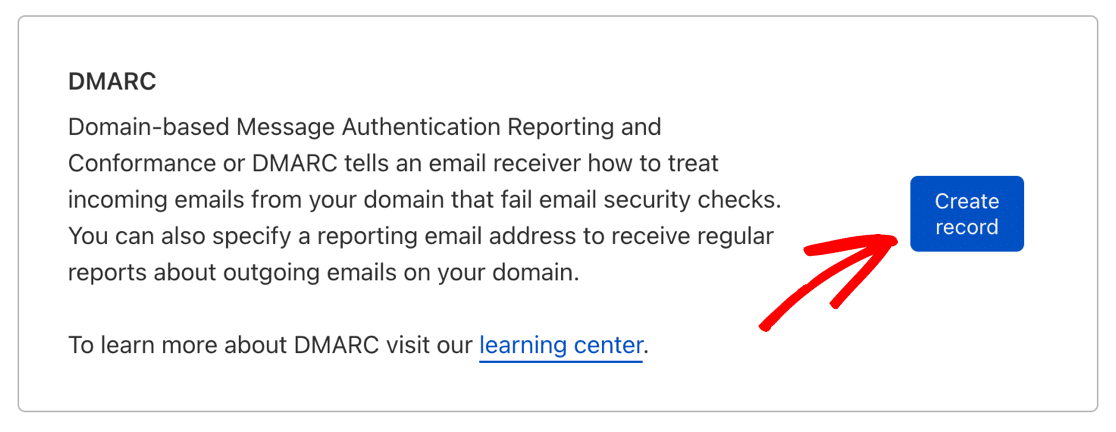
Next, you’ll see options to generate a DKIM, SPF, or DMARC record. Click Create Record in the DMARC section.
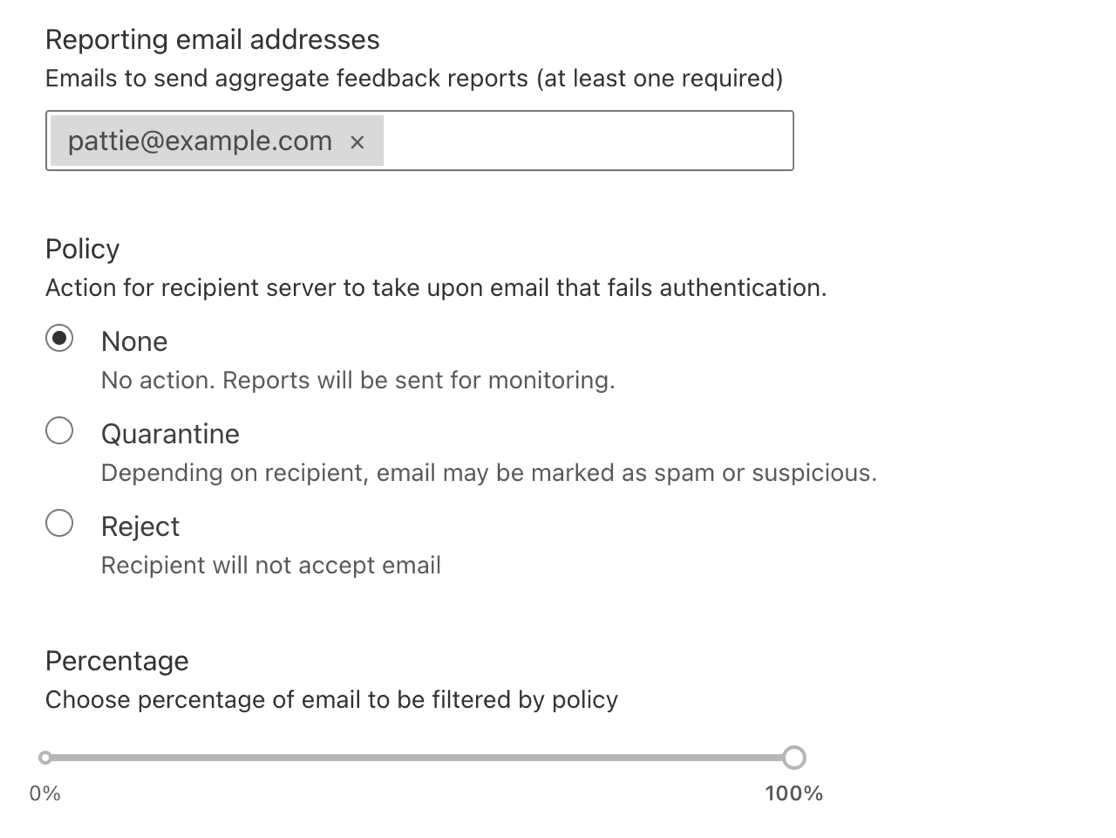
Cloudflare provides a simple interface to set up the record. You can set:
- Reporting Email Addresses: the addresses that’ll receive DMARC reports.
- Policy: None, Quarantine, or Reject.
- Percentage: the percentage of emails the policy applies to. Leave this on 100% unless you have a reason to change it.
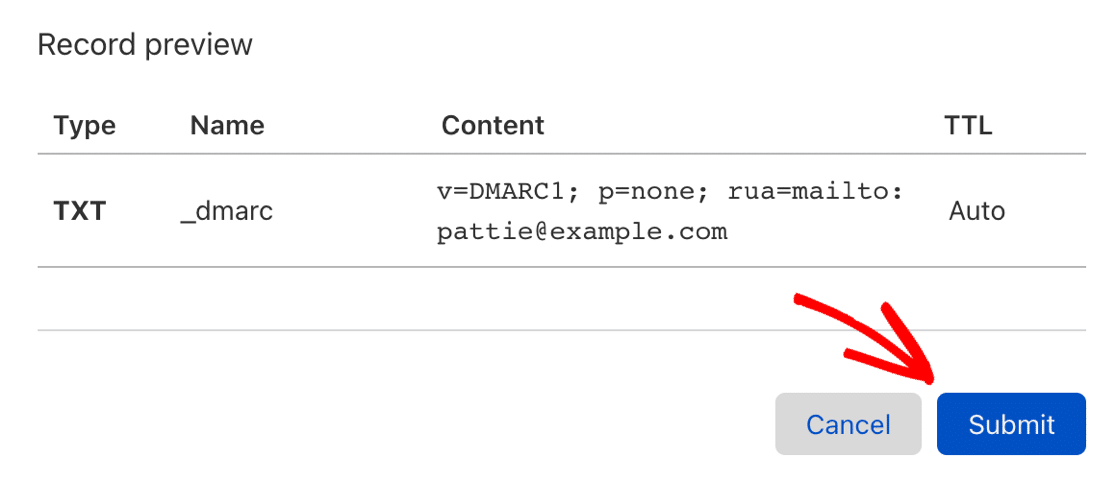
When you’re happy with the finished DMARC record, click Submit.
How long does a DMARC record take to propagate?
DNS changes can take up to 48 hours to propagate worldwide. In practice, most providers complete propagation within a few hours, and Cloudflare typically updates within minutes.
Once the change has propagated, go back to a web-based DMARC checker like MXToolbox and run the test again. Your DMARC rule should show up in a green bar so you know it’s working.
You can also use WP Mail SMTP to send another test email from WordPress. This will automatically run a fresh check on your DNS and look for your DMARC record configuration.
If you added everything correctly, you’ll now see a pass message like this:

That’s it. You’ve successfully added a DMARC record to your DNS.
How do I check DMARC in Postmaster Tools?
Google Postmaster Tools shows your DMARC compliance under the Authentication section, with a pass/fail status for each authentication protocol. If you send any meaningful volume of email to Gmail addresses, it’s worth setting up Google Postmaster Tools so you can keep an eye on your Authenticated traffic.
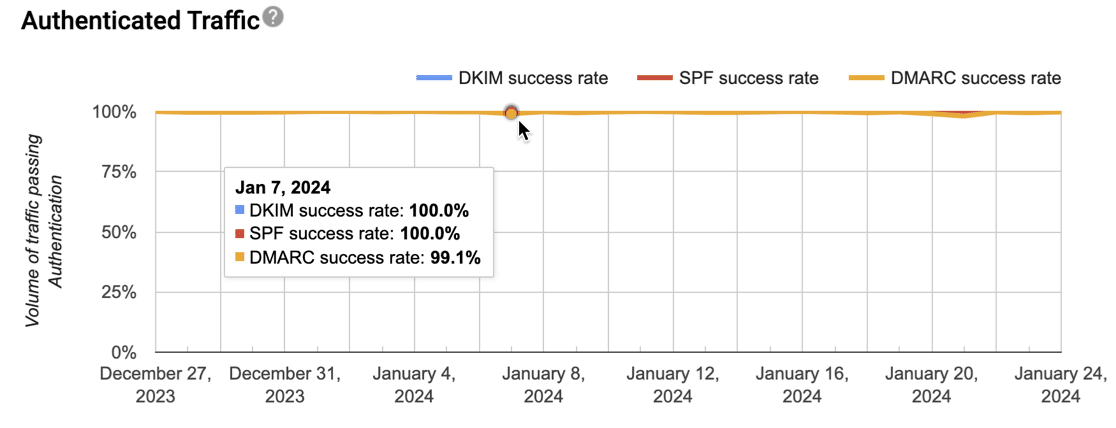
Google retired the original Postmaster Tools in 2025 and replaced it with Postmaster Tools v2, which uses a pass/fail compliance dashboard rather than the older color-coded reputation bars. The new version makes it easier to see exactly which authentication checks your domain is passing and which are failing.
The report shows you how many emails passed DMARC, SPF, and DKIM checks. Postmaster Tools only reports on emails that Google handles, but since most of us send to Gmail addresses, it’s worth using it to keep an eye on your email deliverability, domain reputation, and spam complaint rate.
Frequently asked questions about DMARC TXT records
Now you know how to create a DMARC record, let’s look at some other important questions and their answers.
What does DMARC stand for?
DMARC stands for Domain-based Message Authentication, Reporting, and Conformance.
How does DMARC work?
DMARC works alongside SPF and DKIM. When a server receives an email from your domain, it checks SPF and DKIM to verify the sender. DMARC then tells the server what to do based on the result, and whether the From domain aligns with the SPF or DKIM domain.
Based on the DMARC policy you’ve set, the server might:
- Reject the email outright.
- Send it to the junk or spam folder.
- Take no action, but record the result in a DMARC report.
That’s why it’s best to set up DKIM, SPF, and DMARC together. With all three configured, email servers can easily separate emails from a legitimate sender from any spam messages sent using your domain.
DMARC also generates aggregate reports about the actions it’s taken. You’ll receive these reports if you include your email address in the rua= tag.
Are DMARC records required?
DMARC records aren’t legally required, but they’re effectively necessary for inbox placement at scale. Gmail and Yahoo require DMARC for bulk senders (anyone sending 5,000 or more emails a day to personal addresses), and Microsoft has applied similar rules since May 2025.
Even if you don’t meet the bulk sender threshold, setting up DMARC protects your domain from spoofing and helps your emails reach the inbox. PCI DSS v4.0, which is now active, also requires DMARC for any site that handles credit card data.
Who can use DMARC records?
Anyone who owns a domain name can use DMARC to verify that the emails they send are genuine. There’s no charge to use it.
Some third-party providers will say it isn’t worth using DMARC on a small site. We recommend setting it up anyway, because it can help stop WordPress emails from going to spam.
Where are DMARC records stored?
DMARC records are stored in your DNS as a TXT record. Your DNS also stores SPF and DKIM records.
Together, these DNS records protect you from email domain spoofing and instruct mailing servers what to do if an unauthenticated email is detected from your domain.
How many DMARC records can I have?
You can only have one DMARC record per domain or subdomain. If you have multiple DMARC records at the same domain level, mailing servers will get confused and your DMARC rules won’t be enforced as intended.
Do I need to create a DMARC record?
For most WordPress sites that send any volume of email, yes. The major inbox providers (Gmail, Yahoo, Microsoft) have made DMARC effectively mandatory for bulk senders, and even smaller senders benefit from the protection it offers against spoofing.
You don’t need a DMARC record if you’re sending emails from a domain you don’t control, like a Gmail address.
Can you create a DMARC record without DKIM?
Yes, but it isn’t recommended. DMARC needs at least one of SPF or DKIM to validate against. With only SPF, your DMARC setup is more fragile because SPF can fail when emails are forwarded.
For bulk senders, both SPF and DKIM are required, plus DMARC alignment. We recommend setting up all three for any WordPress site that sends email at any volume.
Why did my DMARC record check fail?
If you’ve added your DMARC record and it still isn’t showing up, it may not have propagated. You might see the message ‘no DMARC record found’.
Wait 24 hours for DNS to propagate before contacting support. If the record still isn’t showing after that, double-check the formatting, especially the Name field. Using @ or your domain name instead of _dmarc is a common mistake.
Do I need to use a DMARC record generator?
No. In most cases, our DNS example will work on your domain. Just be sure to change the email address in the rule before saving it.
If your provider gives different instructions, use their DMARC record instead of our example.
How do I read a DMARC report?
DMARC reports arrive as XML files, which aren’t easy to read in raw form. The simplest way to read them is to use a free online analyzer like the EasyDMARC report analyzer, which turns the XML into a readable summary.
If you receive DMARC reports regularly, dedicated monitoring tools like dmarcian or Postmark’s DMARC service can aggregate reports from multiple receivers and surface trends over time.
What do Aggregate and Forensic mean?
Aggregate reports (set via rua=) summarize email authentication results in batches, usually one report per receiving domain per day. Forensic reports (set via ruf=) provide details on individual messages that failed authentication.
In practice, aggregate reports are what most senders use. Most email providers, including Gmail, no longer send forensic reports due to privacy concerns, and most DMARC monitoring tools work entirely from aggregate data. For most WordPress sites, configuring rua= is enough.
Should I add a PTR record?
Yes, you need a PTR record, but it’s unlikely you’ll need to create one yourself. Your web host or email provider usually handles this. For more information, check out our article on what a DNS PTR record is and whether you need one.
What happens if there is no DMARC record?
Without a DMARC record, your domain is more vulnerable to spoofing. Bad actors can spoof your branded email address to run fraudulent schemes against your customers.
You’ll also face delivery issues at scale. Gmail and Microsoft both treat unauthenticated mail as suspicious, and bulk senders without DMARC will see emails rejected outright. A DMARC record protects against both problems.
Next, fix WordPress emails going to spam
Are emails from your WordPress site going to spam? If you have an online store, email delivery issues can be a serious problem for customers waiting on order confirmations or shipping emails.
To solve this, check out our tutorial on why your WordPress emails are going to spam (and how to fix it) so your customers never miss an important email again.
Ready to fix your emails? Get started today with the best WordPress SMTP plugin. If you don’t have the time to fix your emails, you can get full White Glove Setup assistance as an extra purchase, and there’s a 14-day money-back guarantee for all paid plans.
If this article helped you out, please follow us on Facebook and Twitter for more WordPress tips and tutorials.
