


AI Summary
Are you getting the “SMTP Error: Could not connect to SMTP host. Failed to connect to server” message? This error pops up when WordPress tries to connect to your SMTP server but can’t complete the handshake.
Usually, it’s triggered by incorrect server settings, a firewall blocking the connection, or your host restricting certain ports. Whatever the cause, the result is the same, your emails stop going out!
So, in this guide, I’ll walk you through exactly how to diagnose and fix SMTP server connection issues. You’ll learn what causes the error, how to troubleshoot it step by step, and how to set up a failsafe so you never lose emails again.
Fix Your SMTP Connection Issues Now! 🙂
Why SMTP Server Not Responding Happens
I’ve seen this happen most often when there’s a mismatch in your connection settings or something blocking the outbound traffic entirely.
What Actually Causes This Error
Common causes include incorrect host or port settings, firewall restrictions blocking outbound SMTP connections, authentication failures, DNS configuration problems, or the SMTP server itself being temporarily down.
Sometimes it’s as simple as typing smtp.gmail.com instead of the correct host. Other times, your web host might be blocking port 587 or 465 without telling you.
I’ve also run into cases where the issue is on the mail server side. The SMTP service crashes or goes offline temporarily, and your site just keeps trying to connect until it times out.
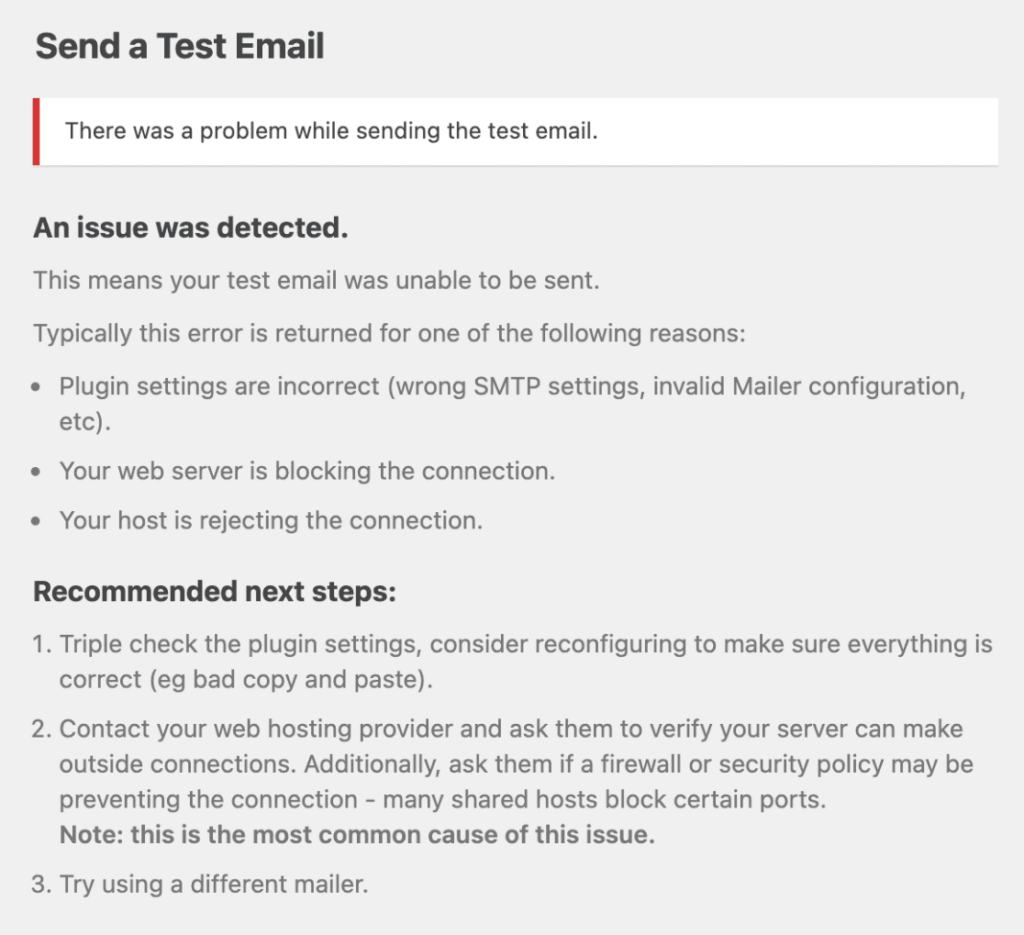
Why It’s Harder to Diagnose Than Other Errors
Unlike simple configuration errors that show specific messages, a non-responding server means the connection attempt times out before any data exchange happens. That makes it harder to diagnose without proper logging.
You won’t get helpful feedback like “authentication failed” or “invalid credentials.” Instead, you’ll just see a timeout message, or worse, your emails will silently fail to send.
That’s why having detailed logs like that in WP Mail SMTP Pro is so valuable. You can see exactly where the connection attempt fails and whether it’s a timeout, a rejected connection, or something else entirely.
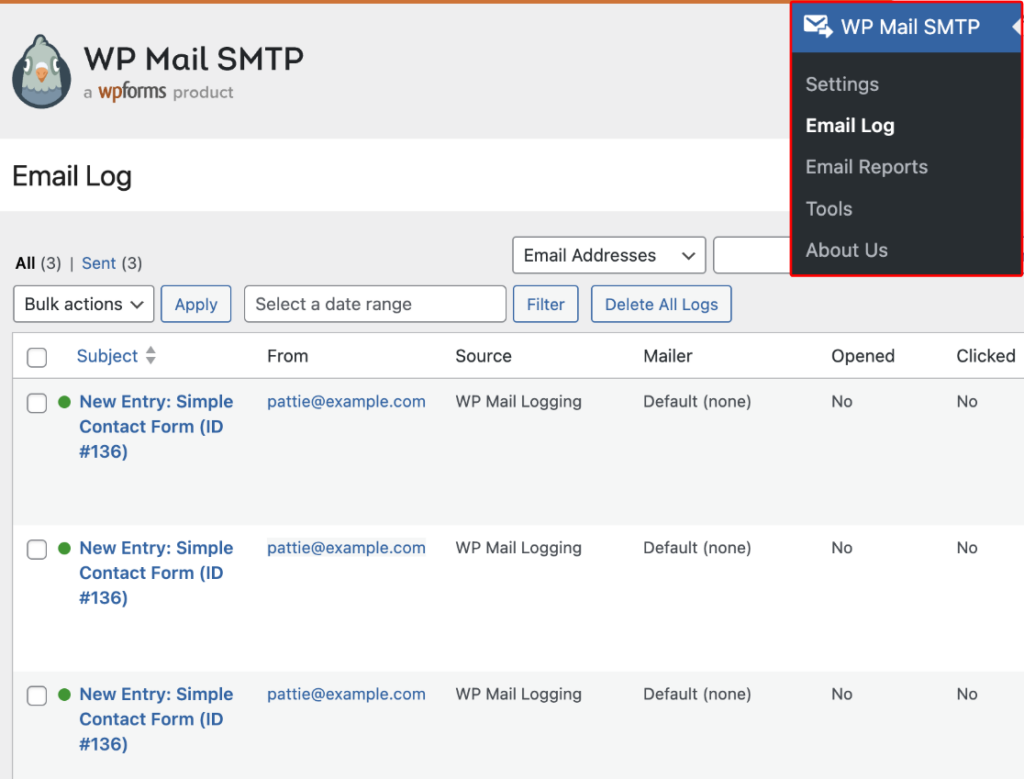
How to Fix SMTP Server Not Responding in WordPress
Here are some of the most common fixes for the ‘Failed to connect to server’ error on your WordPress website:
1. Check Your SMTP Host and Port Settings
The most common cause of “SMTP server not responding” errors is a mismatch between your configured settings and what your email provider actually expects.
I’ve seen this happen countless times, especially after someone rushes through setup or copies settings from outdated documentation.
Start by going to WP Mail SMTP » Settings in your WordPress dashboard. Look at the SMTP Host field under your chosen mailer configuration.
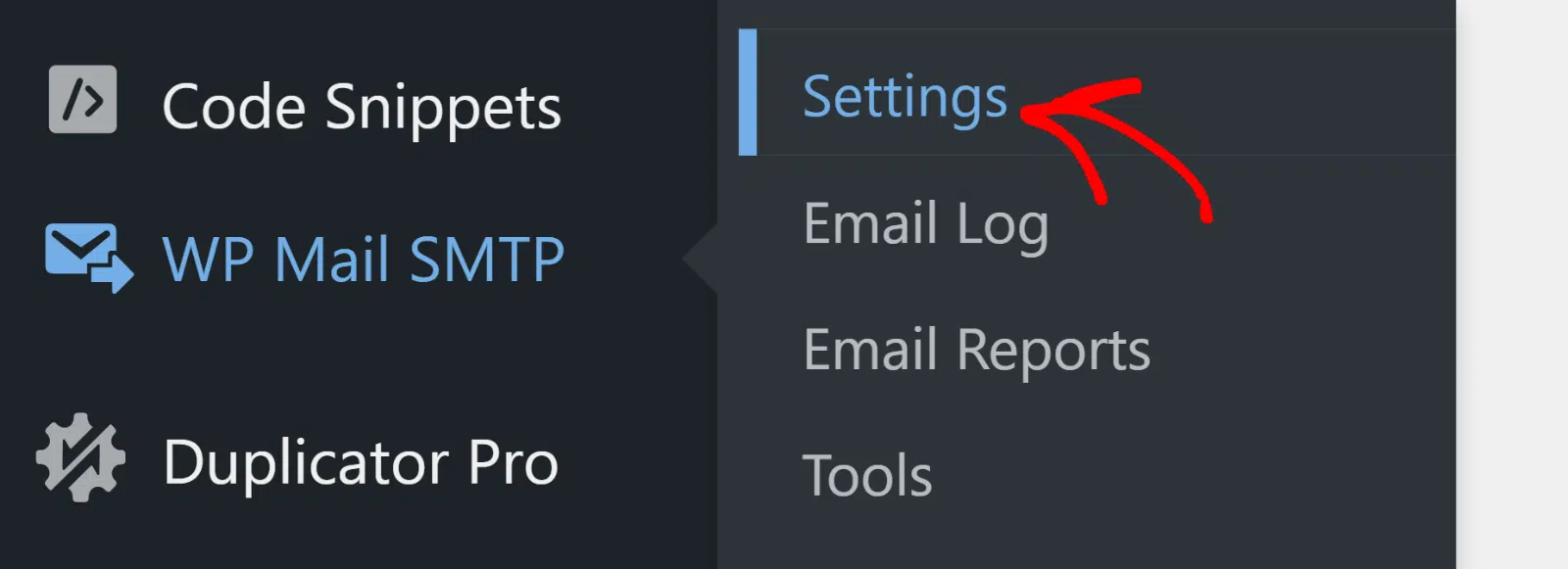
Your SMTP Host needs to match your email provider’s documentation exactly. That means no typos, no extra spaces at the beginning or end, and definitely no protocols like http:// or https:// in front of the hostname.
For example, if you’re using Gmail, the host should be smtp.gmail.com, not gmail.com or http://smtp.gmail.com. If you’re using SendLayer, it’s smtp.sendlayer.com.
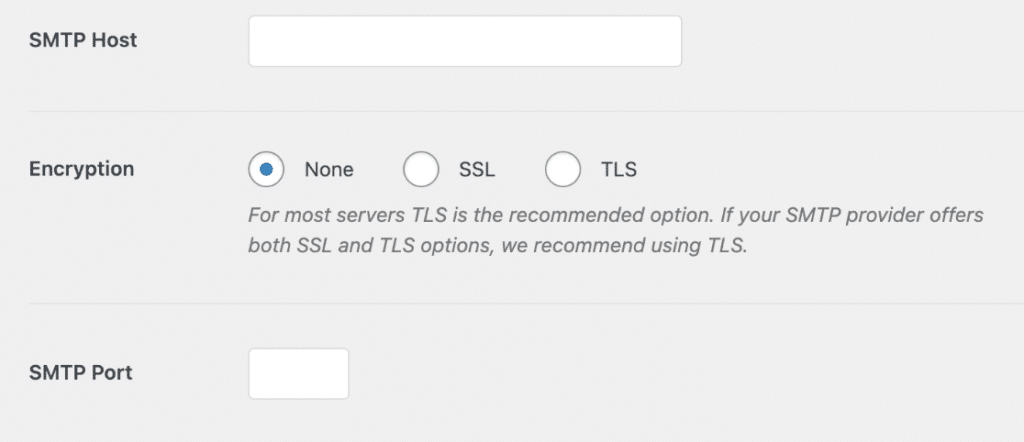
Even one character off will cause the connection to fail. Next, check your SMTP Port. This needs to match your encryption method:
- Port 587 for TLS encryption (most common and recommended)
- Port 465 for SSL encryption
- Port 25 for no encryption (often blocked by hosting providers, so avoid this)
If you’re using the Other SMTP option (instead of a pre-configured mailer), double-check your provider’s documentation. Some require specific host formats.
For instance, you might need smtp.yourdomain.com instead of just yourdomain.com, or they might use a subdomain like mail.yourdomain.com.
Once you’ve verified everything matches, scroll down and click Save Settings. Now run the email test by going to WP Mail SMTP » Tools, clicking on the Email Test tab, and sending a test message to your own email address.
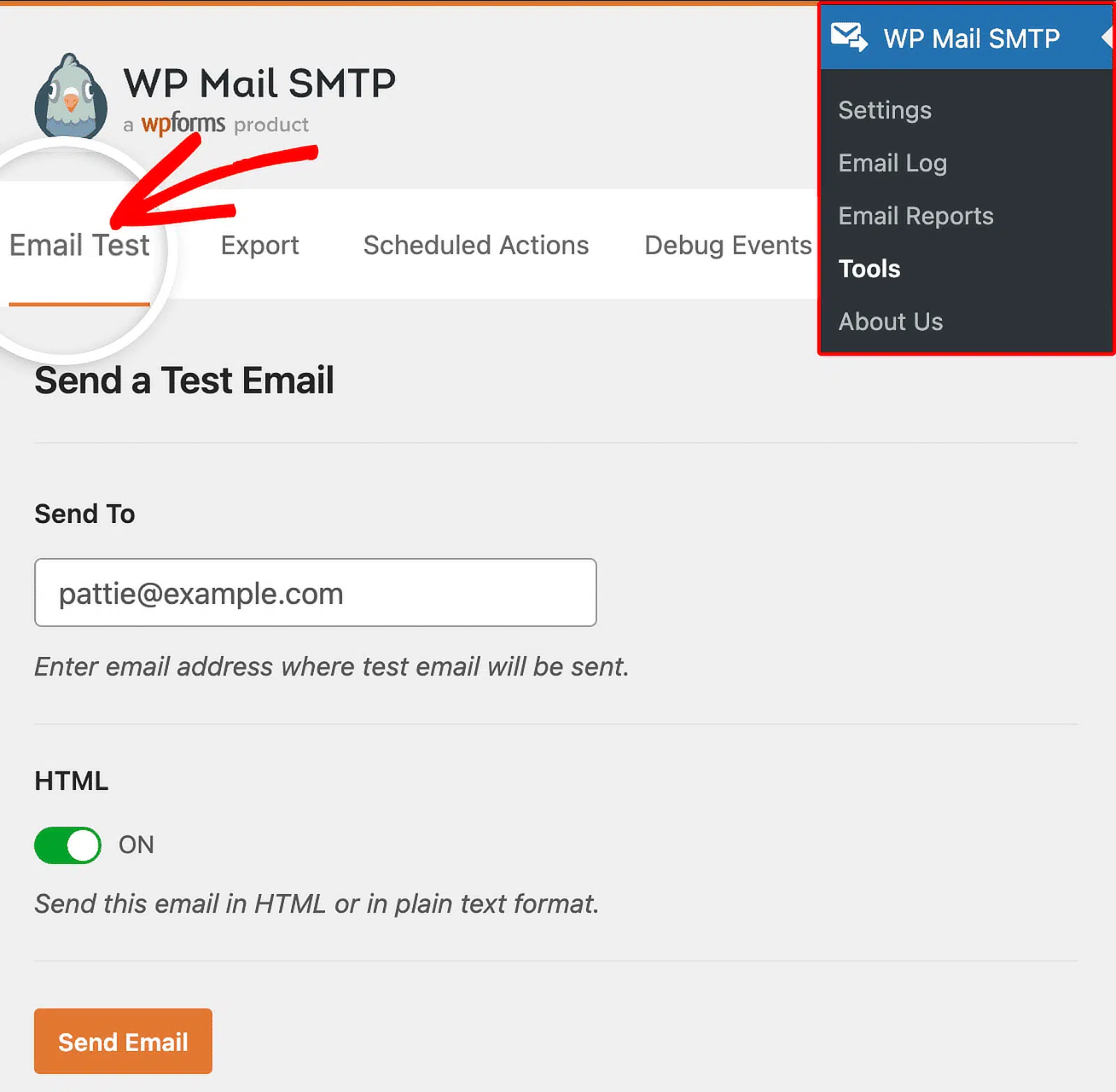
If the host and port were the problem, you should see a success message instead of the timeout error. If the test still fails, move on to the next troubleshooting step.
2. Recheck Your Web Host’s Firewall Rules
If you’ve already verified your SMTP credentials and you’re still getting a “server not responding” error, the problem might be your web host blocking the connection.
Many shared hosting providers (especially budget ones) block outbound SMTP connections on common ports like 587, 465, or 25. They do this to prevent spammers from abusing their servers.
I’ve run into this issue countless times with clients on hosts like GoDaddy, Bluehost, and HostGator. The plugin settings are correct, but emails just won’t send because the host is silently blocking the connection.
Contact Your Hosting Provider
Your first step is to reach out to your host’s support team and ask directly: “Do you block outbound SMTP connections on ports 587, 465, or 25?”
If they say yes, ask them to whitelist your SMTP server’s IP address or domain. Some hosts will do this for you without any hassle, while others may require verification that you’re not sending spam.

Ask About Internal SMTP Relays
Some hosting providers require you to use their own internal mail relay instead of external SMTP services. For example, if you’re using SendGrid but your host wants you to route through their relay server, you’ll need to update your SMTP settings in WP Mail SMTP » Settings.
When you contact support, ask: “Do you require customers to use an internal SMTP relay? If so, what are the server settings?” They should provide you with:
- SMTP Host (e.g., relay.yourhost.com)
- SMTP Port (usually 587)
- Authentication details (if needed)
Switch to an API-Based Mailer
If your host blocks SMTP entirely and won’t make exceptions, you can work around the restriction by switching to an API-based email service.
Services like SendLayer, Brevo, and Mailgun don’t use SMTP ports at all. Instead, they connect via API, which means they bypass firewall rules that block port 587 or 465.
In my experience, this is often the fastest solution if your host is being difficult about whitelisting. To switch mailers, go to WP Mail SMTP » Settings and choose a different mailer from the list like SendLayer.
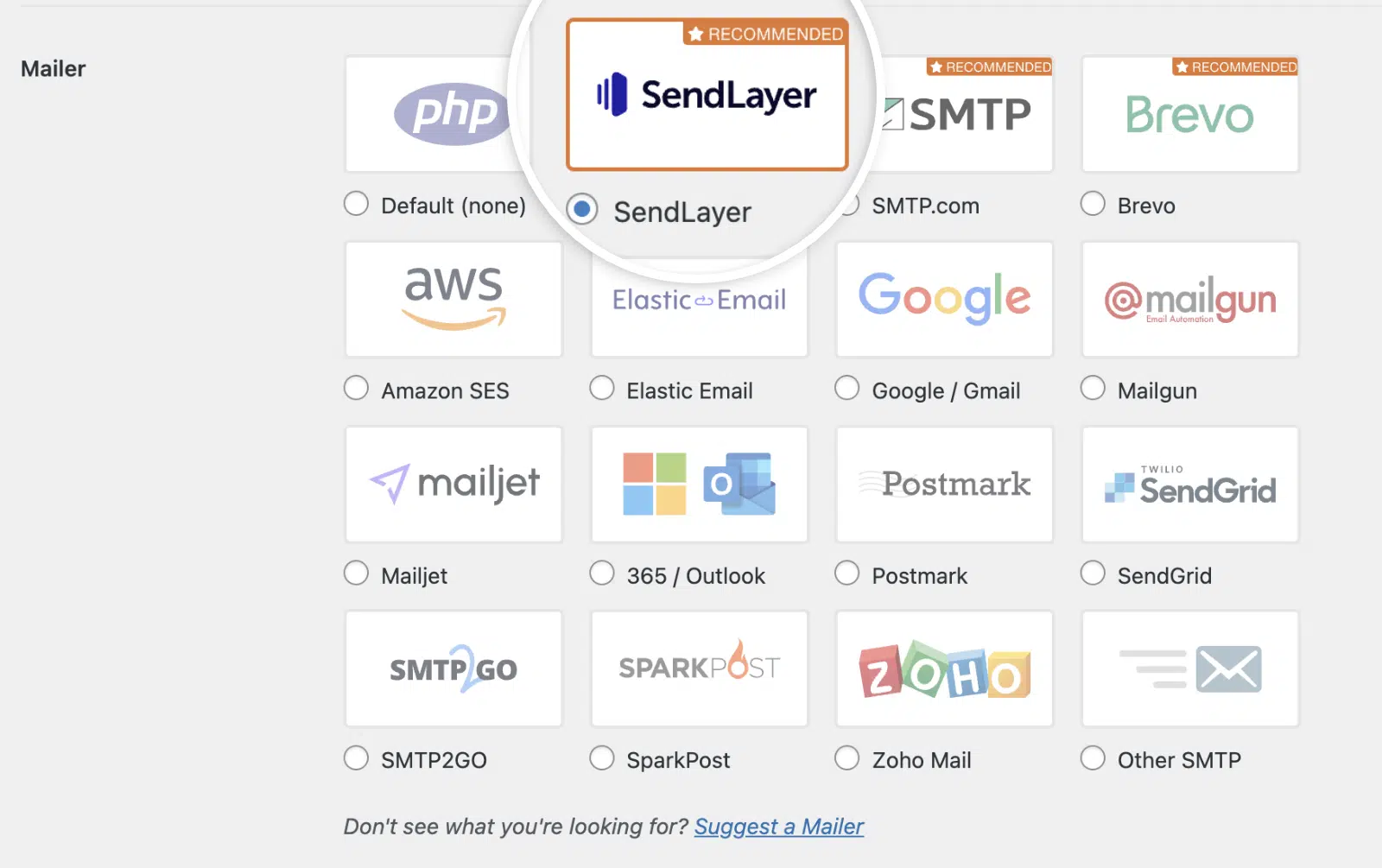
Next, you’ll need to enter your SendLayer API key. To quickly access your API key in your SendLayer dashboard, click the Get API Key link. Next, navigate back to your WP Mail SMTP settings and paste the key into the API Key field.
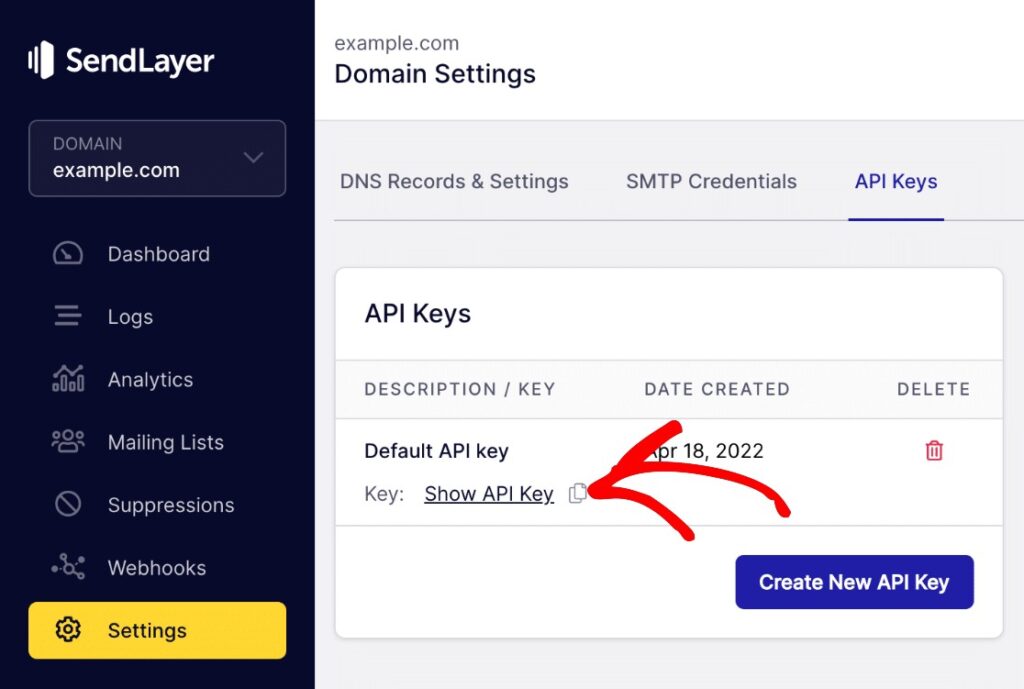
Once you’ve addressed any firewall issues, you can move on to testing your connection again. If the error persists, it’s time to check your DNS records.
3. Verify DNS and Cloudflare Settings
DNS issues are sneaky. Your SMTP settings might be perfect, but if your domain’s DNS records are misconfigured, the server will reject your connection anyway.
I’ve seen this happen a lot after site migrations or when switching to Cloudflare for the first time. The good news? It’s usually a quick fix once you know where to look.
Check Your DNS Records
Log into your DNS management panel (this could be at your domain registrar, your hosting provider, or Cloudflare if you’re using their service). You need to verify three critical records:
- SPF record: Tells mail servers which IPs are allowed to send email from your domain
- DKIM record: Adds a digital signature to verify your emails are legitimate
- MX records: Routes incoming mail to the right server (less relevant for SMTP sending, but still important)
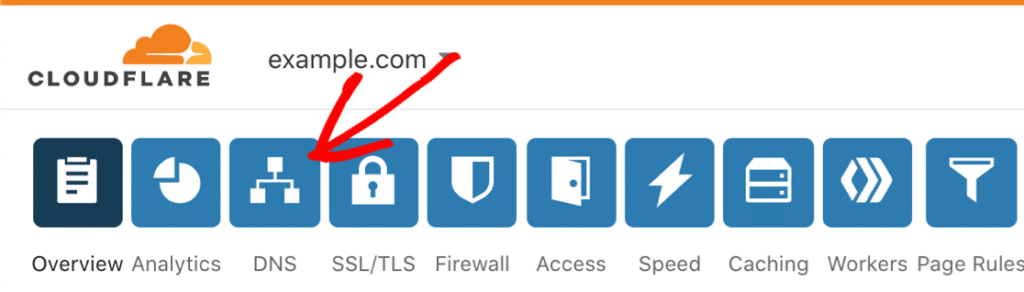
If you recently migrated your site or changed DNS providers, there’s a good chance one of these records didn’t transfer correctly. Compare what you see in your DNS panel against the documentation from your email provider.
The Cloudflare Proxy Issue
Here’s something that trips people up constantly: Cloudflare’s orange cloud setting. When you proxy a DNS record through Cloudflare (orange cloud icon), it routes traffic through their network for security and speed.
That’s great for web traffic, but it breaks email authentication. Go to your Cloudflare DNS settings and look for any mail-related records (MX, SPF, DKIM). If you see an orange cloud next to them, click it to switch to DNS only (gray cloud).

Proxying these records means your authentication checks will fail because the IP addresses won’t match up. The SMTP server sees a mismatch and rejects the connection.
4. Review Debug Events for Specific Errors
If your test email is still failing, WP Mail SMTP Pro gives you a powerful troubleshooting tool, which is called the Debug Events log.
This feature captures the exact error messages your server encounters when trying to connect to your SMTP provider. And trust me, these details make all the difference when you’re stuck.
To access it, go to WP Mail SMTP » Tools » Debug Events in your WordPress dashboard. You’ll see a list of recent connection attempts.
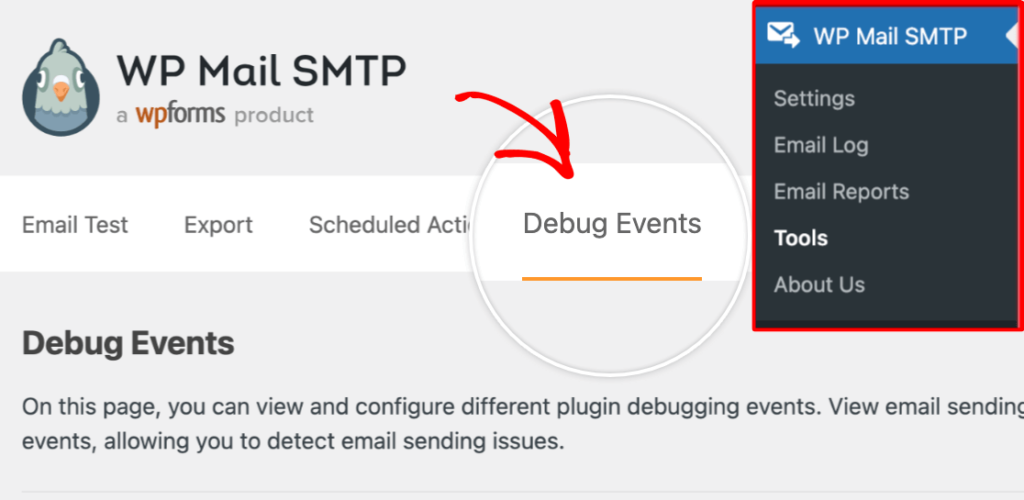
Each entry shows the timestamp, mailer used, and the specific error message that caused the failure. Click on any debug event to expand it and view the complete error output.
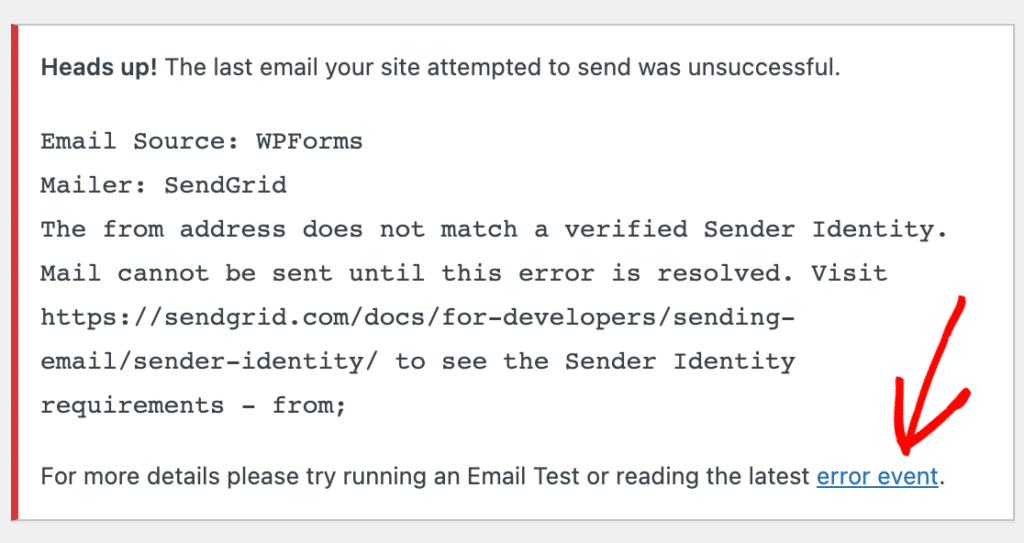
Now, here’s what to look for. The error message will usually tell you exactly what went wrong:
- ‘Connection timed out’ errors almost always mean something is blocking the connection before it even reaches your SMTP server.
- This is typically a firewall issue, either on your web host’s side or at your SMTP provider’s end. You’ll want to contact your host and ask them to whitelist your SMTP provider’s IP addresses or port.
- ‘Connection refused’ errors are different. These usually mean your server reached the SMTP host, but the host rejected the connection.
- Nine times out of ten, this points to an incorrect host or port setting in your WP Mail SMTP configuration. Double-check that you’re using the right server address and port number for your mailer.
- ‘Network unreachable’ errors suggest a broader network problem, possibly DNS-related or a routing issue between your server and the SMTP provider.
When you need to escalate the issue to your web host or SMTP provider, don’t just say “my emails aren’t working.” Instead, copy the full debug event details.
Click the Copy button at the bottom of the expanded debug event, or manually select and copy the entire error output. Paste this into your support ticket.
The technical details (error codes, connection attempts, authentication failures) give support teams exactly what they need to diagnose the problem quickly.
5. Test with a Different Mailer Temporarily
If you’ve tried everything and still can’t get your SMTP server to respond, the problem might be specific to your current email provider.
I’ve seen this happen when a mailer has temporary outages or when there’s an issue with how their API handles certain configurations.
The quickest way to isolate the problem is to temporarily switch to a different mailer. Head over to WP Mail SMTP » Settings in your WordPress dashboard.
Scroll down to find your current mailer connection, and we’ll add a new one to test. Follow the setup wizard for your chosen mailer, then send a test email from WP Mail SMTP » Email Test.
6. Add a Backup Mailer and Smart Routing
One of the smartest ways to prevent SMTP server issues from disrupting your site is to configure a backup connection. With WP Mail SMTP Pro, you can set up a secondary mailer that automatically kicks in if your main connection fails.
First, go to WP Mail SMTP » Settings » Additional Connections in your WordPress dashboard and configure your new mailer to set it up as a backup.
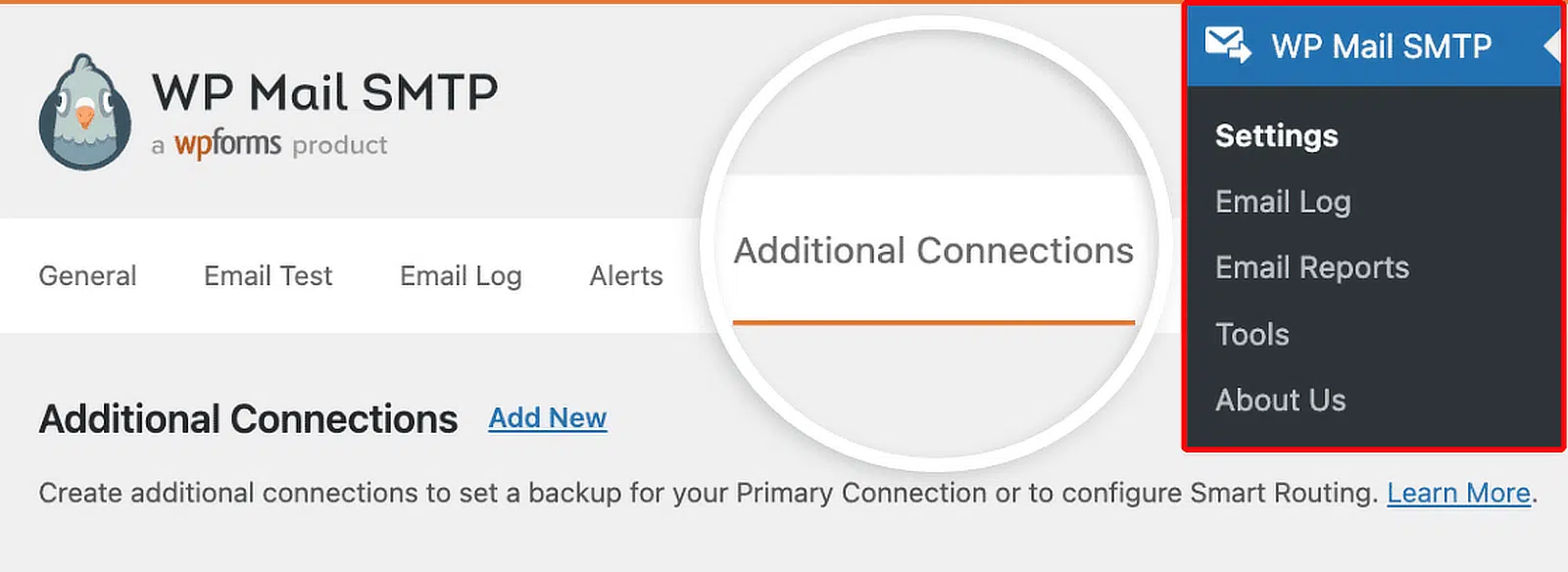
Once you’ve added an additional connection, go to WP Mail SMTP » Settings to access the plugin’s settings page. On the General tab, scroll down to the Backup Connection section.
Here, you’ll be able to choose any additional connection you’ve previously configured. Go ahead and choose the one you’d like to use as a Backup Connection.
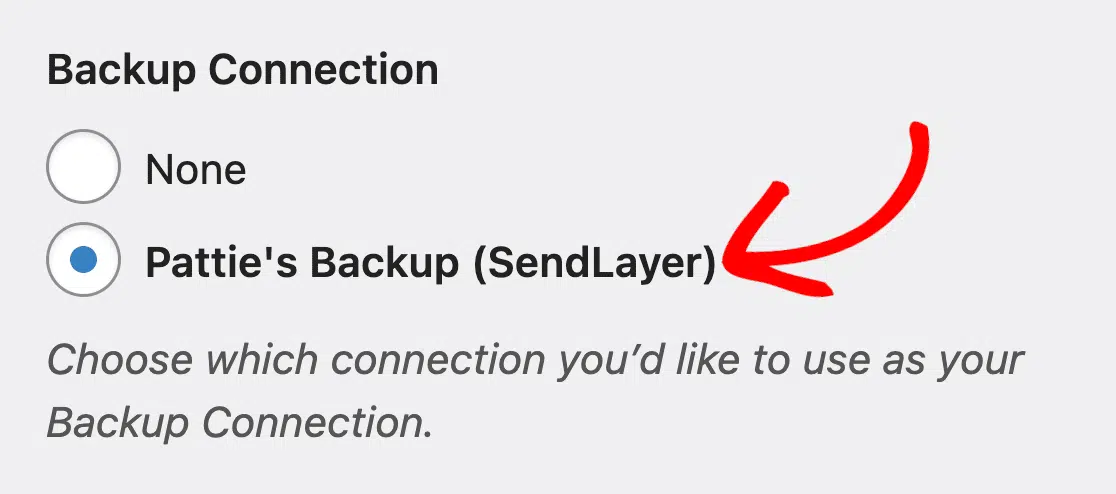
If you want to take your email reliability to the next level, Smart Routing gives you granular control over which emails go through which mailer.
To use this feature, you’ll need to toggle on the Enable Smart Routing option. Then, click Add New Routing Rule to get started.
You’ll see options to create conditions based on:
- To Email: Route emails going to specific addresses or domains
- From Email: Route based on the sender address
- Subject: Target emails with specific subject line text
- Email Type: Route by notification type (like WooCommerce orders, user registration, password resets, etc.)
Once done, create rules to route time‑sensitive emails to your fastest provider and bulk or marketing emails to a mailer built for volume.
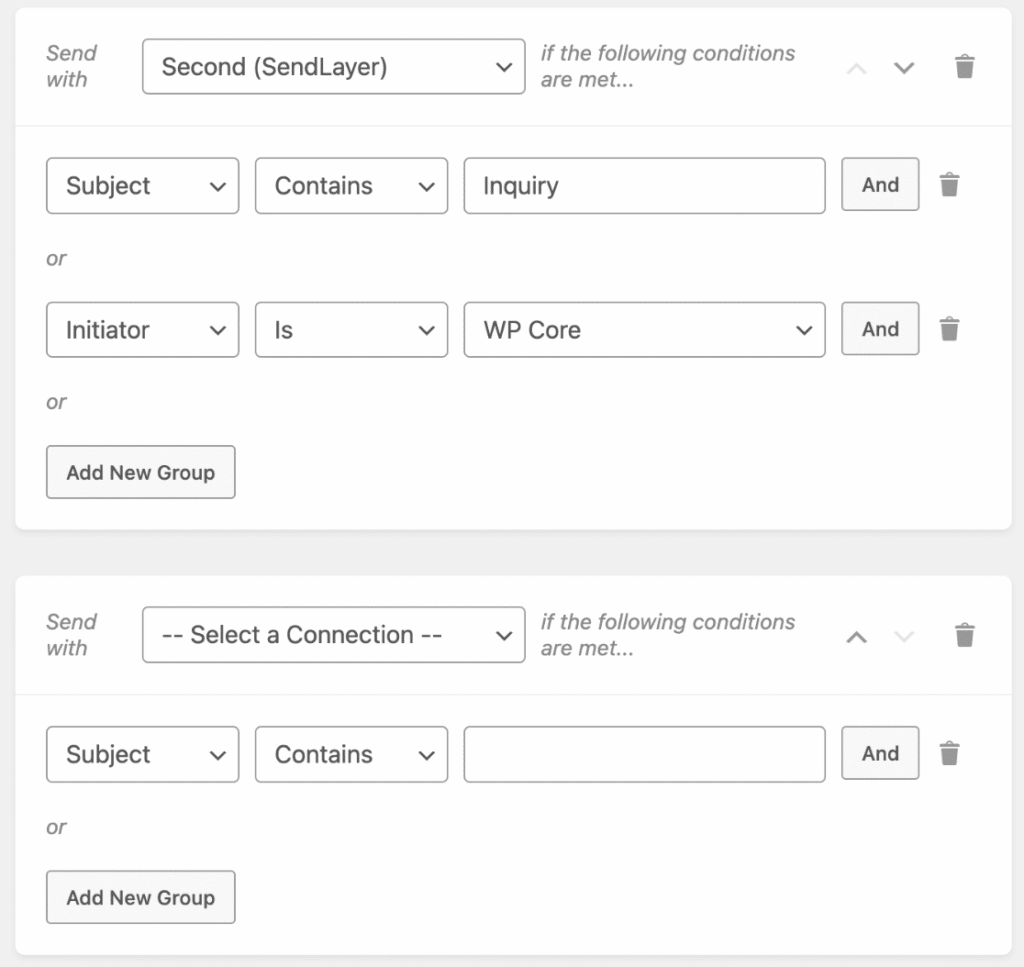
This setup gives you serious peace of mind. Even if one mailer hits a rate limit or experiences temporary issues, your important emails keep flowing through alternative routes.
7. Issues Persisting? Seek Expert Assistance!
If you continue encountering problems, the WP Mail SMTP Support team is ready to help you out. When contacting them:
- Include your name, email, and specific problem details.
- Providing a URL or access to your site can speed up the resolution.
- If granting access, ensure they have an ‘Administrator’ role.
- Describe the issue briefly and clearly in the message box.
- Once you’ve prepared, click Submit. The support team will respond promptly!

FAQs on How to Fix SMTP Server Not Responding in WordPress
Here are some common questions and their answers regarding the “failed to connect to server” SMTP error in WordPress.
What does ‘SMTP server not responding’ mean in WordPress?
When you see “SMTP server not responding,” it means WordPress tried to connect to your email server but didn’t get a response back.
This usually happens because the server is unreachable, your credentials are wrong, or something’s blocking the connection (like a firewall or incorrect port).
How is ‘server not responding’ different from ‘could not connect to SMTP host’?
Both errors mean WordPress can’t reach your SMTP server, but they’re slightly different.
- “Server not responding” means the connection attempt timed out with no reply.
- “Could not connect to SMTP host” usually means the connection was actively refused or blocked before it even tried to authenticate.
Can firewall rules cause SMTP timeout errors?
Absolutely. Firewalls (both on your server and at your hosting provider) can block outbound connections on common SMTP ports like 25, 465, and 587.
If your firewall sees these ports as risky, it’ll reject the connection before it even starts. I’ve run into this on shared hosting plans that block port 25 by default.
If you suspect a firewall issue, contact your host and ask them to whitelist the SMTP server you’re trying to use.
Why does my SMTP connection work sometimes but not others?
Intermittent SMTP failures usually point to one of three things: rate limiting, server overload, or temporary network issues.
If your SMTP provider limits how many emails you can send per hour and you hit that cap, new emails will fail until the limit resets.
Another common cause is shared hosting. During peak traffic times, your server might struggle to maintain outbound connections.
This is where Backup Connections in WP Mail SMTP Pro really shine. If your primary server goes down or times out, the backup kicks in automatically.
Will changing encryption from TLS to SSL fix connection problems?
Sometimes, yes. TLS and SSL are different encryption protocols, and your SMTP server might only support one of them.
If you’re using TLS on port 587 and it’s not working, try switching to SSL on port 465 (or vice versa).
That said, switching encryption won’t help if the real problem is a blocked port or incorrect credentials.
Next, Learn How to Fix Could Not Connect to SMTP Host in WordPress
If you’re still running into email delivery issues after fixing the “SMTP server not responding” error, you might encounter a related problem: the “Could not connect to SMTP host” message.
I’ve written a complete guide that walks through those specific troubleshooting steps, so your emails still get delivered even when your primary connection has issues.
Ready to fix your emails? Get started today with the best WordPress SMTP plugin. If you don’t have the time to fix your emails, you can get full White Glove Setup assistance as an extra purchase, and there’s a 14-day money-back guarantee for all paid plans.
If this article helped you out, please follow us on Facebook and Twitter for more WordPress tips and tutorials.
