


AI Summary
Is your WordPress site on Hostinger not sending emails? I’ve run into this one plenty of times, and I know how confusing it is when your contact form goes quiet, order confirmations never show up, and password reset links leave people stuck, even though nothing on your site looks broken.
Here’s the thing most people don’t realize: it’s usually not Hostinger’s fault, and it’s not a bug in WordPress either. It comes down to the way WordPress tries to send mail on its own. Once you know what’s actually happening, it takes about five minutes to fix for good. I’ll show you why your emails are failing and exactly how to get them landing in the inbox again.
Why Your WordPress Emails Aren’t Sending on Hostinger
Out of the box, WordPress sends email using a basic built-in function called PHP mail(). It technically works, but on Hostinger (and most web hosts) it’s unreliable, for two reasons.
First, the mail goes out unauthenticated. Nothing proves the message really came from your domain, so Gmail, Outlook, and the rest treat it as suspicious and either drop it in spam or reject it without a word. Second, WordPress was never meant to be a mail server. There’s no proper sending infrastructure behind mail(), so delivery is shaky at best.
The fix is to send your email through SMTP instead. SMTP (Simple Mail Transfer Protocol) is the standard, authenticated way email gets sent, the same method your normal email account uses every day. When your site sends over an authenticated SMTP connection, inboxes trust it, and your emails start arriving where they should. And no, you won’t have to touch a single DNS record to set it up.
The Fix: Set Up SMTP with WP Mail SMTP
Whenever I need to sort this out, I reach for WP Mail SMTP. It reroutes every email your site sends through a proper authenticated connection instead of the flaky default. It’s the most popular SMTP plugin for WordPress, running on 4+ million sites and rated 4.8/5 stars on WordPress.org. It’s also the exact fix Hostinger’s own support docs point you to, so you’re in good company.
Everything you need to fix emails that won’t send is in the free version. Here’s how I set it up.
Get Started with WP Mail SMTP Free
Step 1: Install WP Mail SMTP
From your WordPress dashboard, go to Plugins » Add New Plugin, search for WP Mail SMTP, then click Install Now and Activate.
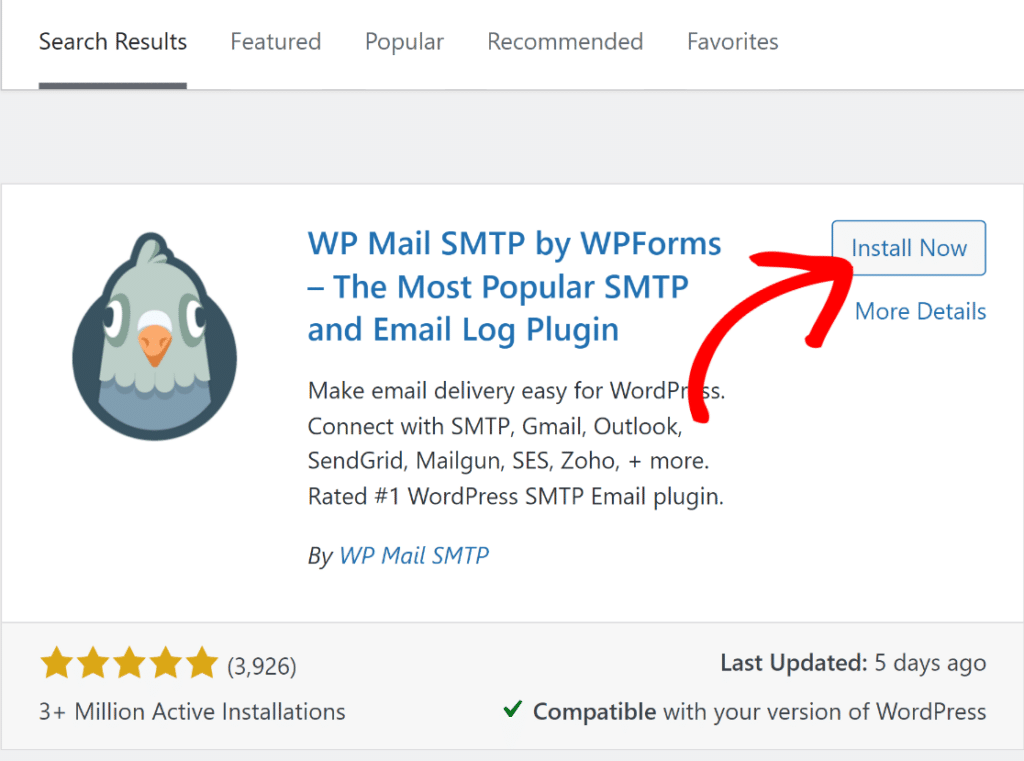
The moment it activates, the Setup Wizard opens on its own and offers to walk you through the whole thing. Take it up on that. Click Let’s Get Started and it’ll guide you the rest of the way, which is why you won’t need to dig through any settings screens manually.
Step 2: Choose How Your Emails Get Sent
The wizard’s first real question is which mailer to use. A mailer is just the service that does the actual sending. You’ve got two solid options on Hostinger, and the wizard supports both.
Option A: Use a Dedicated Sending Service (What I Recommend)
For the most reliable delivery, connect a service built specifically for sending email rather than leaning on your web host. These services live and die by inbox placement, so your mail is far less likely to get filtered or throttled. I usually point beginners to SendLayer, which is quick to connect and works with free WP Mail SMTP. Brevo and SMTP.com are good free options too.
In the wizard, pick your mailer and follow the prompts to paste in the API key it gives you. That’s really all there is to it.

Option B: Use Your Hostinger Email Instead
If you’d rather send through the email account you already have at Hostinger, choose the Other SMTP option in the wizard.
Before you do, make sure you’ve created an email account in hPanel » Emails » Email Accounts (something like [email protected]). Then select Other SMTP and enter Hostinger’s details:
| Setting | Value |
|---|---|
| SMTP Host | smtp.hostinger.com |
| Encryption | SSL |
| SMTP Port | 465 |
| Authentication | On |
| SMTP Username | your full email address ([email protected]) |
| SMTP Password | that email account’s password |
If you hit an encryption error, switch to port 587 with TLS instead. (Still on an older Titan Email plan? Use smtp.titan.email as the host, and you’ll find your exact values under hPanel » Emails » your address » Manage » Configuration Settings.)
One last thing: turn on Force From Email so everything your site sends uses your verified address. This is the piece that stops inboxes rejecting your mail.

Step 3: Send Yourself a Test Email
Now let’s make sure it’s actually working. The wizard finishes with a test send, but you can run one any time from WP Mail SMTP » Tools » Email Test. Pop in your own email address and click Send Email.

Check that the message lands in your inbox rather than spam. If it does, you’re done. Your forms, receipts, and reset emails will start going out reliably again. If the test fails, the culprit is almost always a mistyped API key or password, so double-check those and confirm your port and encryption match the table above.
Keep Your Emails From Breaking Again
Passing the test tells you sending works today. But how do you know that order receipt actually reached your customer last Tuesday?
That’s where I lean on Email Logging in WP Mail SMTP Pro. It keeps a record of every email your site sends, shows you whether each one was delivered, and lets you resend any that didn’t make it. Add Email Failure Alerts (also Pro) and you’ll hear about a problem the moment it happens, instead of finding out when a customer emails to ask where their receipt went. If your business runs on email, that peace of mind is worth a lot.
The free version fixes the problem in front of you. Pro is what keeps it fixed.
Next, Run a Full WordPress SMTP Setup Check
With your Hostinger emails flowing again, it’s worth making sure the rest of your setup is solid. My complete guide to WordPress SMTP settings covers authentication, deliverability, and the settings that keep your mail out of the spam folder for good.
Ready to fix your emails? Get started today with the best WordPress SMTP plugin. If you don’t have the time to fix your emails, you can get full White Glove Setup assistance as an extra purchase, and there’s a 14-day money-back guarantee for all paid plans.
