


AI Summary
You hit send on an important email, and then the questions start. Did it arrive? Is it stuck somewhere? Did it bounce? Email delivery statuses are how you answer those questions, and understanding them is the difference between guessing and knowing what happened to every message you send.
In this guide, I’ll explain every email delivery status you’re likely to see, from queued and deferred to delivered, bounced, and blocked, what each one means, what causes it, and what to do about it. Then I’ll show you how to track all of them from inside WordPress.
Email Delivery Statuses Explained
What Are Email Delivery Statuses?
An email delivery status tells you where a message is in its journey from your server to the recipient. Every email passes through several stages after you send it, and each stage has a status that signals success, a delay, or a problem.
Tracking these statuses matters for any business that relies on email for marketing, sales, support, or transactional messages like order confirmations and password resets. When something goes wrong, the status is your first clue about where and why.
Email Delivery Statuses at a Glance
Here’s a quick reference to the statuses you’ll encounter. The sections below explain each one in more detail.
| Status | What it means | What to do |
|---|---|---|
| Queued | Waiting to be sent, no attempt made yet | Usually clears on its own, check sending limits if it lingers |
| Sent | Left your server (not the same as delivered) | Wait for a Delivered status to confirm |
| Deferred | Receiving server delayed acceptance and will retry | Usually resolves on retry, persistent defers signal a reputation or volume issue |
| Delivered | Receiving server accepted the message | Remember it may still be filtered to spam |
| Soft bounce | Temporary rejection | Retry later and keep an eye on it |
| Hard bounce | Permanent rejection | Remove the address from your list |
| Blocked | Receiving server actively rejected it | Fix authentication and check blacklists |
| Rejected / Dropped | Suppressed before sending | Clean your list and check the suppression list |
| Failed | Never left your server | Check your SMTP settings and connection |
The Email Delivery Statuses, Explained
Here’s what each status means, what typically causes it, and how to respond.
Queued
A queued email is waiting to be sent, and no delivery attempt has been made yet. This is normal when you send in bulk, schedule a campaign, or your mailer is pacing sends to stay within rate limits. Queued emails usually move to Sent on their own. If they pile up and stall, check whether you’ve hit a sending limit or your queue is backed up.
Sent
A sent status means the email left your server. It’s easy to read this as success, but it isn’t confirmation of delivery. It only tells you the message is on its way. To know whether the receiving server accepted it, you need a Delivered status.
Deferred
A deferred email is one the receiving server delayed accepting, so it will be retried. Deferrals usually come from greylisting (a spam-prevention tactic where the server temporarily refuses a first attempt), throttling, or a temporarily overloaded server. Most deferrals resolve automatically on the next retry. If a lot of your mail keeps deferring, that’s a sign of a sender-reputation or sending-volume problem worth investigating.
Delivered
A delivered status means the receiving mail server accepted your message. As the callout above notes, this is not the same as reaching the inbox, but it’s a strong signal that your configuration is sound and your email cleared the first gate. Monitoring your delivered rate over time is one of the best health checks for your sending.
Bounced (Soft and Hard)
A bounce means the receiving server returned the message instead of accepting it. There are two kinds, and the difference matters:
- Soft bounce: a temporary problem, like a full mailbox or a server that’s briefly down. These often go through on a later attempt, so it’s fine to retry and monitor them.
- Hard bounce: a permanent problem, like an address that doesn’t exist or a domain that can’t receive mail. Remove hard-bounced addresses from your list right away, since repeatedly mailing them damages your reputation.
Keeping your list clean and validating addresses at signup is the best way to keep bounces low.
Blocked
A blocked email is one the receiving server actively rejected, usually because of spam filters, a blacklisted domain or IP, or a poor sender reputation. To avoid blocks, set up domain authentication (SPF, DKIM, and DMARC), keep your IP reputation clean, and avoid spam-trigger content.
Rejected or Dropped
Some mailers suppress a message before it’s even sent, marking it rejected or dropped. This usually happens when the address is on a suppression list because it previously hard-bounced, unsubscribed, or filed a spam complaint. Check your provider’s suppression list and keep your list clean so good addresses aren’t caught up in it.
Failed
A failed status means the email never left your server at all. This points to a problem on your side, like an SMTP misconfiguration, server downtime, or a firewall rule blocking outgoing mail. Check your SMTP settings and connection first.
Engagement Statuses
Beyond delivery, these statuses tell you what recipients did with your email. They require tracking to be enabled.
Opened and Clicked
Open and click statuses show whether recipients engaged with your email and its links. They measure interest rather than delivery, and they’re useful for judging which subject lines and content work. Bear in mind open tracking is approximate, since some mail clients block the tracking pixel.
Spam Complaints
A spam complaint is recorded when a recipient marks your email as spam. Excessive complaints harm your sender reputation and future deliverability, so keep them low by sending relevant content, making unsubscribing easy, and following email compliance rules.

Unsubscribed
An unsubscribe is recorded when a recipient opts out of future emails. It feels like a loss, but it keeps your list engaged and keeps you compliant with data-privacy laws, which protects your deliverability in the long run.
How to Track Email Delivery Statuses in WordPress
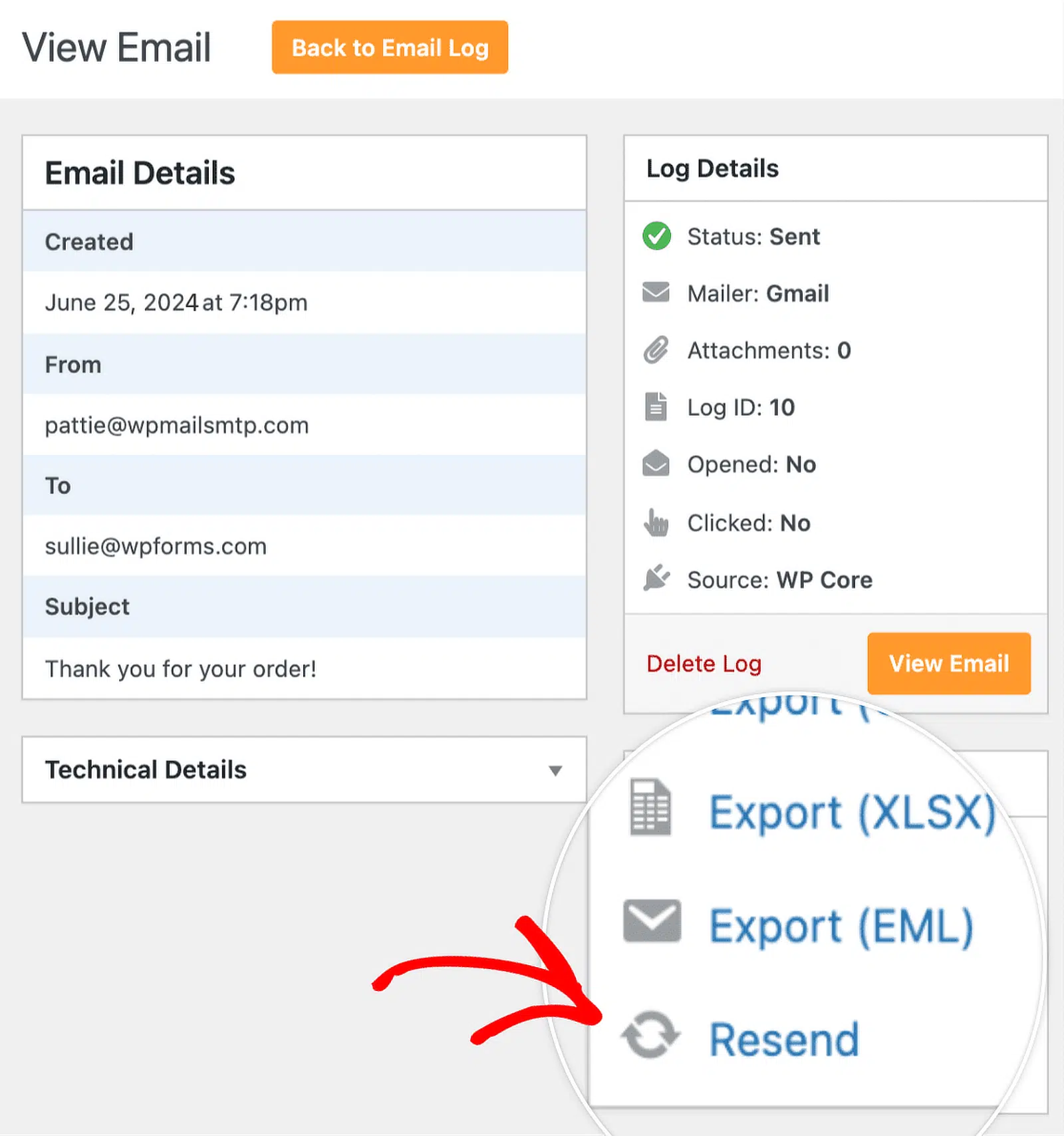
WordPress doesn’t show you any of these statuses on its own. With WP Mail SMTP’s email logging and tracking, you can see the delivery status of every email your site sends, right from your dashboard, with color-coded symbols.
WP Mail SMTP uses four status labels that map to the industry-standard statuses above:
Failed (solid red circle) means the email never left your server, the same as the Failed status above.

Sent (solid green circle) means the email left your server, but delivery isn’t yet confirmed.

Waiting (open gray circle) is WP Mail SMTP’s term for a deferred or unconfirmed email: it’s been sent, but delivery hasn’t been verified yet. This status is available with the SendLayer, SMTP.com, Brevo, Mailgun, Postmark, or SparkPost mailers.

Confirmed (green circle with a checkmark) is the equivalent of Delivered: the email was accepted by the receiving server. It’s also available with those same mailers.

Alongside delivery status, WP Mail SMTP logs can show open and click data for each email, so you can see engagement without leaving WordPress.

And if an email fails, you can resend it directly from the log with a click, editing the address first if you need to.
Best Practices for Successful Email Delivery
To see more delivered statuses and fewer bounces and blocks, follow these fundamentals:
- Set up authentication: Configure SPF, DKIM, and DMARC so receiving servers can verify your domain.
- Clean your list regularly: Remove inactive and hard-bounced addresses to protect your reputation.
- Send through a proper mailer: Route WordPress email through a reputable SMTP or transactional provider rather than default PHP mail.
- Avoid spam triggers: Skip spammy language and misleading subject lines, and always include an easy unsubscribe.
FAQs About Email Delivery Statuses
Here are answers to the questions people ask most about email delivery statuses.
What does “delivered” mean for an email?
Delivered means the receiving mail server accepted your message. It does not guarantee the email reached the inbox, since it can still be filtered to spam or a Promotions tab. It’s the strongest signal short of an open that your email got through.
What does a deferred email mean?
Deferred means the receiving server delayed accepting your email and will retry it, usually because of greylisting, throttling, or a temporary server issue. Most deferrals resolve on their own. Frequent deferrals suggest a reputation or sending-volume problem.
What’s the difference between a blocked and a bounced email?
A bounce is returned by the receiving server after a delivery attempt (temporarily for a soft bounce, permanently for a hard bounce). A blocked email is actively rejected, typically by spam filters or because your domain or IP is blacklisted or has a poor reputation.
Why is my email stuck in “queued” or “waiting”?
Queued means it hasn’t been sent yet, often due to scheduling or rate limits. Waiting (in WP Mail SMTP) means it was sent but delivery hasn’t been confirmed. Both usually clear on their own. If they don’t, check your sending limits and mailer connection.
How do I check email delivery status in WordPress?
Install WP Mail SMTP and enable email logging. You’ll then see a color-coded delivery status (Failed, Sent, Waiting, or Confirmed) for every email in the log, along with open and click data if tracking is on.
Next, Improve Your Overall Email Deliverability
Understanding statuses is half the battle, and the other half is making sure more of your emails reach the inbox in the first place. See our full guide to email deliverability for the practices that keep your delivered rate high.
Ready to fix your emails? Get started today with the best WordPress SMTP plugin. If you don’t have the time to fix your emails, you can get full White Glove Setup assistance as an extra purchase, and there’s a 14-day money-back guarantee for all paid plans.
