


AI Summary
Has your WordPress email ever bounced without anyone noticing? The return path decides where that bounce goes, and whether you ever see it.
WordPress sends email through your server. It doesn’t set a return path you control. So a failed password reset or form notification can bounce to an address nobody reads.
In this guide, I’ll walk you through how to set the return path with WP Mail SMTP.
- What a Return-Path Address Does
- Return-Path vs From vs Reply-To
- How the Return Path Affects SPF and DMARC
- Why WordPress Emails Lose Their Bounces
- How to Set the Return Path in WordPress With WP Mail SMTP
- Which WordPress Mailers Let You Control the Return Path
- Troubleshooting Return Path Issues
- Frequently Asked Questions
What a Return-Path Address Does
A return-path address is the hidden address where mail servers send bounce messages. It’s also called the envelope sender, the MAIL FROM address, or the bounce address.
Recipients don’t see it in their inbox. Mail servers use it when a message can’t be delivered.
Here’s what the return path controls
- Bounces: Non-delivery reports go to this address, not to your From address.
- SPF checks: The receiving server checks SPF against the return-path domain.
- DMARC alignment: SPF only counts toward DMARC when this domain matches your From domain.
Where the Return-Path Header Comes From
Your site doesn’t write the Return-Path header itself. It sends an envelope sender with the SMTP MAIL FROM command.
The receiving server then adds the header at final delivery. According to RFC 5321, the server “inserts a return-path line at the beginning of the mail data.”
That’s why the return path can differ from the From address you set.
How to Find the Return-Path in an Email
You can see it in the raw source of any email you receive. In Gmail, open the message, click the three-dot menu, and choose Show original.

The top of the raw message looks something like this:
Return-Path: <[email protected]>
Received-SPF: pass (google.com: domain of [email protected] designates 203.0.113.10 as permitted sender)
From: My Site <[email protected]>
Reply-To: [email protected]
In this example, all 3 addresses sit on the same domain. That’s the setup you want.
Return-Path vs From vs Reply-To
These 3 addresses do different jobs. Only the From address is visible to the person reading your email.
| Address | Who sees it | What it controls | Example |
|---|---|---|---|
| From | The recipient | The sender name and address shown in the inbox | [email protected] |
| Reply-To | The recipient’s email app | Where a reply goes when someone clicks Reply | [email protected] |
| Return-Path | Mail servers only | Where bounces go, and which domain SPF checks | [email protected] |
They can all be different addresses. Email providers often use their own bounce subdomain for the return path, for example.
How the Return Path Affects SPF and DMARC
The return path is the address SPF checks. If it’s on the wrong domain, SPF passes for that domain instead of yours.

SPF Checks the Return-Path Domain
SPF looks up the domain in the envelope sender, not the visible From address. RFC 7208 requires SPF checkers to test the MAIL FROM identity.
So if your return path is [email protected], SPF checks your host’s domain. Your own SPF record never gets used.
DMARC Alignment and Custom Return-Path Domains
DMARC asks a second question: does the domain that passed SPF match your From domain?
Relaxed alignment accepts a subdomain of the same domain. So bounces.example.com aligns with example.com.
If SPF doesn’t align, DKIM can still pass DMARC for you. That’s why most email providers ask you to set up both.
Why WordPress Emails Lose Their Bounces
WordPress uses PHP’s mail function by default. Unless something sets the email sender, your server’s mail program picks one.
That can be a system address on the server. It isn’t an inbox you check.
So when a password reset bounces, the bounce report lands somewhere you’ll never look. You won’t know the address was wrong, and the user won’t get the email.

The fix is to send through a proper mailer and set the return path yourself.
How to Set the Return Path in WordPress With WP Mail SMTP
An SMTP plugin like WP Mail SMTP simplifies the process of adding a return path in WordPress. Aside from that, it also fixes your WordPress site’s email deliverability issues.
After setting it, WP Mail SMTP copies your From Email into PHPMailer’s Sender property. PHPMailer uses that as the envelope sender, so it becomes the return path.
Step 1: Install WP Mail SMTP
Before getting started, you’ll need to install and activate the WP Mail SMTP plugin on your WordPress site. It’s the best SMTP plugin for WordPress, making the whole process super easy.
To install the WP Mail SMTP plugin, log in to your WordPress admin area and navigate to Plugins » Add Plugin. Once here, type “wp mail smtp” in to the search bar and

Then click Install Now next to the WP Mail SMTP plugin.

Once the installation completes, the button changes to “Activate”. Click on it to activate the plugin.

Step 2: Open the WP Mail SMTP Settings
In your WordPress dashboard, go to WP Mail SMTP » Settings. You’ll land on the General tab.
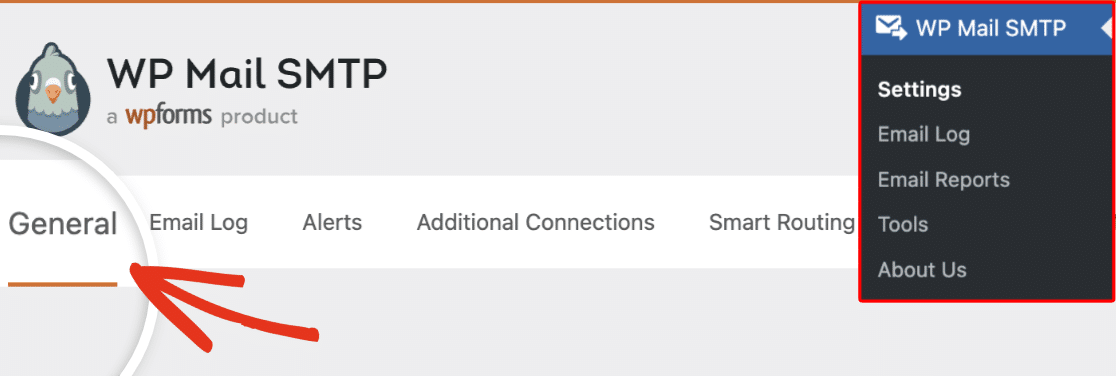
Scroll down past the From Email and From Name fields.
Step 3: Turn On the Return Path Toggle
Find the Return Path toggle and make sure it’s on. Its help text explains what it does:
Return Path indicates where non-delivery receipts - or bounce messages - are to be sent.
If unchecked, bounce messages may be lost.

Since version 4.7.1 of WP Mail SMTP, this toggle is on by default. So for most sites, this step is a quick check.
Click Save Settings if you changed anything.
Step 4: Send a Test and Check the Header
Go to WP Mail SMTP » Tools and open the Email Test tab. Enter an inbox you can open in the Send To field and click Send Email.

Open the test email and view its raw source, as shown earlier. The Return-Path line should show your From Email.
Advanced: Setting It With a wp-config.php Constant
You can also lock the setting in your wp-config.php file. To do so, add these lines above the “That’s all, stop editing!” comment:
// Let WP Mail SMTP read its settings from wp-config.php.
define( 'WPMS_ON', true );
// Send bounces to the From Email address.
define( 'WPMS_SET_RETURN_PATH', true );
WP Mail SMTP ignores its constants unless WPMS_ON is set to true. That’s why you need both lines.
Once both constants are set to true, WP Mail SMTP grays out the toggle. Remove the lines to manage it from the dashboard again.
Which WordPress Mailers Let You Control the Return Path
WP Mail SMTP only shows the Return Path toggle for mailers that accept it. For the others, the email provider sets the return path itself.
| Mailer | Return Path toggle | Who sets the return path |
|---|---|---|
| Default (none) | Shown | WP Mail SMTP, using your From Email |
| Other SMTP | Shown | WP Mail SMTP, using your From Email |
| Mailgun | Shown | WP Mail SMTP passes your From Email to Mailgun |
| SendLayer, SendGrid, Brevo, Postmark, SparkPost, Mailjet, Mandrill, MailerSend, Resend, SMTP2GO, SMTP.com, Elastic Email | Hidden | The provider |
| Google / Gmail | Hidden | Your connected Gmail account |
The hidden toggle isn’t a missing feature. API providers handle bounces on their own servers. They usually use the domain you verified with them.
Want a branded bounce domain with those providers? Set it up in the provider’s dashboard. Many call it a custom return path or custom bounce domain.
Troubleshooting Return Path Issues
Most return path problems come down to the mailer or the From mailbox. Here are the 3 I’d check first.
The Return Path Toggle Is Missing
Your mailer sets its own return path, so WP Mail SMTP hides the toggle. Check the provider’s dashboard for a custom return path or bounce domain setting.
The Return Path Toggle Is Grayed Out
Both WPMS_ON and WPMS_SET_RETURN_PATH are set to true in your wp-config.php file. Change or remove them there.
If WPMS_SET_RETURN_PATH is set to false, it still overrides the setting. The toggle stays editable, but your change won’t take effect.
Bounces Still Aren’t Arriving
Confirm your From Email is a real mailbox that accepts mail. Then check its spam folder, since bounce reports can land there.
If you use an API mailer, the bounces go to the provider. Look for them in the provider’s logs or bounce reports.
Frequently Asked Questions
Here are answers to the questions people ask most about the return path.
Is the Return-Path the same as the From address?
No. The From address is what recipients see, and the return path is where bounces go. They’re often the same address in WordPress, but they don’t have to be.
Can I set the Return-Path to a different email address?
Not with the WP Mail SMTP toggle. It always uses your From Email, and there’s no field for a custom address. For a separate bounce address, use your provider’s custom return path setting or custom code.
Does the Return Path affect email deliverability?
Yes, indirectly. SPF checks the return-path domain.
DMARC needs that domain to align with your From domain. A mismatched return path can cost you an SPF pass under DMARC.
What happens if Return Path is turned off in WP Mail SMTP?
It depends on your mailer:
- Default (none): Your server’s mail program picks the envelope sender. Bounces may go to an address you don’t monitor.
- Other SMTP: PHPMailer falls back to your From address for
MAIL FROM. Your SMTP server may still rewrite it. - Mailgun: WP Mail SMTP stops passing your From Email to Mailgun as the sender.
Next, Learn the Difference Between Hard and Soft Bounces
Once your bounces reach your inbox, you’ll need to read them. Our guide to hard vs soft bounces explains what each bounce code means. It also covers which ones need a fix.
Ready to fix your emails? Get started today with the best WordPress SMTP plugin. If you don’t have the time to fix your emails, you can get full White Glove Setup assistance as an extra purchase, and there’s a 14-day money-back guarantee for all paid plans.
If this article helped you out, please follow us on Facebook and Twitter for more WordPress tips and tutorials.
