


AI Summary
Seeing “dmarc=fail” in a bounce message or an email header? That’s a DMARC fail: inbox providers couldn’t confirm your domain sent the email. So they may junk it or reject it outright.
WordPress can send email out of the box, but it can’t send it signed with your domain. So your records can look correct, but the failure comes down to alignment.
In this guide, I’ll walk you through finding the cause and fixing it with WP Mail SMTP.
- What a DMARC Fail Means
- DMARC Bounce Errors by Provider
- How to Find the Cause in Your Email Headers
- Common Causes of DMARC Failure (and the Fix for Each)
- How to Fix DMARC Fail in WordPress With WP Mail SMTP
- Troubleshooting DMARC Fails After Setup
- How to Keep Your Emails Passing DMARC
- Frequently Asked Questions
What a DMARC Fail Means
A DMARC fail means neither SPF nor DKIM passed for your From domain.
Passing isn’t enough on its own. At least one check has to pass and align with the From domain.
That’s why a message can show spf=pass and dkim=pass but still fail DMARC. Both checks passed, just for someone else’s domain. For more details, see our SPF, DKIM, and DMARC guide.
The Alignment Rule in One Table
Every email carries 3 domains that DMARC compares. Here’s where each one lives:
| Domain | Where it lives | What it’s for |
|---|---|---|
| From domain | The From: header your recipient sees | The domain DMARC protects |
| SPF domain | The return-path (smtp.mailfrom) | Where bounces go |
| DKIM domain | The d= tag in the DKIM signature | Who signed the message |
DMARC passes when either the SPF domain or the DKIM domain matches the From domain. Here’s how the results combine:
| SPF passes and aligns? | DKIM passes and aligns? | DMARC result |
|---|---|---|
| Yes | Yes | Pass |
| Yes | No | Pass |
| No | Yes | Pass |
| No | No | Fail |

By default, DMARC uses relaxed alignment. That means a subdomain like mail.example.com still aligns with example.com.
What Happens to an Email That Fails DMARC
What happens next depends on the policy in the sender’s DMARC record. There are 3 options:
- p=none: The receiver delivers the email as normal and sends you a report.
- p=quarantine: The receiver moves the email to spam or junk.
- p=reject: The receiver refuses the email, and the sender gets a bounce.
Even under p=none, a failed check still hurts your sender reputation. And since February 2024, Gmail and Yahoo require bulk senders to pass DMARC alignment.
DMARC Bounce Errors by Provider
Each inbox provider words a DMARC fail differently. If you’ve got a bounce, match it against this table:
| Provider | Error you’ll see | What it means |
|---|---|---|
| Gmail | 550 5.7.26 Unauthenticated email from example.com is not accepted due to domain's DMARC policy | Failed DMARC, and your policy is reject |
| Gmail | 421 4.7.32 (rate limited) or 421 5.7.32 (blocked) “the From: header … isn’t aligned with either the authenticated SPF or DKIM organizational domain” | SPF or DKIM passed, but not for your From domain |
| Gmail | 451 4.7.26 “temporary DNS failures prevent authentication” | Gmail couldn’t look up your records. It’ll retry |
| Microsoft 365 / Outlook | 550 5.7.509 Access denied, sending domain example.com does not pass DMARC verification and has a DMARC policy of reject | Failed DMARC under a reject policy |
| Yahoo / AOL | 554 5.7.9 Message not accepted for policy reasons | A policy rejection. A DMARC fail is one common cause |
| Mimecast | DNS Authentication: DMARC Fail | Mimecast held or rejected the message for failing DMARC |
| Any header | dmarc=fail in Authentication-Results | The receiver ran the check and it failed |
If only one company’s recipients are bouncing you, then ask their admin for the bounced message’s Authentication-Results header. It shows whether SPF, DKIM, or alignment failed on their side.
How to Find the Cause in Your Email Headers
A quick way to find the cause is to read the email’s authentication header. It tells you which check failed and which domain each check used.
Step 1: Open the Email Headers
First, send an email from your site to your Gmail address. You can do this from WP Mail SMTP » Tools » Email Test.
Open the email in Gmail. Then click the ⋮ (More) icon and choose Show original.

Gmail shows a summary table at the top with SPF, DKIM, and DMARC results. Below it is the raw header.

Step 2: Read the Authentication-Results Line
Scroll to the line that starts with Authentication-Results. Here’s a typical failing example:
Authentication-Results: mx.google.com;
  dkim=pass [email protected] header.s=s1;
  spf=pass [email protected];
  dmarc=fail (p=REJECT sp=REJECT dis=REJECT) header.from=example.com
Compare the 3 domains in that line:
- header.from:
example.comis the From domain. - smtp.mailfrom:
em.mailservice.netis the SPF domain. It doesn’t match. - header.i or header.d:
em.mailservice.netis the DKIM domain. It doesn’t match either.
So both checks passed, but neither one aligned. That’s a classic DMARC fail.
Step 3: Match the Result to a Cause
Now match the pattern you found to a cause. Each one has its fix in the next section.
| What the header shows | Most likely cause |
|---|---|
spf=pass and dkim=pass, but different domains | Your mailer isn’t signing with your domain |
dkim=none and the SPF domain is your host’s server | WordPress is sending through PHP mail |
header.from is a Gmail or Yahoo address | Your form uses the visitor’s email as From |
spf=fail or spf=softfail for one service only | Another service isn’t in SPF |
spf=permerror | Your SPF record is broken |
| Passed for you, failed for one recipient | The email was forwarded |
Common Causes of DMARC Failure (and the Fix for Each)
Most DMARC failures on WordPress sites come from 7 causes. The first 2 are specific to WordPress, so I’ll start there.
WordPress Is Sending Through PHP Mail
By default, WordPress sends email with PHP’s mail() function on your web server. That server usually has no DKIM key for your domain.
The return-path is often your host’s server name, like [email protected]. So SPF can pass for the host but never aligns with your domain.
Fix: Send through a dedicated mailer with WP Mail SMTP. I cover that in the fix section below.
Your Form Uses the Visitor’s Email as the From Address
Some form plugins let you set the From Email to a form field. For example, in WPForms, you can set the From Email address. If you set it to the visitor’s email address, it makes your server send mail claiming to be from [email protected].
Yahoo and AOL both publish p=reject. I checked when writing this post; both still did.
So Yahoo and AOL reject those notifications before they reach you.
_dmarc.yahoo.com   "v=DMARC1; p=reject; pct=100; ..."
_dmarc.aol.com     "v=DMARC1; p=reject; pct=100; ..."
Fix: Set the From Email to an address on your own domain. Put the visitor’s email in the Reply-To field instead.

You can still reply with one click.
Your Mailer Isn’t Signing With Your Domain
You’ve connected a mailer, but you haven’t verified your domain within it. So the service signs DKIM with its own domain, like sendlayer.net. It also uses its own return path.
Both checks pass, but neither aligns. This is the header pattern from the Authentication-Results example above.
Fix: Finish domain authentication in your mailer’s dashboard. It gives you DKIM records (usually CNAMEs) to add to your DNS.
Once they verify, the d= tag becomes your domain.
Another Service Sends Mail and Isn’t in SPF
Your site probably isn’t the only thing sending as your domain. Other tools might send too:
- Google Workspace
- A newsletter tool
- A help desk
- A store platform
Say one isn’t in your SPF record and doesn’t sign DKIM as your domain. Then its mail fails DMARC.
Fix: List every service that sends as your domain. Then add each one’s SPF include and set up its DKIM.
Your DMARC aggregate reports show every source, which makes this list easier to build. To learn how to add more than one SPF record, see our guide on adding multiple SPF records.
Your SPF Record Is Broken or Over the Lookup Limit
A broken SPF record fails for every sender at once. The 2 most common problems are duplicate SPF records and going over 10 DNS lookups.
Here’s a broken setup with 2 records:
example.com  TXT  "v=spf1 include:_spf.google.com ~all"
example.com  TXT  "v=spf1 include:spf.mailservice.net ~all"
And here’s the fixed version, merged into 1 record:
example.com TXT "v=spf1 include:_spf.google.com include:spf.mailservice.net ~all"
Fix: Merge them into a single record and remove includes for services you no longer use.
How to Fix DMARC Fail in WordPress With WP Mail SMTP
To fix a DMARC failure in WordPress, use a mailer that signs with your domain. Then force a From Email on that domain and add the mailer’s DNS records.
WP Mail SMTP handles the mailer and From Email settings. Here are the steps.
Step 1: Connect a Mailer That Signs With Your Domain
Go to WP Mail SMTP » Settings and click Launch Setup Wizard. Then pick a mailer, such as SendLayer, Brevo, Mailgun, or Amazon SES.

The wizard walks you through connecting the account.
Each mailer’s setup guide also covers verifying your domain. That’s the part that fixes DKIM alignment.
Step 2: Set and Force the From Email
Once you’ve configured your mailer, go to WP Mail SMTP » Settings » General. In the From Email field, enter an address on the domain you authenticated.
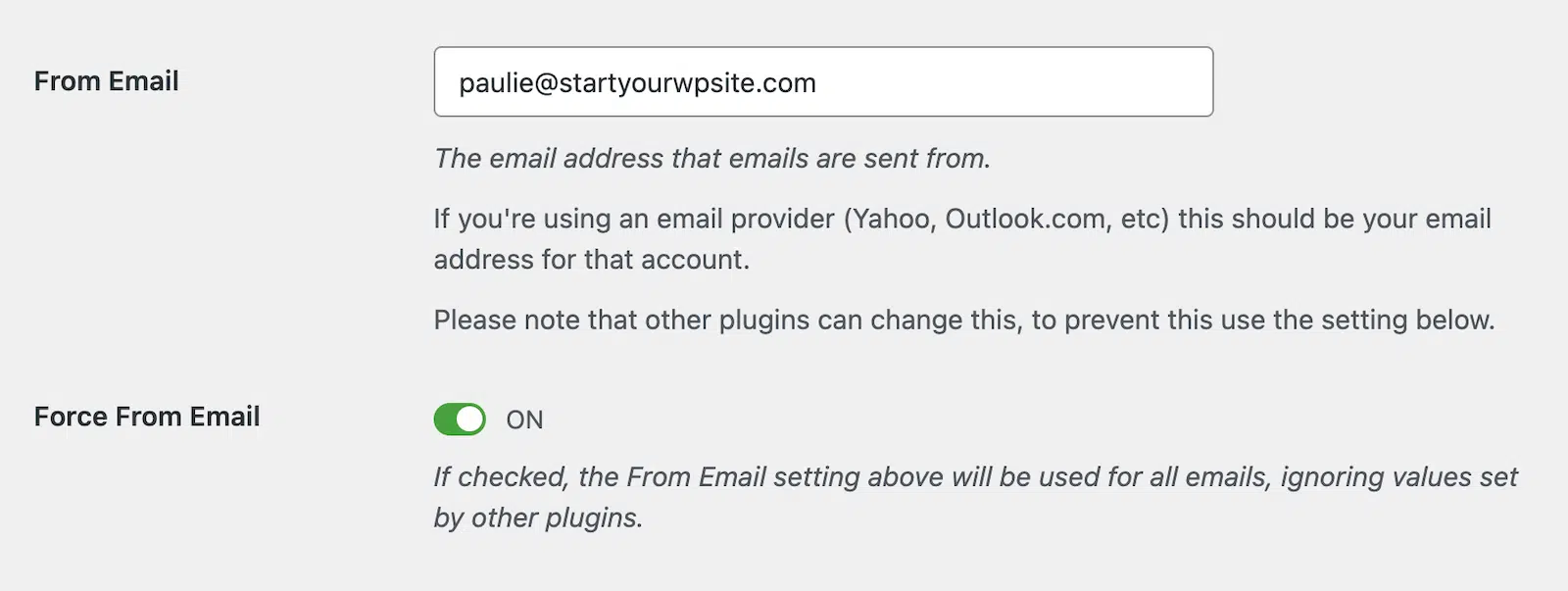
Then check the Force From Email box. This makes every plugin use that address, including form plugins set to the visitor’s email.
Here’s what the settings look like for my test site:
From Email:        [email protected]
Force From Email:  On
From Name:         Example Store
Force From Name:   Off
Step 3: Add the Mailer’s SPF and DKIM Records
Now add the DNS records your mailer gave you. Most give you DKIM CNAMEs and an SPF include.
Here’s what a complete set can look like:
example.com              TXT    "v=spf1 /include:spf.mailservice.net ~all"
s1._domainkey.example.com  CNAME  s1.domainkey.mailservice.net
_dmarc.example.com       TXT    "v=DMARC1; p=none; rua=mailto:[email protected]"
Your mailer’s hostnames will differ, so copy them from its dashboard.
DNS changes can take a few minutes to a few hours to show up.
Step 4: Test the Fix With Email Detective
Once your records are live, send a fresh test. I recommend checking twice: once with the Email Test, then with Email Detective. Fortunately, WP Mail SMTP includes both testing options.
To send a test email, go to WP Mail SMTP » Tools » Email Test and send a test email. If it finds an SPF, DKIM, or DMARC problem, then you’ll see Domain Check Results with the fix.

Next, click the Email Detective tab on the same page. It’s a free deliverability checker from SendLayer, built into WP Mail SMTP.

Enter your email address and click Run a Deliverability Test. Your site sends a test through your primary connection, and Email Detective emails you a link to the report.
Open the report and look at Authentication. SPF, DKIM, and DMARC should all pass.
If one still fails, the What to fix list names the problem. Here’s an example report where DKIM is missing:

Match that problem to the cause table in How to Find the Cause in Your Email Headers, then fix and re-test. For the full testing checklist, see our guide on How to Test Email Deliverability.
Troubleshooting DMARC Fails After Setup
Still failing after the 4 steps? Here are the 3 symptoms I’d check first.
DKIM Still Shows the Mailer’s Domain
Your domain isn’t verified in the mailer yet. Check the domain page in your mailer’s dashboard and confirm every DKIM record shows as verified.
If you just added the records, give DNS a few hours. Then send a fresh test.
SPF Shows Permerror
You probably have 2 SPF records, or you’ve passed 10 DNS lookups. Merge your records into one, as shown in the broken SPF cause above.
DMARC Passes in Tests but Fails for One Recipient
That points to forwarding or a gateway on the recipient’s side. Ask that recipient’s admin for the Authentication-Results header from the bounced copy.
How to Keep Your Emails Passing DMARC
Most DMARC failures happen when someone adds a new sending service. A few habits you can adopt to catch them early:
- Keep
ruareports on: Aggregate reports list every server sending as your domain. That includes ones you forgot. - Check new tools before they send: Set up SPF and DKIM for a new service before switching it on.
- Turn on email logs: WP Mail SMTP Pro logs every email your site sends. You’ll spot failures fast.
- Move to enforcement slowly: Stay on
p=noneuntil reports are clean. Then move toquarantine.
Keep in mind that WP Mail SMTP only controls email your WordPress site sends. Mail from Google Workspace or your newsletter tool still needs its own setup.
Frequently Asked Questions
Here are answers to the questions I see most about DMARC fails.
Can DMARC fail even if SPF and DKIM pass?
Yes. DMARC needs SPF or DKIM to pass for the same domain as your From address.
If your mailer signs with its own domain, both checks pass but DMARC still fails. Verifying your domain in the mailer fixes this.
Can forwarded emails cause a DMARC fail?
Yes. Forwarding breaks SPF because the forwarding server isn’t in your SPF record.
Aligned DKIM usually survives forwarding. So a forwarded email can still pass DMARC.
Why are my WordPress contact form emails failing DMARC?
Your form is probably sending “from” the visitor’s email address. Domains like yahoo.com reject that because they haven’t authorized your server.
Set the From Email to your own domain and put the visitor in Reply-To. Then turn on Force From Email in WP Mail SMTP.
How long does it take for a DMARC fix to work?
The fix applies once your DNS changes go live, which is often within an hour. Some DNS providers take up to 48 hours.
Send a new test after the change, because old emails keep their original results.
Does a DMARC fail mean my domain was spoofed?
Not always. Most DMARC fails come from your own services that you haven’t set up fully.
But unknown sources in your reports may mean someone is spoofing you. Moving to p=reject stops them.
Next, Move Your DMARC Policy to Enforcement
Once your emails pass DMARC, the next step is turning protection on. My guide to fixing the DMARC Policy Not Enabled warning covers that.
It shows you how to move from p=none to reject safely. That’s the step that tells inbox providers to reject spoofed mail from your domain.
Ready to fix your emails? Get started today with the best WordPress SMTP plugin. If you don’t have the time to fix your emails, you can get full White Glove Setup assistance as an extra purchase, and there’s a 14-day money-back guarantee for all paid plans.
If this article helped you out, please follow us on Facebook and Twitter for more WordPress tips and tutorials.
