


AI Summary
You send a test email from your WordPress site, and a strange reply lands in your inbox a minute later: “Delivery Status Notification (Failure).” Or a customer mentions they never got their order confirmation, and when you check your email provider’s dashboard, you see the message bounced.
Every bounced email falls into one of two categories, and the difference matters more than most people realize. A hard bounce means the address is permanently undeliverable, and you should stop sending to it right away. A soft bounce means delivery failed for a temporary reason, and the email may still arrive on its own.
The two types need opposite responses. Keep emailing hard-bounced addresses and you’ll damage your sender reputation. Panic-delete every soft bounce and you’ll throw away perfectly good subscribers.
In this guide, I’ll explain how to tell hard and soft bounces apart, what the error codes mean, and how to find and fix both types on your WordPress site.
| Hard bounce | Soft bounce | |
|---|---|---|
| What it means | Permanent failure. The address can’t receive mail. | Temporary failure. The address exists but can’t receive mail right now. |
| Common causes | Address doesn’t exist, domain doesn’t exist, recipient server blocks you outright | Full mailbox, server down or busy, message too large, greylisting, rate limits |
| SMTP error codes | 5xx (550, 553, 554) | 4xx (421, 450, 451, 452) |
| Will it retry? | No. The message is returned immediately. | Yes. Servers usually retry for up to 72 hours. |
| What you should do | Remove the address from your list immediately | Let it retry, then investigate if the same address keeps bouncing |
| Reputation impact | High if you keep sending to it | Low for one-offs, rises if the pattern persists |

That’s the short version. The rest of this post covers the details that the summary table can’t: how to read the error codes, why bounce rate affects whether your other emails reach the inbox, and how to see any of this from WordPress in the first place.
What Is an Email Bounce?
An email bounce is a message that was rejected by the recipient’s mail server instead of being delivered. The rejection comes back to the sender as an automated reply, formally called a Non-Delivery Report (NDR) and informally called a bounce-back or bounce message.
Here’s what happens behind the scenes. When your site sends an email, your sending server contacts the recipient’s mail server and asks it to accept the message. The recipient server answers with a numeric code:
- A 250 code means “accepted.” The message is handed over and delivered to the inbox or spam folder.
- A 4xx code means “I can’t take this right now, try again later.” That’s a soft bounce.
- A 5xx code means “I will never accept this.” That’s a hard bounce.

One important note for WordPress users: a bounce is not the same as a send failure. WordPress can fail to send an email at all (a configuration problem on your end), which is a different issue with its own set of fixes. A bounce means your email went out successfully and the other side turned it away.
What Is a Hard Bounce?
A hard bounce is an email that was permanently rejected by the recipient’s mail server. The server is telling you that delivery will never succeed, no matter how many times you try.
The most common causes of hard bounces are:
- The address doesn’t exist. Someone typed their email wrong in your signup form, entered a fake address to get past a download gate, or the account was deleted (a former employee’s work address, for example).
- The domain doesn’t exist. A typo like
[email protected]creates an address at a domain with no mail server, or the company behind the domain shut down. - The recipient server blocks you outright. Strict corporate filters and blocklist-based rejections return permanent errors even though the mailbox itself is real. More on this gray area in the error codes section below.
A typical hard bounce notification looks like this:
Address not found

Your message wasn't delivered to [email protected]
because the address couldn't be found, or is unable to
receive mail.

550 5.1.1 The email account that you tried to reach
does not exist.
Hard bounces are the dangerous kind. Mailbox providers like Gmail and Outlook track how many invalid addresses you mail. A sender with a high hard bounce rate looks like someone using an old, scraped, or purchased list, and providers respond by filtering your mail more aggressively for everyone on your list, not just the dead addresses.
There’s a second, sneakier risk. Abandoned mailboxes are sometimes recycled by providers into spam traps: addresses that exist only to catch senders with poor list hygiene. An address that hard bounces today can become a spam trap next year. Removing hard bounces promptly is what keeps you out of that trap later.
What Is a Soft Bounce?
A soft bounce is an email that was rejected temporarily. The address is valid and the server expects the problem to pass. Common causes include:
- The mailbox is full. The recipient has hit their storage quota and can’t accept new mail until they clear space.
- The receiving server is down or busy. Outages, maintenance windows, and traffic spikes all produce temporary rejections.
- The message is too large. Oversized attachments or image-heavy HTML can push an email past the receiving server’s size limit.
- Greylisting. Some servers automatically reject the first delivery attempt from a sender they haven’t seen before, then accept the retry. It’s a spam-filtering technique, and legitimate mail passes through it with a short delay.
- Rate limiting. If you send too many emails too quickly, the receiving server may start deferring them to slow you down.
A typical soft bounce notification looks like this:
452 4.2.2 The email account that you tried to reach
is over quota. Please direct the recipient to clear
some space in their mailbox.
The key difference in behavior: soft-bounced messages get retried automatically. Most mail servers keep attempting delivery on a schedule, typically for up to 72 hours, before giving up and returning the message as undeliverable. A soft bounce often fixes itself before you’ve noticed it.
That forgiveness has a limit, though. Most sending platforms automatically convert an address that keeps soft bouncing into a hard bounce. Mailchimp, for example, stops sending to addresses that soft bounce repeatedly across consecutive campaigns. Treat a persistent soft bouncer the same way you’d treat a hard bounce.
Email Bounce Error Codes (and How to Read Them)
Every bounce message includes an SMTP status code that tells you why delivery failed. The first digit is the part that matters most: 4 means temporary, 5 means permanent.
| Code | What it means | Bounce type |
|---|---|---|
| 421 | Server busy or unavailable, try again later | Soft |
| 450 | Mailbox unavailable right now (often greylisting) | Soft |
| 451 | Processing error on the receiving server | Soft |
| 452 | Mailbox full, or the server is out of storage | Soft |
| 550 | Mailbox doesn’t exist or rejected the message | Hard |
| 550 5.1.1 | The specific “user unknown” code: the address doesn’t exist | Hard |
| 550 5.7.1 | Rejected by policy: a blocklist, failed authentication, or content filter | Hard* |
| 552 | Message exceeds the mailbox’s size or storage limit | Either |
| 553 | Invalid or badly formatted address | Hard |
| 554 | Transaction failed, frequently a sender reputation block | Hard* |
The two codes marked with an asterisk deserve a closer look, because they’re the most misunderstood entries in the table.
A 550 5.7.1 or 554 rejection is technically a hard bounce: that specific message is permanently dead. But the cause usually isn’t the recipient’s address. It’s you, or more precisely, your domain’s reputation or authentication. If the address is real and you’re seeing policy rejections, deleting the subscriber fixes nothing. Fixing your SPF, DKIM, and DMARC records or getting off a blocklist fixes everything.
Also worth knowing: receiving servers don’t apply these codes perfectly consistently. A full mailbox usually returns a 4xx code but sometimes returns a 552. Read the human-readable text in the bounce message alongside the number, and when the two disagree, trust the text.
Why Bounces Hurt Your Sender Reputation
Mailbox providers score every sender. That score, your sender reputation, decides whether your mail lands in the inbox, the spam folder, or nowhere at all. Bounce rate is one of the clearest inputs to that score, because a sender who mails lots of dead addresses is statistically very likely to be a spammer or a list-buyer.
The standard guidance is to keep your bounce rate under 2%. Cross that line regularly and the damage compounds: more of your mail gets filtered to spam, engagement drops because nobody sees your messages, and the falling engagement lowers your reputation further.
The stakes went up recently. In February 2024, Google and Yahoo began enforcing requirements for bulk senders: authenticated mail (SPF, DKIM, and DMARC), one-click unsubscribe, and a spam complaint rate below 0.3%. Microsoft followed in May 2025 with matching rules for Outlook, Hotmail, and Live addresses. Bounce rate isn’t named directly in those requirements, but the same list-hygiene failures that cause high bounce rates also cause the complaint rates and engagement patterns these filters punish.
The practical takeaway: bounces are an early warning system. A rising bounce rate usually shows up before a spam-folder problem does, which makes it the cheapest deliverability signal you can monitor.
How to See Which Emails Are Bouncing From WordPress
Here’s the part that surprises most WordPress site owners: WordPress cannot see bounces at all.
WordPress sends email through its wp_mail() function, which reports success the moment your server accepts the message locally. If that email bounces five minutes later, the bounce notification goes to the sending address’s mailbox, if that mailbox even exists. On a default setup sending from something like [email protected], the bounce messages often go nowhere. Your site keeps reporting “sent” while a chunk of your order confirmations, password resets, and form notifications quietly fail.
There’s one small free fix worth making first. If you send through a custom SMTP connection, WP Mail SMTP’s Return Path setting tells receiving servers to send bounce messages back to your From address instead of losing them. You’ll have to read those bounce-backs by hand, but at least they arrive.
Beyond that, you need a proper way to see bounces. You have three options, in increasing order of convenience.
1. Check Your Email Provider’s Dashboard
If you’ve connected your site to a dedicated sending service through WP Mail SMTP, the service’s own dashboard records every bounce. In SendLayer, for example, the Activity view shows each delivery attempt with its outcome, and hard-bounced addresses are added to a suppression list automatically so you can’t accidentally mail them again. SendGrid, Mailgun, and Brevo offer equivalent views.
This works on WP Mail SMTP’s free plugin. The trade-off is that the data lives outside WordPress, and checking it means remembering to log in somewhere else.
2. Check Your WP Mail SMTP Email Log
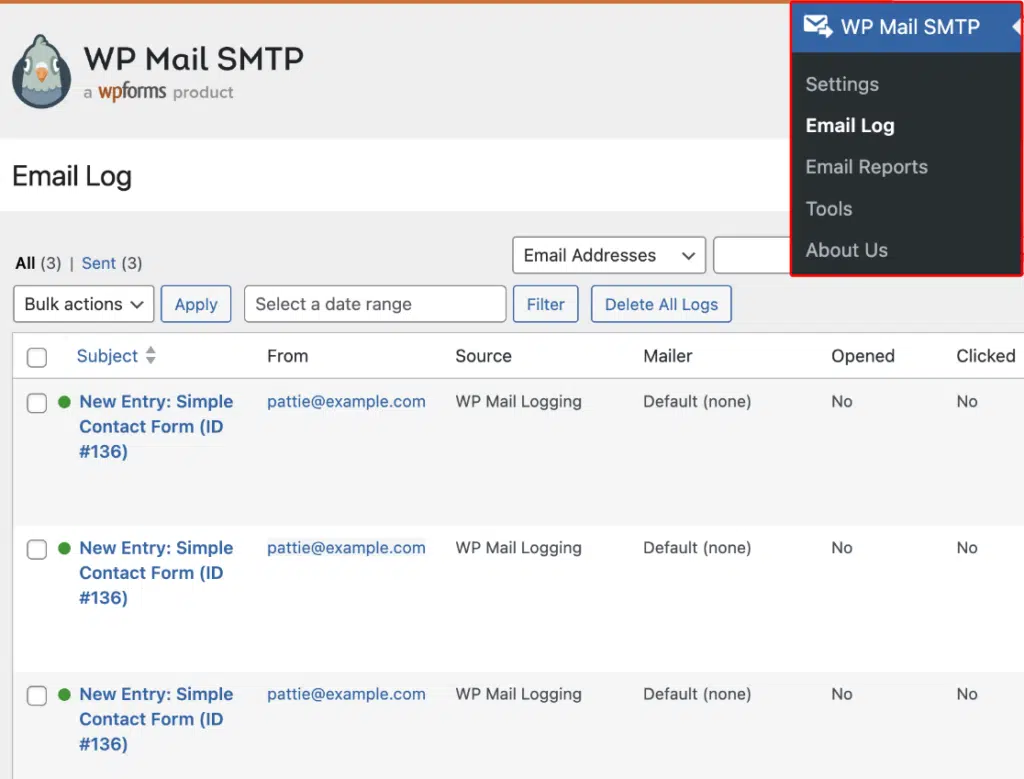
WP Mail SMTP Pro’s email log records every email your site sends and tracks its delivery status from inside your WordPress dashboard. Each email shows one of four statuses: Delivered, Sent, Failed, or Waiting for confirmation.
With a mailer that supports delivery verification (SendLayer, SMTP.com, Brevo, Mailgun, Mailjet, MailerSend, Mandrill, Postmark, Resend, SMTP2GO, or SparkPost), the log confirms via webhook whether each message was accepted by the recipient’s server. A “Sent” that never turns into “Delivered” is your bounce, visible without leaving wp-admin.
You can take this a step further with alerts. WP Mail SMTP Pro can notify you by email, Slack, SMS, or several other channels the moment its delivery verification detects a hard bounce. Instead of discovering a dead address during your next list cleanup, you hear about it the same day. Hard bounce alerts need the email log enabled and one of the delivery verification mailers listed above.
The log also gives you a one-click resend. When a soft bounce was caused by a passing server problem, you can re-deliver the original email, attachments included, without rebuilding it.
3. Watch the Trend in Email Reports
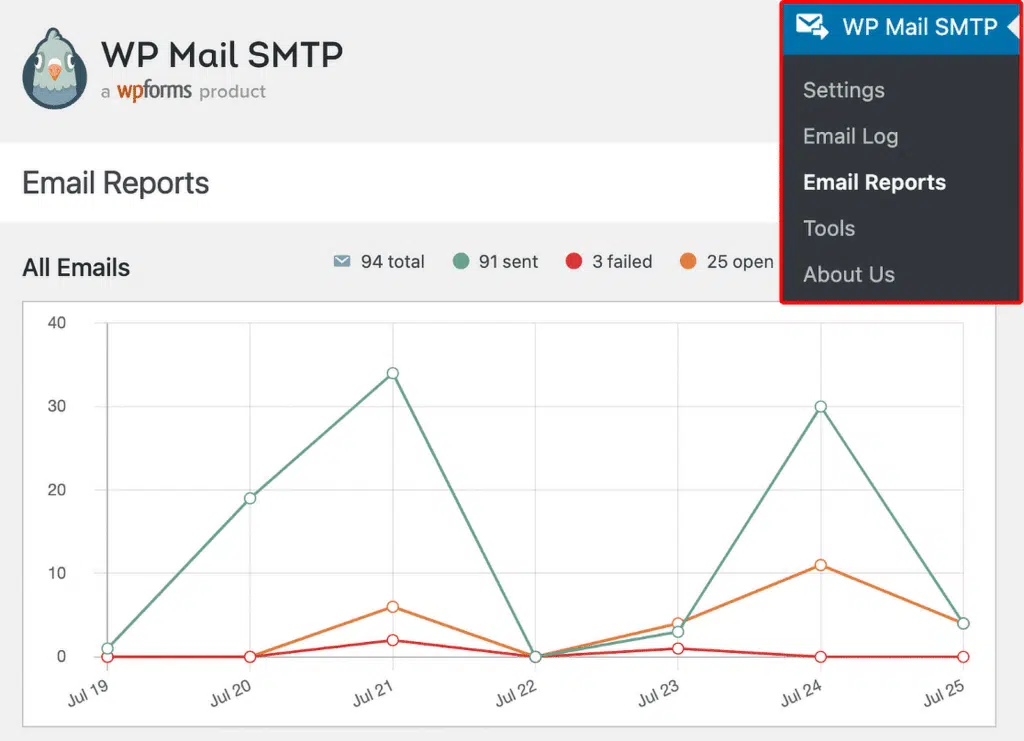
Individual bounces tell you about one address. Trends tell you about your setup. WP Mail SMTP Pro’s email reports chart your total, sent, failed, opened, and clicked emails over time, so a creeping bounce problem shows up as a rising Failed line rather than a customer complaint three weeks later. The weekly email summary sends the same numbers to your inbox, which means you’ll notice a bad week even if you never open the dashboard.
How to Fix Hard Bounces
Hard bounces have one universal rule: never send to that address again. Beyond the rule, here’s the checklist.
Remove Hard-Bounced Addresses Immediately
How to check: Your sending service’s dashboard lists hard bounces under bounces or suppressions. If you use a newsletter plugin or ESP for marketing email, it tracks hard bounces per contact. WP Mail SMTP Pro users can switch on the hard bounce alert and have each one pushed to them as it happens.
How to fix: Delete the address or mark it undeliverable everywhere it appears: your newsletter list, your WooCommerce customer record, your CRM. Most sending services suppress hard bounces automatically, but the address often survives in other tools, waiting to bounce again the next time a different system emails it.
Stop Bad Addresses at the Source
How to check: Look at where your hard bounces come from. If most bounced addresses arrived through a signup or checkout form, your forms are letting typos and fakes through.
How to fix: Turn on email validation in your form plugin so [email protected] gets caught at submission time. If you run WPForms, enable the email address validation and double opt-in features on your signup forms. Double opt-in means a subscriber has to click a confirmation link before joining your list, which makes a fake or mistyped address physically incapable of subscribing.
Verify Old Lists Before You Send to Them
How to check: Any list you haven’t emailed in six months or more should be treated as suspect. People change jobs and abandon mailboxes constantly; B2B lists in particular decay fast.
How to fix: Run the list through a verification service like NeverBounce, ZeroBounce, or Hunter.io before the send. These tools check each address against the receiving server without sending an email, and flag the dead ones for a fraction of the reputation cost of finding out the hard way.
If Everything Hard Bounces, the Problem Is You
How to check: A sudden spike of 550 5.7.1 or 554 rejections across many different recipients and domains means you’re being blocked, not that a hundred addresses died overnight.
How to fix: Check whether your domain or IP is on a blocklist using MXToolbox’s blacklist check. Our guide to checking if your sending domain is blacklisted walks through getting delisted. Then confirm your SPF, DKIM, and DMARC records are in place and passing.
How to Fix Soft Bounces
Soft bounces need a more patient approach, because many of them resolve on their own. Work through these in order.
Give It 72 Hours
How to check: Note when the soft bounce occurred and whether the same address has bounced before.
How to fix: Nothing, at first. Your sending server retries automatically, and a one-off soft bounce from a full mailbox or busy server usually delivers on a later attempt. If the message was time-sensitive and the retry window has passed, resend it manually (WP Mail SMTP Pro’s email log does this in one click).
Check Your Message Size
How to check: If bounces mention size, quota, or “message too large,” your email is the problem. This is common with WooCommerce receipts carrying large PDF invoices or notification emails with big attachments.
How to fix: Keep total message size, attachments included, under 10MB. Link to large files in cloud storage instead of attaching them, and compress images inside HTML templates.
Check Your Sending Reputation
How to check: Sign up for Google Postmaster Tools to see how Gmail rates your domain’s reputation, and Microsoft SNDS if you send heavily to Outlook addresses. Both are free, and our Postmaster Tools setup guide takes about ten minutes to follow. A “low” or “bad” domain reputation explains soft bounces that mention deferral or throttling.
How to fix: Reputation recovers through consistent, authenticated, low-complaint sending. Make sure SPF, DKIM, and DMARC pass, trim unengaged subscribers, and keep your volume steady rather than spiky. If you’re sending from a brand-new domain or IP, warm it up gradually over a few weeks instead of starting at full blast. Our guide to monitoring your sending reputation covers the warning signs to watch along the way.
Slow Down If You’re Being Rate Limited
How to check: Bounces with 421 codes or wording like “too many connections” or “try again later,” clustered around your biggest sends, point to rate limiting.
How to fix: Spread large sends over a longer window. WP Mail SMTP’s optimized sending and email rate limiting features queue outgoing mail and pace it automatically, so a burst of WooCommerce order emails or a big notification run doesn’t trip a provider’s limits.
Retire Persistent Soft Bouncers
How to check: Search your bounce records for addresses that have soft bounced three or more times in a row.
How to fix: Treat them as hard bounces and remove them. A mailbox that’s been full for two months is abandoned, and every additional attempt costs you a little reputation for zero chance of delivery.
How to Keep Your Bounce Rate Under 2%
Fixing bounces is good. Not generating them is better. Before your next campaign or your next site launch, run through this list:
- Validate addresses at the point of collection. Form-level email validation plus double opt-in on anything that feeds a mailing list.
- Clean your list on a schedule. Quarterly verification for active lists, and always before mailing a list that’s been dormant.
- Authenticate your domain. SPF, DKIM, and DMARC are mandatory for bulk senders at Gmail, Yahoo, and Outlook now, and they prevent the policy-block bounces that look like hard bounces.
- Send from a real email service, not your web host. Hosting servers share IPs with hundreds of strangers, and their reputation becomes your reputation. Routing through a dedicated provider like SendLayer (from $5/month) through the free WP Mail SMTP plugin puts proper infrastructure behind your mail.
- Watch the numbers weekly. A bounce problem caught at week one is a list-cleaning task. Caught at month three, it’s a reputation repair project.
Hard Bounce vs Soft Bounce FAQs
What’s an acceptable email bounce rate?
Keep it under 2%. Between 2% and 5% means your list needs cleaning and your collection forms need validation. Above 5%, pause your sending and fix the list before your reputation takes lasting damage. Transactional email from your website (receipts, password resets) should bounce far less than marketing email, because every address belongs to someone who interacted with your site recently. A high bounce rate on transactional email almost always points to fake form submissions or an authentication problem.
Do soft bounces eventually become hard bounces?
At most sending platforms, yes. If the same address soft bounces repeatedly across consecutive sends, the platform stops treating the failure as temporary and suppresses the address as if it had hard bounced. The exact threshold varies by provider. This automation protects your reputation, but it’s worth retiring persistent soft bouncers yourself rather than waiting for it.
Will a bounced email be sent again automatically?
Soft bounces, yes: mail servers retry on a schedule, typically for up to 72 hours, and most soft-bounced messages deliver on a retry without you doing anything. Hard bounces, no: the rejection is permanent, the message is returned immediately, and no system will retry it. If you believe a hard bounce was a mistake (the address definitely works), the message text in the bounce usually explains the real reason, which is frequently a reputation or authentication block on your side rather than a dead address.
How do I know if my email bounced?
If you send from a normal mailbox, the bounce notification arrives as a reply from “Mail Delivery Subsystem” or similar. If your WordPress site sends the email, there’s usually no notification you’ll ever see, because bounces go back to the sending address, not to you. To track bounces from a website, route your mail through a sending service and check its dashboard, or use WP Mail SMTP Pro’s email log and hard bounce alerts to watch delivery from inside WordPress.
Does a soft bounce hurt my sender reputation?
A one-off soft bounce does no meaningful harm. Temporary failures are a normal part of email; every sender has them. The reputational cost comes from patterns: repeatedly mailing full mailboxes, triggering rate limits on every campaign, or ignoring deferrals that point at an authentication problem. Monitor the trend, not the individual event.
Is a bounce the same as going to spam?
No, and the difference changes the fix. A bounced email was refused and never reached the recipient at all. An email in spam was accepted and delivered, just to the junk folder. Bounces are visible in bounce notifications and dashboards; spam placement is invisible unless recipients tell you or you test it with a tool like Mail-Tester. If people say they “never got” an email and you see no bounce, spam placement is the likelier culprit.
Next Steps: Get Full Visibility Into Your WordPress Emails
Bounces are fixable, but only if you can see them. A default WordPress site sends blind, with no bounce notifications and no warning when something breaks.
WP Mail SMTP fixes the visibility gap in two steps. First, it routes your email through a trusted sending provider, which immediately gives you that provider’s bounce tracking and puts real infrastructure behind your messages. Upgrading to Pro brings the monitoring into WordPress itself: an email log with per-message delivery statuses, one-click resend for failures, delivery trend reports, and alerts the moment an email fails to send or hard bounces on delivery.
Your customers notice missing order confirmations and password resets long before you do. Over 4 million websites already use WP Mail SMTP to make sure that doesn’t happen.
Next, would you like to dig into the causes behind bounced email? Our guide to why email bounces happen covers the full list, including the DNS and authentication issues this post only touched on.
Ready to fix your emails? Get started today with the best WordPress SMTP plugin. If you don’t have the time to fix your emails, you can get full White Glove Setup assistance as an extra purchase, and there’s a 14-day money-back guarantee for all paid plans.
If this article helped you out, please follow us on Facebook and Twitter for more WordPress tips and tutorials.
