


AI Summary
If you run a small business, you already know the feeling. You check your inbox first thing in the morning, and before you’ve even had your coffee, you’re buried in emails. Order confirmations, customer questions, follow-ups you forgot to send, form submissions you need to respond to… the list never ends.
But most of those emails don’t actually need you to write them. The right automation setup can handle the repetitive stuff while you focus on the parts of your business that actually need a human touch.
In this guide, I’ll walk through the different levels of email automation, from the basics you should set up today, all the way to AI tools that can draft and send emails on your behalf. You don’t need to do all of this at once. Think of it as a menu: pick what makes sense for where your business is right now, and layer on more as you grow.
First Things First: Make Sure Your Emails Actually Get Delivered
Before you automate anything, you need to make sure the emails your site sends are actually reaching people’s inboxes.
By default, WordPress uses PHP’s built-in mail function to send emails. The problem? Most hosting providers don’t properly support it. That means your password reset emails, form notifications, and order confirmations might be landing in spam or even not arriving at all.
This is the kind of problem that can cost you customers without you even realizing it.
The fix is straightforward: use an SMTP plugin like WP Mail SMTP to route your emails through a proper email service. Once you connect it to a provider like SendLayer, your emails get authenticated with SPF and DKIM records, which tells inbox providers like Gmail and Outlook that your messages are legitimate.
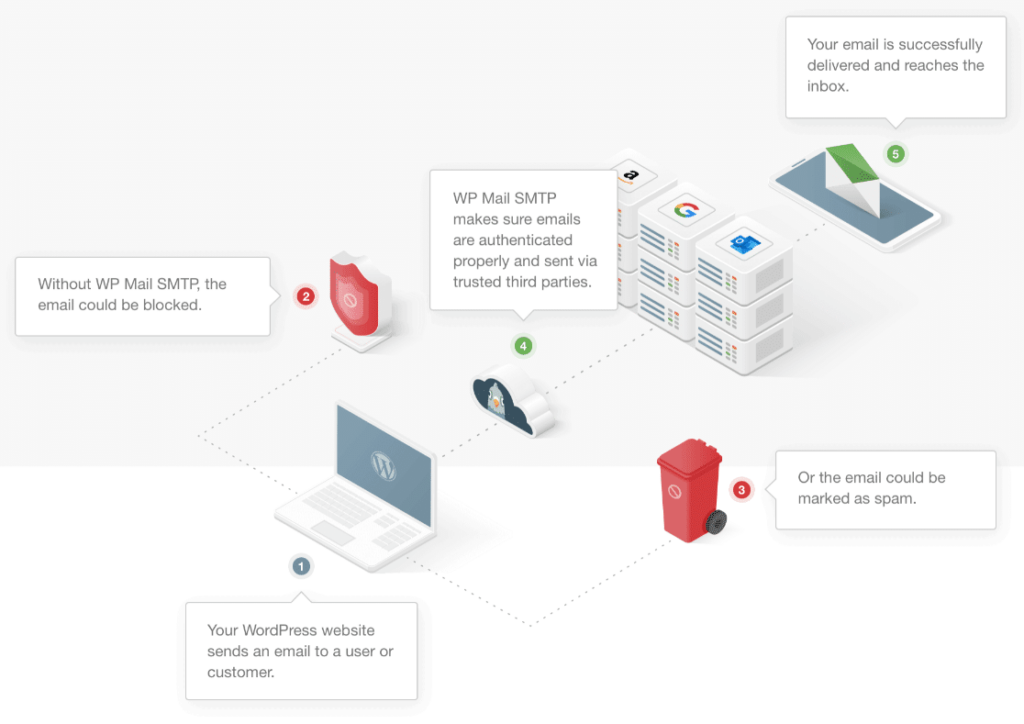
It takes about 10 minutes to set up, and it’s the single most important thing you can do for your email deliverability. Everything else in this guide builds on this foundation — if your emails aren’t getting delivered, automating them won’t help.
Read more: How to Set Up WP Mail SMTP
1. Automate Your Transactional Emails
Transactional emails are the messages your site sends automatically when someone takes an action: things like order confirmations, shipping updates, password resets, and form submission notifications.
These emails might not feel like “marketing,” but they’re often the first interaction a customer has with your business after making a purchase or signing up. If they look unprofessional or, worse, don’t show up at all, it erodes trust fast.
Here’s what you should have running automatically:
- Order and payment confirmations — If you’re using WooCommerce, these are built in, but make sure they’re actually getting delivered (see the section above).
- Form submission notifications — When someone fills out a contact form, they should get an instant confirmation, and you should get notified.
- Account and password emails — These need to arrive immediately. A customer waiting 20 minutes for a password reset email is a customer who’s about to give up.
- Shipping and delivery updates — If you sell physical products, automated tracking emails keep customers informed without you having to send individual messages.
Most of these are already baked into plugins like WPForms and WooCommerce. The key is making sure they’re reliable and look professional, which is where WP Mail SMTP and a good transactional email provider come in.
Read more: Best Transactional Email Providers for WordPress
2. Set Up Welcome Sequences and Drip Campaigns
Once your transactional emails are solid, the next level is automating your marketing emails.
The easiest place to start is a welcome sequence. Someone signs up for your newsletter or creates an account, and instead of silence, they get a series of emails over the next few days introducing your business, sharing your best content, or offering a first-purchase discount.
This kind of automation is incredibly effective because it reaches people at exactly the moment they’re most interested in what you do. And once you’ve written the emails and set up the sequence, it runs on autopilot.
Here’s what a simple welcome sequence might look like:
- Email 1 (immediately): Thanks for signing up, here’s what to expect.
- Email 2 (day 2): Here’s our most popular resource/product/guide.
- Email 3 (day 5): A customer story or testimonial.
- Email 4 (day 7): A special offer or clear next step.
Platforms like Constant Contact, Drip, and Brevo all make this easy to set up, and they integrate directly with form plugins like WPForms so new subscribers are added to your list automatically.
Beyond welcome sequences, you can set up drip campaigns for all kinds of scenarios: onboarding new customers, re-engaging people who haven’t purchased in a while, or nurturing leads over time.
Read more: How to Send Automated Email in WordPress
3. Use Triggered Emails Based on Customer Behavior
This is where automation starts to feel like a superpower.
Triggered emails are sent based on specific actions (or inactions) a customer takes on your site. Unlike drip campaigns, which follow a set schedule, triggered emails respond to behavior in real time.
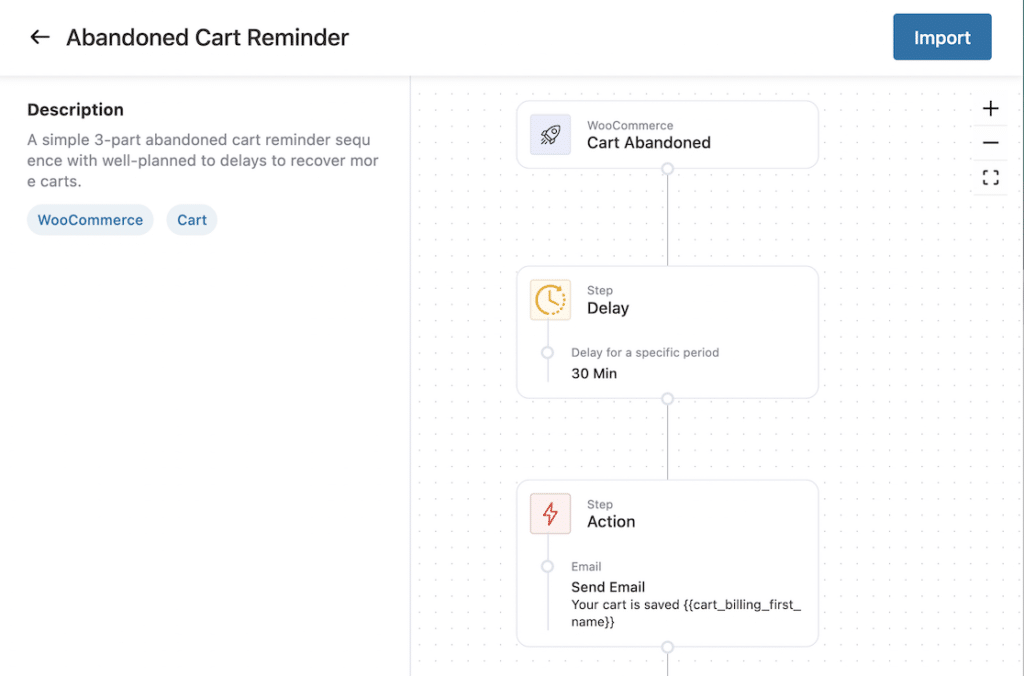
Some of the most effective triggered emails for small businesses include:
- Abandoned cart emails — Someone adds items to their cart and leaves without checking out. An automated reminder email (especially one with a small discount) can recover a surprising number of those sales. WooCommerce plugins like AutomateWoo and Retainful handle this well.
- Post-purchase follow-ups — A few days after a customer receives their order, send an automated email asking for a review or suggesting complementary products.
- Re-engagement emails — If a subscriber hasn’t opened your emails in 90 days, trigger a “we miss you” email or a special offer to bring them back.
- Browse abandonment — Someone viewed a product page three times but didn’t buy? That’s a signal worth acting on.
The data consistently shows that triggered emails outperform batch-and-blast campaigns because they’re relevant and timely. They reach people at the exact moment they’re thinking about your business.
4. Connect Your WordPress Site to Your Other Tools
Most small businesses use a handful of tools to run their operations such as a CRM, a project management app, maybe Slack or Teams for internal communication. Email automation gets even more powerful when you connect these tools together.
For example, you could set up workflows like:
- When a high-value form submission comes in, send a Slack notification to your sales team AND add the contact to your CRM.
- When WP Mail SMTP detects a failed email, automatically create a task in your project management tool.
- When someone opens an email with “canceled” in the subject line, notify your customer success team immediately.
Tools like Uncanny Automator make this possible without code. It connects your WordPress site to over 185 apps and services, so you can build custom workflows that match how your business actually operates.

WP Mail SMTP also has built-in email failure alerts for Slack, Discord, Microsoft Teams, SMS, and webhooks, so you can stay on top of email delivery without constantly checking a dashboard.
Read more: How to Create an Automated Email Workflow in WordPress
5. Use AI to Write Your Emails Faster
By now, you’ve automated the sending. But what about the writing?
This is where AI tools have made a real difference for small business owners. Instead of staring at a blank screen trying to write a follow-up email or a promotional campaign, you can use AI to generate a strong first draft in seconds.

There are a few ways to use AI for email writing:
- AI subject line generators — Tools that analyze patterns from high-performing emails to suggest subject lines that get higher open rates.
- AI writing assistants — Tools like Claude and ChatGPT can draft full emails based on a brief description of what you need. Tell it your audience, the goal, and the tone, and you’ll have a starting point you can refine.
- Built-in AI features — Many email marketing platforms now include AI-powered writing tools directly in their editors, so you can generate and tweak copy without switching apps.
The key with AI-written emails is to use the output as a starting point, not a finished product. Add your own voice, check for accuracy, and make sure it sounds like something you’d actually say. The best AI-assisted emails are the ones your customers can’t tell were AI-assisted.
Read more: Best AI Tools for Writing Better Emails
6. Send Emails Directly From AI With MCP Servers
Here’s where things get really interesting (and where email automation is heading next.)
Up until now, even with AI helping you write emails, there’s still a manual step. The AI writes the email, you copy it, you paste it into your email tool, and you hit send. It works, but it’s still a bit clunky.
MCP (Model Context Protocol) servers change that. An MCP server acts as a bridge between an AI assistant and an external service, letting the AI actually do things in the real world, not just generate text. And one of the most practical applications? Sending emails.
How It Works
SendLayer has released an MCP server that connects directly to AI tools like Claude and Cursor. Once it’s set up, you can simply tell the AI to send an email, and it does everything from composing the message to delivering it through SendLayer’s authenticated infrastructure.
For example, you could:
- Tell Claude, “Send a follow-up email to [email protected] thanking her for today’s meeting and summarizing the three action items we discussed.”
- Ask Cursor to “Email this report to the team with a summary of the key findings.”
- Process a batch of customer data and have the AI send personalized responses to each person.
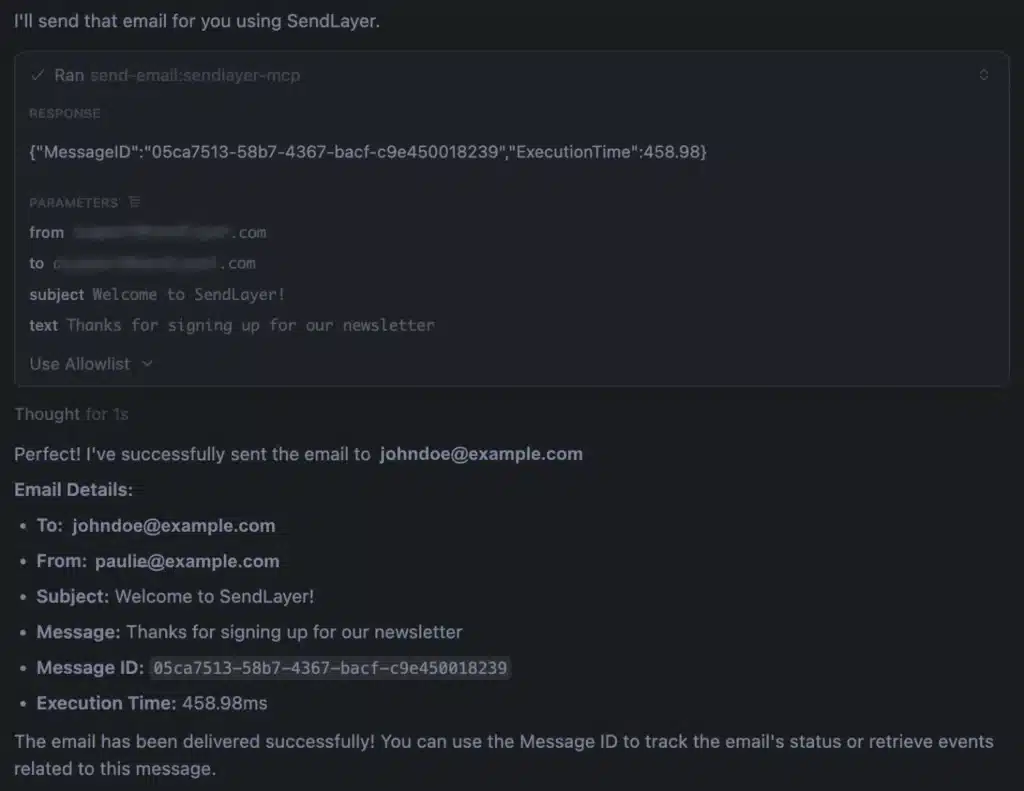
The AI handles the writing and the sending. Your emails still go through SendLayer’s SMTP infrastructure, so they get the same authentication and deliverability benefits you’d get sending them any other way.
Who Is This For?
Right now, MCP servers are best suited for small business owners who are comfortable with a bit of technical setup. You’ll need to install the server locally, connect it with your SendLayer API key, and configure it with your AI tool of choice.
It’s not quite “click a button and go” yet, but it’s remarkably simple compared to what this kind of AI integration used to require. And if you’re already using AI tools like Claude or Cursor in your daily work, adding email sending to the mix is a natural next step.
This is still early days for this technology, but the direction is clear. Instead of just helping you with writing, AI can manage the entire workflow from composition to delivery.
Get started: How to Send Emails from Cursor With SendLayer MCP
Start Where You Are
You don’t need to implement all six levels of email automation overnight. In fact, trying to do everything at once is a great way to get overwhelmed and do none of it.
Here’s a practical way to think about it:
If you haven’t done anything yet, start with level 0. Get WP Mail SMTP set up with a proper email provider, and make sure your transactional emails are actually reaching people. This alone can make a meaningful difference in your customer experience.
If your basics are covered, look at welcome sequences and triggered emails. These are high-impact, set-it-and-forget-it automations that can directly boost your revenue.
If you’re already automating, explore the AI-powered options. Using AI to draft emails saves real time, and MCP servers represent the next frontier of what’s possible.
The whole point of automation is to get time back. Every email you don’t have to manually write, send, or follow up on is time you can spend on the parts of your business that only you can do.
Next, Learn How To Protect Yourself From AI-Powered Phishing
While AI and and automation have made sending emails much quicker, easier, and more convenient for small businesses, they have also made it possible for criminals to access more sophisticated methods of email scams.
Learn more about the risks of phishing emails, why AI has made them more dangerous, and how you can protect yourself and your business in our guide to preventing AI phishing with email authentication.
Ready to fix your emails? Get started today with the best WordPress SMTP plugin. If you don’t have the time to fix your emails, you can get full White Glove Setup assistance as an extra purchase, and there’s a 14-day money-back guarantee for all paid plans.
If this article helped you out, please follow us on Facebook and Twitter for more WordPress tips and tutorials.
