


AI Summary
Would you like to analyze and monitor your site’s email logs directly from AI assistants like Claude or ChatGPT? AI email monitoring lets you check your WordPress email logs, sending stats, and send errors by chatting with an AI assistant.
You simply connect a tool like Claude, ChatGPT, or Cursor to your site and ask questions in plain English. There are no exports, no spreadsheets, and no code to write.
Most site owners only spot an email problem after a customer complains. A receipt never arrives, a password reset goes missing, and you’re left digging through logs by hand. WP Mail SMTP changes that with a read-only AI connection to your email data.
In this post, you’ll learn seven practical ways to put AI to work on your WordPress email. Each one is a prompt you can copy, paste, and run today.
- How Does AI Email Monitoring Work in WordPress?
- What Are the Best AI Email Monitoring Use Cases?
- 1. "Why did my last password-reset email fail?"
- 2. "Show me every email that bounced this week."
- 3. "Which plugin sends the most email on my site?"
- 4. "What's my email success rate this month?"
- 5. "Explain this SMTP debug error in plain English."
- 6. "Did my order-confirmation emails reach the inbox?"
- 7. "Break down my sending stats by mailer."
- How to Set Up AI Email Monitoring
What Can AI Assistants Do With WP Mail SMTP?
A connected AI assistant can read three things from your site: your email logs, your sending stats, and your debug events. Access is read-only, so the AI answers questions but never changes a setting or sends mail.
That read-only design is the whole point. Your assistant reviews what happened, then explains it in plain language. It can’t touch your configuration or your inbox.
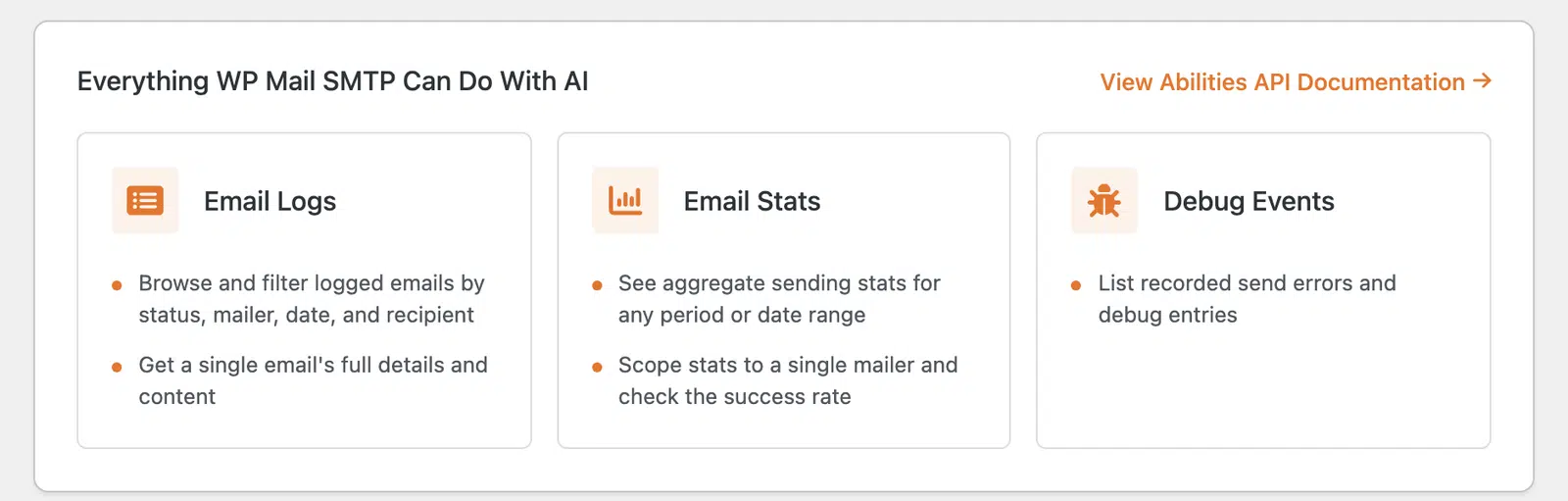
Here’s what each data source covers:
- Email logs: every email your site sent, with status, mailer, date, and recipient.
- Sending stats: aggregate success rates, totals, and trends over any date range.
- Debug events: recorded send errors and technical details behind failures.
Here’s how that maps to real questions:
| Use case | Example prompt | What the AI reads |
|---|---|---|
| Debug a failed send | “Why did this email fail?” | Email log + debug events |
| Spot bounces | “Show me bounces this week.” | Email log |
| Find your top sender | “Which plugin sends the most mail?” | Email log |
| Check success rate | “What’s my success rate this month?” | Sending stats |
| Decode an error | “Explain this SMTP error.” | Debug events |
How Does AI Email Monitoring Work in WordPress?
AI email monitoring works via a standard that allows AI tools to securely read data from your site. WordPress 6.9 introduced the Abilities API in December 2025. WP Mail SMTP uses it to securely expose your email data.
The connection runs through a few simple pieces:
- WP Mail SMTP 4.9+ registers read-only abilities for your logs, stats, and debug events.
- WPVibe, a free connector plugin, handles the secure link to your site.
- A remote MCP server lets your AI client discover and call those abilities.
- Your AI assistant (Claude, ChatGPT, Cursor, and others) asks the questions.

WordPress.org recommends read-only abilities for any AI-connected endpoint, and WP Mail SMTP follows that guidance exactly. You sign in with a magic link, so you never share a password or site credentials with your AI tool.
Setup takes a few minutes. We cover the full walkthrough in the guide to using WP Mail SMTP with AI assistants, so this post focuses on what to do once you’re connected.
What Are the Best AI Email Monitoring Use Cases?
The best use cases turn a slow manual task into a single question. Below are 7 prompts to try, grouped by the data they read. Copy any of them into your connected AI tool and adjust the details to fit your site.
1. “Why did my last password-reset email fail?”
Use this prompt if you’d like to pinpoint one failed send and get the cause in plain words. The AI pulls the email from your log, reads the matching debug event, and explains what went wrong.
Instead of scrolling through entries, you get a plain answer. For example, the send failed because the mailer’s API key expired. That’s the fastest way to fix a broken reset flow.
2. “Show me every email that bounced this week.”
Run this for a fast list of recent bounces you can act on. The AI filters your email log by status and date, then returns the recipients who failed.
Bounces hurt your sender reputation when they pile up. Knowing your soft and hard bounces early helps you clean your list before deliverability drops.
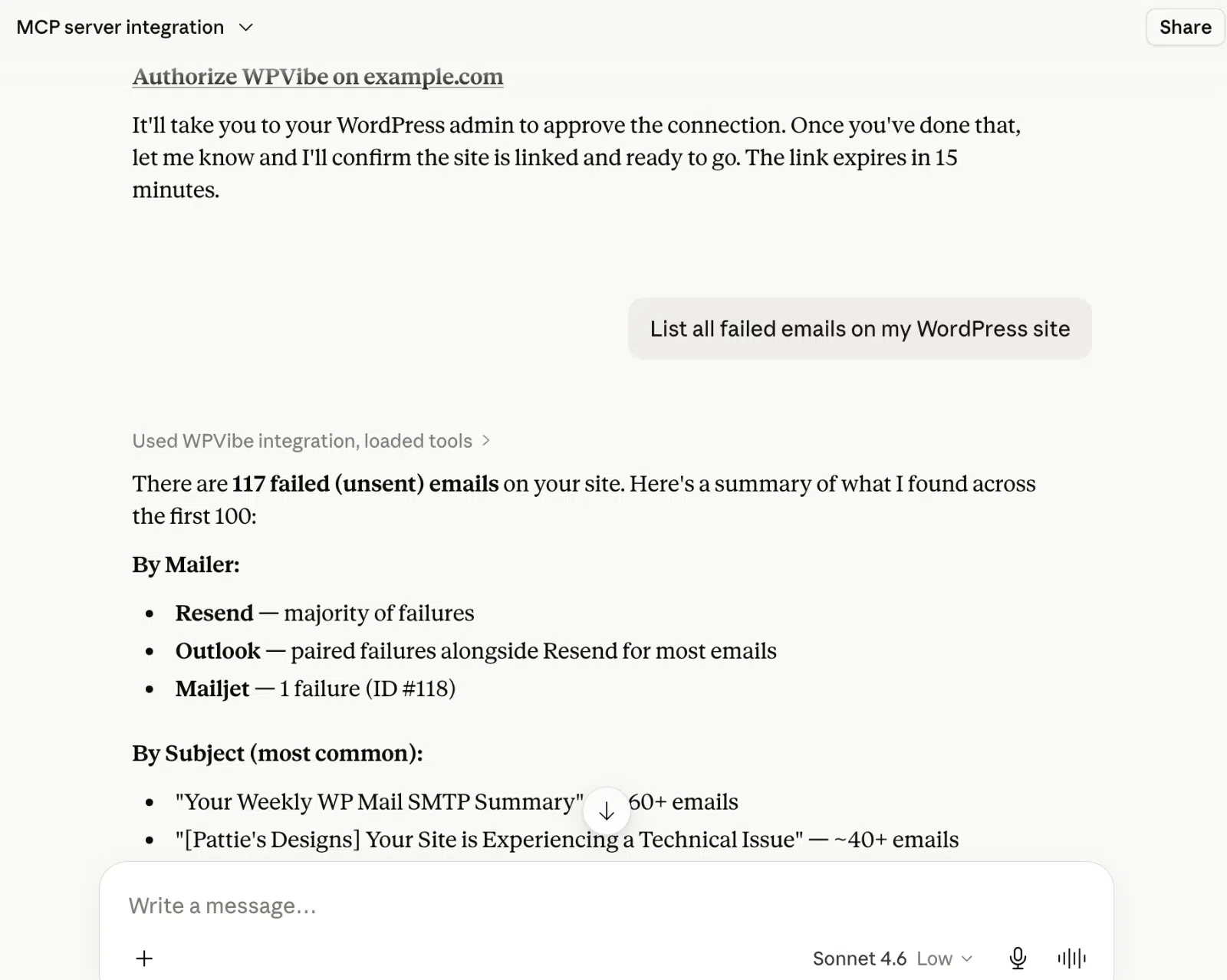
3. “Which plugin sends the most email on my site?”
Use this to find the source driving your sending volume. The AI groups your email log by sender and ranks the results.
It’s useful when your volume spikes and you’re not sure why. You might find a form plugin or WooCommerce sending far more than expected.
4. “What’s my email success rate this month?”
Ask this for your deliverability health in a single number. The AI reads your sending stats and returns the rate for the period you name.
Ask it monthly to track trends. A steady drop is an early warning that something needs attention. If it slips, test your email deliverability to find the cause.
5. “Explain this SMTP debug error in plain English.”
Paste an error and the AI describes the cause in language you can act on. It reads the debug event behind the failure, then names the likely fix.
Authentication errors and connection timeouts are common culprits. Your assistant can name the likely fix without you searching forums.
6. “Did my order-confirmation emails reach the inbox?”
Use this to confirm that key transactional emails actually sent. The AI filters your log for those messages and reports their status.
Order confirmations and receipts matter most to customers. For stores, it pairs well with a habit to test your WooCommerce emails before a sale.
7. “Break down my sending stats by mailer.”
Run this to compare performance across your connected mailers. The AI scopes your sending stats to each mailer and shows them side by side.
If you use more than one mailer, this reveals which performs best. You can then route more of your mail through your strongest sender.
Is It Safe to Let AI Read Your Email Data?
Yes, because the WP Mail SMTP abilities are read-only by design. A connected assistant reviews your logs, stats, and debug events, but it can’t send email, delete data, or change your settings.
A few details make it safe:
- No shared credentials. You sign in with a magic link, not a password.
- Permission inheritance. The AI only sees what your user account can see.
- Admin revocation. You can disconnect the assistant at any time.
You stay in control of the connection. The AI is a reader, not an operator.
How to Set Up AI Email Monitoring
Setup takes about 5 minutes from your WordPress dashboard. Here’s the short version:
- Go to WP Mail SMTP » Tools, then open the AI MCP tab.
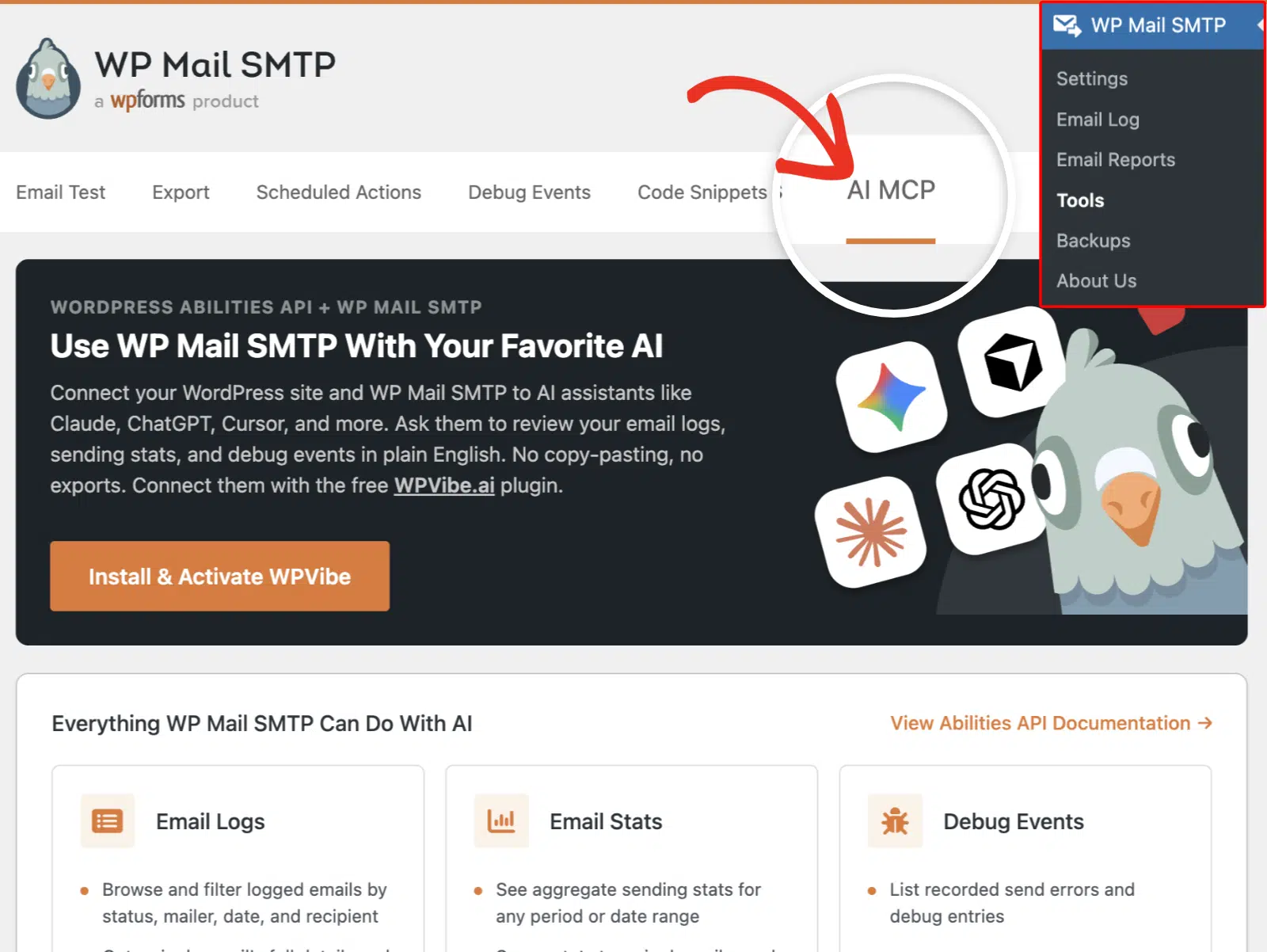
- Click Install & Activate WPVibe to add the connector plugin.
- Open Vibe AI and copy your MCP server URL.
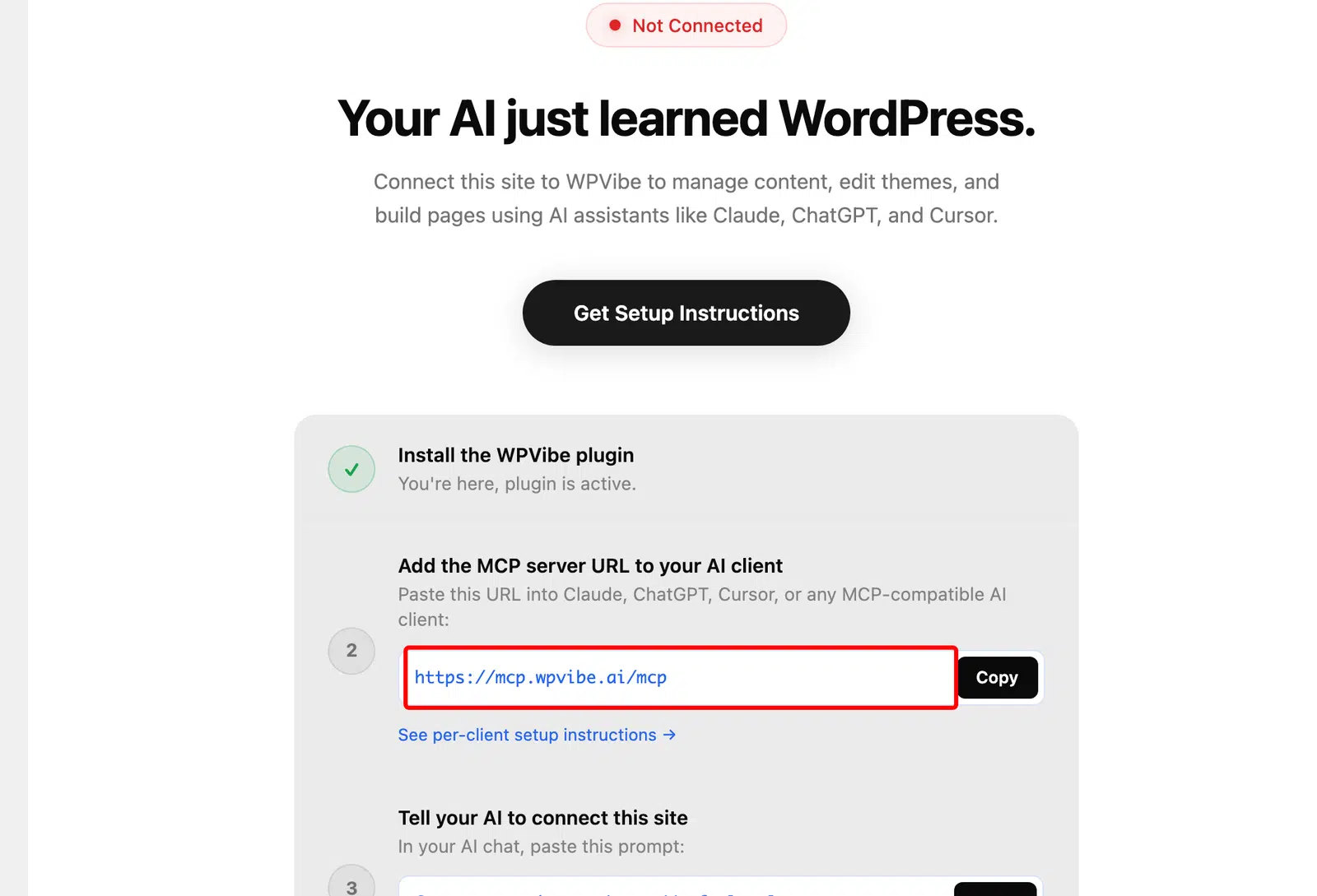
- Add that URL to your AI tool as a custom connector.
- Tell your assistant to connect your site, then approve the link.
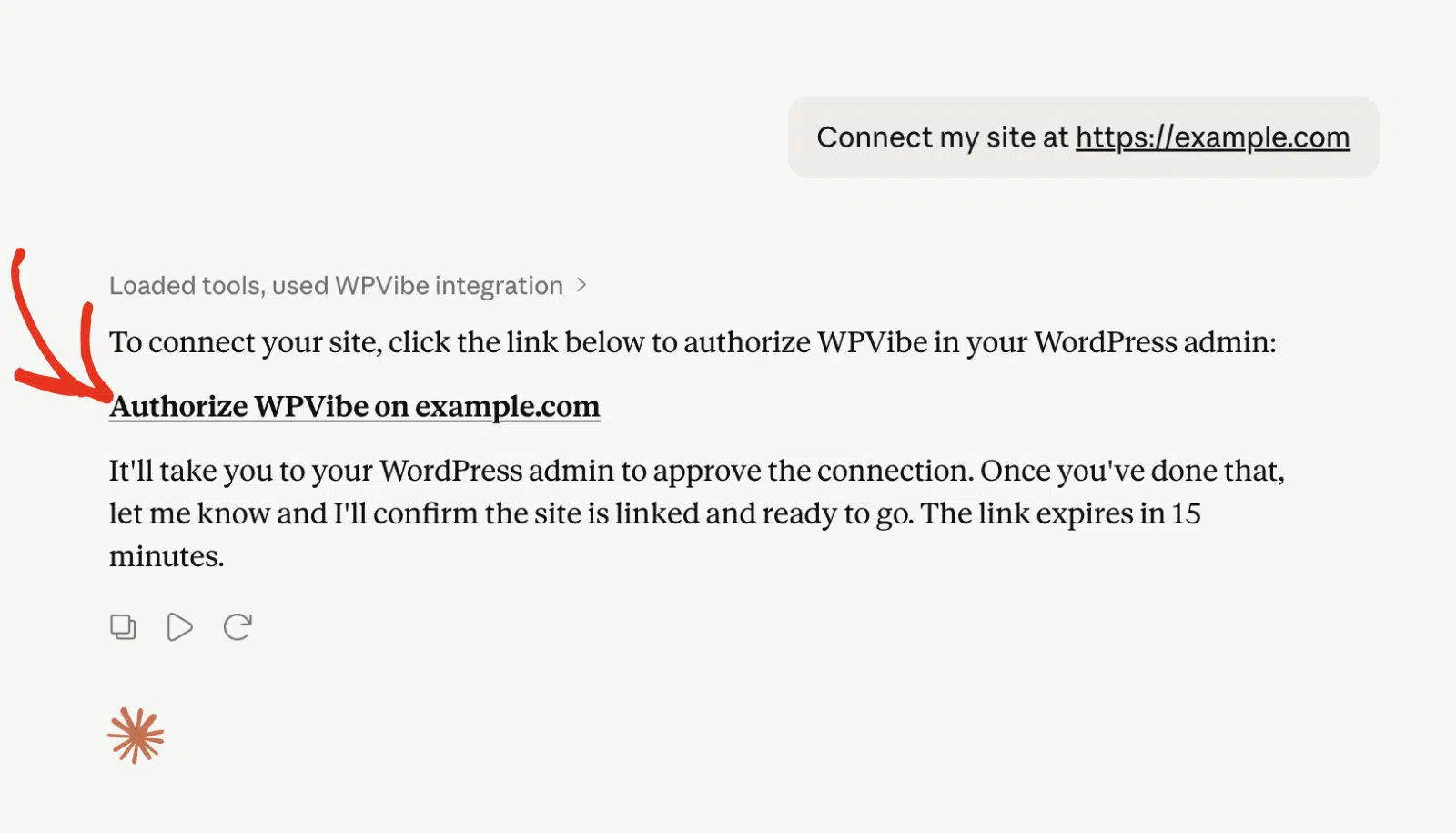
Once you see the Connected label, ask a test question like “What mailer is my site using?” If it answers with your details, you’re ready.
FAQs – AI Email Monitoring in WordPress
Can AI change my settings or send emails through WP Mail SMTP?
No. The WP Mail SMTP abilities are read-only. A connected assistant reviews your email logs, sending stats, and debug events. It can’t change settings or send email on your behalf.
Is it safe to give an AI assistant access to my email data?
Yes. You sign in with a magic link, so no passwords are shared. The AI only sees what your user account can access, and you can revoke the connection at any time.
Do I need WordPress 6.9 and WP Mail SMTP 4.9?
Yes. The AI MCP feature needs WordPress 6.9 or later and WP Mail SMTP 4.9 or later. Update both, then check WP Mail SMTP » Tools for the AI MCP tab.
Which AI assistants can I connect to?
Any assistant that supports custom MCP servers works. That includes Claude, ChatGPT, Gemini, and Cursor.
Does AI email monitoring require WP Mail SMTP Pro?
The email log and sending stats are read from WP Mail SMTP’s Email Log and Reports. Those features are part of WP Mail SMTP Pro.
Next, Understand Email Deliverability
You now have 7 practical ways to monitor your WordPress email with AI, from debugging a failed send to tracking your success rate. Each one replaces manual log digging with a simple question.
Next, brush up on email deliverability so you know exactly what your assistant’s stats and bounce reports are telling you.
Ready to fix your emails? Get started today with the best WordPress SMTP plugin. If you don’t have the time to fix your emails, you can get full White Glove Setup assistance as an extra purchase, and there’s a 14-day money-back guarantee for all paid plans.
If this article helped you out, please follow us on Facebook and Twitter for more WordPress tips and tutorials.
