


AI Summary
If you’ve noticed that some of your WordPress emails aren’t getting through to Gmail addresses lately, there’s a likely explanation. We’ve been hearing from a lot of users about this, and there’s a very specific reason it’s happening.
In November 2025, Gmail started enforcing its bulk sender requirements much more aggressively. Emails that don’t meet their authentication standards are no longer just ending up in spam. They’re being rejected at the server level, which means they never reach the recipient at all.
The good news is that this is very fixable once you know what Gmail expects. In this article, I’ll walk you through what the requirements are, what’s changed recently, and exactly how to make sure your WordPress site’s emails stay compliant.
- What are Gmail's bulk sender requirements?
- What changed in 2025 and 2026?
- Who counts as a bulk sender?
- Requirements for all email senders
- Additional requirements for bulk senders
- How WordPress emails are affected by Gmail's Sender Requirements
- How to check if you're compliant
- How to get your WordPress emails compliant
- Gmail error codes and what they mean
- Frequently asked questions
- Next, make your emails easier to find in the inbox
What are Gmail’s bulk sender requirements?
Back in October 2023, Google and Yahoo both announced a new set of rules for email senders. The goal was to cut down on spam, phishing, and spoofed emails by requiring senders to prove they’re legitimate. You can read the full requirements on Google’s Email sender guidelines page, but here’s the summary:
- Authentication: You need to prove that you’re authorized to send email from your domain, using protocols called SPF, DKIM, and DMARC (more on those in a minute).
- Infrastructure: Your email setup needs to meet certain technical standards, like using encrypted connections and having valid DNS records.
- Recipient experience: You need to keep your spam complaint rate low, make it easy for people to unsubscribe, and actually process those unsubscribe requests within 48 hours.
If you don’t meet these requirements, your emails to Gmail addresses will either land in spam or get rejected entirely.
It’s also worth knowing that Microsoft introduced very similar rules for Outlook, Hotmail, and Live accounts in May 2025. So these aren’t just Gmail’s rules anymore. They’re becoming the standard everywhere.
What changed in 2025 and 2026?
Here’s a quick timeline of how things have progressed since Gmail first announced changes to sender requirements:
| Date | What happened |
|---|---|
| October 2023 | Google and Yahoo announce new sender requirements |
| February 2024 | Gmail begins soft enforcement with temporary delays for non-compliant emails |
| March 2024 | Google launches Postmaster Tools v2 with a new compliance dashboard |
| April 2024 | Gmail starts rejecting some non-compliant traffic |
| June 2024 | One-click unsubscribe deadline kicks in |
| May 2025 | Microsoft begins enforcing its own bulk sender requirements for Outlook, Hotmail, and Live |
| September 2025 | Google retires Postmaster Tools v1; v2 becomes the only interface. French provider La Poste also tightens its authentication standards |
| November 2025 | Gmail moves to full enforcement with permanent rejections |
| April 2026 | Microsoft’s hard rejection deadline for non-compliant bulk email to Outlook, Hotmail, and Live |
The big change in November 2025 was the shift from temporary errors to permanent ones. Before that, if your email didn’t meet the requirements, Gmail would send back a temporary 421 error code, which basically means “try again later.” Now, Gmail is sending back permanent 550 rejection codes, which means the email is refused outright and won’t be retried.
Google also retired the old version of Postmaster Tools. If you were used to checking the color-coded reputation bars (High, Medium, Low, Bad), those are gone. The new Postmaster Tools v2 uses a pass/fail compliance model instead. It’s simpler to read, and it makes it very clear which specific requirements you’re meeting and which ones you’re not.
We have a step-by-step guide on how to set up Google Postmaster Tools if you’d like to get that running for your domain.
Who counts as a bulk sender?
Gmail defines a bulk sender as anyone who sends around 5,000 or more messages to personal Gmail accounts (@gmail.com or @googlemail.com) in a 24-hour period. All messages sent from the same primary domain count toward that total.
There are a couple of things about this definition that catch people off guard.
The first is that the classification is permanent. Once your domain crosses the 5,000 threshold, even just once, Gmail treats you as a bulk sender from that point on. So if you had a big product launch or a WooCommerce sale that generated thousands of order confirmations in a single day, that’s enough to put you in the bulk sender category permanently.
The second is that even if you’ve never come close to 5,000, you’re still affected. Gmail requires all senders to meet certain baseline standards (I’ll cover those in the next section). The bulk sender label just means you have additional requirements on top.
It’s also worth knowing that if you’re sending from a new domain (one that hasn’t sent more than 5,000 emails per day to Gmail since January 1, 2024), Google applies enforcement on an accelerated timeline. So new sites and new domains don’t get the same ramp-up period that established senders had.
Something else worth mentioning: the 5,000 count includes every type of email your domain sends. That’s transactional emails like order receipts and password resets, as well as marketing emails and newsletters. A lot of site owners are surprised by how many emails their site is actually generating once they start tracking it. If you have WP Mail SMTP Pro, the email log is a really easy way to see exactly what’s going out.
Requirements for all email senders
These are the baseline requirements that apply to everyone, regardless of how many emails you send.
Set up SPF or DKIM email authentication
If you’re not familiar with these, here’s a quick explanation.
SPF (Sender Policy Framework) is a DNS record that lists which servers are allowed to send email on behalf of your domain. When Gmail receives an email claiming to be from your domain, it checks the SPF record to see if the sending server is on the list.
DKIM (DomainKeys Identified Mail) works differently. It adds a digital signature to each email so the receiving server can verify that the email actually came from your domain and wasn’t changed along the way.
At a minimum, Gmail requires that you have at least one of these in place. (Bulk senders need both, which I’ll cover below.)
If you’re not sure whether your domain has these set up, you can check using MXToolbox. We also cover SPF and DKIM setup in our mailer guides, like this one for setting up the SendLayer mailer.
Keep your spam rate below 0.3%
This one is measured by how many Gmail users manually click the “Report Spam” button on your emails. Google’s official ceiling is 0.3%, but in practice, 0.1% is the target you should be aiming for. Multiple sources reporting on 2026 enforcement have noted that Gmail is treating 0.1% as the line where stable senders need to stay, not just an aspirational goal.

If you stay above 0.3% for too long, your deliverability will take a serious hit. Google may even restrict your access to their mitigation and support channels, and you’ll need to stay below 0.3% for 7 consecutive days before they’ll re-enable it.
We have a whole article on understanding spam rate thresholds if you want to dig into this more.
Use a TLS connection
All email connections to Gmail need to be encrypted using TLS. If you’re sending through any of the mailers that WP Mail SMTP supports, this is handled for you automatically.
Have valid forward and reverse DNS records
The IP address you send email from needs to have valid PTR (reverse DNS) records. If you use an email service like SendLayer, Brevo, or Mailgun, they take care of this. It’s mainly something to think about if you’re running your own mail server.
Format messages correctly
Your email headers need to follow the Internet Message Format standard (RFC 5322). In practice, any modern email service or SMTP plugin does this automatically, so it’s unlikely to be an issue for you.
Don’t impersonate Gmail
You can’t send emails with a @gmail.com From address unless you’re actually sending through Gmail’s servers. Gmail enforces a DMARC quarantine policy on its own domain now, so trying this will get your emails blocked.
Use clear and accurate display names
This is a newer addition to the guidelines. Google now requires that your sender display name accurately reflects who you are. It should identify the sender, not include subject lines or message content, and shouldn’t be misleading. For example, using your company name as the display name is fine. Using something like “URGENT: Your Account” as a display name is not.
Additional requirements for bulk senders
If you’ve ever sent 5,000+ emails in a day to Gmail accounts, these extra requirements apply to you on top of everything above.
Set up both SPF and DKIM
For bulk senders, having just one of these isn’t enough. You need both SPF and DKIM configured and passing.
Publish a DMARC record
DMARC (Domain-based Message Authentication, Reporting, and Conformance) builds on SPF and DKIM. It tells receiving servers what to do when an email fails authentication checks, and it gives you reporting so you can see when things go wrong.
Gmail requires a DMARC record with a policy of at least p=none. That said, p=none only collects reports. It doesn’t actually instruct Gmail to do anything with failed messages. As more providers tighten their requirements (Microsoft has already hinted at making stricter policies mandatory), moving to p=quarantine or p=reject is a smart idea for the long term.
Your From address also needs to align with either your SPF or DKIM domain. If there’s a mismatch, DMARC will fail even if SPF and DKIM both pass individually. This is one of the trickier issues to troubleshoot, and it’s where the 421-4.7.32 error code usually comes from.
If you run a WooCommerce store, there’s another reason to take DMARC seriously: PCI DSS v4.0, which is now active in 2026, requires DMARC for any organization handling credit card data. So if you process payments through your site, DMARC isn’t just about email deliverability anymore. It’s a compliance requirement.
Support one-click unsubscribe
All marketing and promotional emails need to include List-Unsubscribe and List-Unsubscribe-Post headers. These are what power the “Unsubscribe” button that Gmail shows at the top of marketing emails, right next to the sender name.
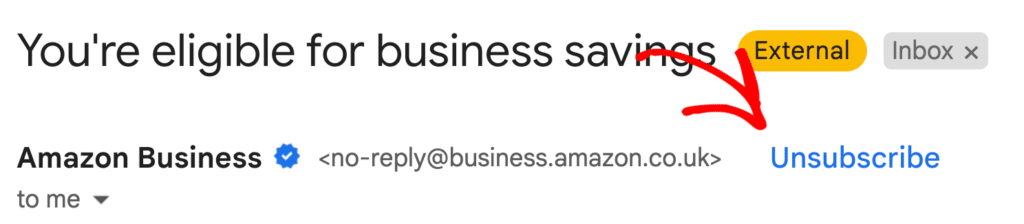
This is a header-level thing that your email service needs to support. It’s different from the unsubscribe link you put in the footer of your email (although you need that too). Most reputable email marketing platforms like Mailchimp, Brevo, and Drip handle this for you. But if you’re sending marketing emails directly from your WordPress site without going through a marketing platform, it’s worth checking.
Honor unsubscribes within 48 hours
When someone clicks unsubscribe, you need to stop emailing them within 2 days. Ideally it should be instant. If your system processes unsubscribes on a weekly batch, you’ll run into problems.
How WordPress emails are affected by Gmail’s Sender Requirements
Most web servers and CMS platforms (including WordPress) use PHP’s built-in mail function to send email. It gets the job done in terms of actually generating and sending the message, but it doesn’t include the email authentication that Gmail now requires. There’s no SPF alignment and no DKIM signature in the mix.
For a long time, this didn’t matter much. Emails sent this way would usually get through, even without authentication. But with Gmail and Microsoft now actively rejecting unauthenticated messages, the basic PHP mail function just isn’t sufficient.
There’s also the shared hosting factor. If your site is on shared hosting, your emails are sent from the same IP address as every other site on that server. If any of those sites have been flagged for spam, it can drag down the reputation of the whole IP, including your emails.
On top of that, without email logging you have no visibility into whether your emails are actually arriving. If an order confirmation or contact form notification gets rejected, there’s no error message in your WordPress dashboard. It just fails, and you won’t know about it unless someone reaches out to tell you.
This is exactly the kind of thing WP Mail SMTP is designed to handle. It routes your site’s emails through a proper email service with full SPF and DKIM authentication, and it gives you email logging so you can actually see what’s being delivered and what isn’t.
How to check if you’re compliant
Before you make any changes, it’s a good idea to find out where things stand right now. There are a few easy ways to do this.
1. Set up Google Postmaster Tools
Google Postmaster Tools v2 will show you exactly which requirements your domain is passing and which ones need attention. You’ll need to verify your domain and have a minimum daily volume of around 100+ messages to Gmail before the data starts populating. Dashboards update every 24-48 hours.

We have a guide on how to set up Google Postmaster Tools that walks through the whole process.
2. Check your DNS records
Head to MXToolbox and look up your domain. You’re checking for three things:
- A valid SPF record
- A DKIM record for your sending service
- A DMARC record (even a basic
p=nonewill do for now)
If any of these are missing, that’s your starting point.
3. Send a test email and check the headers
Send an email from your WordPress site to a Gmail address, then open it in Gmail, click the three dots, and select Show original. This will show you the authentication results for SPF, DKIM, and DMARC. You want to see “PASS” next to each one.
If you’re using WP Mail SMTP, the plugin includes a test email feature during setup that checks whether authentication is working correctly. And the email log tracks the delivery status of every outgoing message, so you can catch problems early.
How to get your WordPress emails compliant
Once you know where the gaps are, here’s how to fill them. I’ll walk through this step by step.
Step 1. Install WP Mail SMTP
The easiest way to get your WordPress site’s emails properly authenticated is to use WP Mail SMTP. The setup wizard will walk you through connecting to an email service, and from that point on, all of your site’s outgoing emails will be sent through that service with proper authentication.
There are a lot of mailer options to choose from, depending on your needs and budget:
You can compare all of them in our guide to WP Mail SMTP mailers.
Step 2. Set up your DNS records
Your email service provider will give you the specific DNS records to add for your domain. You’ll typically need to set up three:
- SPF record: A TXT record that lists the servers authorized to send on behalf of your domain. If you already have an SPF record, you’ll need to add your email service to the existing record rather than creating a second one (you can only have one SPF record per domain).
- DKIM record: A TXT record containing a public key that matches the signature your email service adds to outgoing messages.
- DMARC record: A TXT record at
_dmarc.yourdomain.com. A basic starting point isv=DMARC1; p=none;which enables monitoring without taking action on failed emails.
You’ll add these records at your domain registrar or hosting provider (GoDaddy, Cloudflare, Namecheap, your hosting control panel, etc).
If you’d rather have someone handle this for you, WP Mail SMTP Pro’s White Glove Setup (included with the Elite plan) takes care of the entire configuration.
Step 3. Turn on email logging
Once everything is connected, I’d really recommend turning on email logging. WP Mail SMTP’s email log records every email your site sends, including whether delivery was successful.
This matters because Gmail’s enforcement means a change to your DNS records or email service could cause failures at any time. With logging turned on, you’ll see it right away instead of finding out from a customer.
You can also set up email failure alerts to get notified the moment something goes wrong.
Step 4. Separate transactional and marketing email (optional but recommended)
If your site sends both marketing emails (newsletters, promotions) and transactional emails (order receipts, password resets) from the same address, it’s worth thinking about separating them.
Here’s why: if someone unsubscribes from your marketing emails but still gets transactional emails from the same address, Gmail can interpret that as a failure to honor the unsubscribe request.
WP Mail SMTP Pro’s Smart Routing feature makes this easy. You can set up rules to send different types of email through different services, which keeps your transactional and marketing reputations separate.
Gmail error codes and what they mean
If you’re seeing errors when sending to Gmail addresses, the error codes are actually pretty helpful in telling you what’s wrong. Here are the most common ones:
| Error code | Type | What it means |
|---|---|---|
| 421-4.7.26 | Temporary deferral | SPF or DKIM authentication failed. You need to set up both for your sending service. |
| 421-4.7.28 | Temporary deferral | The sending IP has a poor reputation. This is common on shared hosting. Switching to a dedicated email service usually fixes it. |
| 421-4.7.32 | Temporary deferral | DMARC alignment failure. Your From address doesn’t match your authenticated domain. |
| 550-5.7.1 | Permanent rejection | Gmail flagged your IP for unsolicited mail. Usually a shared hosting issue. |
| 550-5.7.26 | Permanent rejection | Complete authentication failure. Neither SPF nor DKIM passed. This is the most common error for sites that haven’t set up an SMTP connection. |
For a more detailed walkthrough of each of these, check out our guide to fixing Gmail blocking your emails.
Frequently asked questions
Do these requirements apply to Google Workspace recipients?
No, they only apply to messages sent to personal Gmail accounts (@gmail.com and @googlemail.com). Google Workspace accounts are governed by their organization’s own email policies. That said, proper authentication is always a good idea, no matter who you’re emailing.
I send fewer than 5,000 emails per day. Do I still need to do anything?
Yes. All senders need to have SPF or DKIM set up, use TLS encryption, and keep spam complaints below 0.3%. You don’t technically need DMARC or one-click unsubscribe unless you’ve crossed the bulk sender threshold, but DMARC is still worth setting up because it protects your domain from being spoofed by someone else.
Does a DMARC policy of p=none actually help?
It meets Gmail’s minimum requirement for bulk senders. But all it does is collect reports. It doesn’t tell Gmail to block or quarantine emails that fail authentication. Over time, you should aim to move to p=quarantine or p=reject for better protection. Microsoft has already signaled that stricter policies may become mandatory.
Do transactional emails need one-click unsubscribe?
No. Order confirmations, shipping notifications, password resets, and other transactional emails are exempt from the one-click unsubscribe requirement. They do still need proper authentication, though.
My contact form emails stopped arriving. Is this related?
It could be. By default, most web servers send email using a basic PHP function that doesn’t include the authentication Gmail now requires. An SMTP plugin like WP Mail SMTP routes those emails through a properly authenticated service instead. Check out our guide on how to fix WPForms not sending emails for step-by-step help.
How long does it take for Postmaster Tools to reflect changes?
The Compliance Status dashboard uses rolling averages, so after you fix something, it can take up to 7 days for the dashboard to show the change. It doesn’t update in real time.
Can I use a free Gmail account to send my WordPress emails?
You can, but free Gmail accounts have a limit of 500 emails per day, and Google’s API has some strict server requirements. For most WordPress sites, a dedicated email service is a better fit. You can see all the limits in our Gmail sending limits guide.
Once your email authentication is set up properly, it mostly runs on its own. The important thing is getting it in place now, because Gmail, Microsoft, and Yahoo are only going to get stricter from here.
Next, make your emails easier to find in the inbox
Even if your emails are delivered, it doesn’t mean they’re actually being opened and read. With a busy inbox, it’s easy for your messages to slip through the cracks. Matering the art of email SEO will help make your emails easy to find and stand out in the inbox.
Ready to fix your emails? Get started today with the best WordPress SMTP plugin. If you don’t have the time to fix your emails, you can get full White Glove Setup assistance as an extra purchase, and there’s a 14-day money-back guarantee for all paid plans.
If this article helped you out, please follow us on Facebook and Twitter for more WordPress tips and tutorials.
