


AI Summary
A customer completes checkout, but their Sugar Calendar ticket never appears. Did Sugar Calendar fail to create the email, or did it disappear after WordPress tried to send it?
One detail can narrow it down. If only one notification is missing, check its template or toggle. If several kinds of WordPress email are failing, investigate how your site sends mail.
We checked the current Sugar Calendar Events and Bookings email screens to trace both paths. I’ll show you how to verify them, connect WP Mail SMTP to an authenticated mailer, and run a test.
You’ll also learn how to resend a missing receipt, ticket, or booking notification.
Why Isn’t Sugar Calendar Sending Emails?
Sugar Calendar generates notifications through WordPress. By default, WordPress uses wp_mail() and PHPMailer to pass them to the server’s mail system. A successful handoff does not prove that a message reached the inbox.
Some web hosts restrict outgoing mail. Messages may also lack the authentication inbox providers use to verify senders. An email can therefore fail, be rejected later, or land in spam.
First, rule out a notification-specific problem. Sugar Calendar has separate settings for Events and Bookings. An incorrect sender, disabled booking notification, or template issue may affect only part of your workflow.
Check the affected Sugar Calendar notification first, then configure a reliable mailer.
Which Emails Does Sugar Calendar Send?
Sugar Calendar divides notifications between Events and Bookings. Identify the failing group so you start on the correct settings screen.
Event and ticket emails appear under Events » Settings » Emails. The current screen contains these 6 templates:
| When Sugar Calendar sends it | |
|---|---|
| Order Receipt Email To Attendee | After a customer completes a ticket purchase |
| Ticket Receipt Email To Purchaser | When an individual ticket is emailed to its attendee |
| RSVP “Going” Email To Attendee | After an attendee responds “Going” |
| RSVP “Not Going” Email To Attendee | After an attendee responds “Not Going” |
| Incomplete Registration Reminder | About an hour after an attendee leaves an after-checkout registration form incomplete |
| Registration Confirmation | Each time an attendee completes or edits an after-checkout registration form |
The first 4 are standard event templates. The 2 registration emails apply to post-checkout registration forms. Sugar Calendar currently labels the order message “To Attendee” and the ticket message “To Purchaser,” although the order receipt goes to the customer and each ticket receipt contains an attendee’s ticket details.
Booking emails appear under Bookings » Settings » Emails. They cover pending, confirmed, rescheduled, and canceled appointments, along with reminders, refunds, and an integration credit warning. Most appointment notifications have attendee and employee versions.
If one notification is missing, inspect its template and toggle. If several are failing, continue with the mailer checks below.
How to Fix Sugar Calendar Not Sending Emails
Step 1: Check Your Sugar Calendar Email Settings
Go to Events » Settings, then open the Emails tab.

Check these 2 fields:
- From Email Address: The address used to send event notifications.
- From Email Name: The sender name recipients see.
Next, review the Configure Emails list. Click the pencil icon beside the missing notification to check its subject and message.

Dynamic placeholders vary by template. Ticket receipts, for example, support {ticket_id}, {ticket_code}, and {ticket_url}. Use the placeholders shown in the template editor, then click Save Settings.
For appointment emails, go to Bookings » Settings » Emails. This area has separate sender fields and notification templates.

Confirm that the toggle beside the missing booking email is on. Save your changes, then create a test purchase, RSVP, or booking that matches the notification’s trigger. If the email still does not arrive, continue to Step 2.
Step 2: Install the WP Mail SMTP Plugin
WP Mail SMTP configures WordPress to send email through a dedicated mailer instead of relying on the web server’s default mail setup. This applies to Sugar Calendar notifications and other emails your site generates.
You can also install and activate WP Mail SMTP from Plugins » Add New Plugin. For the paid version, upload the ZIP file from your WP Mail SMTP account.
To download the Pro version, head to your WP Mail SMTP account. After that, click on the Downloads tab and download the latest version to your desktop.
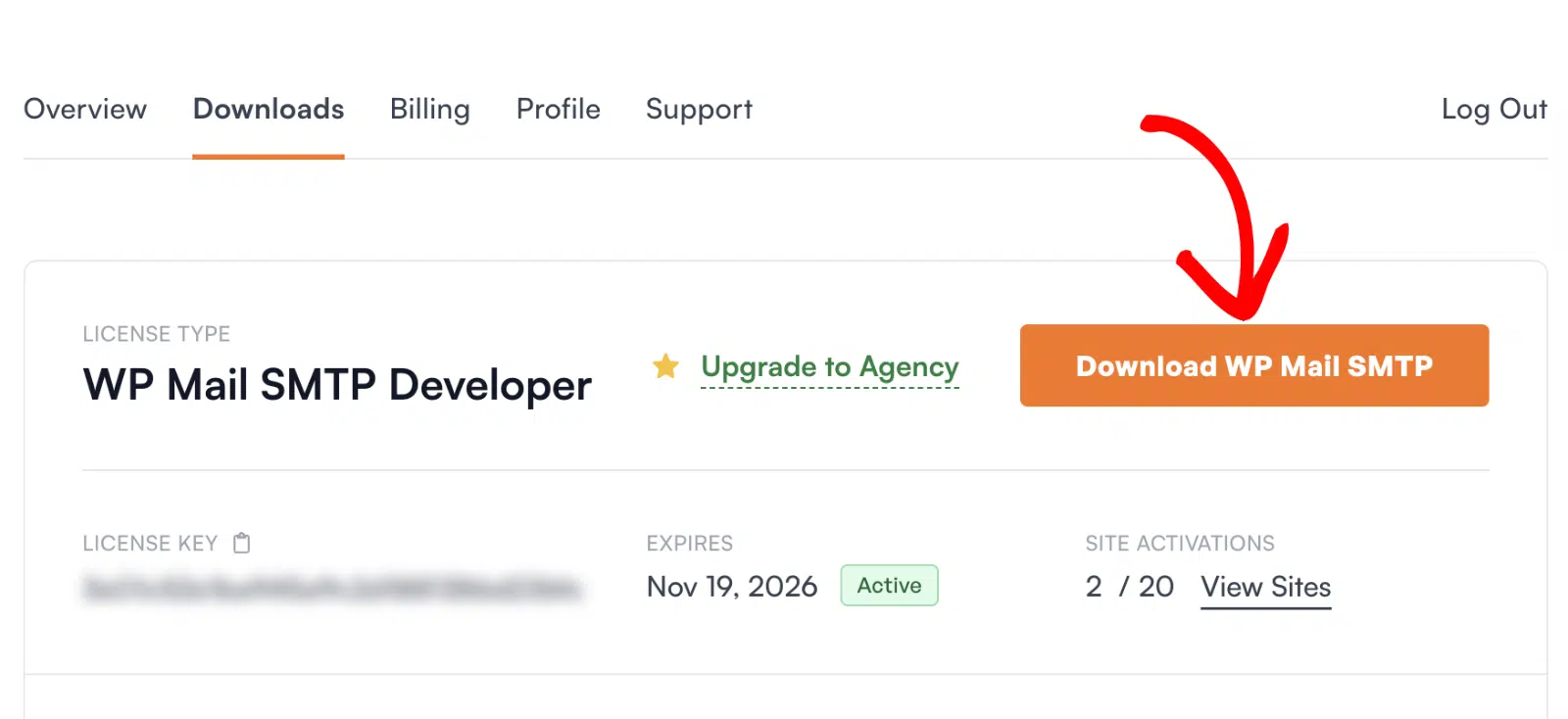
Next, open up your WordPress dashboard and upload the zip file to install the plugin.
If you need help with this part, jump over to this guide to installing a WordPress plugin.
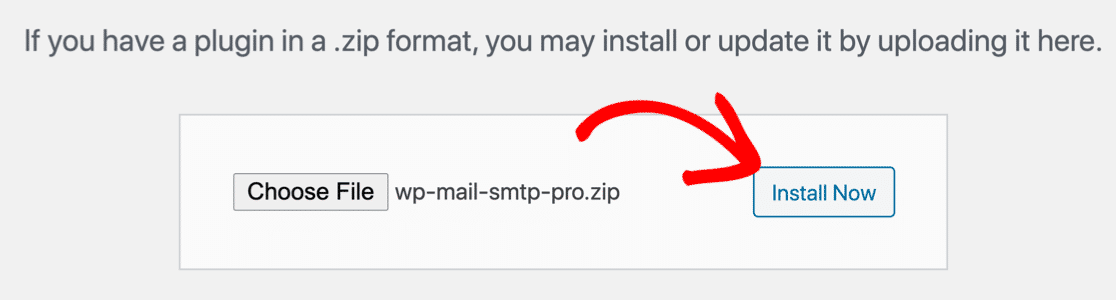
Once the plugin has been uploaded, hit Activate. This will start the WP Mail SMTP Setup Wizard in your browser.
The free version can connect your site to a mailer and send a test email. Detailed email logs and reports require WP Mail SMTP Pro.
Step 3: Connect a Mailer With the Setup Wizard
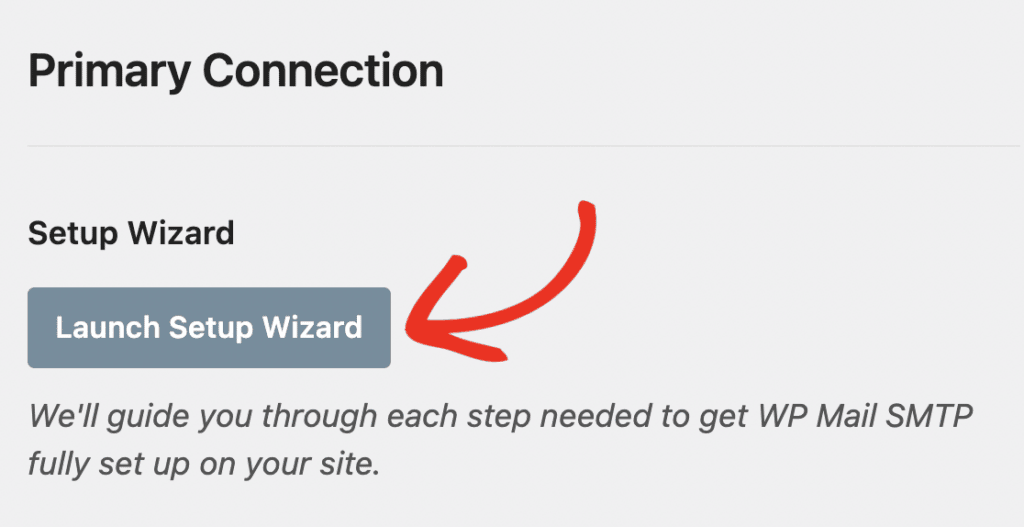
Go to WP Mail SMTP » Settings. Under Primary Connection, click Launch Setup Wizard.
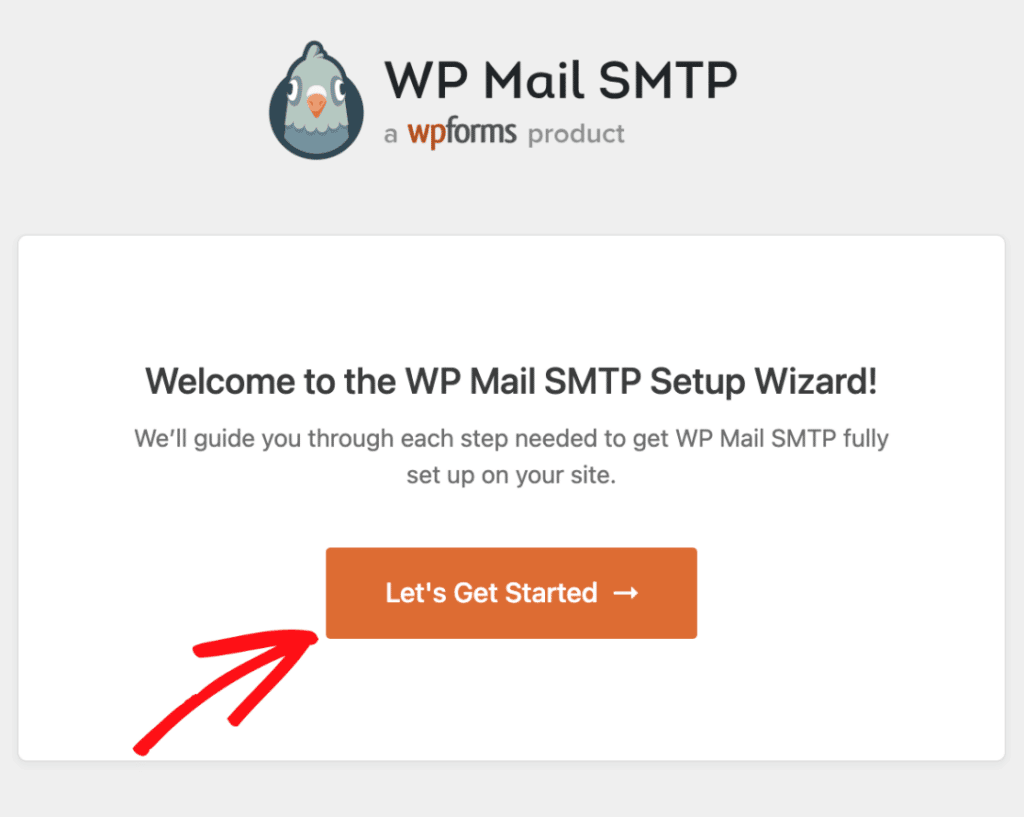
Click Let’s Get Started, then choose a mailer.
Choose a provider that can handle your ticket and booking volume. SendLayer, SMTP.com, and Brevo are transactional email services. Google Workspace or Gmail may suit a smaller site. The Other SMTP mailer accepts existing SMTP credentials.
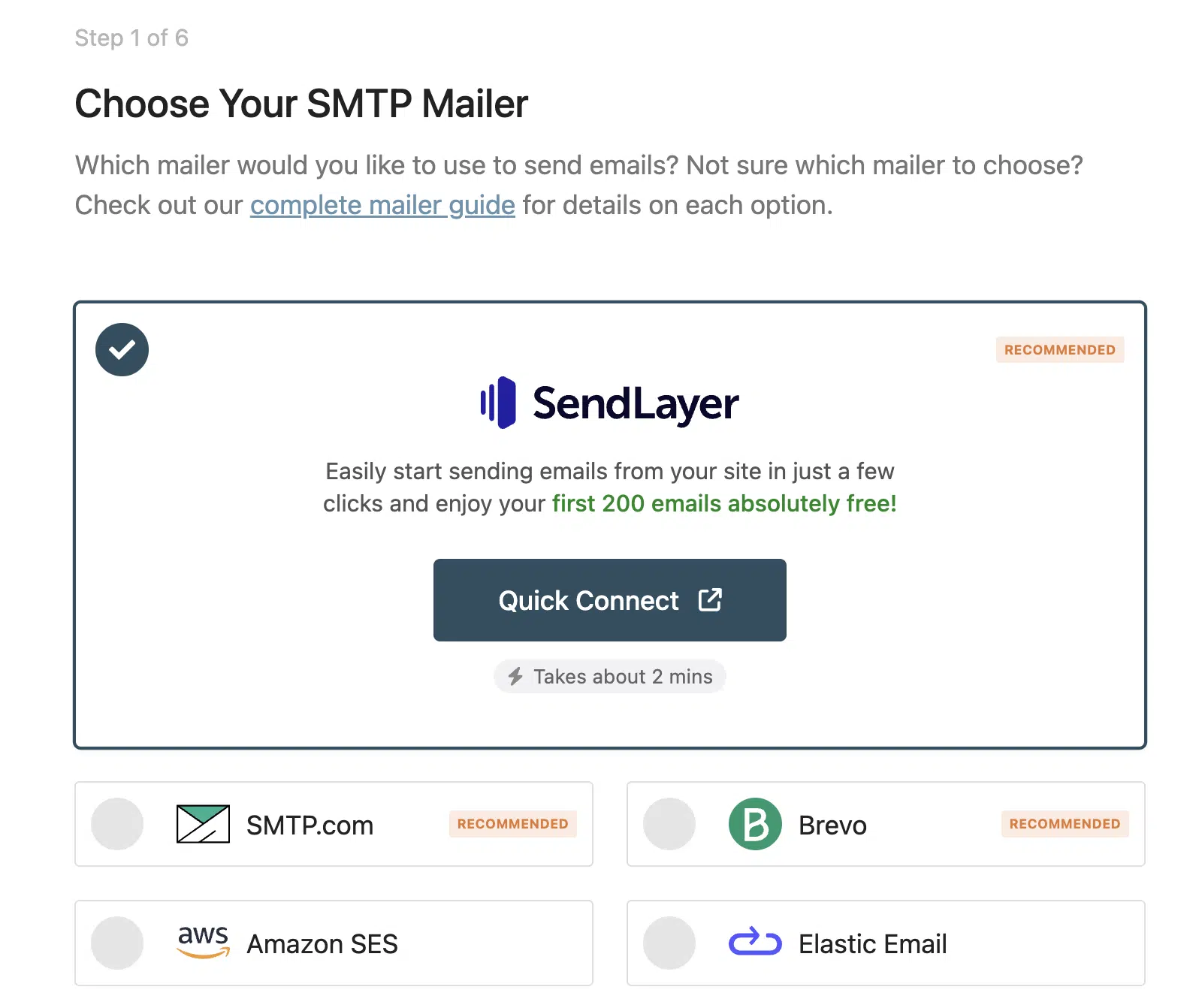
Not sure which mailer to use for your WordPress site? The table below reviews the available options that WP Mail SMTP supports.
Click Save and Continue, then enter the settings for your provider. Required fields vary by mailer, and the wizard links to the relevant setup guide.
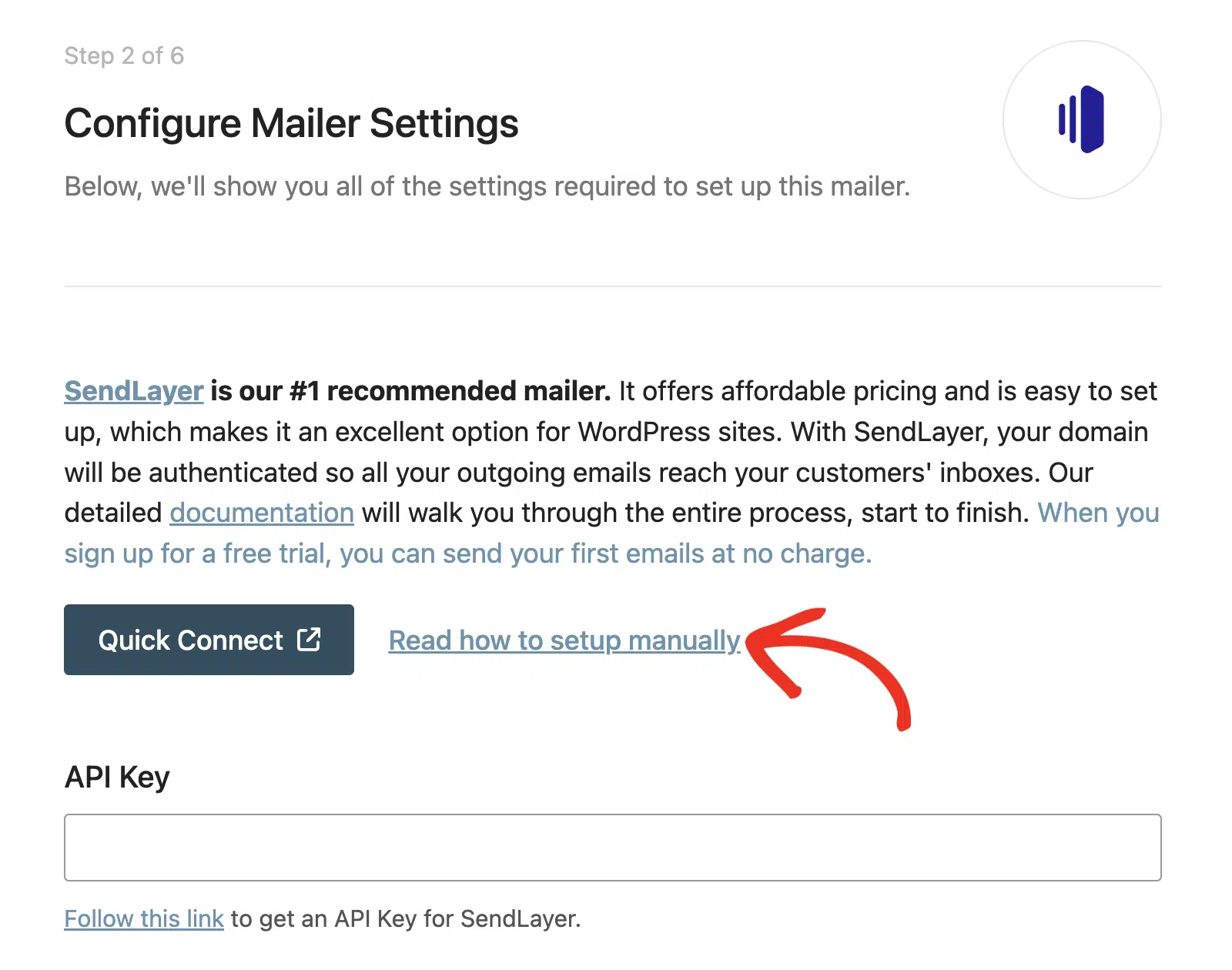
Step 4: Send a Test Email
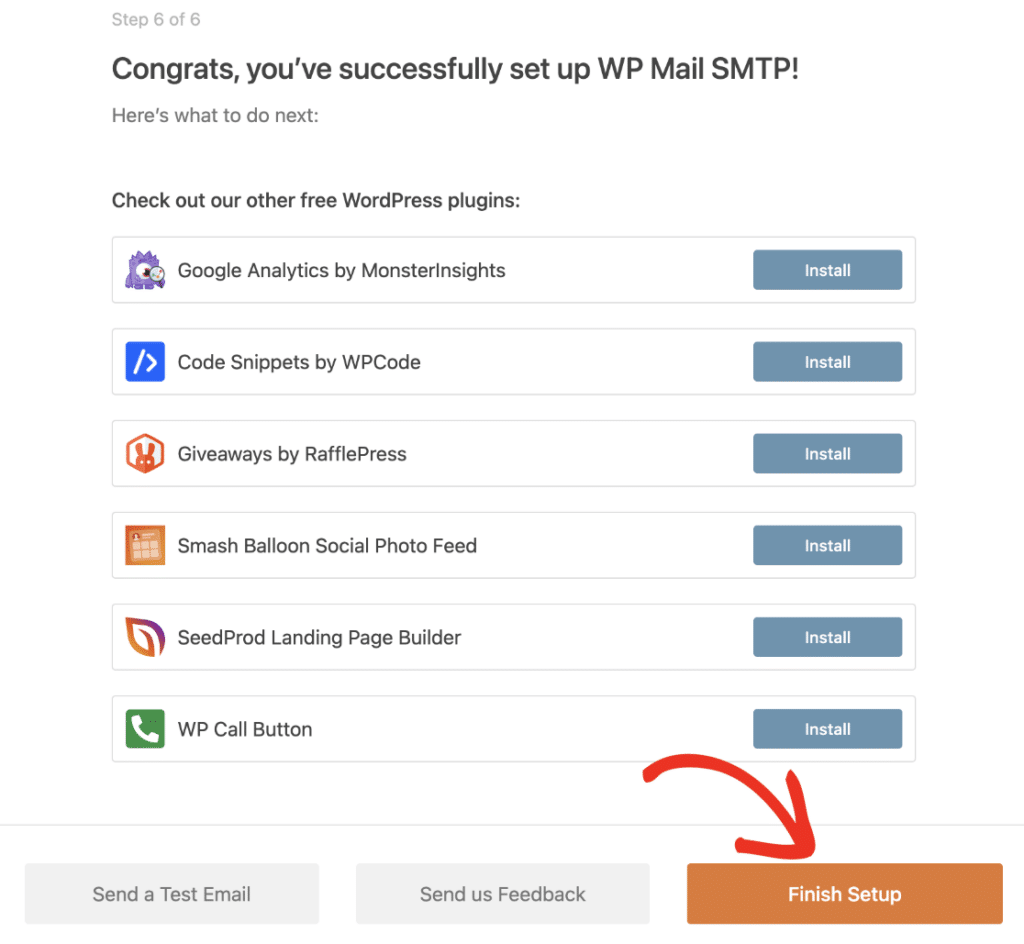
The Setup Wizard runs a connection check at the end. When the setup passes, you’ll see the message “Congrats, you’ve successfully set up WP Mail SMTP!”
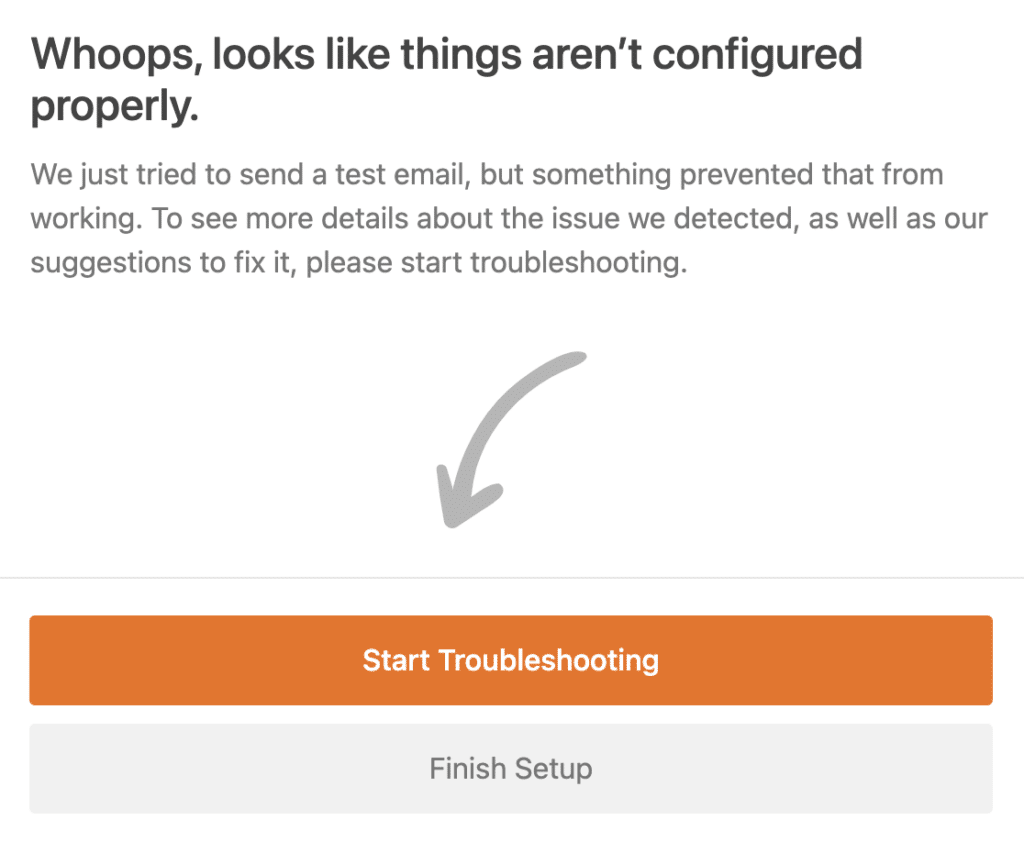
If the check fails, click Start Troubleshooting and review the error details.
You can send another test at any time from WP Mail SMTP » Tools » Email Test.
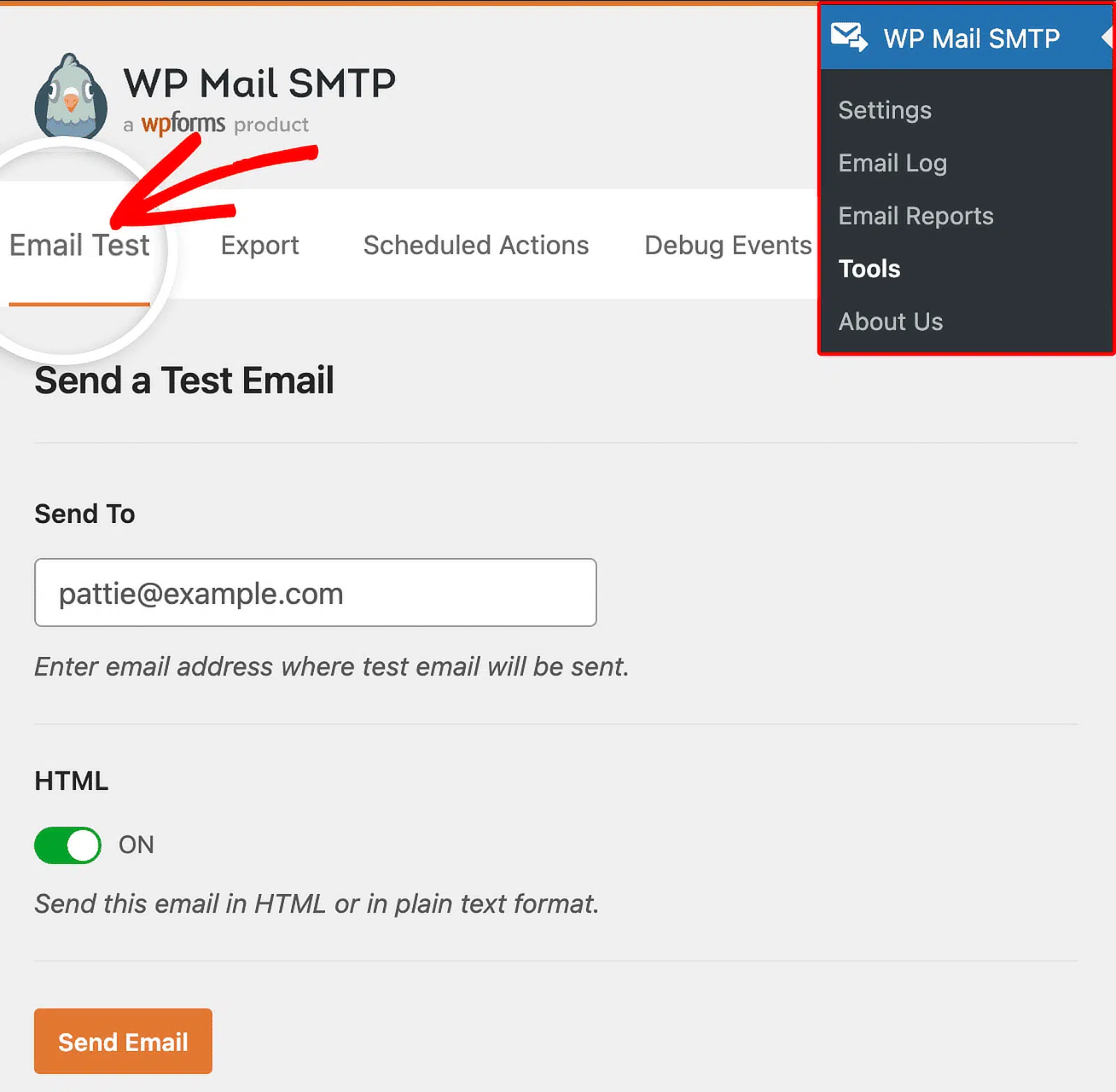
A successful test confirms that WordPress can hand a message to the configured mailer. Check the recipient’s inbox and spam folder as well. If the test fails, our guide to fixing WP Mail SMTP test email errors explains the common causes.
Step 5: Force All Emails From One Address (Optional)
WordPress plugins can set their own sender addresses. Turn on Force From Email in WP Mail SMTP if you want all compatible plugins to use the address configured in your Primary Connection.

Step 6: Turn On Email Logging (Optional)
Email logs show whether WordPress generated a message and whether the configured mailer accepted the send request. This helps you separate a Sugar Calendar trigger problem from a sending error.
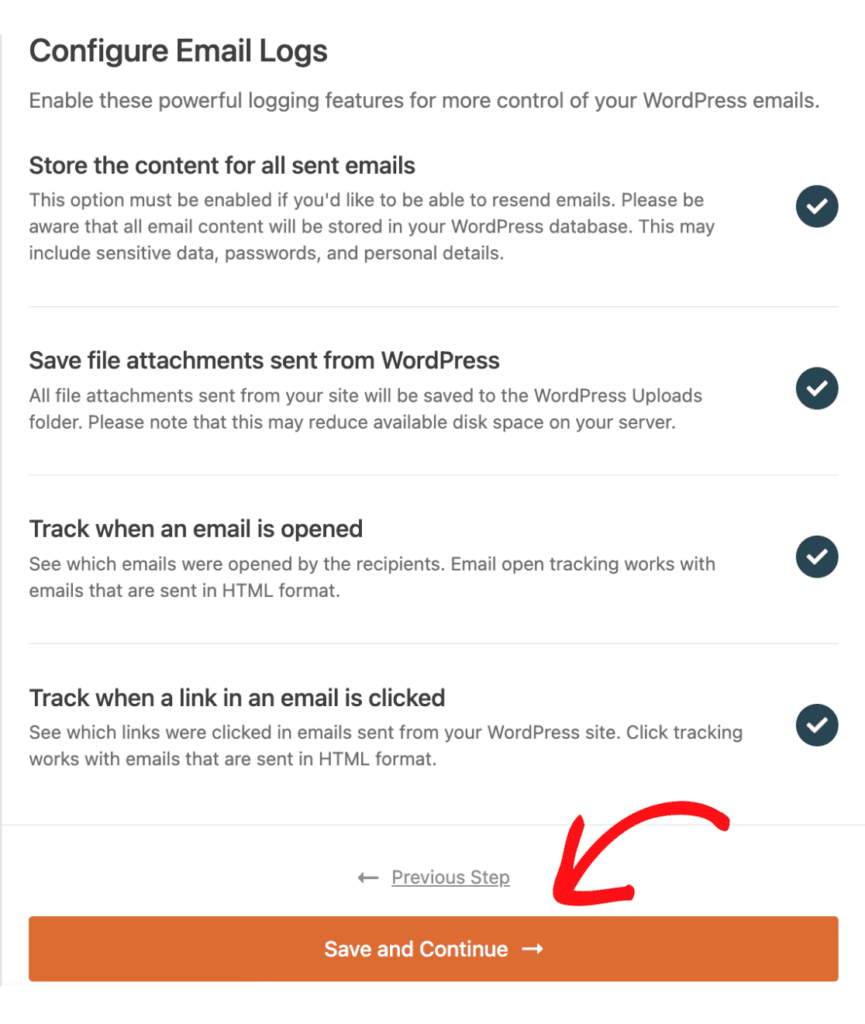
Enable Detailed Email Logs in the Setup Wizard or later in the WP Mail SMTP Email Log settings.
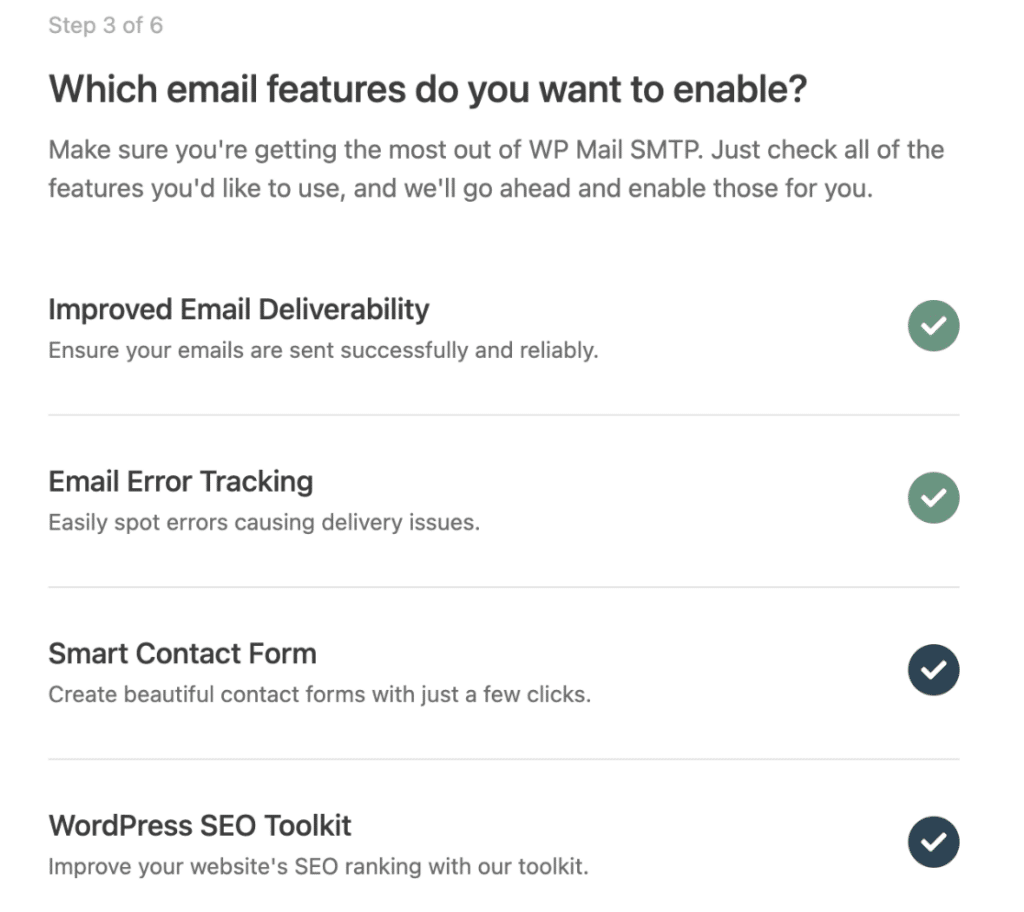
With logging enabled, WP Mail SMTP records details such as the recipient, subject, source, mailer, and send status. You can also enable reports, a weekly summary, and alerts for failed sends.
You may not need a log to resend the original notification. For an event order, open the order and click Resend Email Receipt.
You can also resend an individual ticket from the Tickets section. For a booking, open the appointment and use the Actions section to resend its confirmation, reminder, or update notification.
Frequently Asked Questions
Why is Sugar Calendar not sending ticket emails?
Check the order or ticket details first to confirm that Sugar Calendar created the purchase and has the correct recipient address. Then verify the sender under Events » Settings » Emails. If other site emails also fail, connect an authenticated mailer with WP Mail SMTP and send a test email.
Does Sugar Calendar need an SMTP plugin?
Sugar Calendar can generate emails without an SMTP plugin. However, its event email documentation recommends using one to improve deliverability. WP Mail SMTP connects WordPress to a dedicated mailer and adds tools for testing the connection.
Where do I change the Sugar Calendar sender email address?
Go to Events » Settings » Emails for event and ticket notifications. Go to Bookings » Settings » Emails for appointment notifications. If WP Mail SMTP’s Force From Email setting is enabled, its address overrides the sender set in Sugar Calendar.
Can I resend a Sugar Calendar ticket or booking email?
Yes. From an event order, you can resend the order receipt or an individual ticket. From a booking’s appointment details, you can resend the confirmation, reminder, or update notification. WP Mail SMTP Pro can also resend a logged email when email content storage is enabled.
Why are Sugar Calendar emails going to spam?
Inbox providers consider sender authentication, reputation, message content, and recipient engagement. Start by authenticating the sending domain as required by your mailer. Our guide to SPF, DKIM, and DMARC explains what these DNS records do.
Next, Write Better Order Confirmation Emails
Once your ticket receipts are reaching the inbox, review what they say. Our roundup of order confirmation email examples shows the details that make a confirmation clear and useful. You can apply the same ideas when customizing Sugar Calendar’s receipt templates.
Ready to fix your emails? Get started today with the best WordPress SMTP plugin. If you don’t have the time to fix your emails, you can get full White Glove Setup assistance as an extra purchase, and there’s a 14-day money-back guarantee for all paid plans.
If this article helped you out, please follow us on Facebook and Twitter for more WordPress tips and tutorials.
