


AI Summary
Have you ever opened an email just because you recognized the sender? That’s the From Name and From Email doing their job.
The From Name builds recognition. The From Email builds trust. Together, they’re the first thing people see before they decide to open your email.
In this guide, I’ll show you how to choose both, with examples. Then I’ll show you how to set them for every email your WordPress site sends.
Understanding the ‘From Name’
The From Name is the name your recipients see in their inbox. It tells them who the email is from before they open it.
That makes it one of the biggest factors in whether someone opens your email at all. People get a lot of email, and they’re wary of spam and phishing.
People open emails from names they recognize. They skip or report the rest.
Best Practices for Selecting a ‘From Name’
The right From Name depends on who you’re emailing and why. You can use your company name, a person’s name, or a mix of both. Here are the 4 most common formats, plus one rule that applies to all of them.
1. Full name
Using a person’s full name creates a personal connection. It works well for freelancers, consultants, and anyone whose name is their brand.

A full name tells the reader that a real person sent the email, not a bot. That builds trust.
There’s a catch, though. It only works if your readers know the name. If they don’t, they won’t connect it to your business.
In that case, pair your name with your company name, as in the next format.
2. First name at company
The “First name at company” format adds a personal touch while keeping your brand visible. It’s a good fit if readers don’t know you by name yet.
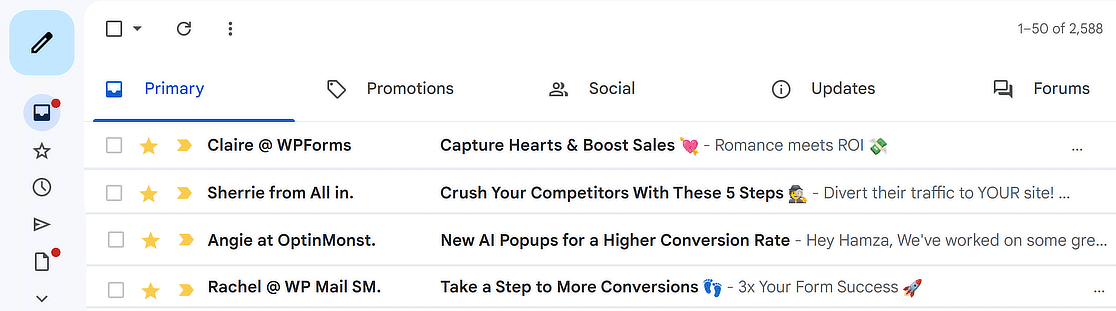
For example, “Jane from XYZ Corp” works well for customer service, sales, and account management emails. It sounds friendly and professional at the same time.
Pick a person with a public-facing role, like your support lead or account manager. That way, readers deal with the same contact every time.
3. Company name
Using just your company name is the most direct option. It gives instant brand recognition and keeps a formal tone.
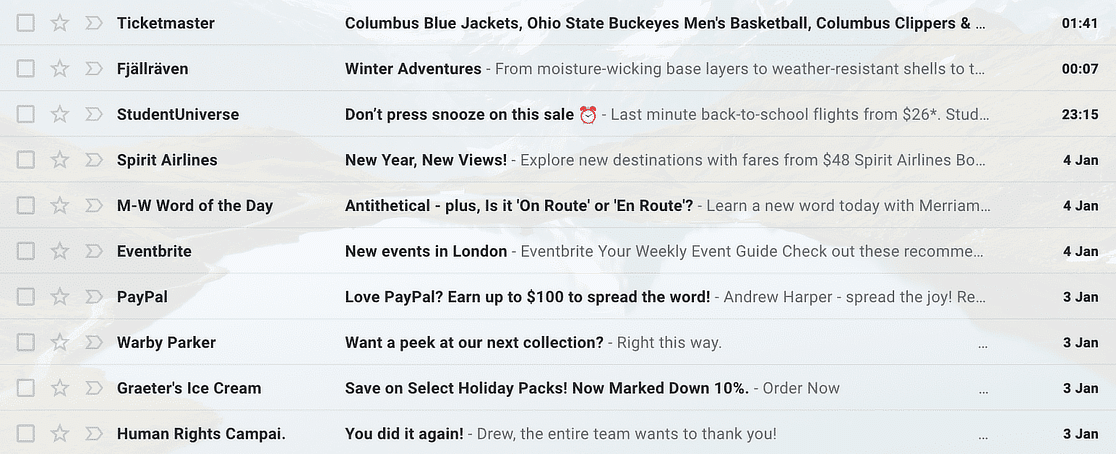
It’s a strong fit for transactional emails, like order confirmations, shipping notices, and password resets. Readers expect those to come from the business, not a person.
It also works for newsletters and marketing emails, where you want readers to know your brand at a glance.
4. Company name plus service
If your business runs several products or services, add the service to your company name. This helps readers tell your emails apart.
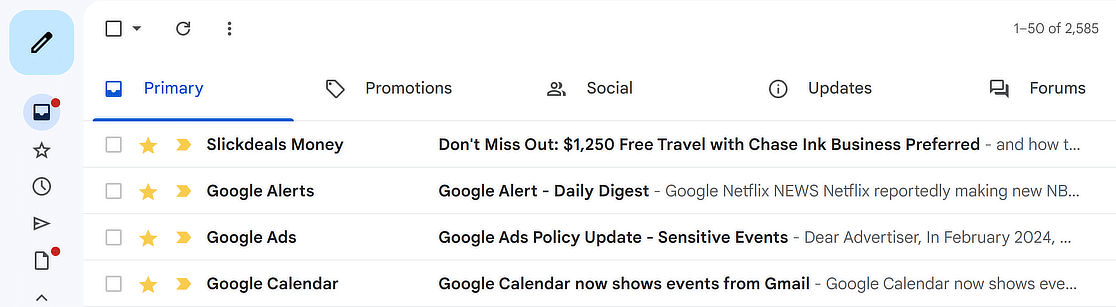
Google is a good example. In the screenshot above, it sends from “Google Alerts,” “Google Ads,” and “Google Calendar.” Each name tells you what the email is about before you open it.
Slickdeals does the same with “Slickdeals Money” for finance emails. Readers can see right away whether the email matches their interests.
5. Keep it short and consistent
Whatever format you choose, keep the name short. Mobile inboxes cut off long sender names. Ghost’s sender name guide suggests staying under 25 characters.
Then stick with it. Changing your From Name often makes readers think the email is from someone new.
And skip all caps and emojis. They look like spam.
The Importance of ‘From Email’
The From Email is the address your emails come from. Your email app usually shows it next to the From Name, or when someone taps the sender.
It’s just as important as the From Name. A From Email on your own domain shows the email comes from a real business. It also affects whether the email reaches the inbox at all, as you’ll see below.
Tips for Choosing an Effective ‘From Email’
Here are 5 tips for choosing a From Email that looks trustworthy and gets delivered.
1. Avoid free webmail addresses
Don’t use a free address from Gmail, Yahoo, or Outlook.com as your business From Email. It looks less professional, and it can get your emails rejected.
Here’s why. Free email providers publish a DMARC policy for their domains. Yahoo and AOL publish p=reject.
That tells receiving servers to reject email that claims to be from @yahoo.com or @aol.com when Yahoo or AOL didn’t send it.
Your WordPress site doesn’t send through Yahoo’s servers. So an email “from” a Yahoo address fails that check and can bounce.
An address on your own domain avoids the problem. It also shows readers the email comes from a real organization.
2. Select a valid business email address
Use an address on your company’s own domain, like [email protected]. A work address looks more professional, and it’s the address readers expect.
Make sure it’s a real mailbox that someone checks. Some readers will reply, and you don’t want those replies to vanish. For more ways to keep your emails out of spam, see our guide to email deliverability.
3. Avoid using a no-reply address
A common mistake is sending business and marketing emails from a no-reply email address. It tells readers you don’t want to hear from them, and it blocks a real conversation.
When readers can’t reply, some mark the email as spam instead. A reply-able address gives them a better option.
That said, no-reply addresses still have a place. They’re common for automated emails where a reply isn’t needed, like:
- Password resets
- Account creations
- Account deactivations
- Application submissions
- Order/purchase confirmations
- Subscription confirmations
- Unsubscribe confirmations
- Event RSVP confirmations
4. Specific email addresses for different functions
Use a different address for each type of email. For example, send your newsletter from newsletter@, support replies from support@, and invoices from billing@.
This helps readers recognize each email at a glance. It also keeps replies sorted on your side, since each one lands in the right inbox.
5. Use a domain your mailer has verified
This tip matters most for WordPress sites. Your From Email should be on a domain you’ve set up with your email provider.
Most providers ask you to add SPF and DKIM records to your domain’s DNS. Those records prove your provider is allowed to send for that domain. If your From Email uses a different domain, those checks don’t match it, and your emails may fail DMARC.
So if your mailer is set up for yourcompany.com, use an address @yourcompany.com. Our guide to SPF, DKIM, and DMARC walks through the DNS records step by step.
From Email vs Reply-To vs Return Path
Your From Email isn’t the only address in an email. There are 2 more that work behind it:
| Address | What it does | Who sees it |
|---|---|---|
| From Email | Shows who sent the email | The recipient |
| Reply-To | Sets where replies go when someone clicks Reply | The recipient’s email app |
| Return Path | Sets where bounce messages go | Mail servers only |
In WordPress, they’re often all the same address. They don’t have to be. To learn what happens when an email bounces, see our guide to hard and soft bounces.
Integrate ‘From Name’ and ‘From Email’ with WP Mail SMTP
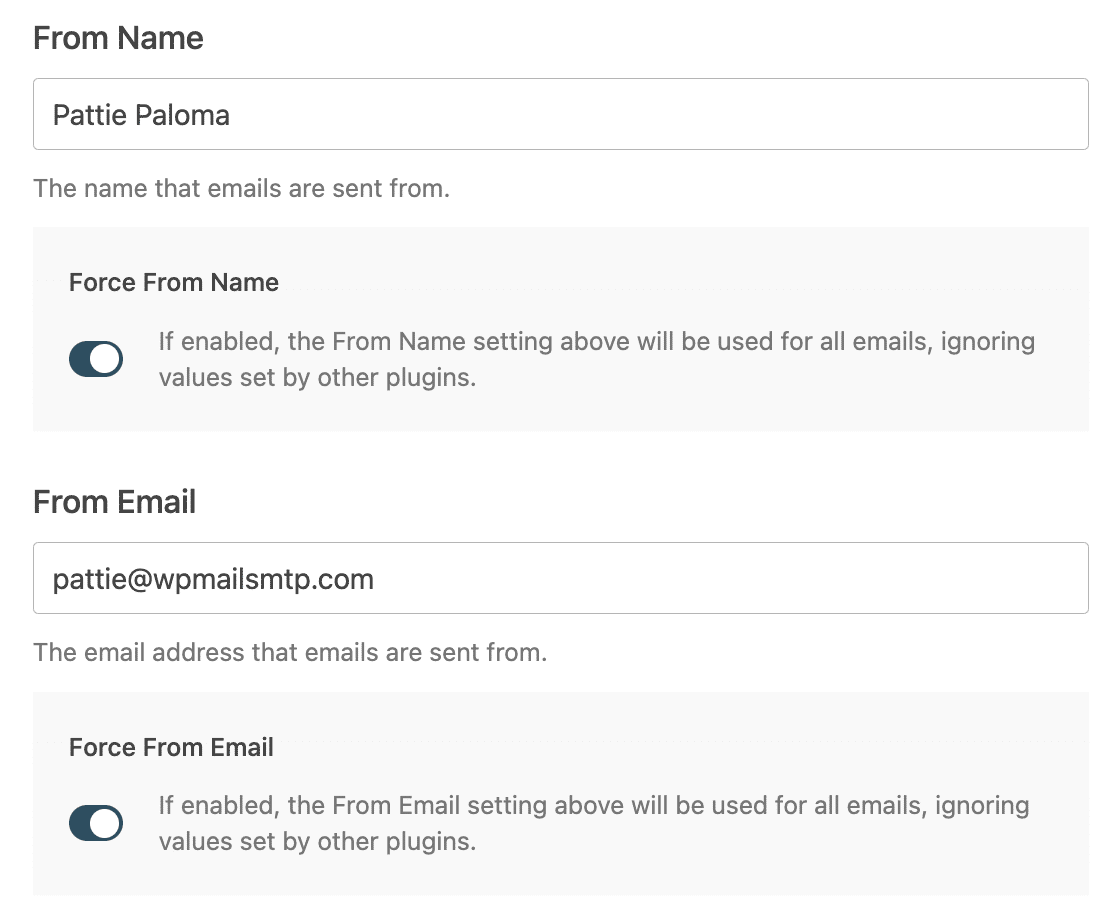
Here’s the short version. Go to WP Mail SMTP » Settings and connect a mailer. Then enter your From Email and From Name on the General tab.
Turn on Force From Email and Force From Name, and click Save Settings. Here’s each part in more detail.
First, connect WP Mail SMTP to a real email provider. By default, WordPress sends email through your web host’s PHP mail function. That often hurts email deliverability.
If your mailer is still set to Default (none), WP Mail SMTP isn’t in control of your emails yet. They still go out through PHP.

To change that, go to WP Mail SMTP » Settings in your WordPress dashboard. You’ll land on the General tab.

Scroll down to the Mailer section and click the tile for your provider. Each mailer needs its own details, like an API key. Our complete guide to WP Mail SMTP mailers has a setup guide for each one.
There are many choices, but we suggest SendLayer, SMTP.com, or Brevo (previously Sendinblue). All 3 are built for transactional emails.
If you use Gmail or Google Workspace, WP Mail SMTP Pro also has a One-Click Setup for the Google / Gmail mailer. It’s the simplest way to connect.
Short on time? You can buy White Glove Setup as an extra service with any of our WP Mail SMTP licenses. Our support team will then set up WP Mail SMTP for you.
Once your mailer is connected, scroll back up to the sender fields. They sit at the top of the General tab, above the Mailer section.
In the From Email field, enter the address your emails should come from. Use a real mailbox on your domain, as covered in the tips above.
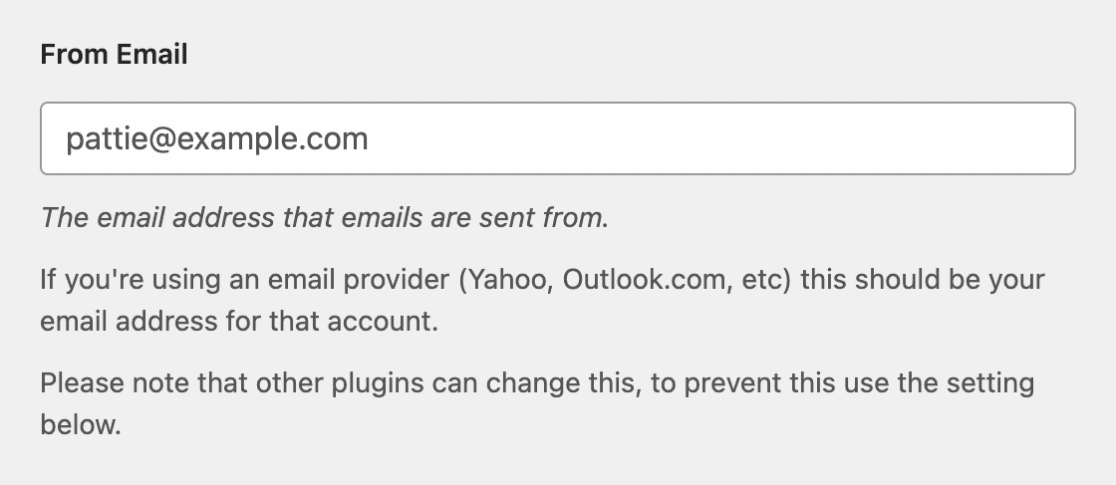
Then turn on the Force From Email toggle below it. Other plugins, like form or store plugins, can set their own From Email. With this toggle on, WP Mail SMTP uses your From Email for every email the site sends.

Next, type your sender name in the From Name field.

Then turn on Force From Name so other plugins can’t override it.

Some mailers also show a Return Path toggle below these fields. It sends bounce messages back to your From Email, so you find out when an email doesn’t arrive. It’s on by default, so leave it that way.
You’ll only see it with mailers that let WP Mail SMTP set the return path, like Default (none), Other SMTP, and Mailgun. API mailers like SendLayer, SendGrid, and Gmail handle bounces on their own servers. Our guide to the return-path email address explains how it works.
When you’re done, scroll down and click Save Settings.
That’s it. Every email your WordPress site sends now uses your From Name and From Email.
A few mailers are exceptions. The Gmail, Microsoft 365 / Outlook, and Zoho Mail mailers can replace these details with the ones on your connected account. The next section explains what to look for.
Want more detail? Our guide on how to change the sender name and email in WordPress covers this setup step by step. You can also change the sender details inside your email templates.
Troubleshooting From Name and From Email Problems
If your emails don’t show the sender details you saved, start with a test. Go to WP Mail SMTP » Tools and open the Email Test tab. Enter your own address in Send To and click Send Email. Then open the email and check who it’s from.
If the test email doesn’t arrive at all, the problem is delivery, not your sender details. Our guide to WordPress emails that are sent but not arriving walks through the fixes.
If you see a Heads up! popup when you click Save Settings, your mailer is still set to Default (none). Your emails still go through PHP. Go back to the Mailer section and pick a real mailer.
If a field is grayed out or keeps changing
Some mailers control the sender details themselves. Here’s what to expect:
- Google / Gmail: Your From Email needs to be your Gmail address or one of its aliases. If it isn’t, WP Mail SMTP sends from your connected Gmail account instead.
- Microsoft 365 / Outlook: The From Name field is grayed out. Emails go out under the name on the connected Microsoft account.
- Zoho Mail: The From Email field is grayed out. It uses the address on your connected Zoho account.
- SendLayer with a shared domain: If you connected SendLayer with Quick Connect on a shared sending domain, the From Email field is hidden. You manage the address in your SendLayer dashboard instead.
A grayed-out field can also mean the setting is locked in your wp-config.php file with WP Mail SMTP constants. Change it there instead.
More Questions about From Name and From Email
Here are answers to questions our readers often ask about their sender details.
What is the format for email address and name?
An email address follows the format [email protected], such as [email protected]. The From Name is the label shown next to it, like a full name, a first name at company, or a business name.
Together, they often show as Pattie from WP Mail SMTP <[email protected]> in the email’s header.
What is the best practice for from name in email?
Use a name your readers will recognize right away. That could be your name, your company name, or both, like “Jane from XYZ Corp.” Keep it short and use the same name every time so readers learn to trust it.
How important is email from name?
It’s often what decides whether people open an email or skip it. Readers see the From Name before the subject line, so a familiar name builds trust and can improve open rates.
Can I use a Gmail or Yahoo address as my From Email?
It’s better not to. Yahoo and AOL publish a DMARC policy that tells servers to reject email sent “from” their domains through other servers.
Your WordPress site is another server, so those emails can bounce. Use an address on your own domain instead.
Why does my From Email keep changing?
Usually, another plugin is setting its own From Email. Turn on Force From Email in WP Mail SMTP » Settings to stop that. If you use the Gmail mailer, the From Email also switches to your Gmail account when your address isn’t one of its aliases.
Next, Learn How to Fix Could Not Connect to SMTP Host in WordPress
The “could not connect to SMTP host” error is a common WordPress error that stops your emails from sending. Our guide covers the usual causes of the could not connect to SMTP host error and how to fix each one.
Ready to fix your emails? Get started today with WP Mail SMTP. Short on time? You can get full White Glove Setup assistance as an extra purchase.
All paid plans come with a 14-day money-back guarantee.
If this article helped you out, please follow us on Facebook and Twitter for more WordPress tips and tutorials.
